1920 × 1080 is the practical default for most karaoke MP4 videos, while 1280 × 720 suits smaller files and 3840 × 2160 delivers 4K UHD detail. MP4 itself doesn't determine resolution, because it's a container that can hold video at many pixel dimensions.
You're staring at an export window with choices labeled 720p, 1080p, and 4K. The preview looks fine, but you know the uploaded version may be compressed, and the lyrics that look crisp on your editing monitor could turn fuzzy around the edges. After years of exporting karaoke files, I've learned that the right question isn't “What MP4 resolution should I choose?” It's “Which combination of pixels, bitrate, frame rate, and codec will keep the words readable where people watch them?”
Why MP4 Video Resolution Matters for Karaoke and Lyric Creators
Start by separating the file's container from the video inside it. MP4 is a container format, not a resolution standard. Its formal specification is ISO/IEC 14496-14, titled “Coding of audio-visual objects, Part 14, MP4 file format,” and one MP4 can hold 720p, 1080p, 4K, or higher-resolution video depending on the export settings. The MPEG specification overview documents that distinction.
Think of MP4 as a suitcase. The suitcase tells your devices how the contents are packaged, but it doesn't determine the size or quality of the clothes inside. Resolution describes the pixel dimensions of the video stream stored in that suitcase.
A karaoke producer usually notices the difference at the lyric edges first. Thin fonts, moving highlights, outlines, and glow effects contain sharp transitions that compression can damage. A file labeled 1080p may still show blockiness or smeared letters if the bitrate is too low, the background is too busy, or the platform recompresses the upload aggressively.
Practical rule: Choose the pixel dimensions for the screen and viewing context, then choose the bitrate and codec to protect the lyrics inside those dimensions.
The export decision in plain language
If you're preparing a normal lyric video, 1920 × 1080 is a strong starting point. It provides enough canvas space for readable text without creating the much heavier delivery demands of 4K. A smaller 720p export can make sense for lightweight sharing, while 4K is useful when your source artwork contains genuine fine detail and your audience watches on large displays.
The source matters just as much as the export. Upscaling a soft 720p recording to 4K doesn't recreate detail that wasn't captured. It only places the existing image on a larger pixel grid, often producing a file that takes longer to upload without making the lyrics clearer.
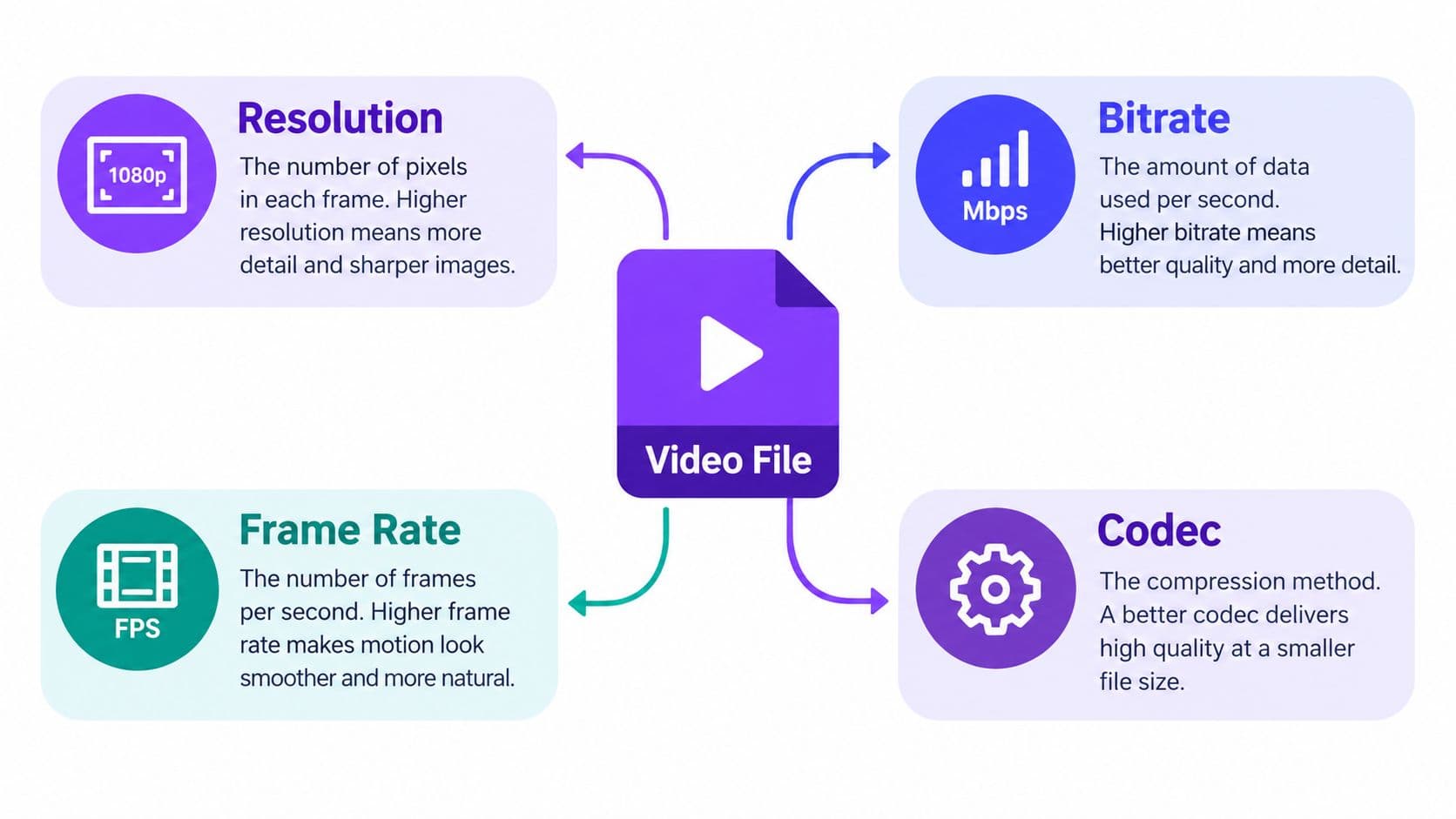
The rest of the decision comes down to four controls:
- Resolution determines the frame's pixel dimensions.
- Bitrate determines how much data the encoder can spend preserving those pixels.
- Frame rate determines how many frames appear each second.
- Codec determines how efficiently the video data is compressed and how widely it will play.
Once those controls are separated, “MP4 video resolution” becomes a production choice rather than a mysterious file setting.
Common MP4 Resolutions and Aspect Ratios Explained
Resolution is the size of the video canvas. A larger canvas can show more detail, but it doesn't automatically produce a better image. The source, encoding settings, and display all influence the result.
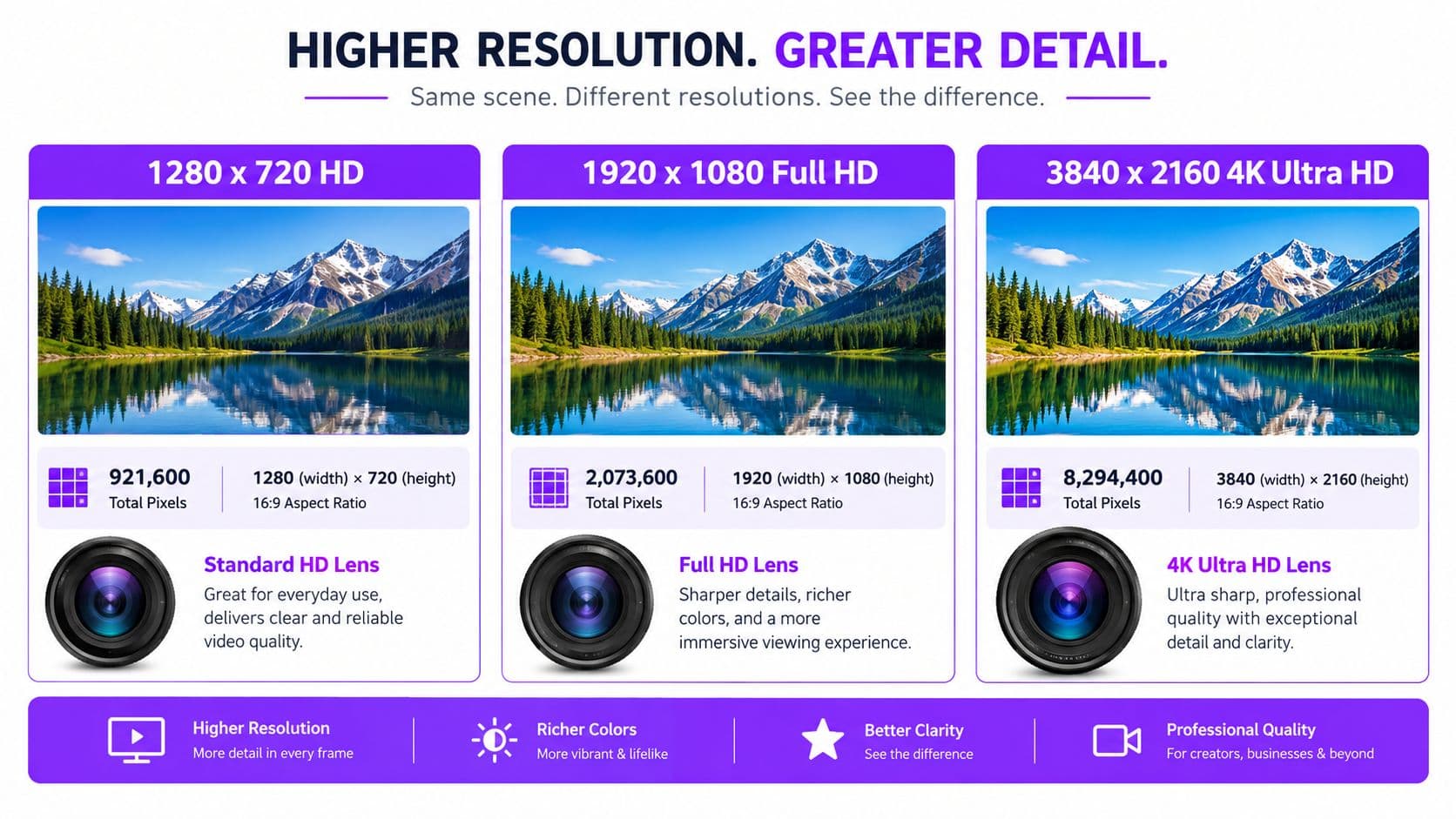
The three formats most karaoke creators encounter are easy to compare:
| Name | Pixel Dimensions | Pixels per Frame | Typical Use |
|---|---|---|---|
| 720p HD | 1280 × 720 | 921,600 | Smaller files, lightweight playback |
| 1080p Full HD | 1920 × 1080 | 2,073,600 | Mainstream lyric and karaoke publishing |
| 4K UHD | 3840 × 2160 | 8,294,400 | Large displays and detailed source artwork |
A 720p frame measures 1280 × 720 pixels, or 921,600 pixels per frame. Full HD, commonly called 1080p, measures 1920 × 1080 pixels, or 2,073,600 pixels per frame, which is about 2.25 times the pixel count of 720p. Consumer 4K UHD measures 3840 × 2160 pixels, or 8,294,400 pixels per frame. That's exactly four times the pixel count of 1080p and nine times that of 720p, all at the same 16:9 shape, as summarized in this 4K resolution reference.
Aspect ratio changes the shape
The dimensions also describe the frame's aspect ratio, or the relationship between width and height. Horizontal 720p, 1080p, and 4K UHD commonly use 16:9, which fits television screens, video players, and many desktop displays.
Vertical social clips use the same idea turned upright. A 1080 × 1920 frame is a vertical 9:16 canvas. A 1080 × 1350 frame is a taller feed-oriented format. These aren't different kinds of MP4. They're different pixel dimensions and shapes inside an MP4 container.
Square lyric snippets use equal width and height, while a vertical chorus clip gives the words more height on a phone. Before exporting, decide whether the audience will see the complete song on a television or a short performance moment in a mobile feed. The best resolution follows that viewing context.
For a practical reference on publishing, these 1920 × 1080 export settings for YouTube help connect the pixel dimensions to a common delivery workflow. The important habit is to set the project canvas and export dimensions deliberately instead of choosing “MP4” and assuming the format has already made that decision.
How Resolution Interacts with Bitrate, Frame Rate, and Codec
Resolution gives the encoder more pixels to describe, but the encoder has a limited data budget. If you increase the canvas without giving the file enough bitrate, the encoder has to simplify detail. Karaoke text suffers because its thin strokes and bright edges are visually demanding.
At 1080p and 30 frames per second, published H.264 guidance places a typical target bitrate around 5–8 Mbps. At 1080p and 60 frames per second, the guidance rises to about 6–9 Mbps, because the encoder must process more pictures each second. The figures are summarized in this digital signage content-format guidance.
A useful mental model is a fixed wallet. Resolution determines how many pixels need attention, frame rate determines how often the wallet must pay, and bitrate determines how much money is available. A detailed animated background can consume that budget faster than a simple dark gradient, leaving fewer bits to preserve lyric edges.
What happens when the budget is too small
An H.264 study found that 1280 × 720 video at 60 fps could maintain good quality at approximately 3 Mbps, but at 1 Mbps the frame rate had to fall to 15 fps. At still lower bitrates, acceptable quality required reducing both frame rate and spatial resolution. The study is available in this H.264 bitrate and quality analysis.
That result illustrates why changing one control affects the others. If your 1080p export looks poor, raising the resolution again won't help. Try increasing bitrate, simplifying the background, or returning to a stable frame rate. A 720p file with enough data can look cleaner than a starved 1080p file on a small screen.
You can also diagnose the problem using bits per pixel per frame, calculated by dividing bitrate by width, height, and frame rate. At 3 Mbps for 1280 × 720 at 60 fps, the value is about 0.054 bits per pixel per frame. At 1 Mbps and 15 fps, it's about 0.072, showing why reducing frame rate can preserve the quality of each individual frame.
Codec choice affects compatibility
The MP4 container can hold video encoded with H.264, HEVC, or other codecs. H.264 remains the safest broad-compatibility choice for karaoke delivery. Bitmovin's 2025 developer report recorded 79% usage for H.264 and 49% for HEVC, while AV1 had the strongest planned adoption but remained comparatively limited in deployment, according to this streaming codec report discussion.
AV1 can reduce bitrate for comparable material, but support varies across phones, televisions, editing applications, and playback systems. For a file that must work on many karaoke devices, H.264 video in an MP4 container remains a sensible compatibility target. For web-only delivery, test newer codecs separately rather than replacing your dependable master.
If compression is your immediate problem, this guide to compressing MP4 videos is useful alongside the settings above. Reduce waste before reducing readability.
Platform Recommendations for YouTube, Instagram, TikTok, and More
You finish a lyric video, the local MP4 looks clean, then the upload goes soft and the chorus is suddenly harder to read on a phone. The problem is usually not "MP4 resolution" by itself. MP4 is the container. The result viewers see comes from the frame size, frame rate, bitrate, codec, and the way each platform recompresses your file. For karaoke and lyric creators, the job is simple: keep the words readable after that extra round of compression.
That is why one master file rarely fits every destination well. A wide YouTube layout, a vertical Reel, and a TikTok clip do not fail in the same way. If you force one horizontal export into every platform, text often ends up too small, too close to interface buttons, or awkwardly cropped. Keep a clean master, then make versions for the frame each platform actually uses. Preview on a real phone before publishing.
YouTube
For a standard horizontal karaoke upload, 1920 × 1080 at 30 fps is a sensible working default. It gives lyric lines enough space to breathe, leaves room for outlines and highlight effects, and usually avoids the heavier upload and processing burden of 4K. For this kind of text-led video, 1080p is often a deliberate sweet spot, not a compromise.
Use 3840 × 2160 only when the source artwork truly benefits from it and the viewing context supports it. If the background is simple and the typography is the star, a carefully encoded 1080p file can hold up better than a larger file that gets squeezed hard after upload.
Instagram needs separate layouts for feed posts, Reels, and Stories. A vertical 1080 × 1920 frame suits phone-first lyric clips. A 1080 × 1350 frame gives more height in the feed without committing to full-screen vertical composition. Square can still work, but only if the text remains large enough to read comfortably.
Instagram also rewards restraint. Thin fonts, tiny subtitles, and low-contrast glow effects tend to suffer once the platform recompresses the upload. This walkthrough on Instagram HD uploads explained is useful if you want practical upload habits that preserve more clarity.
TikTok
TikTok is built for vertical viewing, so 1080 × 1920 is the natural target. Treat it as a redesign, not a resize. A full-width karaoke line that reads well on YouTube can feel cramped on a tall screen, especially once interface elements sit on top of the frame.
Use larger text, stronger contrast, and more empty space around the edges. Give the words room to survive compression and remain readable during fast scrolling.
Facebook and campaign planning
Facebook still mixes horizontal, square, and vertical viewing contexts, so match the export to the placement instead of hoping one file will adapt cleanly. If you need a quick reference, these social media video specs help confirm current platform requirements before you render.
Keep the publishing goal in view too. A readable lyric clip is only one part of distribution, so it helps to connect your export choices to a broader complete music marketing strategy.
Resolution also does not define quality on its own. Typical encoding examples in this MP4 mastering guide for digital artists show why 1080p/30 fps often lands in a practical range for lyric work, while larger formats demand much more data without automatically making text clearer after platform recompression.
Best Practices for Karaoke and Lyric Video Exports
A karaoke export can look clean in your editor, then fall apart the moment a platform recompresses it. Faces and backgrounds can survive a little softness. Lyrics are less forgiving. A thin outline, a soft glow, or a moving word highlight can blur fast, so treat the text as the main subject in the frame.
That is why MP4 settings need to serve readability, not just file size. MP4 is the box. Inside that box, resolution, bitrate, frame rate, and codec all share one job. They need to keep letters sharp enough to read after upload. For many lyric videos, 1080p works as a deliberate middle ground because it gives text enough pixel structure without spending data on detail the viewer may never see.
Start with frame rate. 30 fps is a practical choice for many lyric videos because it keeps motion smooth while leaving more bitrate for each frame than 60 fps. If your project uses fast camera moves, quick background animation, or motion that was designed to feel extra fluid, 60 fps can make sense. Otherwise, extra frames often spread the same data more thinly.
Protect the lyric edges
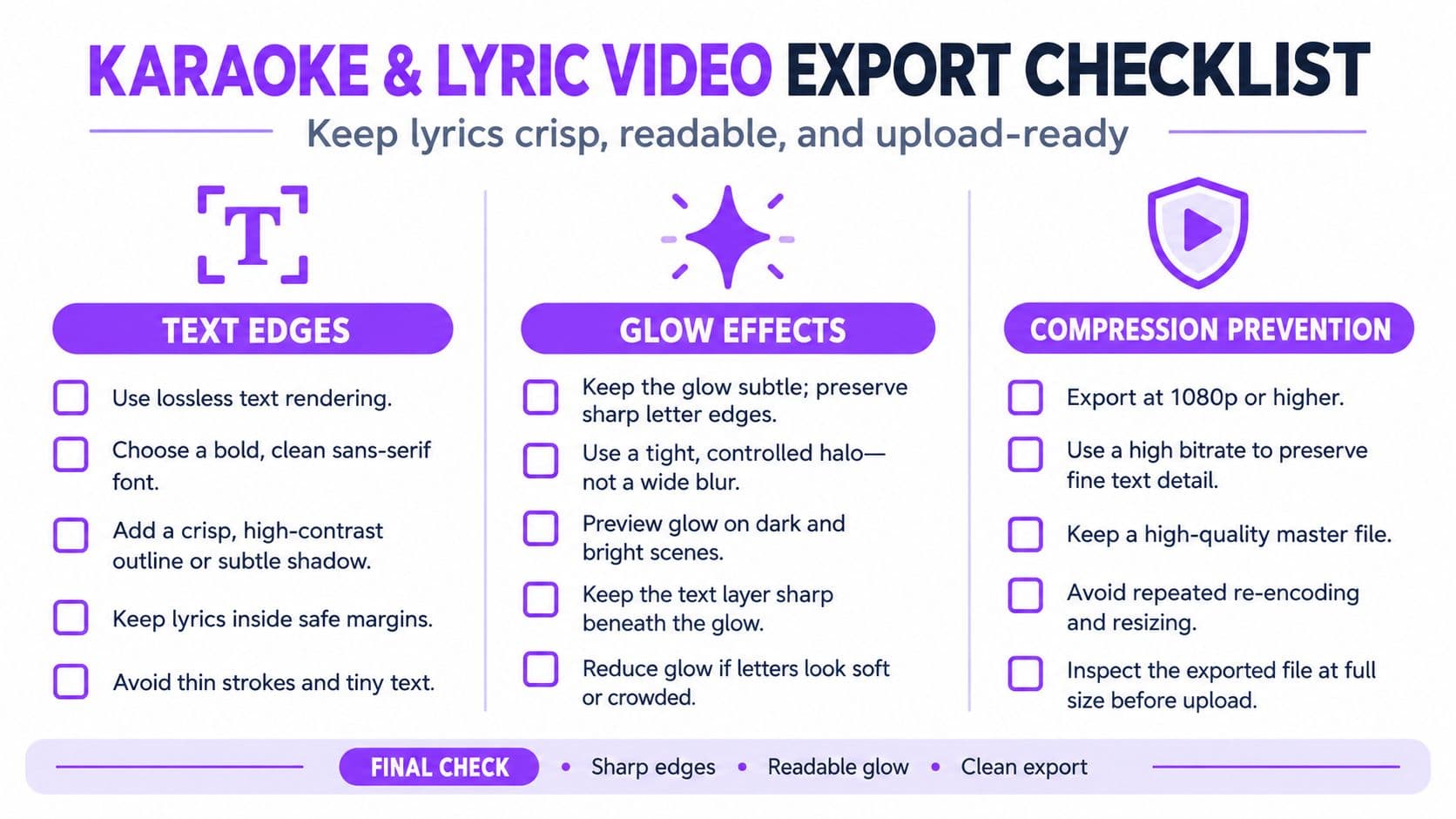
Contrast does a lot of heavy lifting. White text over a bright photo may look fine on one beat and disappear on the next, so use a restrained shadow, outline, or solid backing shape. Glow can help separate words from the background, but too much glow makes a fuzzy halo that compression tends to smear.
Background motion matters too. If the lyrics are already animating, a calm backdrop gives the encoder a simpler job. Flat color, a gentle gradient, or a carefully chosen photo usually preserves text edges better than busy texture or constant visual noise.
Use this pre-export check:
- Read the smallest line: Pause on the densest lyric screen and view it at the size your audience will use.
- Check motion: Watch scrolling and word highlights for shimmer, judder, or smeared edges.
- Match the source frame rate: Only add frames when the project needs them.
- Choose broad color support: Use 8-bit 4:2:0 output for broad playback support.
- Inspect the compressed preview: Encode a short representative passage before rendering the entire song.
Higher resolution does not fix weak source material. If the artwork starts soft, or a platform compresses the upload heavily, a well-encoded 1080p file can stay easier to read than a careless 4K export. For Instagram-specific upload behavior, see Instagram HD uploads explained. Before sending files to TVs, browsers, or venue gear, check this guide to playback compatibility.
Changing or Exporting MP4 Resolution With Any Tool
You can change MP4 resolution in two main ways. The first is to return to the original project, set the sequence or composition dimensions, and render again. The second is to transcode an existing MP4 into a different pixel size using a video editor, media encoder, or conversion application.
Re-rendering from the original timeline usually gives you better control. You can resize lyric text, reposition elements for a vertical crop, and adjust backgrounds before compression. Downscaling an existing 4K file to 1080p is convenient, but it can't fix text that was already too small or artifacts introduced by the first export.
A reliable conversion sequence
- Inspect the source dimensions. Confirm whether the original is square, or vertical.
- Choose the destination canvas. Use the platform's intended shape rather than stretching the existing frame.
- Scale proportionally. Avoid uneven resizing that makes letters look wider or taller.
- Set the codec deliberately. H.264 video in MP4 is a practical broad-compatibility option.
- Review a short section. Check lyric edges, timing, audio sync, and background motion.
- Export the final version. Keep the high-quality source so you can create another delivery file later.
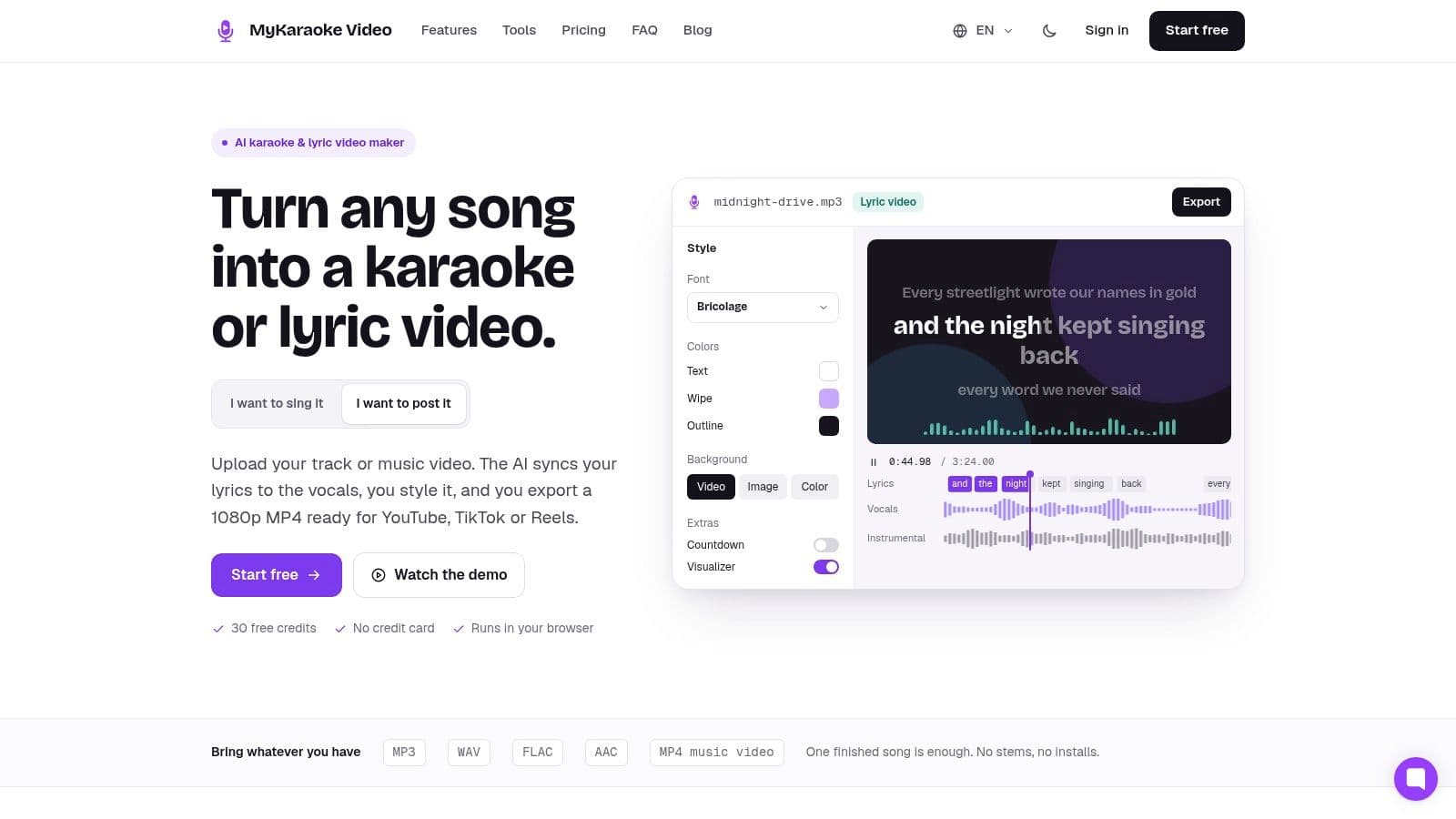
For creators who want a browser-based workflow, MyKaraoke Video can turn a song and lyrics into a karaoke or lyric video, provide automatic lyric syncing and editing controls, and export MP4 video at selectable resolutions up to 1080p. Its 1080p MP4 output fits the deliberate default used throughout this guide.
The codec decision remains separate from the resolution menu. Bitmovin's 2025 report recorded H.264 at 79% usage and HEVC at 49%, while AV1 remained comparatively limited in deployment despite stronger planned adoption, making H.264 a practical choice when a karaoke file must play across a wide range of systems. The report is discussed in this codec deployment analysis.
Choosing Your Default MP4 Resolution Going Forward
For a typical karaoke or lyric video, choose 1920 × 1080 at 30 fps, encode with H.264, and begin around 5–8 Mbps for the video stream. That combination gives readable text, manageable delivery demands, and broad playback compatibility when the source artwork is already sharp.
Choose 4K when the source was created with genuine fine detail, the audience watches on large displays, and the added file and bandwidth demands are acceptable. Choose 720p when a smaller file matters more than fine detail or when the viewing context is small and mobile. For vertical clips, redesign the composition around the vertical canvas instead of treating portrait delivery as a squeezed export.
Before you render tonight, run this checklist:
- Canvas: Confirm the intended pixel dimensions and aspect ratio.
- Typography: Enlarge thin fonts and strengthen contrast where needed.
- Motion: Use 30 fps unless the animation clearly benefits from 60 fps.
- Bitrate: Give the chosen resolution enough data to preserve lyric edges.
- Codec: Use H.264 in MP4 when compatibility is the priority.
- Preview: Upload or simulate a representative compressed section before committing to the full export.
MP4 video resolution isn't a single setting hidden inside the file extension. It's one part of a delivery decision that should protect the words your audience came to sing.
MyKaraoke Video lets you create karaoke and lyric videos in a browser with automatic lyric syncing, a sync editor, customizable text and backgrounds, and MP4 exports up to 1080p. Visit MyKaraoke Video to prepare your next lyric video with a resolution and export workflow built around readable, shareable results.
