You've finished syncing every lyric cue, reviewed the colors, and exported the video on your computer. At the venue, the file opens on the smart TV, but the screen stays black. On a client's older iPhone, the picture appears without the backing track. The same karaoke video that looked perfect in your editor has become unusable where it matters.
That's a playback compatibility failure. The problem isn't necessarily the lyrics, artwork, or timing. It's the connection between your exported file and the browser, operating system, hardware decoder, television, phone, or event equipment trying to play it. Reliable delivery starts by treating every destination as a test environment, not by trusting the filename extension.
The Hidden Cost of Ignoring Playback Compatibility
A video can be technically valid and still fail in practice. Your editing computer may have modern hardware, a fully updated operating system, and software decoders that quietly compensate for an unusual codec or audio configuration. A venue screen, embedded browser, or older mobile device may not have those fallbacks.
The failure often appears at the worst possible moment. A singer is waiting for the first verse, the audience is watching the screen, and the operator has only a few seconds to decide whether to restart the player, change inputs, or abandon the file. For a client delivery, “it plays on my laptop” doesn't answer the core question. That question is whether it plays on the client's device, through the intended app, with synchronized audio and legible lyrics.
Compatibility is a delivery condition
Playback compatibility describes whether a particular device and software combination can decode, render, and synchronize the file. That includes several layers:
- The container: The file wrapper that organizes video, audio, metadata, and sometimes captions.
- The video codec: The compression format used for the picture.
- The audio codec: The format used for the backing track or vocal guide.
- The playback path: A browser, social app, smart-TV player, media stick, projector computer, or editing application.
- The device decoder: Hardware or software that turns compressed data into visible frames and audible sound.
A failure at any layer can produce a different symptom. The player may reject the file, show a black frame, play video without sound, stutter during complex scenes, or display lyrics with timing that feels wrong because the frame cadence changed.
Practical rule: Treat the export as a starting point. The destination device is the final part of your production workflow.
This is why karaoke creators need a device-first workflow. A social upload, downloadable MP4, website embed, and event-screen file may all originate from the same project, but they don't necessarily face the same decoder support or network conditions. Create a broadly compatible master, then test the actual routes your audience will use.
The risk extends beyond one failed performance. If viewers can't play a video, they may assume the content is broken and leave. An event organizer may need emergency re-encoding. A channel manager may lose time replacing files that were never tested outside the production machine. Playback compatibility protects the work you've already done, especially the precise lyric timing that's difficult to recreate.
Containers and Codecs Explained for Creators
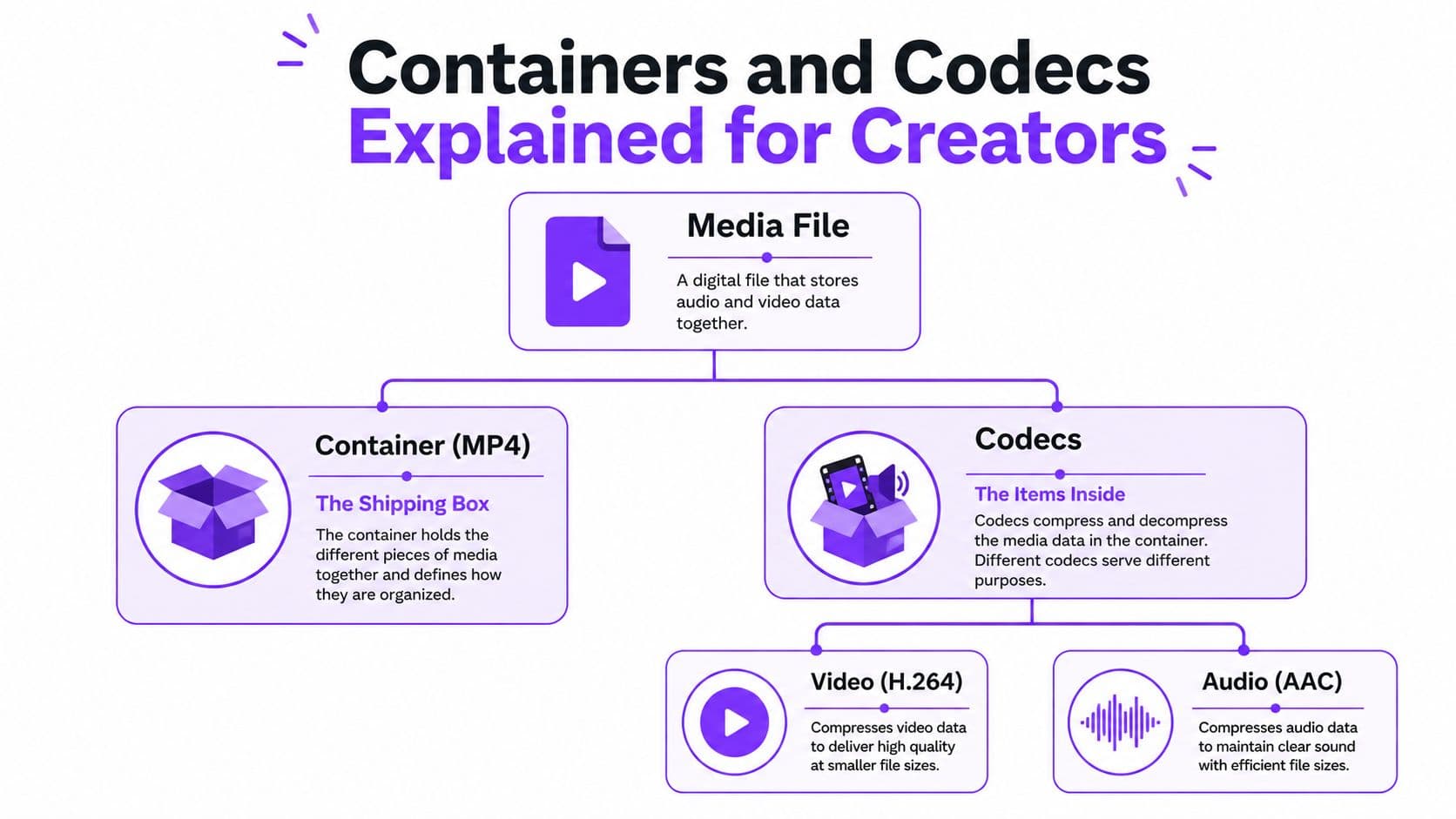
The easiest way to understand a video file is to compare it with a shipping box. The container is the box, while the codecs are the items packed inside it. An MP4 extension tells you which box was used, but it doesn't tell you whether every player can unpack and decode the video and audio inside.
That distinction matters because MP4 is not a codec. It can contain different video and audio combinations, and those combinations have different compatibility profiles. Two files can both end in .mp4, yet one may play reliably in a browser while the other produces missing audio or an unsupported-format warning.
For a broadly distributed karaoke file, the practical baseline is MP4 with H.264/AVC video and AAC audio. Mozilla's browser video codec guidance identifies this combination as broadly supported across major browsers, while also explaining that the container alone doesn't guarantee playback.
Why H.264 remains the sensible baseline
Codec standardization has historically shaped web playback. A technical study reports approximately 97.93% H.264/AVC support compared with about 18.73% HEVC support, demonstrating the compatibility trade-off that comes with newer compression formats. The figures come from the study of multi-codec streaming compatibility.
HEVC can reduce file size and bandwidth requirements, which makes it attractive for efficient delivery. The drawback is that playback depends more heavily on device generation, operating system, browser behavior, and hardware decoding. Newer Apple devices may handle both H.264 and HEVC, while older computers, televisions, phones, and set-top boxes may only decode H.264 natively.
AV1 presents a similar strategic question. It can offer efficient compression, but a smaller file isn't useful if the intended player can't decode it smoothly. For a karaoke video shared through several destinations, broad support normally matters more than extracting the last efficiency gain from the master file.
You can find a deeper explanation of the relationship between wrappers, compression formats, and delivery choices in this guide to video file types. The important production habit is simple: inspect the codecs inside the MP4 instead of assuming the extension tells the whole story.
Format wars offer a useful warning
The Blu-ray and HD-DVD competition showed that compatibility isn't only a technical question. By October 2007, Blu-ray movie titles had sold approximately 2.6 million units, compared with 1.4 million HD-DVD titles, while studio support remained divided. Standalone HD-DVD players initially sold more units because they were cheaper, but Blu-ray players were outselling them by roughly two to one by 2008, and HD-DVD was effectively defeated.
The historical lesson is relevant to online video. A fragmented format ecosystem creates uncertainty for creators, distributors, venues, and audiences. A broadly supported output gives each participant more confidence that the file will remain usable after it leaves the editing system.
Recommended Export Settings for MyKaraoke Video
Start with a universal master rather than a file optimized for one modern phone. For a standard karaoke or lyric-video delivery, use an MP4 container with progressive-scan H.264 video and AAC audio. That combination gives you a strong base for browser playback, social uploads, downloadable files, and event equipment.
The MP4 format guide is useful when you need to explain the format to a client or choose between common delivery options. The export itself should preserve the qualities that matter most for karaoke: crisp text, stable timing, clean audio, and predictable seeking.
Configure the picture for readable lyrics
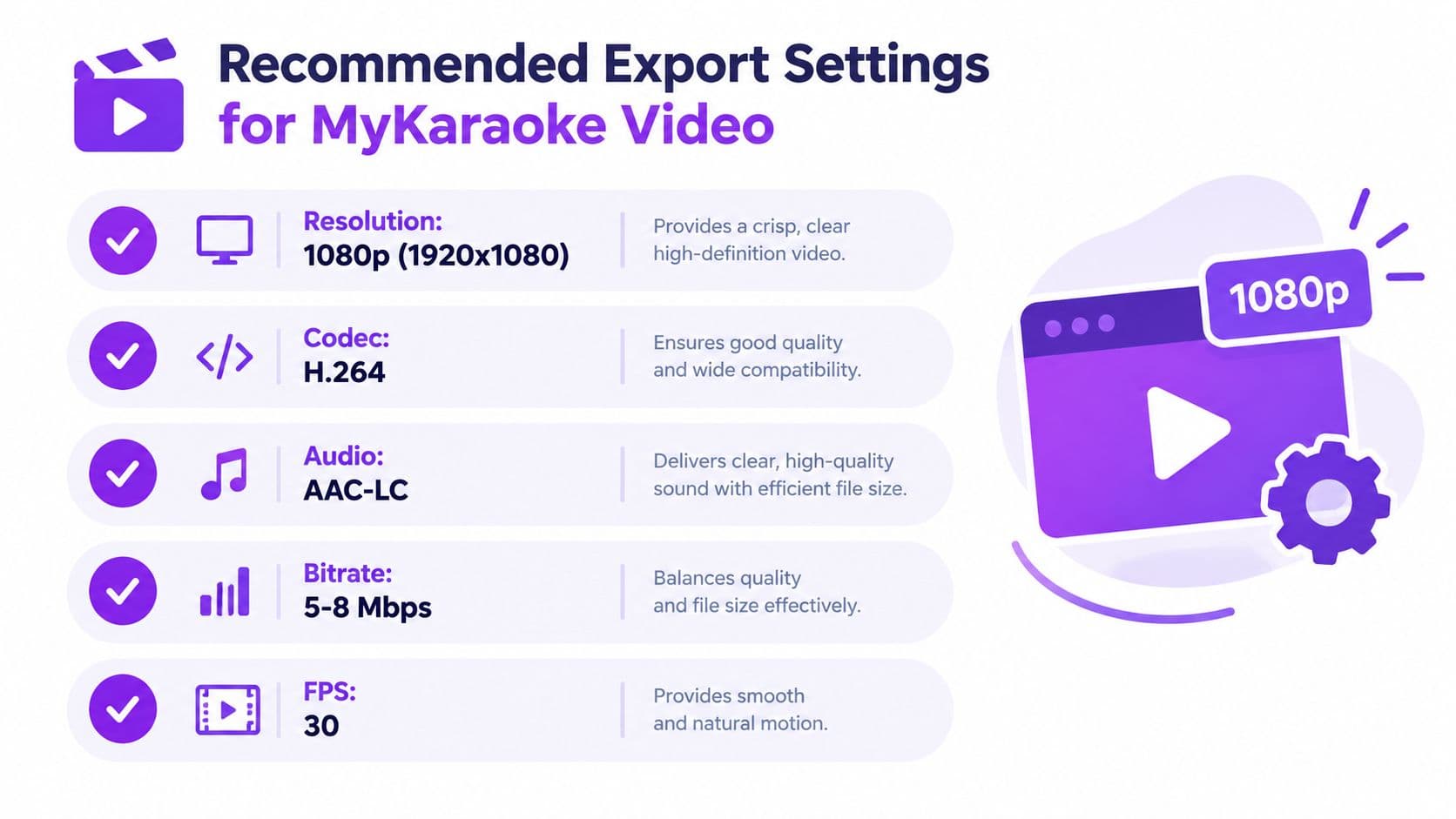
Use 1080p output when your project and destination support it. The resolution gives lyric text enough room for clear letterforms without requiring an unnecessarily large master for ordinary social and web delivery.
Choose H.264, preferably with a High Profile setting where the encoder exposes that option. Use progressive scan, not interlaced output. Interlacing can introduce combing and deinterlacing artifacts around high-contrast text, especially when letters move, highlight, or change color in time with the music.
Keep the upload frame rate matched to the source recording. YouTube's official encoding recommendations call for MP4, H.264 High Profile, progressive scan, variable bitrate, and a frame rate matching the source. That matching step prevents cadence conversion, which can introduce judder or interfere with the perceived timing of lyric highlighting.
Configure the audio for dependable playback
Use AAC audio, with the encoder's standard low-complexity profile when available. The point is not to make the audio configuration exotic. It's to avoid a file that opens visually but lacks a usable audio stream on a browser, television, or mobile player.
Check the channel layout before exporting. A karaoke backing track that becomes silent on one side, loses a guide vocal, or plays with an unexpected balance may have an audio-routing problem rather than a video problem. Listen to the exported file from beginning to end, not only to the first few seconds.
Use variable bitrate for the video when your export tool supports it. Give the encoder enough room for detailed backgrounds and animated lyric treatments, while remembering that text clarity depends on clean source graphics and sensible compression, not only on a larger file.
Here's a practical preset to keep as your default:
- Container: MP4
- Video: H.264, progressive scan
- Audio: AAC
- Resolution: 1080p when the project is built for it
- Frame rate: Match the original recording
- Structure: Use closed GOPs and regular keyframes where available
- Verification: Inspect the finished file's video codec, audio codec, frame rate, pixel format, channels, and synchronization
The infographic includes a bitrate range for its recommended workflow. Treat that as a starting preset for the tool and destination, then verify the result on the actual playback devices rather than assuming a particular bitrate guarantees compatibility.
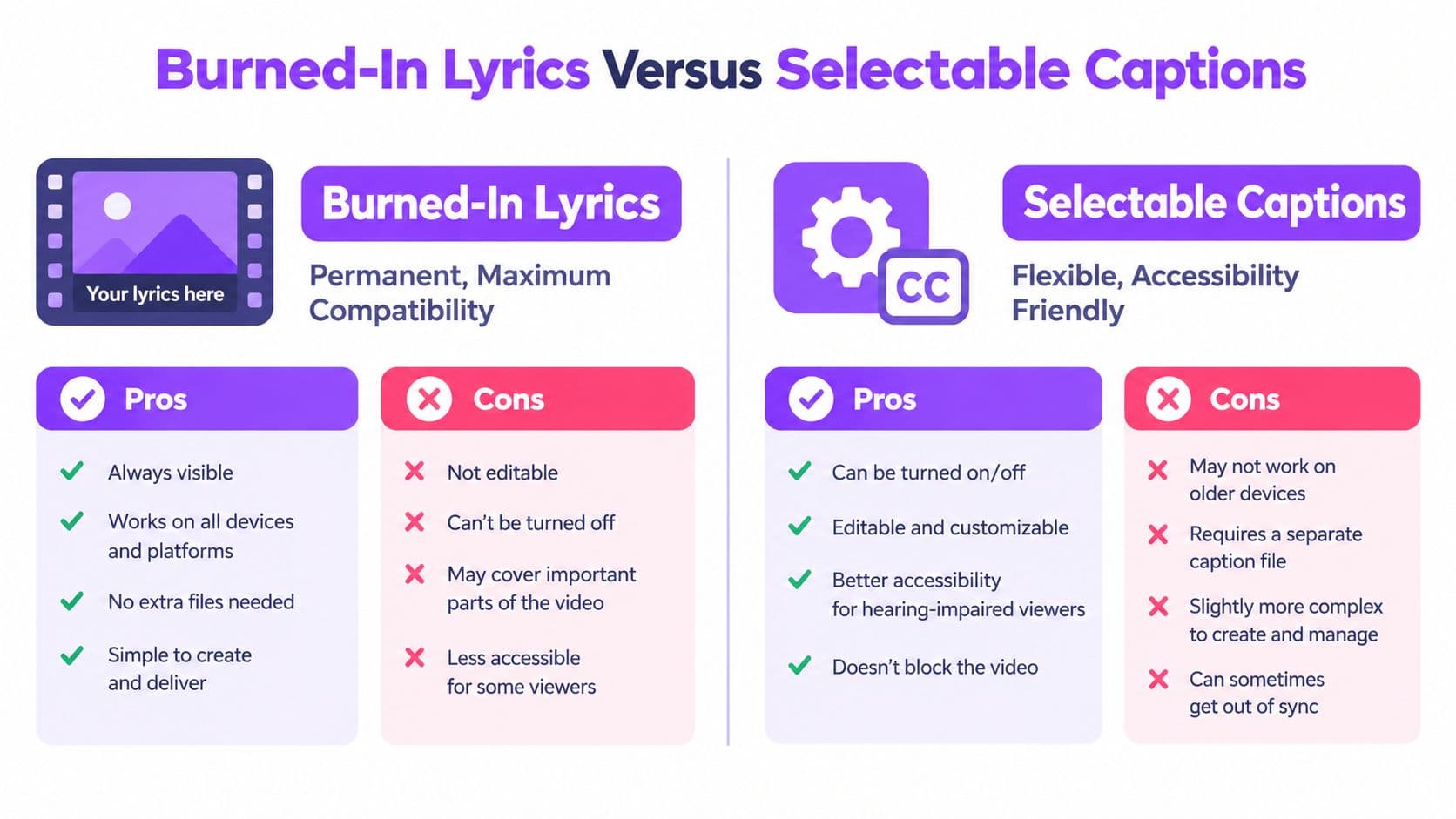
Burned-In Lyrics Versus Selectable Captions
Burned-in lyrics and selectable captions solve different problems. Permanently visible lyrics are part of the video image, so the player doesn't need a separate caption system to display them. A caption file remains independent from the picture and can be switched on, resized, translated, or processed by supported accessibility tools.
For karaoke, burned-in lyrics often remain the safest visual layer. They work on a television, projector, social feed, downloadable file, and basic media player without relying on a caption menu. They also preserve the intended typography, highlighting, placement, and color treatment.
What burned-in lyrics do well
Permanent text has one major advantage: maximum visual compatibility. It travels with the video frame, so viewers see it even when a platform strips metadata, disables captions, or uses a player with no caption controls.
It also gives creators precise control over the performance experience. You decide where the words sit, how much contrast they have, which line highlights, and how the text behaves over a moving background. That consistency is valuable for an event screen where you can't rely on a viewer to activate a track.
The limitations are just as important:
- No independent resizing: Viewers can't enlarge the text without enlarging the whole video.
- No easy translation: A platform can't replace the lyric layer with another language.
- No text search or copying: The words aren't available as a separate data layer.
- Limited assistive-technology support: Screen readers and other tools can't interpret text that exists only as pixels.
- Less flexible correction: Fixing a typo requires another video export.
W3C defines captions as synchronized text that includes speech and relevant non-speech audio. Its caption accessibility guidance also explains why burned-in text can't be resized or interpreted independently by assistive technology.
What selectable captions add
SRT and WebVTT files provide a separate, timed text track. Where the destination supports them, viewers may be able to change size, choose a language, or turn captions on and off. A separate track can also include meaningful sound cues, speaker identification, and dialogue that isn't fully represented by the visible lyric design.
The trade-off is operational. Platform support varies, timing can shift if the source is altered, and users may disable captions. A caption file also needs careful encoding and validation. A beautifully styled burned-in lyric video won't automatically produce a correctly timed SRT or WebVTT file.
Creators who want more guidance on lyric-video production can consult the AIMVG guide for content creators, especially when planning text presentation for different audiences.
Use both outputs when the destination allows it
A solid workflow creates two related deliverables:
- A universal video with lyrics permanently visible.
- A standards-based caption file for platforms and players that support selectable captions.
Keep the timing source consistent between them. Include speaker labels when they clarify who is singing, add meaningful non-speech cues when they help viewers understand the track, and protect text from the edges of the frame. Use the closed-captioning workflow to prepare the separate track without treating captions as an afterthought.
Platform-Specific Delivery and Device Quirks
A universal master reduces risk, but it doesn't eliminate destination-specific behavior. YouTube processes uploaded files through its own encoding pipeline. Social platforms may change aspect ratio, crop the frame, or generate new playback versions. A smart-TV browser or event computer may have limited hardware decoding even when a modern desktop browser handles the same file without complaint.
Use the H.264/AAC master as the default for unknown environments. Create a derivative only when you know the destination benefits from it and you can test that exact route. A smaller AV1 file may save storage or transfer time, but current creator guidance warns that newer codecs can reduce compatibility on older iPhones, embedded browsers, and event equipment. The social video specifications guide supports using H.264 as the safest universal master.
Platform Delivery Matrix
| Destination | Recommended Codec | Key Consideration |
|---|---|---|
| YouTube upload | H.264 video with AAC audio in MP4 | Match the source frame rate and use progressive scan so the platform receives a clean, predictable master. |
| Instagram or similar social feed | H.264 video with AAC audio in MP4 | Check the intended aspect ratio and preview the processed upload on a mobile device. |
| Mobile browser | H.264 video with AAC audio in MP4 | Test Safari and Chrome paths separately because browser and operating-system decoders can differ. |
| Smart TV or set-top box | H.264 video with AAC audio in MP4 | Confirm the television generation and player application before an event. |
| Downloadable client file | H.264 video with AAC audio in MP4 | Preserve a simple, widely supported master and include a short playback note. |
| Event screen or projector computer | H.264 video with AAC audio in MP4 | Test the actual computer, display connection, player, and audio output used at the venue. |
Don't confuse upload success with playback success
A platform accepting the file only proves that its upload service recognized the container. It doesn't prove that an embedded browser, older phone, or venue player will decode the resulting version. The platform may re-encode the file, and the viewer may encounter a different stream from the one you tested locally.
For mobile social delivery, inspect the crop and lyric safe area after processing. Text that looks balanced in a desktop preview may sit too close to an edge after the platform changes the viewing frame. For televisions and event displays, check not only the image but also the audio route. The video may be decoding correctly while sound is being sent to a different output.
When the destination is known, a derivative can make sense. When the destination is unknown, efficiency-focused codecs add uncertainty. The reliable order is universal master first, destination-specific version second, actual device test third.
Testing Workflows and Troubleshooting Common Errors
A short quality-assurance routine catches most compatibility failures before publication. Don't rely on a single media player, because one application may decode a file in software while another depends on hardware support. Test the file in the environment your audience will use.
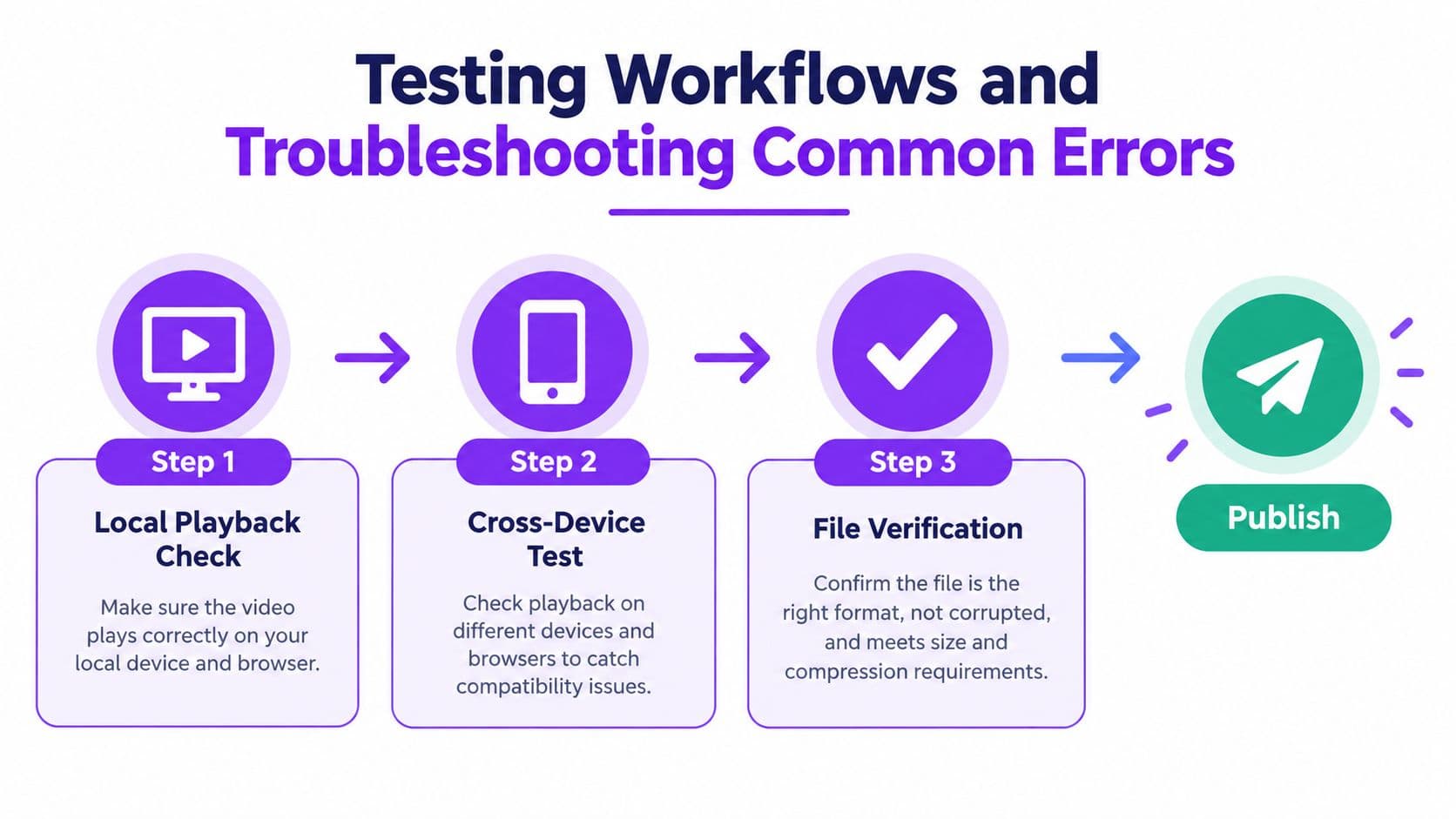
Run a three-stage QA check
First, check local playback. Open the export in the player you normally use, then scrub through the file. Confirm that the first frame appears, the backing track starts at the intended point, lyrics remain synchronized, and seeking doesn't create a silent section or frozen image.
Next, test representative destinations. Use Chrome and Safari, then include a mobile browser on Android and iOS where those devices are part of the audience. If the video is for an event, copy it to the actual playback computer or USB media and connect it to the intended screen and sound system.
Finally, verify the file structure. Inspect the container and streams with a media-information utility. Confirm:
- Video codec: H.264 rather than an unsupported or unintended alternative.
- Audio codec: AAC and the expected channel layout.
- Frame rate: Consistent with the source recording.
- Scan type: Progressive.
- Pixel format: Suitable for the target players.
- Synchronization: Lyrics, backing track, and highlighted words remain aligned.
- Frame behavior: No unexplained variable-frame-rate conversion or timing jumps.
Diagnose the visible symptom
A black screen with audio often points to video-decoder support, an unsupported profile, or an encoding structure the player can't handle. Re-export with progressive H.264, then test the replacement on the failing device.
Video with no audio usually means the player can't decode the audio stream, the channel layout is unexpected, or the file contains a damaged track. Confirm that the AAC stream exists and that another player can hear it. Don't assume that an MP4 extension means the audio is compatible. As Mozilla's format documentation explains, playback depends on decoders for the specific codecs inside the container.
Stuttering video can result from a device struggling with the codec, a demanding bitrate, a poor network path, or inconsistent frame timing. Compare local playback with downloaded playback. If the downloaded file still stutters, simplify the encoding and preserve a consistent source frame rate.
An unsupported-format message means the destination rejected either the container or one of its streams. Rebuild the universal master with H.264 video and AAC audio instead of changing only the file extension. Renaming a file doesn't convert its contents.
Diagnostic habit: Reproduce the failure on the smallest possible test file. Change one variable at a time so you know whether the fix came from the codec, audio configuration, frame structure, or destination player.
Building a Future-Proof Video Strategy
Future-proofing doesn't mean choosing the newest codec available. It means preserving a dependable version that audiences, venues, and downstream platforms can use while newer delivery options develop.
The Blu-ray and HD-DVD competition remains a useful reminder. The analysis of that format conflict shows that ecosystem confidence matters alongside technical capability. Content owners, hardware makers, retailers, and consumers all need confidence that a format will remain supported. A fragmented ecosystem increases the chance of incompatible purchases, duplicated production, and failed playback.
Apply the same logic to karaoke videos:
- Keep an H.264/AAC MP4 universal master.
- Match the source frame rate and use progressive scan.
- Preserve burned-in lyrics when universal visibility is required.
- Add a separate caption file when the platform supports selectable captions.
- Make derivatives only for known destinations with a clear compatibility reason.
- Test browsers, mobile devices, smart TVs, and event equipment before delivery.
- Retain the verified master so you can create new derivatives without rebuilding the project.
Compression efficiency is useful, but it's secondary to whether the audience can see the words and hear the music. A modestly larger file that plays reliably is more valuable than a highly efficient file that fails on the device sitting in front of the viewer.
MyKaraoke Video lets creators turn uploaded songs and lyrics into synchronized karaoke or lyric videos in a browser, with customizable visuals and 1080p MP4 output for publishing or playback. Visit MyKaraoke Video to create a compatible master, then test that export across the browsers, phones, screens, and platforms your audience uses.
