You've got the MP3, the lyrics in a notes file, and one evening before a birthday party. The video comes together in twenty minutes and looks right in the browser preview. Then it plays on the living room TV, the first line lights up two beats before the singer opens their mouth, and every line after it is out by the same margin. Nothing in the file is broken. A silent scrap of encoder padding at the head of the track took the blame, and the preview hid it.
Making karaoke with MP3 files reliably means treating three things as independent checks: lyric timing, audio fidelity and the right to publish. Each one fails on its own. A perfectly synced video can be unlistenable on phone speakers, and a beautiful one can be unpublishable.
The format that made all of this practical was never built for video. The MPEG-1 Audio Layer III standard squeezed music small enough for late-1990s drives and connections, and Fraunhofer's researchers settled on the ".mp3" extension on July 14, 1995, as recorded in Fraunhofer IIS's history of the format. Everything below inherits both that convenience and its quirks.
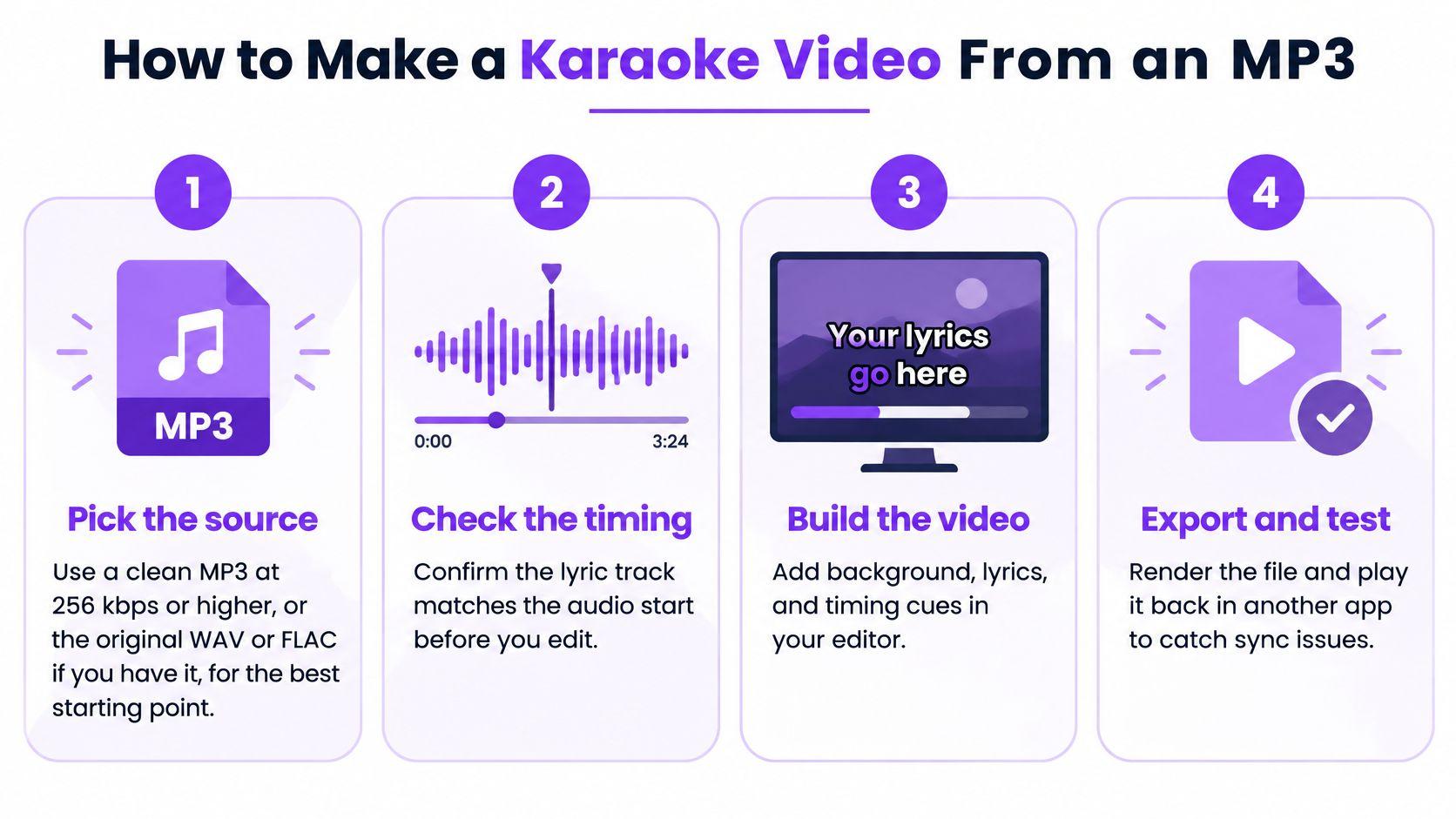
How to Make a Karaoke Video From an MP3
Each step in this sequence exists to stop a specific failure from reaching the export.
- Pick the source properly. Start from a clean MP3 at 256 kbps or higher, or the original WAV or FLAC if you have it. Note the tempo and whether there's a count-in, because every check after this one inherits the quality of this file.
- Upload it and verify the length. Load the track into a browser editor and compare its runtime with the recording you know. A truncated upload, a live version and a remix all announce themselves here, before you've typed a single word. How to upload music files covers accepted formats if the file gets rejected.
- Paste the lyrics one cue per line. Keep a single line behind each lyric cue and label the chorus, bridge and any repeated section. Splitting a long line in two later breaks its sync, so get the line breaks right first.
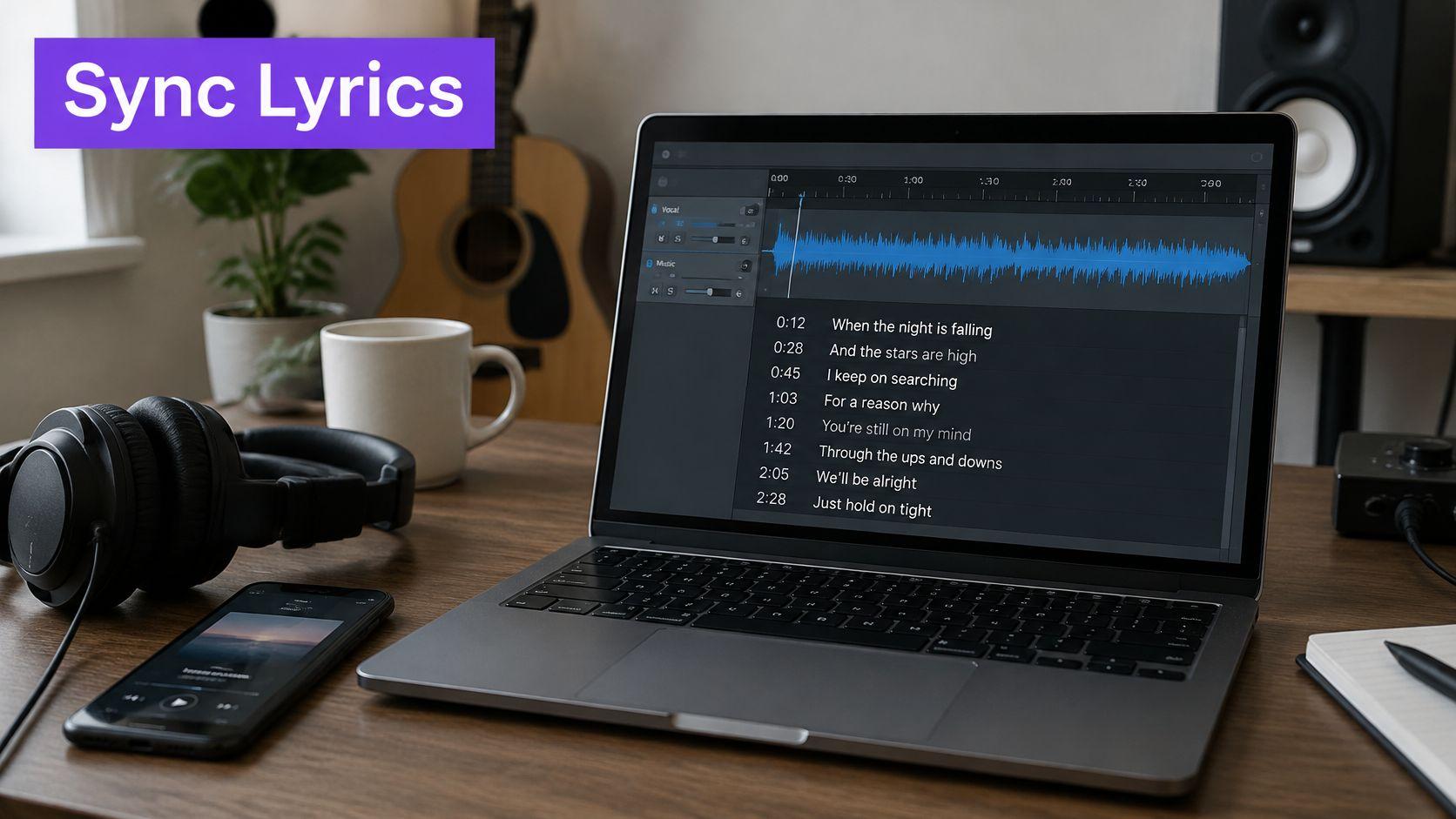
- Run automatic syncing, then listen to two places. Check the first verse and the chorus instead of trusting the waveform. Those two spots catch most misalignment, because a repeated chorus shows the same error twice.
- Nudge lines in the sync editor, starting with the first. If line one sits early, everything after it does too. Fix the head of the song before touching anything else.
- Dress the video and preview with the vocal on. Set the background, font and text colours, and give each singer their own colour in a duet. Previewing with the vocal track audible is the only way to hear whether a highlight lands on the syllable.
- Export a 1080p MP4 and play it somewhere else. A second device catches what the editor smooths over.
The check that belongs between steps 2 and 4 is the vocal one. Preview the vocal-removed mix and listen for a centred lead vocal or a reverb tail that survived the split. If the original singer is still audible, return to a cleaner source file and repeat step 2 rather than trying to mask the ghost with volume.
A finished video behaves in a predictable way: each line highlights just before it's sung, the original vocal is gone, and the last line ends with the final note rather than hanging over silence. If you also plan to trim a longer track or fade an ending, audio export settings and copyright rules covers the editing and clearance side of that work.
Syncing Lyrics Without Timing Drift
An MP3 doesn't start with the first note. It starts with a frame header and, in most encoders, a handful of silent samples. Audio has to fill complete MPEG frames, so encoders pad the beginning and the end of a file, and tools that decode the file are expected to trim that padding back off. The LAME or Xing tag at the head of the file carries the delay and padding values that make the trim possible, and the gapless playback documentation for the LAME tag describes it as the mechanism that communicates priming and trailing samples.
Here's the failure that follows. If the file lacks that metadata, frame positions include the tag frame and the encoder delay, so your lyric timestamps inherit a fixed offset that changes with the encoder and the export path. A cue that looks perfect against the raw waveform can sit 20 to 50 milliseconds out in the delivered video, and that's enough to make a line light up before the breath.
Practical rule: align lyric timestamps to the trimmed timeline, not to the raw file.
Tell an offset from drift with three timings
Time the first line by ear, then a line in the middle, then the last line. If all three are out by the same amount, you have an offset and one trim fixes the whole video. If the error grows as the song runs, the file's timeline is changing under you. The usual causes are a tempo that isn't steady (live recordings, rips with a slight speed change) and a source resampled from 48 kHz to 44.1 kHz without the timestamps being regenerated.
The fix, in order
Decode the source to uncompressed PCM. Keep the original sample rate and channel layout. Encode with a trusted encoder. Inspect the leading Xing, Info or LAME tag. Calculate the playable interval by excluding encoder delay, decoder delay and end padding, then align the lyric timestamps to that trimmed timeline before rendering the video.
When the track has to sit against existing footage rather than a fresh render, matching audio to video walks through the same alignment logic.
Re-check the first line after every change, because a small offset at the head of the song affects the entire video.
Export Settings and Bitrates That Hold Up
Bitrate sets the data rate of a lossy MP3, and higher rates keep more detail where karaoke exposes compression first: vocal sibilants, cymbals and quiet reverb tails. The technical literature still treats 128 kbit/s stereo as the historic quality and compression landmark, with modern high-quality coding usable from about 128 down to 64 kbit/s depending on content and conditions, according to this comparison of MP3 coding quality.
| Audio export | Best use | Watch for |
|---|---|---|
| Lossless WAV or FLAC master | Archive, events, and any future re-export | Large files; keep as the source for re-encodes, archives and event playback |
| 320 kbps MP3 | Dense mixes with heavy cymbals and reverb | Largest MP3; check upload size limits |
| 192 kbps MP3 | Most karaoke videos, a good balance of size and quality | Check sibilance and cymbal shimmer on phone speakers |
| 128 kbps MP3 | Smallest acceptable file for simple, sparse mixes | Audible artifacts on dense tracks; avoid for event playback |
Constant or variable
Use variable bitrate when the arrangement changes density, because a quiet verse doesn't need the same budget as a stacked chorus. Use constant bitrate when a platform's uploader or a venue's playback machine has shown itself to be fussy about streaming files.
Either way, encode once from the lossless master rather than re-encoding a file that's already compressed. Each extra pass is a loss you can hear and can't undo, and a fresh encode can also reintroduce encoder delay at the head of the file. If you re-encode a track you already trimmed and synced, re-check the first lyric line before rendering, because a small offset there shifts every line that follows.
Two files, not one
Deliver a high-quality master for archiving and event playback, and a smaller distribution copy for social platforms that will re-encode it anyway. If you're weighing frame sizes for those platforms, compare widescreen video resolutions before committing to an export preset.
Before you call it done: confirm the MP4 is 1080p, confirm the audio sits at the bitrate you chose, and export two versions, one with the vocal track for your own sync check and one without it for singing along.
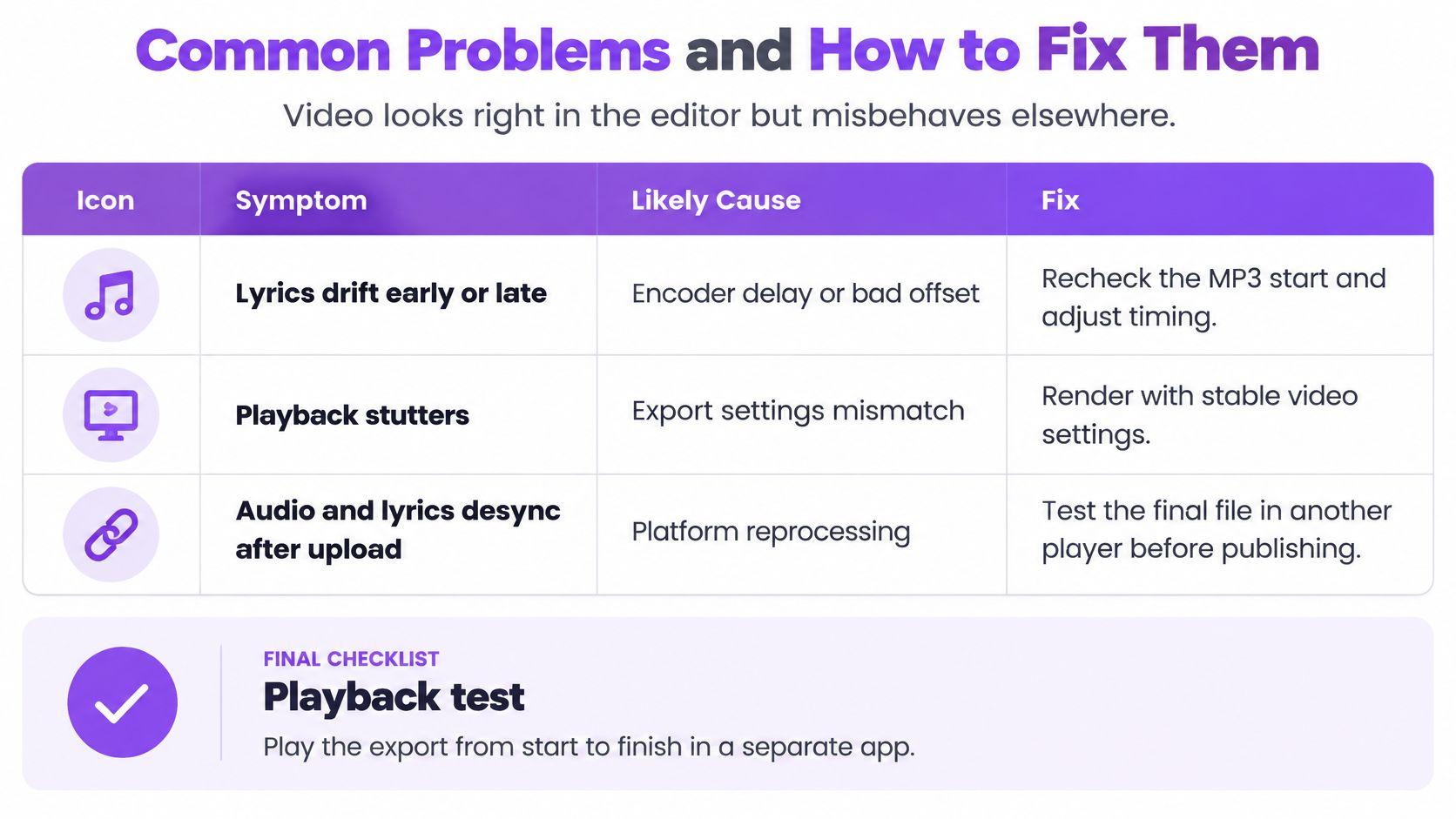
Common Problems and How to Fix Them
Most failures you'll meet after export fall into a short list, and each has a specific correction.
| Symptom | Likely cause | Fix |
|---|---|---|
| First lines appear early on every line | Encoder delay not trimmed from the MP3 | Trim the leading silence using the LAME tag, then re-time the first line |
| Lyrics drift further off as the song goes on | Tempo change or resampled source file | Re-encode at the original sample rate and re-sync at three points |
| Original vocal still audible in the karaoke mix | Vocal separation struggles with centred or reverb-heavy vocals | Preview the vocal-removed mix and try a cleaner source file |
| Harsh sibilance or smeared cymbals | Low bitrate or a re-encoded MP3 | Start from the lossless master and export at 192 kbps or higher |
| Lyrics hard to read on a phone | Low contrast or small font | Add a background box or shadow and test at phone size |
Test on the path people will actually use
Play the MP4 in a desktop browser, on a phone, on the computer that will run the event, and inside the platform you'll post to. Each one may re-encode or transcode the file, and the Sing Arena terms of service illustrate the trade-off plainly: free users may receive 128 kbps MP3 audio while premium users get original uncompressed files, and uploaded audio may be transcoded for streaming. A successful upload is not a guarantee of identical playback.
Where automatic syncing needs a human
Accented or non-English lyrics, fast rap, code-switching between two languages, and any song where two voices overlap all deserve a manual pass over every line. Automatic syncing saves time, but it doesn't carry equal reliability across those cases. Keep the timing check and the audio check separate, since a video can be perfectly synced and still hard to sing over.
Readability is part of the job
Keep text high-contrast with a background box or drop shadow, test the font size on an actual phone screen, and leave each line up long enough to read before the next arrives. A mix that's clean and a sync that's tight still fail if the words can't be followed.
Rights Checks Before You Monetize or Post
An MP3 is not a permission document. The recording and the composition underneath it usually belong to different people, and possessing a file says nothing about either. YouTube's monetization and copyright guidance sets the bar: creators need commercial-use rights for every audio and visual element, and commercial sound recordings, including karaoke recordings, are not eligible for monetization under the standard policy. Rights holders can monetize, restrict by territory, block, mute or later issue takedowns, and YouTube can't grant those rights on their behalf.
| Use | Permission usually needed | Risk level |
|---|---|---|
| Private sing-along at home | Personal use only; no public or commercial sharing | Low |
| Public event or karaoke night | Public performance permission, often through the venue's licence | Medium |
| Social post of your own recording | Rights to both the recording and the composition | Medium to high |
| Monetised YouTube channel | Commercial-use rights for all audio and visuals | High |
| Client or brand project | Written licence from the rights holder | High |
Transformed doesn't mean original
Stripping a vocal, re-timing lyrics and adding a gradient background does not make the work yours for monetization purposes. YouTube evaluates reused or repetitive content at the channel level, so a permission letter for one track doesn't protect a channel built mainly on other people's music with minimal visual change.
Keep the paper trail before you need it: where each track came from, licence receipts, the rights holder's written permission, and the countries where the video will be shown.
If you're also distributing audio outside a video platform, SCHelper's guide to sharing tracks is a reasonable starting point for the sharing side. Safer inputs exist: your own recordings, properly licensed tracks, or material you've confirmed is public domain. If you're weighing how much of a borrowed song you can use before publishing, fair use guidelines for karaoke videos sets out what that argument can and can't carry.
Confirm Rights and Export Your First Video
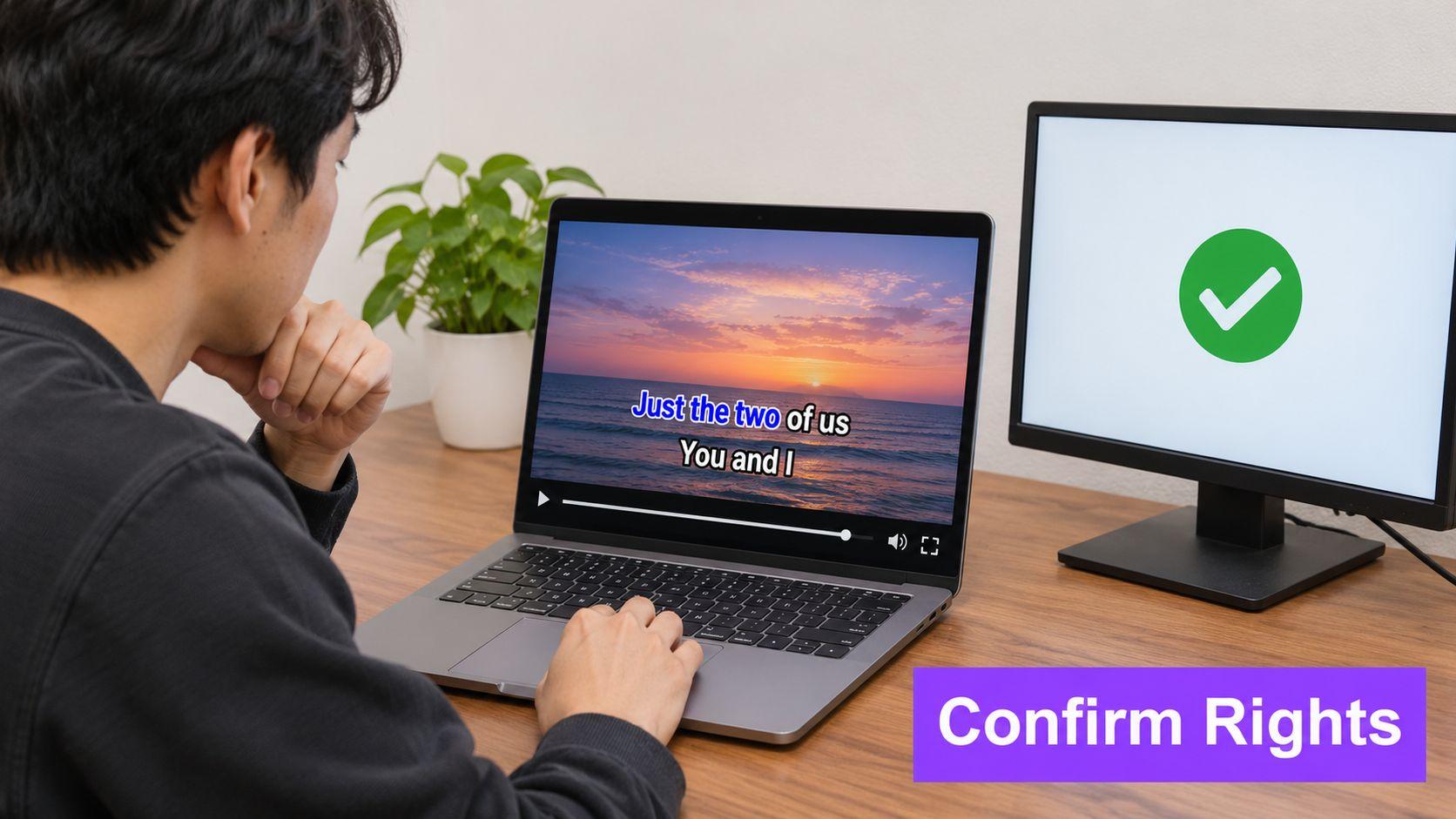
Run the gate before publishing, and treat each earlier section as a pass or fail. The rights decision has to be settled first: a personal sing-along, a public event covered by the venue's licence, a social post, a monetised channel and a client project each carry their own permission. Then confirm that timing and audio survived on a second device. The outcome is one of three: publish, fix and re-check, or hold the video until written permission arrives.
Start with a single short test video made from a track you own or have licensed, using the seven steps from the opening. Ours runs in the browser with nothing to install. Upload the song, paste the lyrics and let it build the karaoke video, then use the live preview to watch it with the vocal track on before you export, which is where sync problems surface. For event hosts, the Premium plan adds MP3+G exports that work with professional karaoke systems and KJ software.
MyKaraoke Video turns an uploaded MP3 into a finished karaoke video with the vocal removed, the lyrics synced and every line timed to the backing track. You can check it in real-time preview before exporting, then download a 1080p MP4 or, on Premium, an MP3+G for KJ software. Head to MyKaraoke Video, make one test video from a track you own, and run the timing, audio and rights checks yourself.
