You're standing in your camera roll with two good clips and one simple goal, get them into a single video on your iPhone without making a mess of the original files. Maybe it's a quick reaction shot after the perfect moment, maybe it's a before-and-after pair, or maybe you just want one clean file you can share without extra back-and-forth. The good news is that how to put two videos together on iPhone is usually easier than people expect, once you separate the basic “one clip after another” workflow from more advanced layouts like split screen.
Why Merging Videos on iPhone Is Simpler Than You Think
A search for how to put two videos together often reveals a desire for one of two very different outcomes. The first is simple sequential merging, where one clip plays after the other in a single movie. The second is a more complex composition, like side-by-side or split-screen, and Apple's official guidance treats that as a different job because combining clips into one movie is not the same as building a multi-panel layout, which usually needs a third-party editor Apple's guidance on combining clips.
That distinction matters because a lot of frustration starts with the wrong expectation. If you want a clean reel of two clips stitched end to end, you're in the right place. If you want both clips visible at the same time on one canvas, you need a tool that supports compositing, not just merging.
The three paths most people actually use
On iPhone, the practical choices usually boil down to iMovie, the Photos app, or a third-party editor. iMovie gives you the most control without leaving Apple's ecosystem, while Photos is the fastest option for simple sharing when you don't care about detailed edits. Third-party apps make sense when you want extra visual polish, more transition choices, or a more creative layout.
Practical rule: if the goal is “make one video file from two clips,” start with the simplest tool that can finish the job. If the goal is “make the result look designed,” choose a proper editor.
That's the cleanest way to think about how to put two videos together on iPhone. You don't need to overcomplicate the task just because the phrase “merge videos” can mean more than one thing.
Using iMovie for Full Control Over Your Video Project
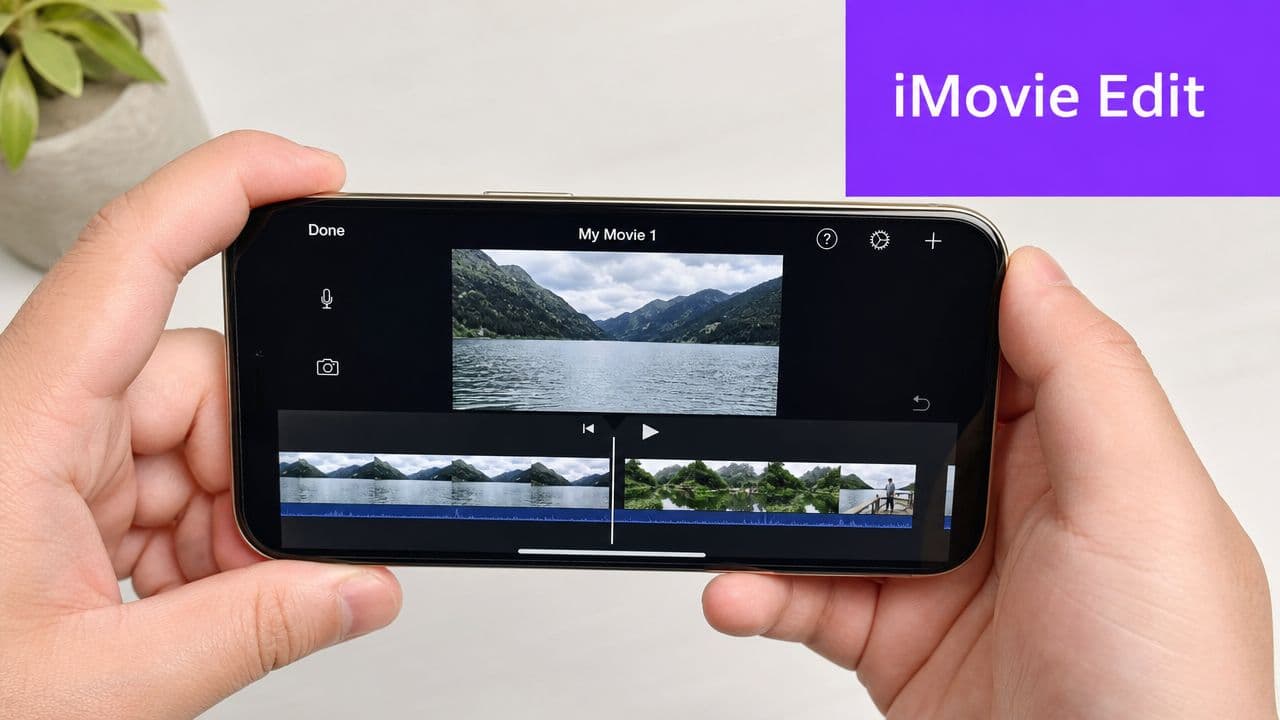
iMovie is the most reliable native-style route when you want the two clips joined in the exact order you choose. Install it from the App Store, give it access to Photos, and start a new project by choosing Movie. From there, pick the clips in the order you want them combined, then tap Create Movie so iMovie builds a new edited file instead of changing the originals iMovie workflow.
That non-destructive setup is a big reason people keep coming back to iMovie. Your source clips stay intact, and the output becomes a separate file you can revise, share, or delete later without touching the originals. If you want a quick reference while you're getting comfortable with the app, this iMovie walkthrough is a useful companion.
Getting the order right before you export
Once your clips are on the timeline, check the sequence before you save anything. iMovie lets you add more clips with the + button and drag clips around to rearrange them, which is the easiest way to fix a storytelling mistake before it becomes baked into the final export editing controls in iMovie.
If you notice the clips feel too abrupt, trim the ends so the handoff feels cleaner. Even a tiny adjustment can help the merge feel intentional instead of accidental. For people trying to understand how to put two videos together on iPhone for posts, school projects, or simple promos, that small timeline control is usually the difference between “done” and “looks right.”
Exporting without losing the result
After the timeline looks good, export the movie and save it back to Photos. That gives you one finished file that's ready to send in Messages, upload to social apps, or keep in your library. iMovie's main strength is that it lets you get from two separate clips to one polished output without needing to learn a complicated editor first iMovie workflow.
Keep one thing in mind, iMovie solves the “combine these clips” problem very well, but it doesn't turn simple merging into split-screen editing. If you want both videos visible at once, you'll need a different tool.
The Hidden Trick Inside Your Photos App
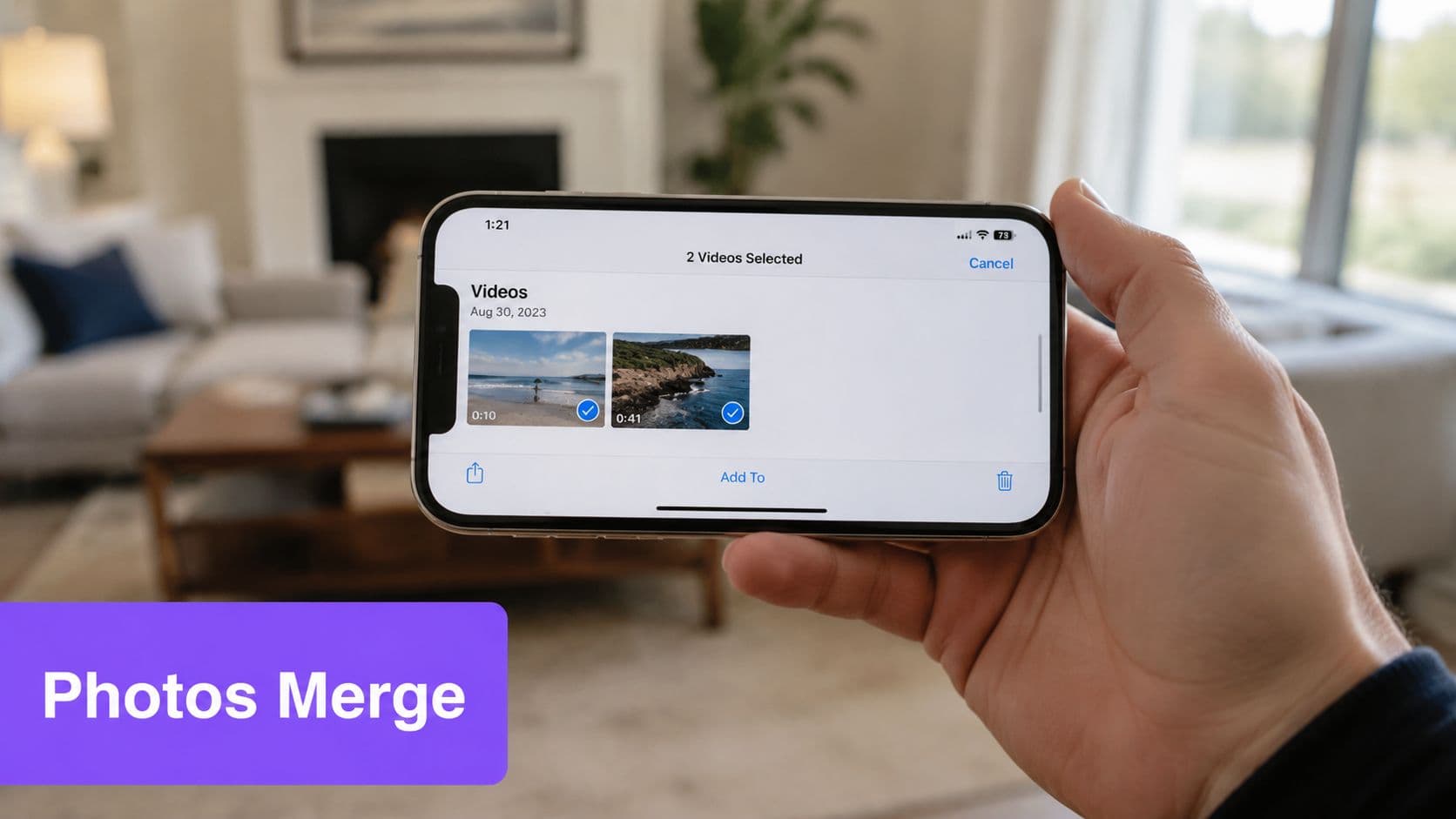
A lot of people assume they need a new app for every video task, but basic combining doesn't always require that. Apple's own support focuses on creating a single movie from selected clips, and that's exactly why some users can keep the process lightweight when they only need a simple merge Apple's guidance on combining clips. If your goal is speed, not fine-grained editing, the built-in flow can be enough.
The trick is to treat this as a quick assembly job, not a full edit. Select the videos you want to combine, use the share or creation workflow available on your device, and let the phone stitch them into one output with as little friction as possible. That's useful when you just want to send a finished clip right away, and it keeps you from installing software you may never use again.
When the quick method makes sense
The built-in route works best when you don't need transitions, overlays, or careful timing. It's especially handy for everyday clips, like joining a short moment before and after an event, or bundling two casual shots into one shareable file. It's less useful when you care about pacing, because you won't get the same control you'd have in iMovie or a third-party editor.
If you're also working with other simple conversions, such as convert iPhone Live Photos to video, this is the same mindset. Use the native path when the task is basic and you want the fewest steps possible.
The main advantage here is convenience. The main limitation is control. That tradeoff is exactly why people still move to iMovie or another editor once they want the final video to feel more intentional.
Choosing a Third-Party App or Browser Tool
Built-in tools are fine until you want your merge to look designed instead of merely combined. That's where apps like CapCut, InShot, or VN Video Editor start making sense, because they usually add transitions, text overlays, filters, background music, and more flexible export options. They're better when your two clips need a visual style, not just a timeline join.
There's also a growing interest in browser-based and shortcut-based options, which is useful if you don't want another app sitting on your phone. Independent guidance points to the iPhone Shortcuts Combine Videos action as a no-install route, and that points to a real user preference for low-friction workflows that avoid extra storage use and extra permissions no-install workflow discussion. If you want to compare broader editor styles, this guide to free online video editors is a solid starting point.
How the options differ in practice
| Method | Best For | Key Features | Ease of Use |
|---|---|---|---|
| iMovie | Clean sequential merging with more control | Clip order, trimming, simple timeline editing | Easy |
| Photos or built-in creation flow | Fast, minimal merging | Quick output, low friction | Very easy |
| Third-party app | Creative edits and polished output | Transitions, text, filters, audio tools | Moderate |
| Browser or shortcut-based tool | Avoiding installs and saving storage | No-download workflow, lighter setup | Easy to moderate |
That spread matters because people often start by asking how to put two videos together on iPhone, then realize they need a different kind of result. If you want a no-install workflow for repeatable video jobs, browser tools are worth testing. For larger production workflows, including things like cloud API for merging videos at scale, the logic shifts again because automation matters more than manual editing.
A quick decision rule
Use iMovie when you want dependable control. Use Photos when you want speed. Use a third-party app when the merge needs style. Use a browser or shortcut workflow when you want fewer downloads and less clutter on the phone.
The best app is the one that matches the job you actually need done, not the one with the longest feature list.
That's the simplest way to avoid wasting time. You don't need a heavy editor for every merge, but you also don't want a bare-bones tool when your project needs more than a straight join.
Pro Tips for a Professional-Looking Final Video
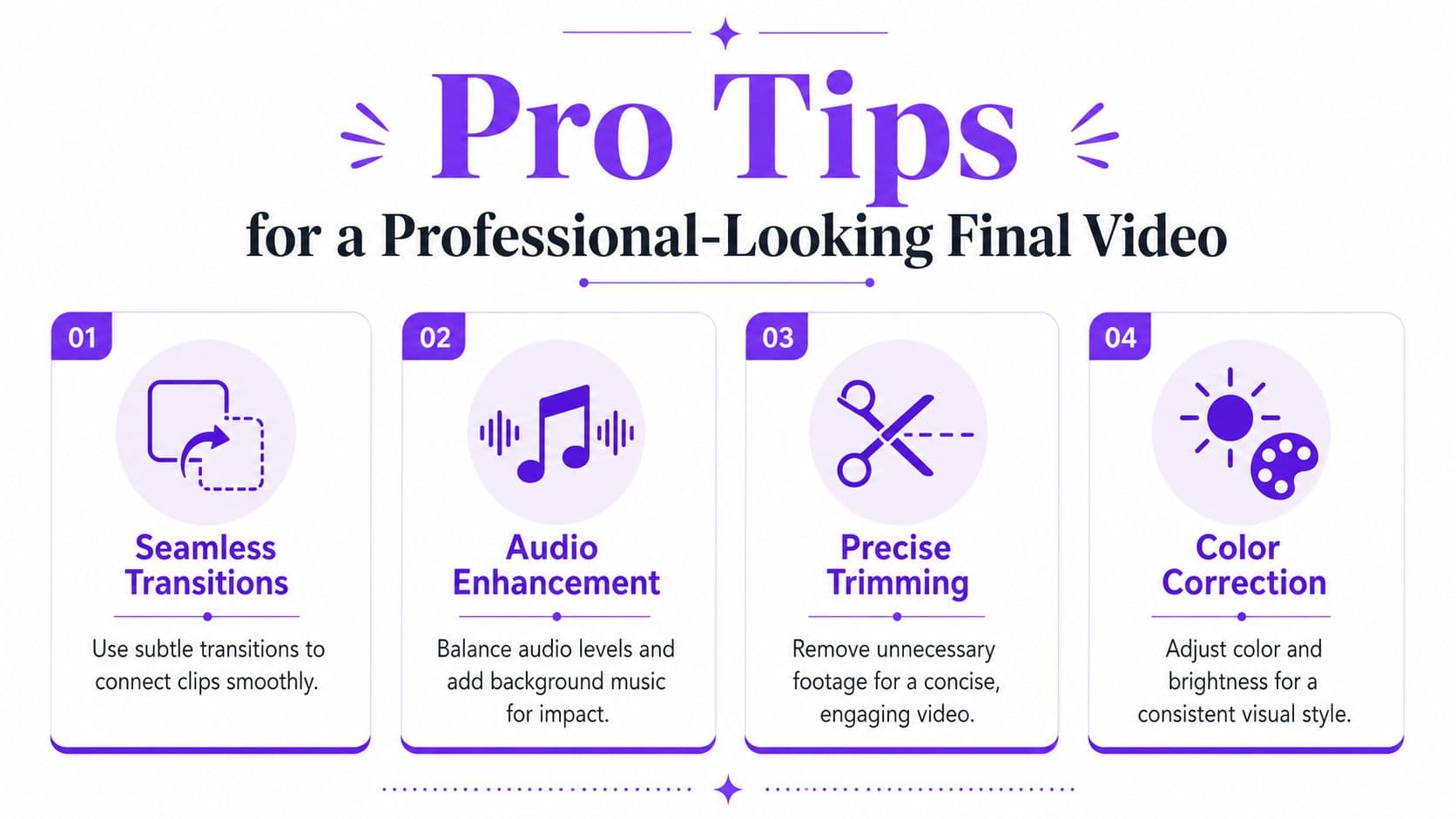
A clean merge starts before you hit export. Trim the awkward beginning or ending of each clip first, because dead space is what makes a simple join feel clumsy. If the first video ends on a strange pause and the second starts with the subject still settling, you'll feel that jump every time you watch it.
iMovie makes small cleanup edits easy, and that matters more than is often assumed. A tiny trim can turn two clips into a smoother story without adding any visual effects at all. If you want one more layer of polish, a short transition can soften the cut between clips so the switch doesn't feel abrupt.
What helps the final file look intentional
A few habits make a big difference:
- Trim early and often: Remove anything that doesn't move the video forward.
- Use a subtle transition: Keep it simple so the merge doesn't feel flashy for no reason.
- Check the order one more time: A good sequence is often the difference between a decent clip and a clear story.
- Match the export to the destination: A file meant for quick sharing doesn't need the same treatment as one you'll keep for archiving.
Third-party apps often expose more granular export settings, such as resolution and frame rate, and those choices affect both file size and playback quality export setting guidance. That matters because a file that's too heavy can be annoying to share, while a file that's too compressed can look rough on playback.
If you're adding music after merging clips, a tool like Vocuno's AI music for YouTube may help when you need background audio that fits a video project without turning the edit into a long manual process. For more clip-combining workflow ideas, this MP4 clip merging guide can also be handy.
The best final check is simple, watch the merged video once with fresh eyes. If the cut feels smooth and the export plays cleanly, you've probably done it right.
Your Next Steps in Mobile Video Creation
You now have three practical ways to handle how to put two videos together on iPhone. Use Photos when you want the fastest path, iMovie when you want reliable control and a non-destructive edit, and a third-party or browser-based tool when the project needs more creativity or less app clutter. Each one fits a different kind of task, and understanding this provides the most efficient method.
The bigger win is learning how to think about video as pieces you can combine into a story. Two short clips are often enough for a before-and-after, a quick reaction, a tutorial step, or a social post that feels complete. Once you're comfortable joining them, you can start making stronger choices about timing, pacing, and what belongs in the final cut.
Try one simple merge first, then make the next one a little more deliberate. Small edits like this build confidence fast, and they make every future iPhone video project easier to finish.
If you want a faster way to create polished video content without fighting complicated software, visit MyKaraoke Video and see how easily you can turn your next idea into a finished video.
