Gone are the days when powerful video editing required expensive software and a high-end computer. The rise of cloud computing has brought a new generation of capable, browser-based tools that run directly in your web browser, solving the problem of resource-heavy installations and steep learning curves. This guide dives deep into the best free online video editors available today, cutting through the marketing hype to show you which ones deliver on their promises.
Our goal is to help you find the perfect no-download solution for your specific needs, whether you're creating quick social media clips, detailed YouTube content, or even specialized projects like karaoke and lyric videos. For each of the 12 platforms we cover, you will find direct links, screenshots of the interface, and an honest analysis of their free-tier limitations. We will break down everything from export quality and watermarks to AI features and unique workflow advantages.
This comprehensive resource is designed to save you time and frustration. As browser-based video editing continues its rapid ascent, it stands as a cornerstone among the best content creation tools for social media, shaping how we produce and share visual stories online. By the end of this article, you’ll have a clear understanding of each editor's real-world performance and be able to confidently choose the right tool for your project without spending a dime. Let's get started.
1. Microsoft Clipchamp
Acquired by Microsoft and integrated into the Windows ecosystem, Clipchamp has quickly become a top contender among the best free online video editors. Its primary strength lies in its remarkably generous free plan, which offers a full-featured experience without the most common and frustrating limitation: a watermark on your final video. This alone places it ahead of many competitors for creators on a budget. The editor operates with a familiar timeline-based interface that feels accessible to beginners but contains enough depth for more regular users, such as those managing YouTube channels or creating social media content.
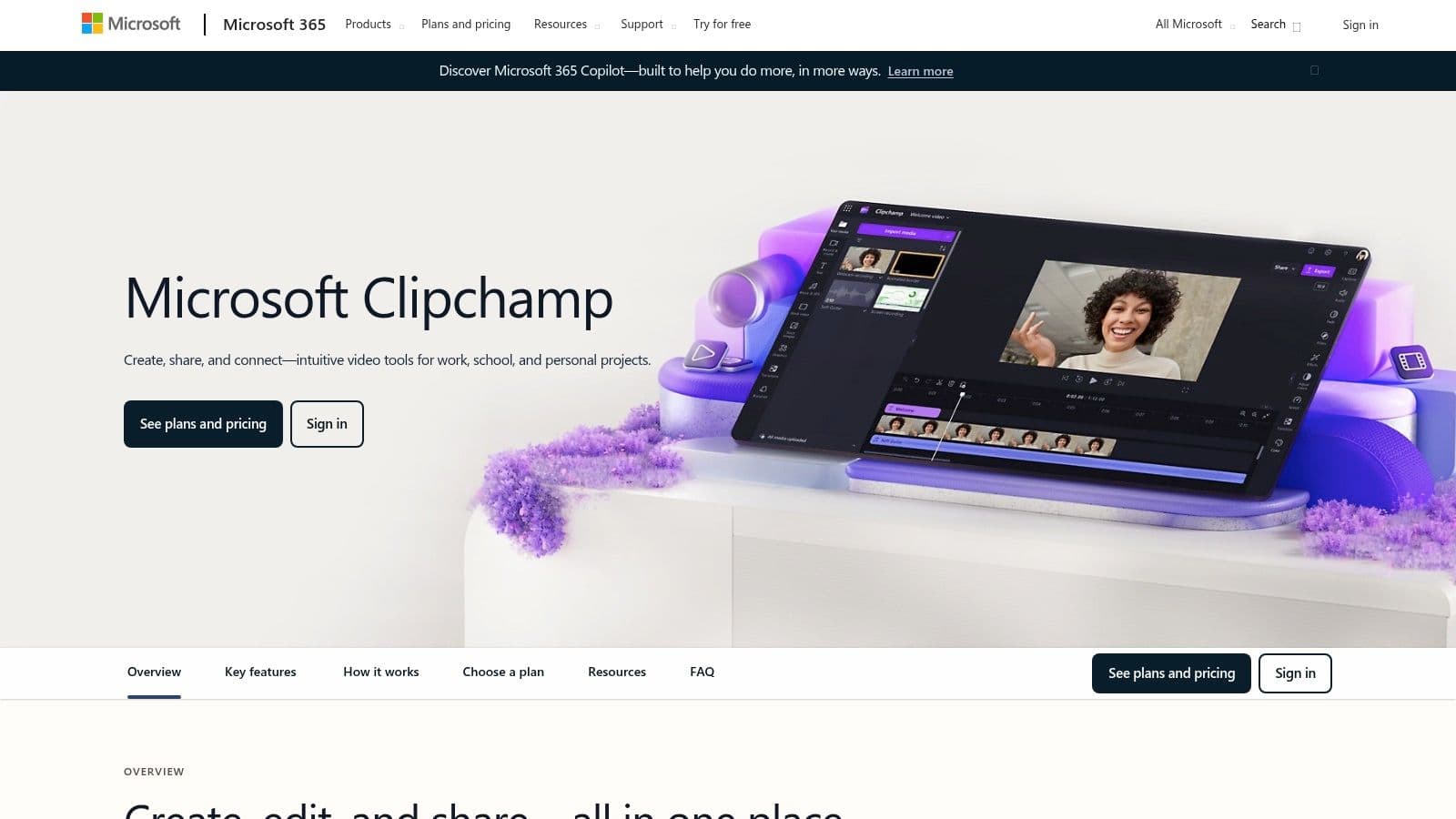
The user experience is generally smooth, especially on Microsoft Edge or Google Chrome, which are its recommended browsers. On these platforms, complex projects with multiple layers and effects remain manageable, though performance can sometimes feel sluggish on less powerful hardware as all processing happens in-browser. The built-in screen and webcam recorder is a standout feature, allowing you to capture footage directly within the platform, making it a complete solution for tutorials or reaction videos.
Standout Features
Clipchamp's free tier provides substantial value right out of the box.
Key Benefit: The ability to export an unlimited number of videos in up to 1080p resolution without a watermark on the free plan is Clipchamp's single greatest advantage. This is a rare offering in the online video editor space.
Other notable features include:
- AI-Powered Tools: The free plan includes an auto-caption generator and text-to-speech functionality, which are excellent for accessibility and creating voiceovers without recording your own voice.
- Integrated Stock Library: You gain access to a collection of free stock audio, video, and image files to supplement your projects.
- Templates & Effects: A solid library of pre-made templates for various social media formats helps you get started quickly.
Pricing and Limitations
The free plan is robust, but there is a paid "Premium" plan. This paid tier unlocks premium stock assets (audio, video, images), advanced features like brand kits, and cloud backup for your projects. For most users, especially those just starting, the free plan is more than sufficient.
| Feature | Pros | Cons |
|---|---|---|
| Watermark-Free Exports | No watermark and 1080p resolution are included in the free tier. | Premium stock footage will add a watermark. |
| User Interface | Simple, timeline-based design that is easy for beginners to learn. | Can feel slow when handling very complex projects. |
| Browser Performance | Excellent integration and performance on Microsoft Edge and Chrome. | Support and performance on other browsers can be poor. |
| Built-in Tools | Screen recorder and basic AI features (TTS, auto-captions) add value. | AI features are functional but not as advanced as dedicated tools. |
Best For: Beginners, YouTubers, and social media creators who need a reliable, watermark-free editor without an immediate financial investment.
Website: Microsoft Clipchamp
2. CapCut Online
Originally a mobile-first sensation, CapCut has expanded its reach with CapCut Online, a browser-based editor from parent company ByteDance. This platform is a powerhouse for social-first video creation, making it one of the best free online video editors for creators focused on TikTok, Reels, and Shorts. It brings the fast, trend-driven editing style of its mobile app to the desktop, complete with a massive library of templates, effects, and audio that are popular on social media. Its free tier is exceptionally generous, providing access to most of its powerful features right away.
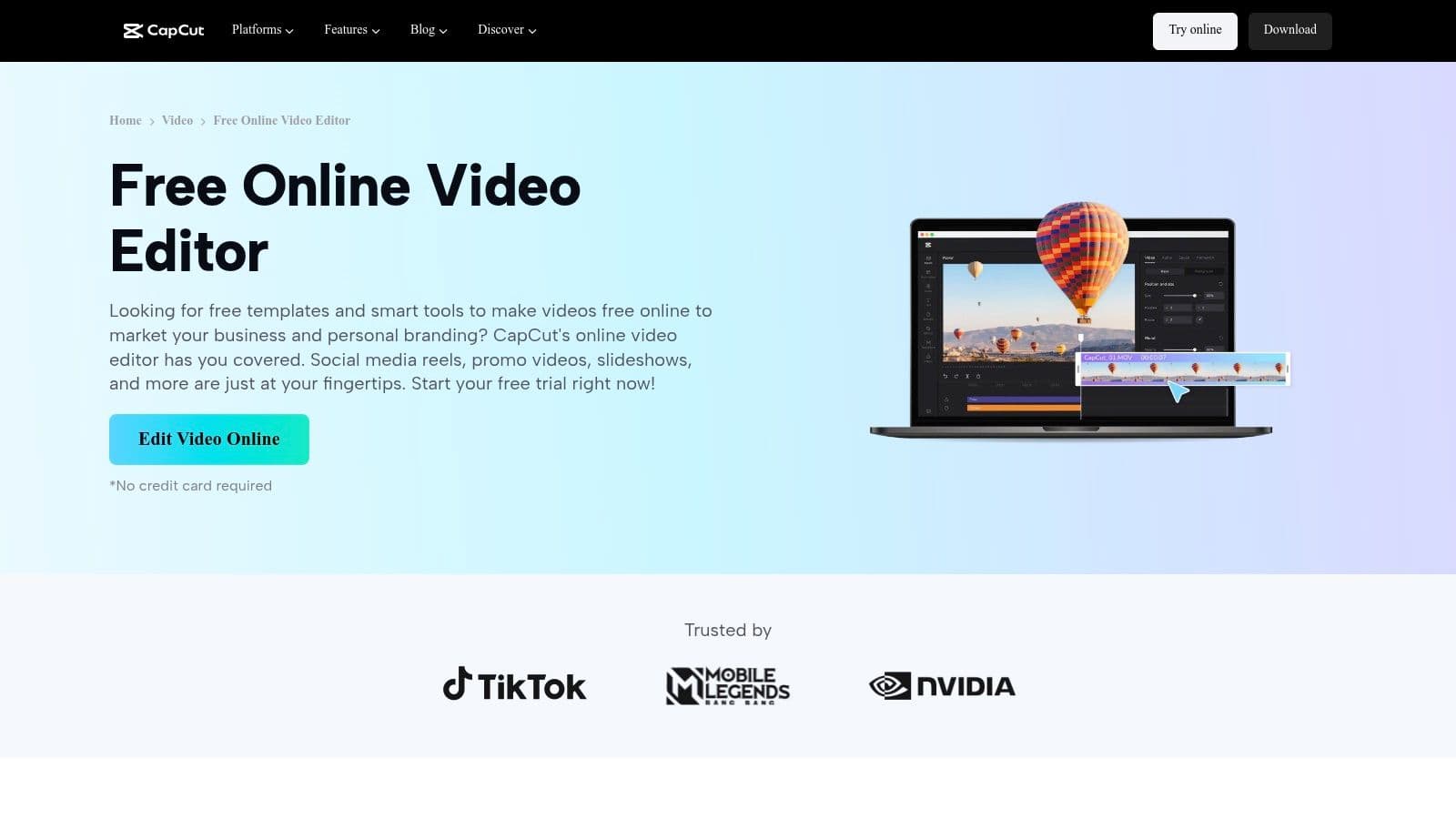
The user experience feels modern and responsive, with a cloud-based workflow that lets you start a project on one device and continue on another. The interface is intuitive, featuring a drag-and-drop timeline and clearly marked tools. Its performance in a browser is respectable, though very long or multi-layered 4K projects can occasionally strain system resources. The editor's primary strength is its suite of AI tools, which automate complex tasks and streamline content creation for fast-paced social media schedules.
Standout Features
CapCut Online excels at providing tools that directly cater to current social media video trends.
Key Benefit: The auto-captioning and subtitle editor is one of the most accurate and easy-to-use among free editors. It quickly generates synchronized text with multiple animation styles, making it perfect for creating accessible and engaging videos without manual effort.
Other notable features include:
- Social Media Templates: A huge, constantly updated library of templates for TikTok, Reels, and Shorts that include pre-set transitions, effects, and audio.
- AI-Powered Editing: Tools like the one-click background remover, video upscaler, and automatic noise reduction are available on the free plan.
- Extensive Asset Library: Access to a large collection of trending stickers, text effects, filters, and royalty-free music.
Pricing and Limitations
The free plan is very powerful, but a "Pro" subscription unlocks premium assets and features. Certain advanced tools or higher-resolution exports (above 1080p) may be limited or require the Pro plan. However, for standard social media clips, the free version is more than capable.
| Feature | Pros | Cons |
|---|---|---|
| AI & Automation | Excellent auto-captioning and one-click background removal. | Some advanced AI features are behind the Pro paywall. |
| User Interface | Modern, intuitive, and geared for quick social media edits. | Browser performance can slow down with very long or complex edits. |
| Templates & Assets | Huge library of trendy effects, templates, and sounds. | Many premium assets are locked and will prompt an upgrade. |
| Export Quality | Reliable 1080p exports on the free plan, with no watermark. | 2K/4K export availability can be inconsistent on the free tier. |
Best For: Social media managers, TikTok creators, and anyone needing to produce trendy, caption-heavy videos quickly.
Website: CapCut Online Video Editor
3. Canva Video Editor
Already a powerhouse in the graphic design space, Canva has expanded its drag-and-drop simplicity into video, earning a spot among the best free online video editors. It’s less of a traditional, precision-focused editor and more of a design-centric video creation tool. Its core appeal lies in its massive library of templates and design assets, making it exceptionally fast for creating visually consistent content for social media, intros, or promotional clips. For those already using Canva for graphics, the video editor feels like a natural and intuitive extension.
The user experience prioritizes speed and ease of use over technical complexity. Editing happens on a simplified timeline where you can easily trim clips, add text with stylish animations, and browse an enormous stock library. Because it's a design platform first, it excels at creating lyric videos or posts where animated text and graphics are just as important as the video footage itself. Collaboration is also built-in, allowing teams to work on a video project simultaneously.
Standout Features
Canva’s strength is its integration with its design ecosystem, offering a unified workflow.
Key Benefit: The unparalleled library of templates, fonts, and graphic elements allows users with zero video editing experience to produce professional-looking, branded social media videos in minutes.
Other notable features include:
- Massive Template & Asset Library: Access thousands of video templates for TikTok, Reels, YouTube, and more, plus a huge collection of stock elements.
- Simple Animations: Easily animate any element on screen, from text to graphics, with pre-set motion effects.
- Collaborative Workflow: Multiple users can edit a video project in real-time, leaving comments and making changes, just like a Google Doc.
- Direct Social Publishing: Publish your finished video directly to various social media platforms from within the Canva interface.
Pricing and Limitations
The free plan is very capable for basic projects but has clear boundaries. Using any premium stock footage, audio, or graphic elements (marked with a crown icon) will require a one-off payment per asset or a subscription to Canva Pro. Exports on the free plan are watermark-free as long as you stick to free assets.
| Feature | Pros | Cons |
|---|---|---|
| User Interface | Extremely easy for non-editors thanks to its drag-and-drop system. | Lacks the precision of multi-track timelines for complex edits. |
| Templates & Assets | A vast and high-quality library perfect for social media content. | Many of the best assets are gated behind the Pro plan or fees. |
| Performance | Generally fast and responsive for simple, template-based projects. | Can become slow with many animated elements or longer videos. |
| Collaboration | Real-time team collaboration is a significant advantage for businesses. | File management is less robust than in dedicated video editors. |
Best For: Social media managers, small businesses, and beginners who prioritize design and branding consistency over complex editing functions.
Website: Canva Video Editor
4. Adobe Express (Video)
Adobe Express positions itself as an all-in-one content creation tool, and its video editing component is a strong entry among the best free online video editors. Drawing from Adobe's deep well of creative software experience, Express offers a polished, template-driven experience ideal for producing quick, professional-looking social media clips, marketing assets, and simple video montages. Its interface is clean and exceptionally easy to navigate, making it a great starting point for those intimidated by more complex editing software.
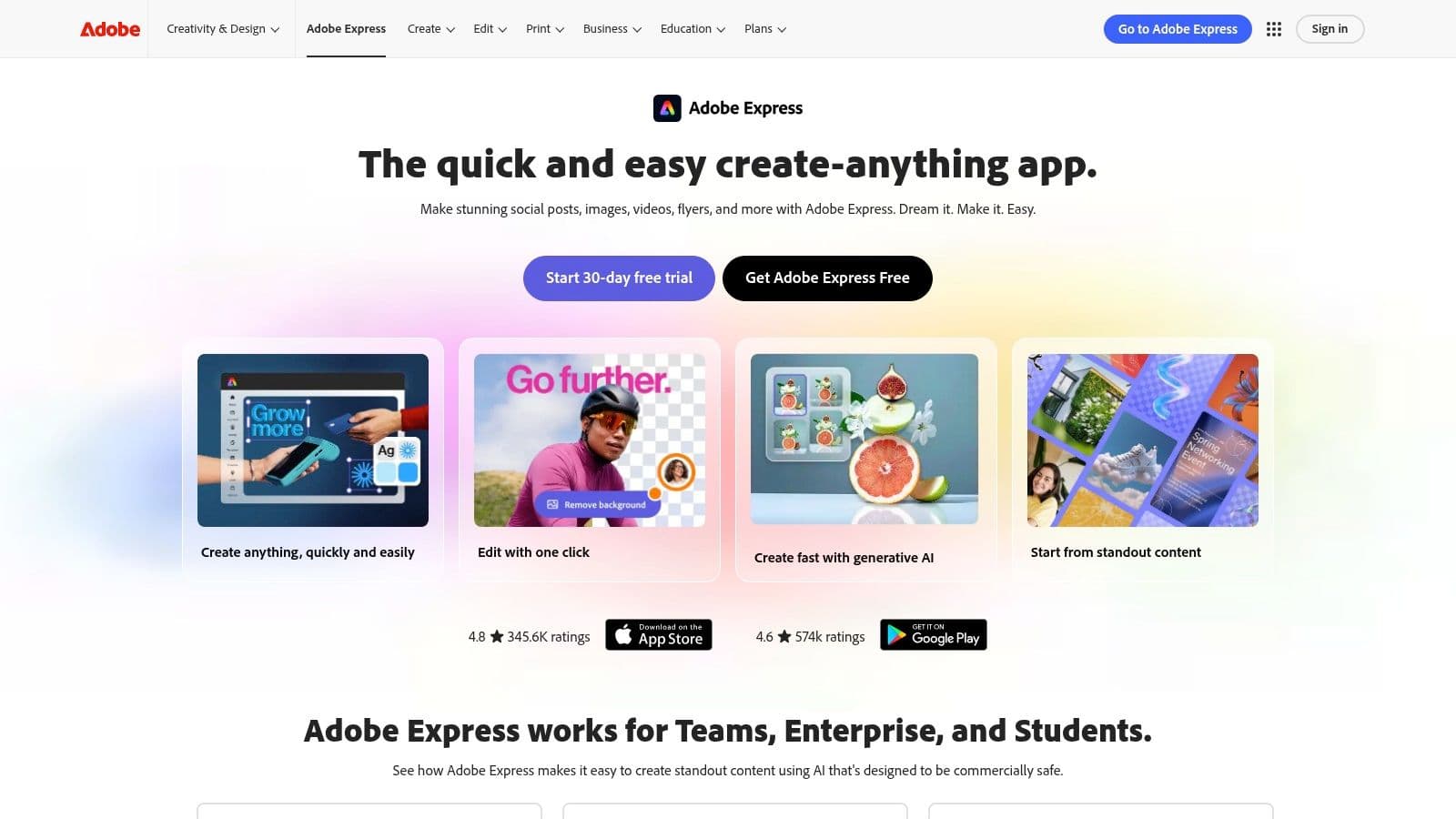
The workflow in Adobe Express is scene-based rather than a traditional multi-track timeline, which simplifies the process of trimming and arranging clips. This structure works very well for short-form content. The platform is also expanding its AI capabilities, with features like text-to-video and animation effects that can add dynamic flair to your projects with minimal effort. The integration with Adobe's ecosystem is a clear advantage for anyone already using other Adobe products.
Standout Features
Adobe Express focuses on speed and quality, giving users access to high-grade assets and simple controls.
Key Benefit: The tight integration with the Adobe Stock library provides access to a massive collection of professional photos, video clips, and music directly within the editor, making it easy to create polished content without sourcing assets elsewhere.
Other notable features include:
- Quick Actions: Perform simple tasks like resizing video for different platforms, trimming clips, or merging videos with dedicated, single-purpose tools.
- AI-Powered Animation: The "Animate from audio" feature lets you animate a character using just your voice, which is a unique tool for creating engaging social content.
- Branding Tools: The free plan allows you to upload your logo and apply basic branding, which is useful for businesses creating consistent marketing materials.
Pricing and Limitations
The free plan includes core editing tools, a limited collection of Adobe Stock assets, and basic templates. Upgrading to the Premium plan unlocks the entire collection of stock content, removes watermarks from premium assets, provides 100GB of cloud storage, and adds advanced features like brand kits. While 1080p exports are free, a small Adobe Express watermark is added to your videos on the free plan.
| Feature | Pros | Cons |
|---|---|---|
| Asset Library | Integrated access to a portion of the high-quality Adobe Stock library. | A watermark is added to free exports and premium assets are locked. |
| User Interface | Extremely clean, modern, and easy for absolute beginners to understand. | Scene-based editor lacks the precision of a traditional timeline. |
| Workflow | Template-driven approach is very fast for creating standard social posts. | Not suitable for complex, multi-layered video projects. |
| AI Features | Unique tools like "Animate from audio" offer creative possibilities. | AI functionality is still developing and is not as deep as other tools. |
Best For: Marketers, small businesses, and social media managers who need to quickly create polished, branded video content without a steep learning curve.
Website: Adobe Express
5. Kapwing
Kapwing positions itself as a collaborative, creator-focused platform, and it shines brightest when it comes to text-based video elements. It has become a go-to tool for anyone looking to generate subtitles, create lyric videos, or translate content, making it one of the best free online video editors for text-heavy projects. Its interface is clean and modern, allowing users to import media directly from URLs like YouTube or TikTok for quick repurposing. This workflow is ideal for creating short-form content with engaging, animated captions.
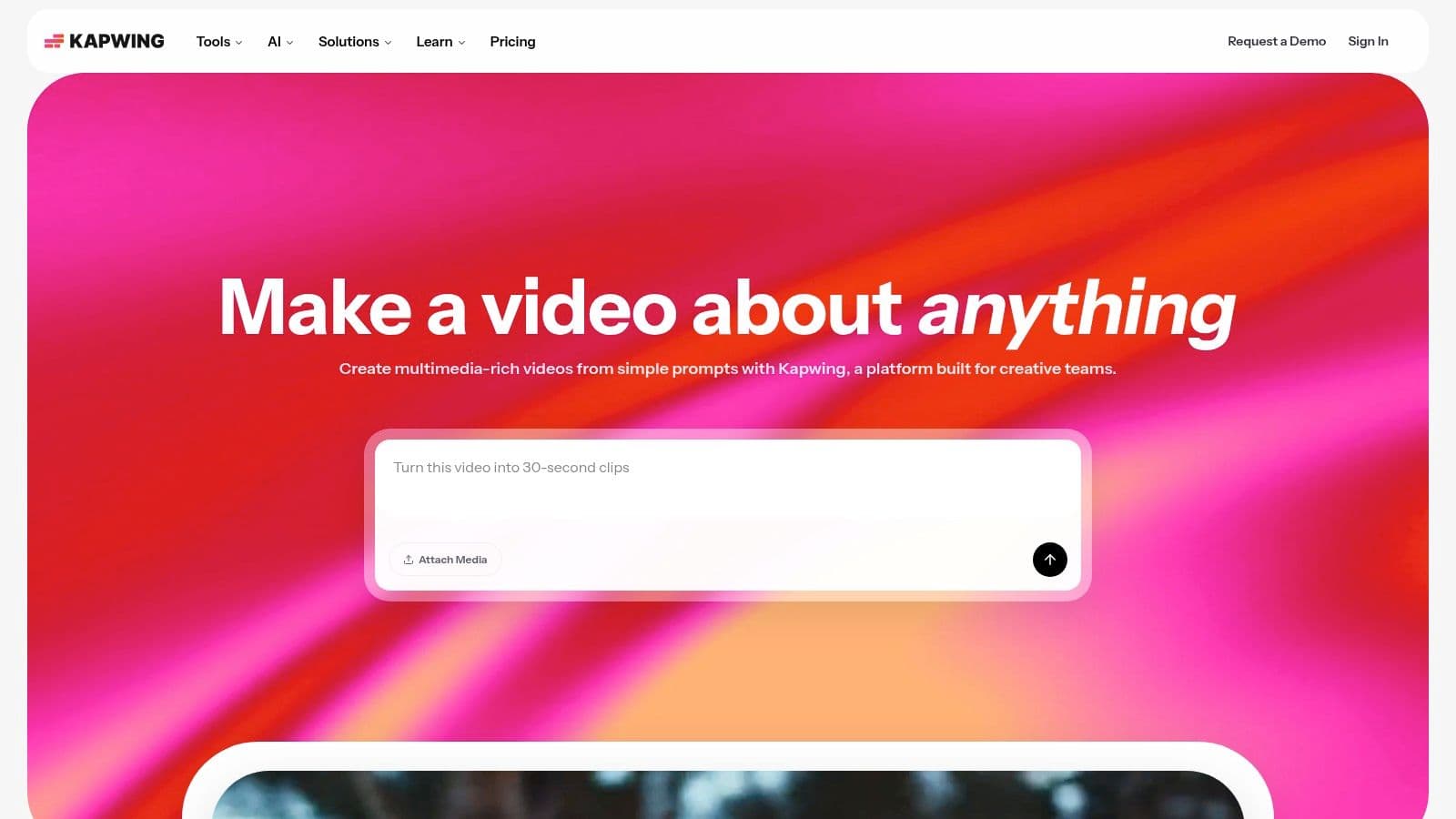
The user experience feels fast and intuitive, particularly for tasks involving text and audio. The AI-powered tools for generating and timing captions are remarkably accurate, saving significant time compared to manual transcription. While the editor is powerful, the free plan’s limitations are noticeable. The inclusion of a watermark and caps on export length and resolution are key factors to consider before committing to it for a project.
Standout Features
Kapwing’s strength is its specialized toolset for subtitle and audio workflows.
Key Benefit: The auto-subtitle generator and its seamless editing workflow are exceptional. It can automatically transcribe, translate, and allow you to style and animate text, making it perfect for creating accessible content or viral-style social media clips.
Other notable features include:
- AI-Powered Tools: Beyond subtitles, it offers AI tools to remove silences, clean up audio, and generate video scripts.
- Collaborative Workspaces: You can invite team members to a shared workspace to edit projects together in real-time.
- Direct Media Import: Easily import video and audio by pasting links from YouTube, TikTok, and other platforms.
Pricing and Limitations
The free plan is a great way to test the platform's core features but comes with significant restrictions. Upgrading to the Pro plan removes the watermark, increases export limits, unlocks premium features, and provides more AI credits.
| Feature | Pros | Cons |
|---|---|---|
| Watermark-Free Exports | Not available on the free plan; exports are watermarked. | Pro plan is required for watermark-free, high-resolution exports. |
| User Interface | Modern, clean, and built for fast-paced social content creation. | Can feel limited for traditional long-form video editing. |
| Text & Subtitle Tools | Industry-leading auto-captioning, translation, and styling options. | Advanced AI features are limited by a credit system on the free tier. |
| Collaboration | Real-time editing with team members is a built-in feature. | Most useful collaboration features require a paid plan. |
Best For: Social media managers, lyric video creators, and anyone who needs powerful, automated captioning and translation tools for short-form video.
Website: Kapwing
6. VEED
VEED positions itself as an all-in-one platform for modern marketing teams and social media creators, making it a strong contender among the best free online video editors. It excels with a feature set built for speed and accessibility, particularly its powerful subtitling and translation tools. The platform is designed for users who need to produce polished, shareable content quickly, such as short-form marketing videos, without a steep learning curve. Its clean interface feels less intimidating than traditional editors, prioritizing workflow efficiency for content that needs to reach a global audience.
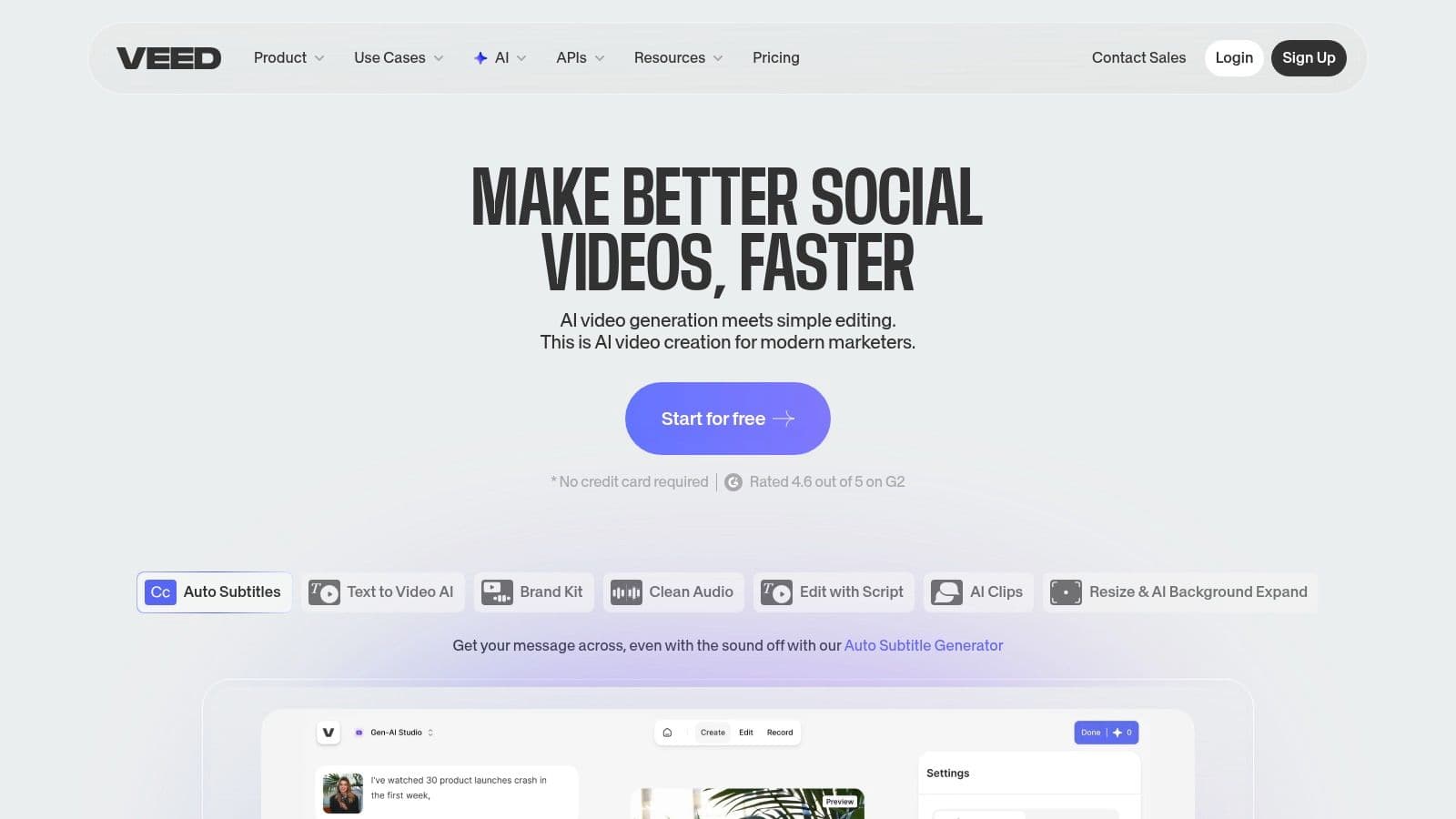
The user experience is built around a simple, layer-based editor that combines recording, editing, and subtitling into a single flow. This integration is where VEED shines, allowing a user to record their screen, automatically generate captions, clean the audio, and publish the video in minutes. However, the free plan is quite restrictive, with a noticeable watermark and limitations on export quality and length, pushing users toward a paid subscription for professional use.
Standout Features
VEED’s strength lies in its specialized tools for creating content designed for social media engagement.
Key Benefit: The automated subtitling and translation feature is exceptionally well-executed. It can transcribe audio with high accuracy and translate it into dozens of languages, making it invaluable for creators targeting international audiences.
Other notable features include:
- One-Click Audio Cleaner: A simple tool that removes background noise from your recordings, improving audio clarity without complex adjustments.
- Screen & Webcam Recorder: Directly capture your screen, webcam, or both, which is perfect for creating product demos, tutorials, or reaction videos.
- Templates & Brand Kit: Access a library of templates for various platforms and, on paid plans, set up a brand kit to maintain visual consistency.
Pricing and Limitations
VEED’s free tier is best considered a trial. It includes a watermark, a 10-minute export limit, and caps resolution at 720p. Paid plans (Basic, Pro, Business) remove these limitations and add features like increased storage, higher export quality (up to 4K), translation, and team collaboration. Some users have reported frustrations with billing and support, so it's wise to perform due diligence before committing to a subscription.
| Feature | Pros | Cons |
|---|---|---|
| Watermark-Free Exports | Not available on the free plan; a prominent watermark is applied. | Requires a paid subscription to remove the watermark. |
| User Interface | Very approachable and simple, designed for quick edits. | Lacks the advanced controls of more traditional editors. |
| Subtitle & Translation | Excellent automated captioning and translation tools. | Translation features are locked behind higher-tier paid plans. |
| Free Plan Limits | Offers access to the core editor and basic tools. | Heavy restrictions on export length (10 min) and quality (720p). |
Best For: Social media marketers and teams who need to create captioned and translated videos quickly for a global audience and are willing to pay for a streamlined workflow.
Website: VEED
7. Flixier
Flixier's core mission is speed, positioning it as one of the best free online video editors for users who can't afford to wait for rendering. Its cloud-powered engine processes and exports video remarkably fast, even on low-spec hardware like Chromebooks or older PCs. This makes it a lifeline for creators who need to publish content quickly without being held back by their machine's capabilities. The platform uses a standard timeline editor that feels professional and responsive, striking a good balance between functionality and ease of use.
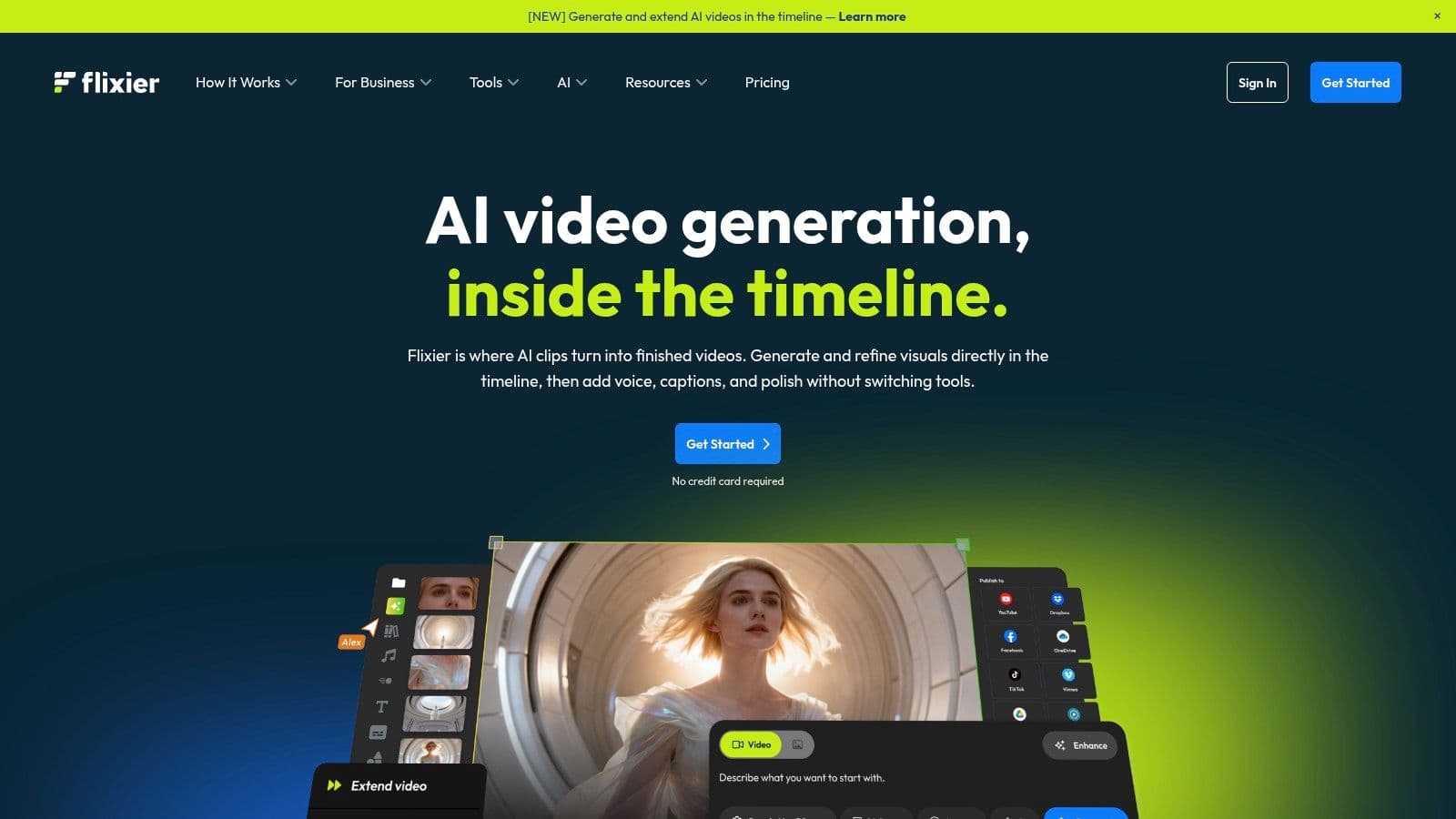
The user experience centers on efficiency. Because rendering happens on Flixier's servers, your computer's resources are freed up, leading to a smooth editing session without the fan noise and slowdowns common with browser-based editors. It also includes collaboration features, allowing teams to work on the same project simultaneously. While the free plan is somewhat limited, it serves as an excellent demo of the platform's primary strength: raw processing speed.
Standout Features
Flixier packs a powerful feature set focused on speed and modern content creation workflows.
Key Benefit: The cloud-based rendering system allows for project exports in just a few minutes, regardless of your computer's power. This is a game-changer for users on older hardware or those needing rapid turnaround times.
Other notable features include:
- Built-in Recorders: It offers a reliable screen and webcam recorder, along with green screen (chroma key) support, making it a solid choice for creating tutorials and presentations.
- AI and Subtitle Tools: The platform includes auto-subtitle generation, translation, and a text-to-speech engine, which are great for improving video accessibility and reach.
- Direct Publishing: You can connect your social media accounts and publish your finished videos directly to platforms like YouTube, TikTok, and Instagram.
Pricing and Limitations
The free plan is designed to give you a taste of the platform's speed. It includes a watermark and limits exports to 720p resolution with a maximum of 10 minutes of video per month. Upgrading to a paid plan removes the watermark, increases resolution to 4K, provides more export time, and unlocks premium features.
| Feature | Pros | Cons |
|---|---|---|
| Export Speed | Extremely fast cloud rendering is a major advantage over competitors. | Free plan watermarks all exports. |
| Hardware Requirements | Runs smoothly on low-spec devices like Chromebooks and older laptops. | Monthly export time is capped at only 10 minutes on the free plan. |
| User Interface | Professional, responsive timeline editor that feels capable. | Fewer templates for social media compared to Canva or CapCut. |
| Built-in Tools | Screen recorder and auto-subtitles add significant value. | 720p export resolution on the free tier is a notable restriction. |
Best For: Users on less powerful computers, teams needing collaboration, and creators who prioritize fast export times above all else.
Website: Flixier
8. FlexClip
FlexClip positions itself as a template-driven tool, making it one of the best free online video editors for users who prioritize speed and simplicity over granular control. It is designed for creating quick, polished videos like marketing clips, social media stories, and simple explainers. The platform offers a clean, storyboard-like interface that guides non-editors through the creative process, removing the intimidation factor of a traditional multi-track timeline. Its large library of templates provides a strong starting point for almost any project.
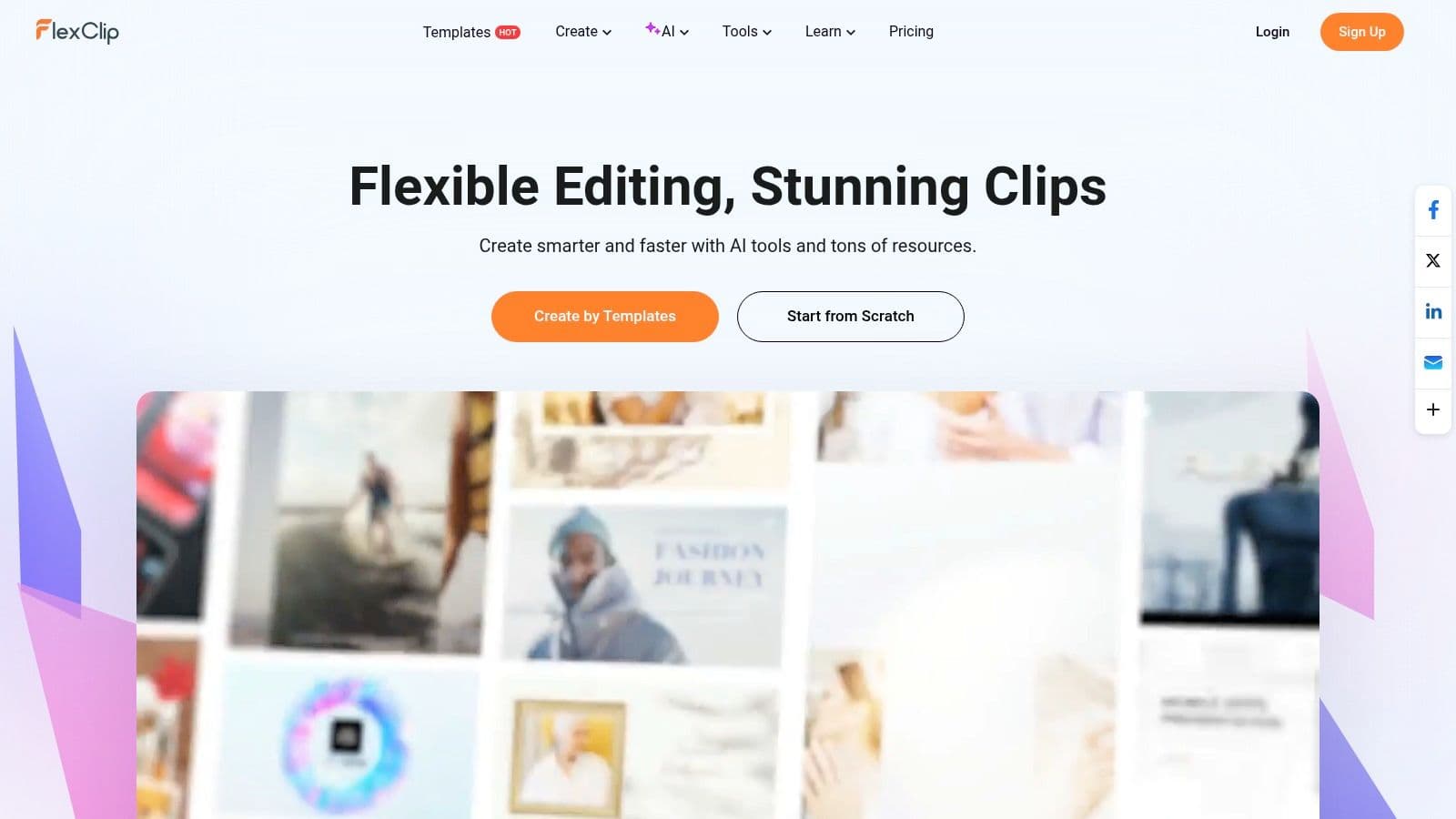
The user experience is straightforward, focusing on assembling pre-made elements and stock media rather than complex edits. You select a template, replace the placeholder text and clips, and export. This streamlined workflow is excellent for businesses or individuals needing to produce content consistently without a dedicated video production team. While it has a timeline mode, its strength is in its template-based editor.
Standout Features
FlexClip's value is in its ease of use and extensive asset library, which helps users create professional-looking videos fast.
Key Benefit: The massive library of professionally designed templates for various niches (business, social media, personal) is FlexClip's main draw. It allows beginners to achieve a high-quality result with minimal effort.
Other notable features include:
- AI Tools: The platform includes basic AI utilities like text-to-video and text-to-speech, though free usage is limited by a credit system.
- Rich Stock Media: Access to a large library of stock photos, videos, and music helps to quickly populate your projects.
- Social Media Presets: Easily create videos perfectly formatted for TikTok, Instagram Reels, YouTube Shorts, and other platforms.
Pricing and Limitations
The free plan is functional for testing the platform but comes with significant restrictions. Videos exported on the free tier will have a FlexClip intro watermark and are limited to 720p resolution. To unlock 1080p exports, remove the watermark, and gain more AI credits and stock asset access, you must upgrade to a paid plan.
| Feature | Pros | Cons |
|---|---|---|
| Templates & Assets | Extensive library of templates and stock media simplifies creation. | Free plan has a prominent watermark and 720p export limit. |
| User Interface | Very easy for non-editors to learn and use, especially the storyboard mode. | Lacks the advanced controls of a traditional timeline editor. |
| AI Features | Includes helpful text-to-video and text-to-speech generators. | AI usage is heavily restricted by a credit system on the free plan. |
| Performance | Runs smoothly in-browser for simple, template-based projects. | Can struggle with longer or more complex custom videos. |
Best For: Small businesses, marketers, and individuals who need to create short, professional-looking promotional or social media videos quickly using templates.
Website: FlexClip
9. WeVideo
A long-standing player in the cloud-based editing space, WeVideo is a reliable and stable platform used by individuals, educational institutions, and business teams. It offers a true multi-track timeline editing experience that feels more akin to traditional desktop software, making it one of the best free online video editors for those who need more control. The platform is entirely cloud-based, allowing users to start a project on a computer and continue editing on a mobile device, a significant advantage for creators on the move.
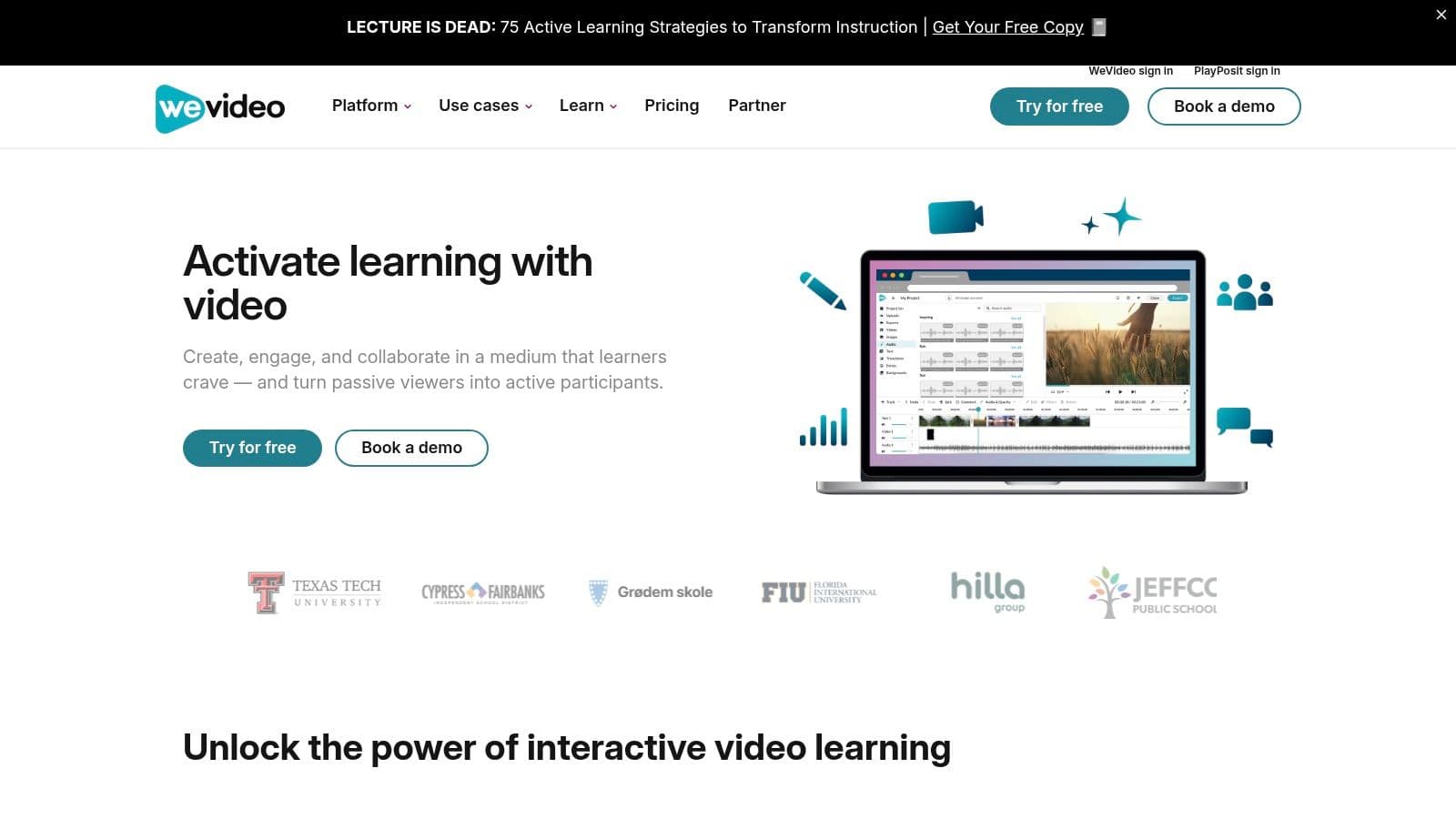
The user interface is clean and organized into three modes: Storyboard, Timeline, and a simplified version for beginners. This flexibility allows users to work in an environment that best suits their skill level. Its strong focus on the education market means it's a very stable and well-supported tool, though this also means its free plan comes with noticeable restrictions designed to encourage upgrades.
Standout Features
WeVideo's strength is its mature, cloud-centric workflow and collaborative features.
Key Benefit: The seamless cross-device functionality is a major draw. You can capture footage on your phone, upload it to the cloud, and immediately begin editing on your desktop's full-featured timeline without transferring files manually.
Other notable features include:
- Multi-Track Editing: The editor supports multiple video and audio tracks, giving you the creative freedom to layer clips, background music, and sound effects.
- Built-in Recorder: A screen and webcam recorder is included, making it a good all-in-one solution for creating tutorials or presentation videos.
- Green Screen: The chroma key tool is available even on lower-tier plans, which is a great feature for creators looking to use custom backgrounds.
Pricing and Limitations
The free plan is more of a trial than a long-term solution. It includes a watermark and is limited to just 5 minutes of published video time per month, with exports capped at 480p and minimal cloud storage. Paid plans remove these limits, increase resolution to 720p, 1080p, and 4K, and unlock a large stock asset library.
| Feature | Pros | Cons |
|---|---|---|
| Workflow | Stable, cloud-based platform with excellent cross-device syncing. | The free plan is very restrictive (5 min/month, watermark, 480p). |
| User Interface | Offers multiple editing modes for different skill levels. | The most powerful features are locked behind several paywalls. |
| Collaboration | Strong offerings for educational and business teams to work together. | Individual free users will not benefit from these collaborative tools. |
| Stock Assets | Paid plans include a large library of stock video, images, and audio. | The free stock library is extremely limited. |
Best For: Students and educators, or users who prioritize a stable, cross-device workflow and plan to upgrade to a paid plan for full functionality.
Website: WeVideo
10. Clideo Video Editor
Clideo positions itself not just as a single editor, but as a complete suite of quick-fix video tools. It’s an ideal choice for users who need to perform a specific, isolated task-like merging clips, adding subtitles, or compressing a file-without the complexity of a full timeline. This tool-based approach makes it one of the most accessible best free online video editors for one-off jobs, functioning more like a Swiss Army knife for video than a dedicated production studio.
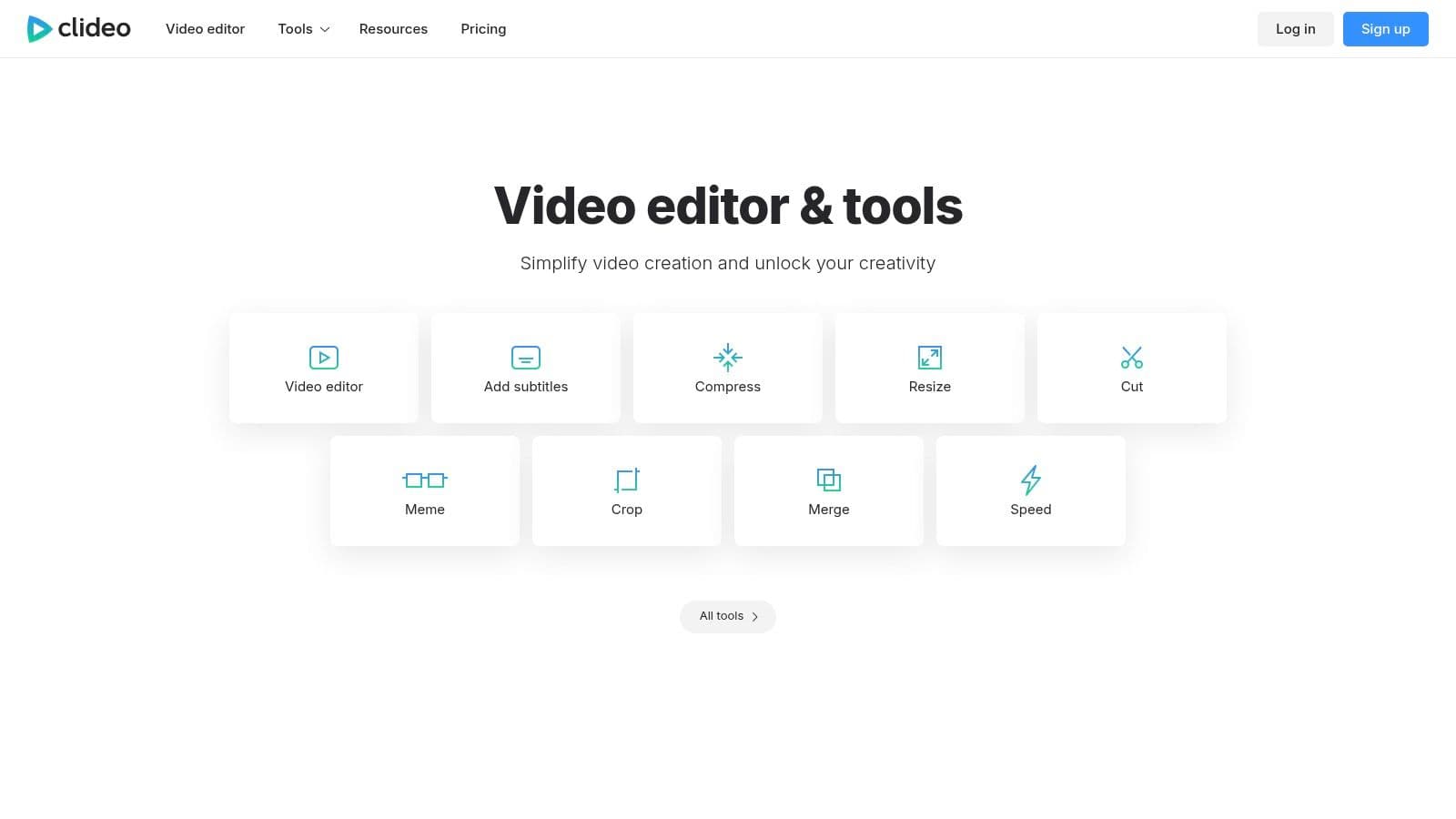
The user experience is straightforward: you select a tool, upload your media, make the adjustment, and process the file. This simplicity is its greatest strength, as it works well on almost any device with a modern browser, including smartphones and tablets. While it does offer a combined "Video Editor" tool that brings multiple functions together, its primary value lies in the speed and efficiency of its individual utilities for users who know exactly what they need to accomplish.
Standout Features
Clideo's collection of over 20 distinct tools provides a solution for nearly any simple video-related problem.
Key Benefit: The sheer convenience of having so many specific, easy-to-use tools in one place is unmatched. You can go from needing to resize a video to adding subtitles and then compressing it for email, all within the same website without ever touching a timeline.
Other notable features include:
- Simple Interface: Each tool has a clear, step-by-step process that requires zero technical knowledge to use.
- Subtitle & Translation Tools: It includes surprisingly capable tools for adding hardcoded subtitles or even translating video audio, a unique offering in this category.
- Broad Accessibility: Because it's a collection of simple web apps, it performs reliably across a wide range of devices and browsers.
Pricing and Limitations
The free plan is functional but comes with significant restrictions. Free users will find a watermark on their final video exports. Additionally, there are limits on file size and the number of projects you can process per day. The "Clideo Pro" subscription removes the watermark, lifts file size limits, and allows for unlimited projects, making it a necessary upgrade for any regular use.
| Feature | Pros | Cons |
|---|---|---|
| Watermark-Free Exports | Not available on the free plan; all free exports are watermarked. | Paid plan is required to remove the watermark. |
| User Interface | Extremely simple and task-oriented, perfect for quick, single edits. | Not designed for complex, multi-layered editing. |
| Tool Collection | A wide variety of single-purpose tools are consolidated in one place. | The main "editor" lacks advanced timeline features. |
| Performance | Lightweight and works well on most devices, including mobile. | Processing can be slow for larger files. |
Best For: Users who need to perform quick, specific edits like trimming, compressing, or adding subtitles without learning a complex editor.
Website: Clideo
11. 123apps Video Editor (OnlineVideoEditor via 123apps)
Known more as a Swiss Army knife of web utilities than a dedicated creative suite, 123apps offers a free online video editor that prioritizes speed and function over flair. It’s part of a massive collection of over 50 tools for audio, video, and PDF manipulation. This editor is the ideal choice when you need to perform a quick, no-frills task like trimming a clip, joining multiple files, or converting a format without the ceremony of signing up or navigating a complex interface. Its straightforward approach makes it a go-to for utility-based editing.
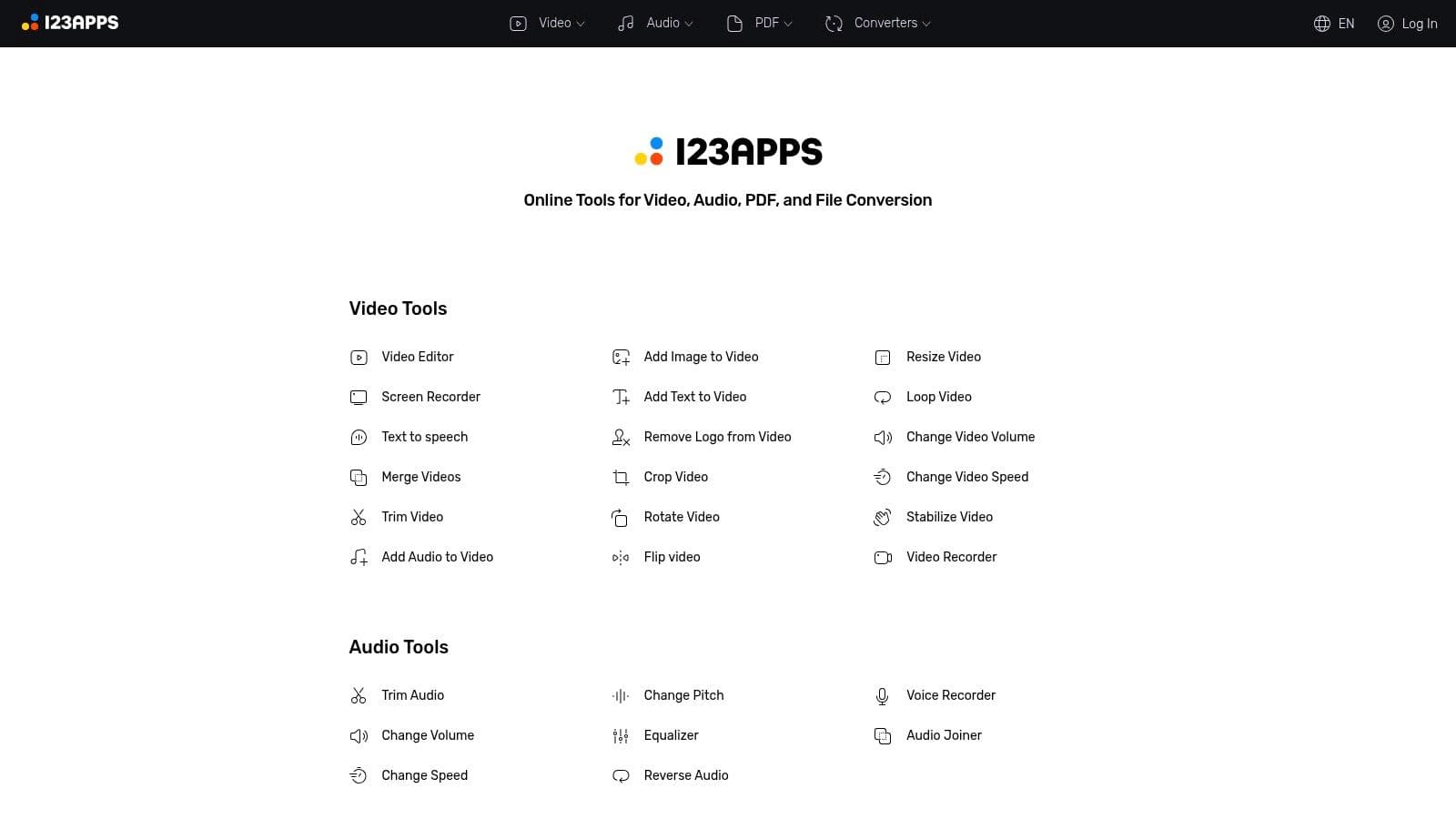
The user experience is incredibly direct: you upload your file, perform your action, and download the result. The timeline editor is basic but functional, allowing for simple cuts and arrangements. Performance is generally fast for these simple tasks, as the tool is not designed for heavy, multi-layered projects with extensive effects. Because it's part of a larger toolkit, you can easily switch to an audio editor to adjust a soundtrack or a video converter to change an output format, all within the same ecosystem.
Standout Features
123apps excels at providing an immediate solution for common video problems without requiring any commitment.
Key Benefit: The ability to perform quick edits and conversions without creating an account is its biggest strength. It’s a tool you can use instantly for one-off tasks and then close, making it highly efficient.
Other notable features include:
- Broad Utility Suite: Beyond the video editor, you have access to tools for merging, trimming, and converting audio, editing PDFs, and more.
- Simple Interface: The tools are designed for single-purpose use, making them extremely easy to understand and operate.
- Core Editing Functions: It reliably handles essential tasks like adding text, trimming footage, and combining clips on a simple timeline.
Pricing and Limitations
The free plan is functional but comes with clear restrictions, including a limit of five files per day and a maximum file size of 500 MB. You will also see ads while using the platform. A premium subscription removes these limits, gets rid of ads, and provides faster processing. For quick, isolated edits, the free tier is perfectly adequate.
| Feature | Pros | Cons |
|---|---|---|
| Accessibility | No sign-in required for most tools, making it fast and convenient. | Free plan is limited to 5 files/day and 500 MB file size. |
| User Interface | Extremely simple and purpose-driven; easy for anyone to use. | Lacks creative features, templates, and stock media. |
| Tool Integration | Part of a large suite of over 50 useful web-based utilities. | The interface contains ads on the free plan, which can be distracting. |
| Editing Capabilities | Excellent for basic cuts, merges, and format conversions. | Not suitable for complex, multi-track, or effects-heavy projects. |
Best For: Users needing to perform quick, functional edits like trimming, merging, or converting videos without the hassle of a full-featured editor.
Website: 123apps Video Editor
12. InVideo
InVideo positions itself as an AI-powered, template-driven platform, making it one of the best free online video editors for users who need to produce content quickly and with significant guidance. It excels at streamlining the creation of marketing, social media, and ad-style videos through its massive library of pre-built templates and AI script-to-video features. This approach is less about granular, manual editing and more about assembling a professional-looking video from structured prompts and existing assets.
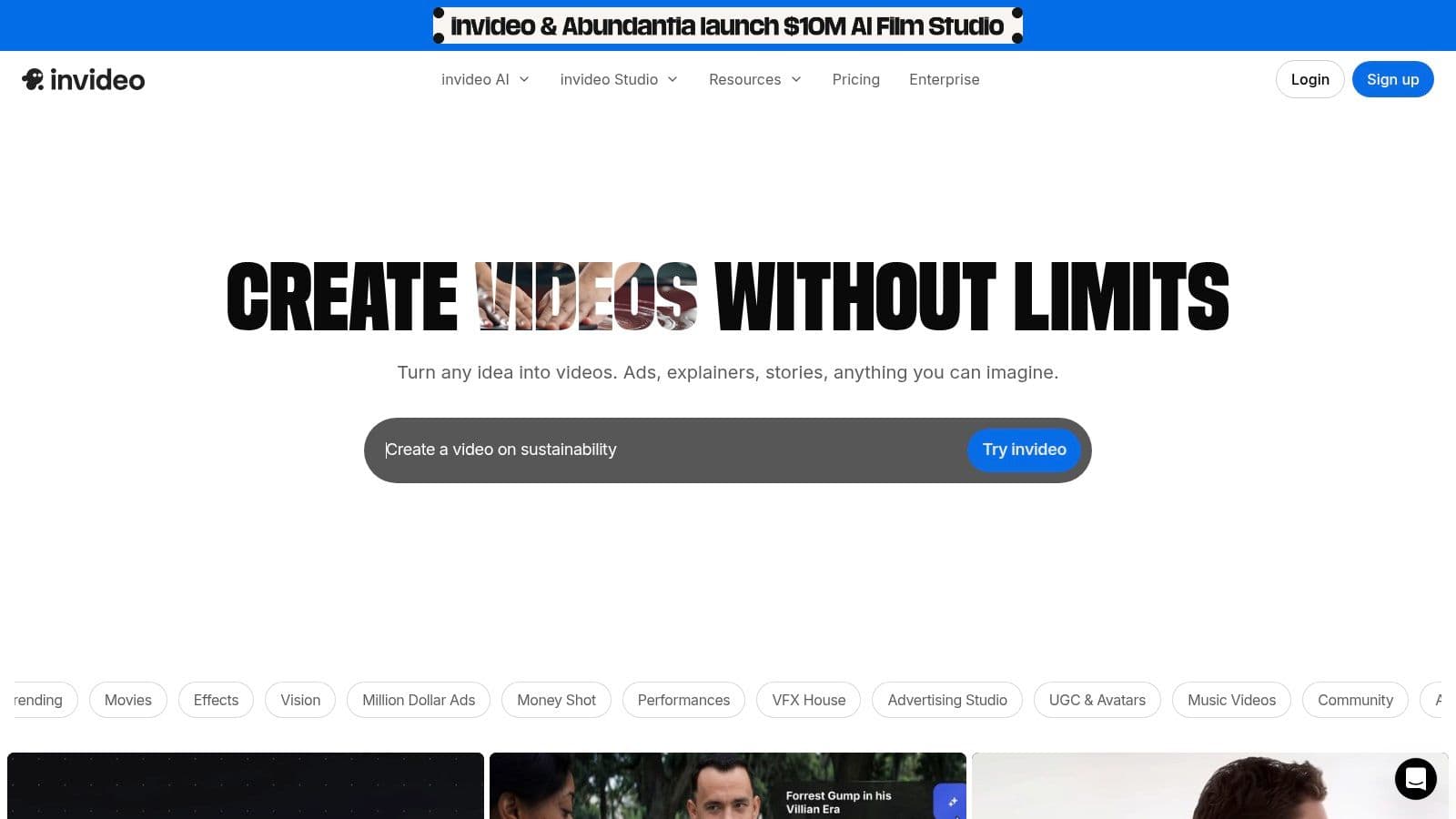
The user experience feels more like filling out a form than using a traditional timeline editor, which can be a major advantage for beginners or marketers under a time crunch. You input text, choose from AI-suggested media, and the platform assembles the scenes for you. While a timeline is available for adjustments, the core workflow is centered on its AI assistants and templates. This makes it a powerful tool for rapid content generation, though it lacks the fine-tuned control found in more traditional editors.
Standout Features
InVideo's primary strength is its ability to accelerate video production with intelligent tools.
Key Benefit: The AI-powered script-to-video generator is a game-changer for speed. Users can provide a simple text prompt or script, and InVideo will automatically create a video complete with stock footage, text overlays, and voiceovers.
Other notable features include:
- Vast Template Library: Access to thousands of templates designed for specific platforms like Instagram Reels, TikTok, and Facebook ads.
- Integrated Stock Media: A large library of stock video and images is available to populate your projects, even on the free plan.
- Team Collaboration: The platform is built with teams in mind, allowing multiple users to collaborate on projects and share assets.
Pricing and Limitations
The free plan is a good starting point but comes with significant restrictions. All exports on the free tier will contain a prominent InVideo watermark, and any premium stock media used will also be watermarked. Furthermore, the free plan tightly meters AI generation minutes and the number of exports, pushing users toward a paid plan for regular use.
| Feature | Pros | Cons |
|---|---|---|
| Watermark-Free Exports | Not available on the free plan; all exports are watermarked. | Watermark is prominent and limits professional use. |
| User Interface | Extremely simple, template-led workflow is great for non-editors. | Lacks the creative freedom and control of a timeline-based editor. |
| AI Tools | Script-to-video and AI voiceovers dramatically speed up creation. | AI minutes and stock exports are very limited on the free tier. |
| Collaboration | Good features for teams to work on video projects together. | Most collaboration features are reserved for paid plans. |
Best For: Marketers and small businesses needing to rapidly create professional-looking ads and social media videos with minimal editing experience.
Website: InVideo
Feature Comparison: 12 Free Online Video Editors
| Platform | Key features (core) | Karaoke / Lyrics Fit ✨ | UX & Quality ★ | Price / Value 💰 | Target / USP 👥🏆 |
|---|---|---|---|---|---|
| Microsoft Clipchamp | Timeline editing, screen/cam, stock, AI helpers | Basic lyric workflows; manual sync + autocaptions | ★★★★ — smooth; can lag on heavy projects | 💰 Free 1080p no watermark; Pro for advanced tools | 👥 Casual creators & YouTubers — free high‑res export 🏆 |
| CapCut Online | Social templates, auto-captions, remover, upscaler | Strong for short lyric clips; auto-resize/captions | ★★★★ — fast template-driven workflow | 💰 Robust free tier; Pro for consistent 2K/4K | 👥 Short-form creators & trends ✨ |
| Canva Video Editor | Drag‑drop, huge templates/stock, collaboration | Good for stylized lyric videos; manual sync | ★★★★ — very easy for non-editors | 💰 Free basic; Pro for premium assets/templates | 👥 Marketers & non-editors — massive templates |
| Adobe Express (Video) | Template-driven editing, Adobe Stock, growing AI | OK for polished captions; not deep lyrics sync | ★★★★ — clean, trusted UI | 💰 Free limited; upgrade for stock access | 👥 Brands/marketers — polished social clips 🏆 |
| Kapwing | Auto-subtitles, translation, TTS, lyrics workflows | Excellent for subtitles/lyrics & translation workflows | ★★★★ — creator-friendly, collaborative | 💰 Free but watermarked/limits; paid removes caps | 👥 Creators & teams — subtitle/lyrics specialist ✨ |
| VEED | Auto-subtitles, translation, recorder, hosting | Good for subtitling & translated lyric videos | ★★★★ — approachable for marketing teams | 💰 Free watermarked; paid for full exports | 👥 Social marketers — hosting + translation tools |
| Flixier | Cloud timeline, very fast exports, recording | Good for lyric videos on low‑spec devices; auto-subtitles | ★★★★ — extremely fast renders in browser | 💰 Free watermarked/720p; paid for HD exports | 👥 Chromebook/low-power users — speed 🏆 |
| FlexClip | Templates, stock, basic AI (TTS/text→video) | OK for simple lyric/marketing clips | ★★★ — simple, template-first UI | 💰 Free w/ watermark; paid for 1080p/branding | 👥 Small businesses & beginners — quick promos |
| WeVideo | Multi-track, screen recorder, education plans | Good for multi-track lyric projects & classrooms | ★★★ — stable, cross-device cloud workflow | 💰 Free very limited publish; paid tiers scale | 👥 Schools & teams — education-friendly |
| Clideo Video Editor | Trim/merge/resize/subtitle/compress utilities | Basic subtitle addition; quick one-off lyric edits | ★★★ — very simple utility tools | 💰 Free with watermark/limits; paid to remove | 👥 Casual users needing quick, single tasks |
| 123apps Video Editor | No-frills timeline, cutters, converters (no sign‑in) | Minimal — suitable for trims/joins, not synced lyrics | ★★★ — fast, ad-supported utilities | 💰 Mostly free w/ limits (5 files/day, ads) | 👥 Quick edits & conversions — no sign‑in needed |
| InVideo | Templates, script→video AI, stock, avatars/voice | Good for ad-style lyric/promotional videos | ★★★★ — template + AI focused | 💰 Free exports watermarked; paid for full access | 👥 Marketers & ad creators — rapid script→video ✨ |
Final Thoughts
Navigating the world of browser-based video editing can feel overwhelming, but as we've explored, the quality and capability of today's free tools are genuinely impressive. The key takeaway is that there is no single "best" free online video editor for everyone. The right choice depends entirely on your specific project, your skill level, and your tolerance for certain limitations, like watermarks or export caps.
Your journey to finding the perfect tool begins with a clear understanding of your primary goal. Are you creating a quick, engaging social media clip, or a detailed, multi-layered lyric video? Your answer will immediately narrow down the field from the twelve excellent options we've reviewed.
Making Your Decision: A Quick Guide
To simplify your choice, let's recap the core strengths of our top contenders and match them to specific user needs. This strategic approach will help you select a tool and start creating, rather than getting stuck in analysis paralysis.
- For Beginners & Social Media Marketers: If you need to produce polished videos with minimal effort, start with Canva Video Editor or Adobe Express. Their template-driven workflows and intuitive interfaces are designed for speed and simplicity, making them ideal for creating branded content and eye-catching social posts.
- For Karaoke & Lyric Video Creators: Precision and robust text tools are non-negotiable. CapCut Online stands out here with its powerful auto-captions, extensive text animation options, and a user-friendly timeline that simplifies syncing lyrics to audio. For those who prioritize advanced timeline control and audio features, VEED is another strong candidate, despite its more restrictive free plan.
- For Aspiring YouTubers & Small Businesses: As your needs grow, you'll require more advanced features. Microsoft Clipchamp offers an excellent balance of usability and power, providing multi-track editing and 1080p exports without a watermark. For collaborative projects, Kapwing and Flixier are built from the ground up to support team workflows, though you'll need to be mindful of their free-tier export limits.
Beyond the Browser: When to Level Up
While the best free online video editors are powerful, they have inherent limitations tied to internet connectivity and processing power. For complex, high-resolution projects or those requiring advanced color grading, sophisticated effects, and plugin support, a desktop application is the logical next step. If you find yourself consistently hitting the ceiling of what browser-based tools can offer, it might be time to explore more professional solutions. For a detailed comparison of both free and paid desktop options, the 12 Best Software for Editing Videos for YouTube (2025 Guide) from Vidito offers an excellent overview of the best video editing software available today.
Ultimately, the best tool is the one that gets your video made. Don't be afraid to experiment. Sign up for two or three platforms that seem like a good fit and try creating the same short video on each. This hands-on experience will reveal which interface you find most intuitive and which workflow best suits your creative process. The power to create compelling video content is more accessible than ever, and with the right free tool, you're well-equipped to bring your vision to life.
Tired of manually syncing lyrics and wrestling with complicated timelines? If you're a karaoke channel creator, MyKaraoke Video offers a specialized, AI-powered solution that automates the entire process. Go from an audio file to a stunning, perfectly synchronized karaoke video in minutes, not hours, with MyKaraoke Video.
