YouTube reported that more than 2 billion logged-in viewers watched music videos each month during 2025, according to the YouTube music audience report. That scale explains why a lyric video can carry a release before an official music video exists. It also explains the risk. Faster sync tools let you publish more songs in less time, but they don't clear rights or fix captions for you. If you're learning how to make YouTube music videos with lyrics, treat rights clearance and a separate caption track as edit steps, not paperwork you handle after a claim arrives.
Start With a Cleared Song and a Readable Plan
The first decision isn't a font. It's whether this song can become a lyric video at all.
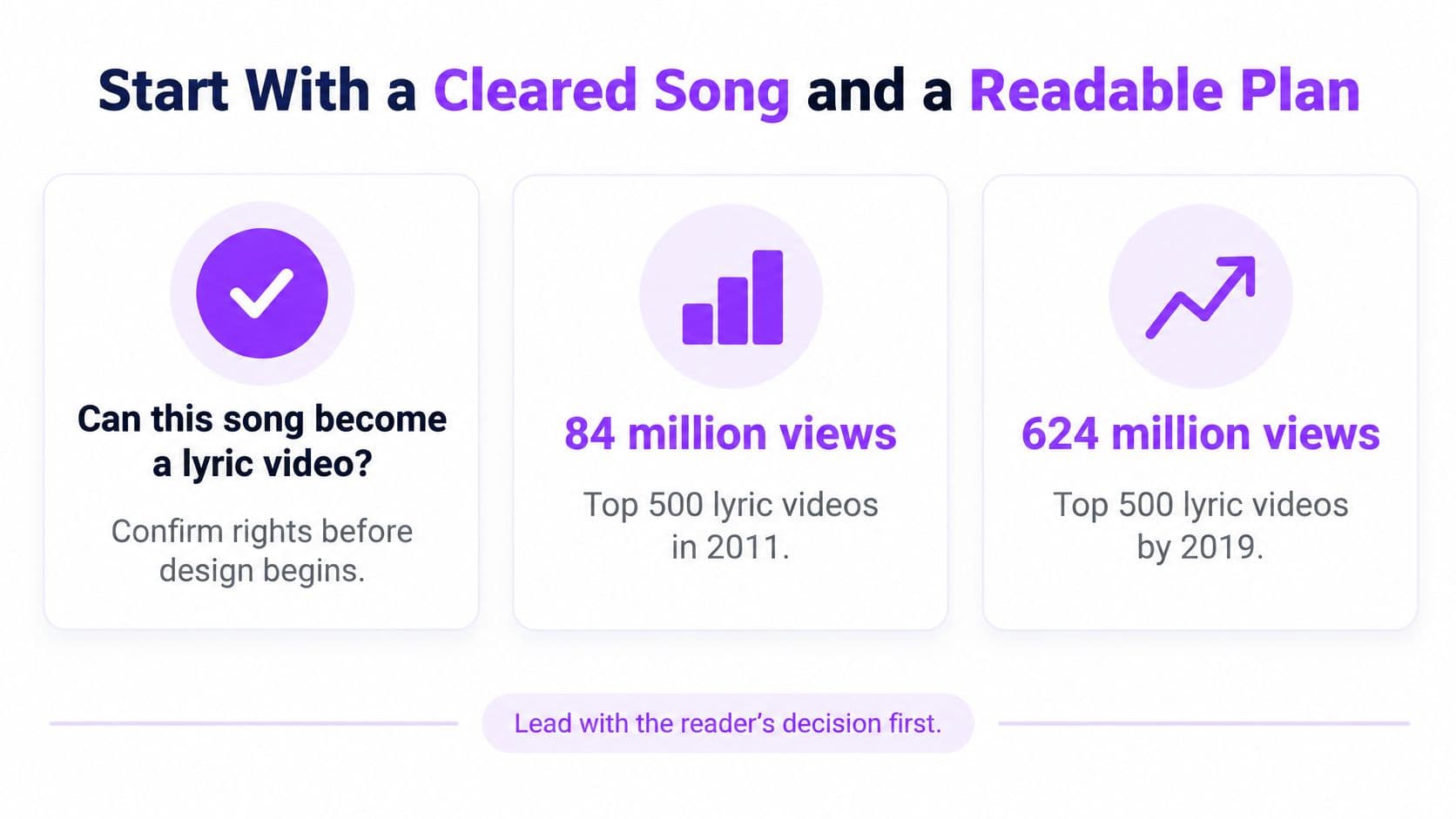
Lyric videos earned that caution by growing fast. The New York Times account of lyric videos as a new YouTube genre reported the top 500 lyric videos had accumulated 624 million views by 2013, compared with 84 million in 2011, a roughly 643% increase. YouTube also reported lyric-video views had increased sevenfold since 2011, while uploads doubled year over year. Dynamic type and shareable timing drove that growth, not static words dropped over audio.
Define the Finished Deliverable
You're aiming for six things together. You need authorized audio, an accurate transcript, highlights that land on the sung syllable, phone-readable type, a 1080p MP4, and a separate caption file. If one piece is missing, you're not done, even if the preview looks polished.
Open the rights question before you open a sync editor. Owning or licensing the sound recording doesn't automatically clear the composition or the printed lyrics. A credit line isn't a license. Our fair use guidelines for karaoke and lyric videos explain why attribution and permission are different things, and creators comparing browser workflows may also look at a LunaBloom AI video creation app as an example of how quick assembly still needs a cleared input file.
Which Music Sources Can Become a Lyric Video
| Source | What you still need | Lyric video |
|---|---|---|
| Original song you control | Master and lyrics already yours | Yes, simplest case |
| Public-domain composition | A recording you are allowed to use | Yes, if both are clear |
| YouTube Audio Library track | Check the track license, lyrics are often not granted | Usually no reprint of commercial lyrics |
| Commercial release | Master, composition, and sync permission | Only with written permission |
| Restricted Creator Music track | License may forbid new lyrics or lyric videos | No when the terms say so |
Stop rule: If a track's terms forbid lyric or karaoke videos, don't design around it. Pick another song.
Say you wrote the song, sang it, and own the mix. That's your cleanest path. Say you found a public-domain hymn but downloaded someone else's choir recording. The words may be old, but that recording still needs permission. Work through files, sync, design, export, and troubleshooting in that order, and don't start step two until this table gives you a yes.
Sync Lyrics to the Vocal From Upload to Preview
Treat automatic timing as a draft, not a verdict. Auto-sync gets phrases near the vocal quickly. Your ears decide whether a highlight matches the singer.
Build the Timed Cut in Order
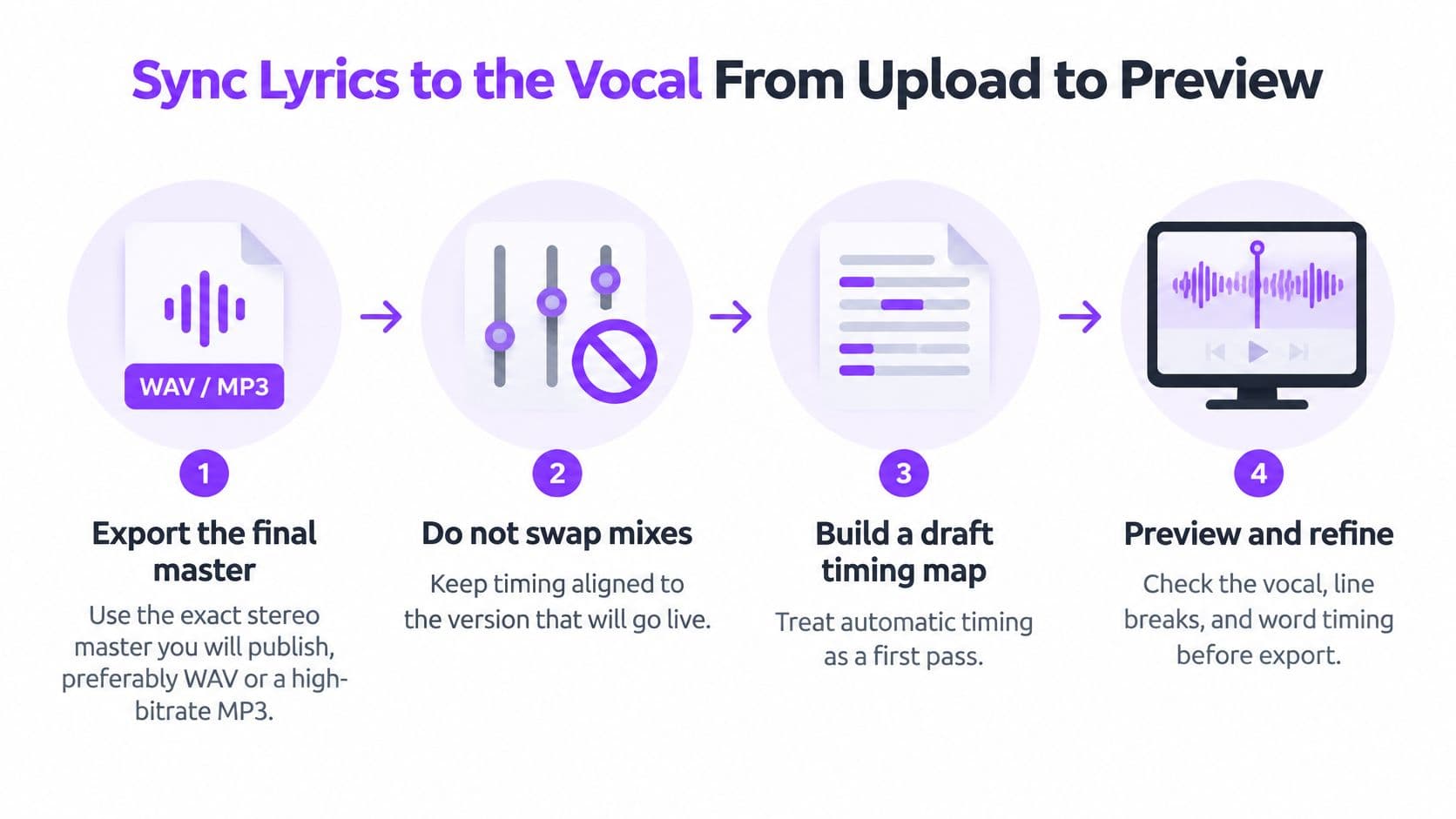
- Export the exact stereo master you'll publish, preferably WAV or a high-bitrate MP3, because every marker you place belongs to that specific mix. If you swap in a remaster, a radio edit, or a version with two extra seconds of intro, your timing drifts from the first line. Name the file clearly, such as SongTitle_FinalMaster.wav, so you don't accidentally align to a demo.
- Paste a lyric sheet you've checked against the vocal, because alignment can't fix wrong words. Include repeated choruses written out each time, plus ad-libs you want on screen. Correct names, slang, and mumbled lines now by listening with headphones, since transcription tools hear sung words worse than spoken words, especially over stacked harmonies and reverb.
- Run automatic line or word sync, because it places each phrase near the vocal instead of spacing lines evenly across the song. Even spacing looks tidy in an editor and feels wrong to a viewer, since singers pause, rush, and hold notes. Let the tool build the rough map, then expect to move markers.
- Nudge the in-point of every line to the syllable the singer reaches, because a highlight that arrives at the end of a phrase teaches viewers the wrong rhythm. Work line by line in the sync editor. Split long lines that would change late. If a line has two clear breaths, it's usually two display lines, even if the lyric sheet prints it as one.
- Leave true music breaks empty, because floating text during a guitar solo tells viewers to expect singing that isn't coming. Keep each phrase on screen long enough to read once at a normal pace. If you can't finish reading it before it disappears, shorten the phrase or bring it in earlier, not faster.
- Preview with the vocal on, once at full speed and once slowed, because each pass catches different errors. Full speed reveals whether the video feels musical. Slowed playback reveals whether the color change lands before or after the consonant. Fix early and late highlights here, while you're still in the timing editor.
- Save this timed cut before designing backgrounds, because visual experiments shouldn't force a re-sync. Duplicate the project or save a version named Timed_NoDesign. Later color changes then sit on top of finished timing instead of disturbing it.
Make the Next Song Faster Without Making It Sloppier
Sync once per master and keep that timed project as your reusable base. If you later need a version without the vocal, a different background, or a translated line underneath, you shouldn't rebuild the markers from zero.
- Saved style template: Store your tested font size, highlight color, and safe-area margins so each new song starts from a design you already know is readable.
- Batch after preview: Export variants only after the vocal preview passes, since re-rendering a broken sync wastes more time than fixing two markers now.
- Chorus check: Jump straight to the second chorus after your first pass, because repeated sections are where aligners most often merge or misplace lines.
Don't move to type and color until a stranger could sing along from your preview without guessing where they are in the line.
A common confusion is thinking a transcript and a timed lyric file are the same thing. They aren't. The transcript says what the words are. The timed cut says when each word becomes active. You need both, and you should finish them in that order.
Design Type That Stays Readable on a Phone
Shrink your preview to phone width first. If the current line isn't obvious at that size, your desktop canvas is lying to you.
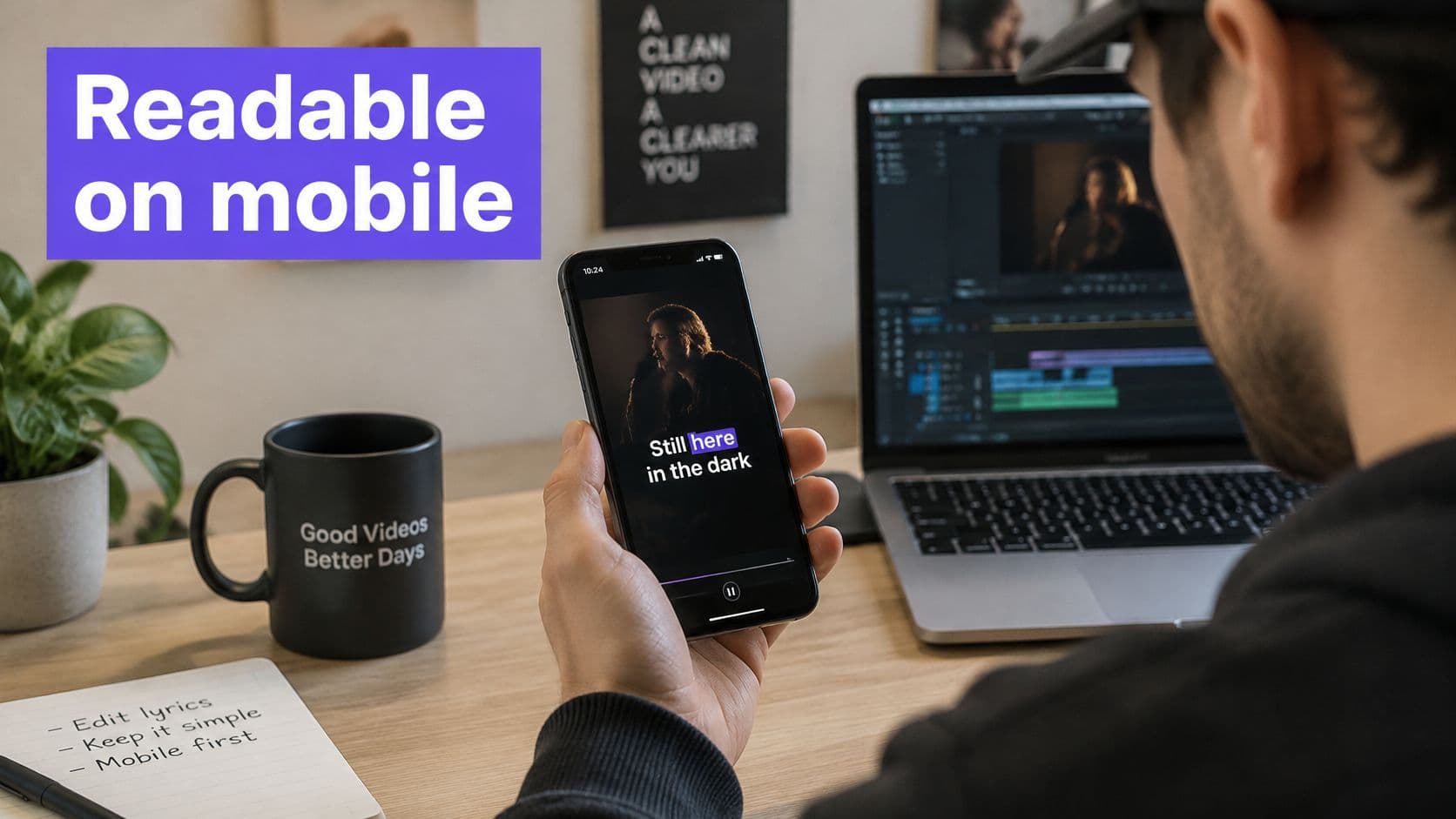
Choose a heavy sans or a clear display face with open letterforms. Thin strokes break up under compression and disappear over moving backgrounds. Make the active word or line high-contrast and keep upcoming words dimmer, so viewers know where they are without reading the whole screen. Our guide to choosing a good subtitle font covers weight and spacing choices that hold up at small sizes.
One or Two Lines in Focus
Prefer one or two lines in focus over a full page of small text. A page forces viewers to hunt. A focused line lets them sing.
For a Scrolling layout, keep the current line locked near the vertical center and let the next lines appear early, already in view, so viewers can breathe before they sing them. That early arrival matters. People don't read at the exact moment a line activates, they read slightly ahead.
For a single-line karaoke style, switch the highlight on the beat the singer reaches, not at the end of the phrase. Waiting until the phrase ends turns your highlight into a receipt for something viewers already heard.
Watch this editing walkthrough to see how text placement changes once you check it against real footage rather than a blank canvas.
Protect Text From the Background
Keep lyrics inside a safe area away from the edges, where platform controls and cropping won't eat them. If your background is busy footage or a moving visualizer, put text on a solid or blurred backing. A subtle dark panel behind the words beats a clever outline that flickers over bright and dark shots.
Check three frames before you export:
- Bright chorus: White or pastel text often vanishes here, so confirm your highlight color still separates from the background.
- Dark verse: Dim upcoming lines can drop out entirely, so raise their brightness until they're readable but still secondary.
- Any shot with a face: Move lyrics off the face, because viewers will choose between reading and watching, and they'll resent the choice.
Say your chorus uses flashing stage lights. On desktop, your white text with a thin shadow looks clean. On a phone, after compression, the shadow turns to mush and half the letters merge with a light flare. A semi-transparent black backing bar solves it in ten seconds, but only if you preview at phone size.
If a stranger can't read the line once before it changes, the design fails even if the sync is perfect.
Don't decorate every word. Motion should point to the current syllable, not compete with it. One strong highlight color, one readable face, and a calm backing will outperform five effects stacked on small type.
Export a 1080p MP4 YouTube Will Accept
Copy the export spec before you argue about backgrounds. A beautiful file that YouTube re-encodes badly wastes all your sync work.
The YouTube recommended upload encoding settings call for an MP4 container with H.264 High Profile video, progressive scanning, variable bitrate, and 4:2:0 chroma subsampling, with audio as AAC-LC or Opus at 48 kHz and 384 kbps listed as the recommended stereo upload bitrate. Match those settings in your export dialog instead of picking a generic preset and hoping.
YouTube Lyric Video Export Settings
| Setting | Use this | Avoid |
|---|---|---|
| Container | MP4 | Formats YouTube must remux |
| Video codec | H.264 High Profile, variable bitrate | Unnecessary extra encodes |
| Scan and chroma | Progressive, 4:2:0 | Interlaced video |
| Frame size | 1920x1080 for 16:9 | Letterbox or pillarbox baked into the file |
| Frame rate | Match the source, commonly 24, 25, or 30 fps | A converted rate that was not in the source |
| Audio | AAC-LC or Opus, 48 kHz, 384 kbps stereo | A mismatched sample rate |
| File start | moov atom at the front | Edit lists that stall processing |
Our MP4 video resolution guide explains how frame size choices affect the final upload quality. For a standard lyric video, 1920 by 1080 gives YouTube a clean 16:9 source. Don't bake black bars into the file to fake a ratio. Bars waste resolution and shrink your text on phones.
The Two Settings That Break Playback Most Often
First, frame rate conversion. If your source and project are 30 fps, export 30 fps. Forcing 24 fps because it sounds cinematic can make highlight changes land between frames and feel slightly late. Preserve the native rate and your timing markers stay where you placed them.
Second, file structure. Put the moov atom at the front, often labeled fast start or web optimized, so playback can begin without reading the whole file. Avoid edit lists, which can stall processing. Most modern exporters handle this with a checkbox, but you need to confirm it's on.
Don't re-encode your export through a second tool to shrink it. Each extra encode softens thin letter strokes. If the file is large, upload the large file. YouTube will compress it anyway, and you'd rather give it sharp type to work from.
Review the Render, Not Just the Timeline
Render a review copy and play that actual file on a phone and a desktop. Watch the chorus closely, since loud, bright, fast sections are where compression muddies type and where your backing bar earns its keep. Confirm the highlight still matches the vocal after rendering, because an export offset can shift audio or video by a frame or two.
Keep the review copy separate from the upload master, with names like SongTitle_Review.mp4 and SongTitle_Upload_1080p.mp4. If you later fix one caption or one marker, you'll know which file changed and which one viewers saw. Don't overwrite the only good render with an untested fix.
Export rule: If you haven't watched the rendered file outside your editor, you haven't reviewed the video your audience will see.
Fix Timing Drift and Bad Captions
Diagnose after your first full preview, not while you're still designing. Most lyric video failures look similar on screen but have different causes, and fixing the wrong one wastes a render.
Start with the late highlight. The line marker may be technically correct, but the color change waits until the phrase ends, so viewers feel behind the singer. That's a visual timing problem. Move the highlight to the sung syllable or break the line into shorter phrases.
Lyric Video Problems and the Fix to Try First
| Symptom | Likely cause | First fix |
|---|---|---|
| Highlight lands at the end of a long line | Line is timed but the color change is late | Move the highlight to the sung syllable or split the line |
| Sync drifts after the first chorus | A different mix, or repeated lyrics merged | Re-align those bars to the master you will upload |
| Words vanish on a phone | Small type or contrast lost on the background | Enlarge the current line and add a solid or blurred backing |
| Names and ad-libs are wrong | Auto transcript missed them | Correct the text, then run alignment again |
| Viewers cannot translate or copy the words | Only a burned-in graphic exists | Upload a reviewed caption file as its own track |
Drift that appears after the first chorus usually means you aligned to a different audio master than the one in your export, or the aligner merged a repeated chorus with its earlier twin. Don't nudge the whole song by one offset. Go to the exact bars where drift starts and re-check them against the published mix. A global shift fixes the chorus and breaks the verse.
Unreadable phone type isn't a sync error, so don't touch markers for it. It's size and contrast. Wrong names aren't a design error either. They're transcription errors, and running another auto-pass over bad text just times the mistakes more precisely. Fix the words first, then re-align.
Burned-In Lyrics Are Not Captions
Draw a hard line here. Your animated lyric layer is the visual performance. A caption track is a separate text file viewers can turn on, translate, search, or use with assistive tools. Animated words can't be copied, and they may be hard to follow when speed or contrast is poor.
The Purdue guide to creating and editing accurate YouTube captions notes that Google describes automatic captioning as speech recognition and that a caption track can be machine-translated into 51 available languages. It also supports uploading a plain transcript for Auto-sync or an already timed SRT, plus broadcast formats including SCC, CAP, and EBU-STL. Whichever route you choose, review the result for timing and readability.
Build your caption track from the cleaned transcript, not from screenshots of your animation. Check punctuation and line breaks against musical phrasing. Write repeated choruses out in full. Confirm every phrase stays on screen long enough to read, and make sure captions don't cover faces or key artwork.
If you localize, translate from that cleaned source and test each language separately. Machine translation gives you reach quickly, but a human pass catches names, idioms, and lines where literal wording changes the meaning. Keep the burned-in layer and the caption track synchronized but independent, so fixing a translation doesn't require re-rendering your video.
Publish the Video With Rights Still Intact
Upload only after the rights check and the review export both pass. Publishing is quick. Undoing a bad publish isn't.
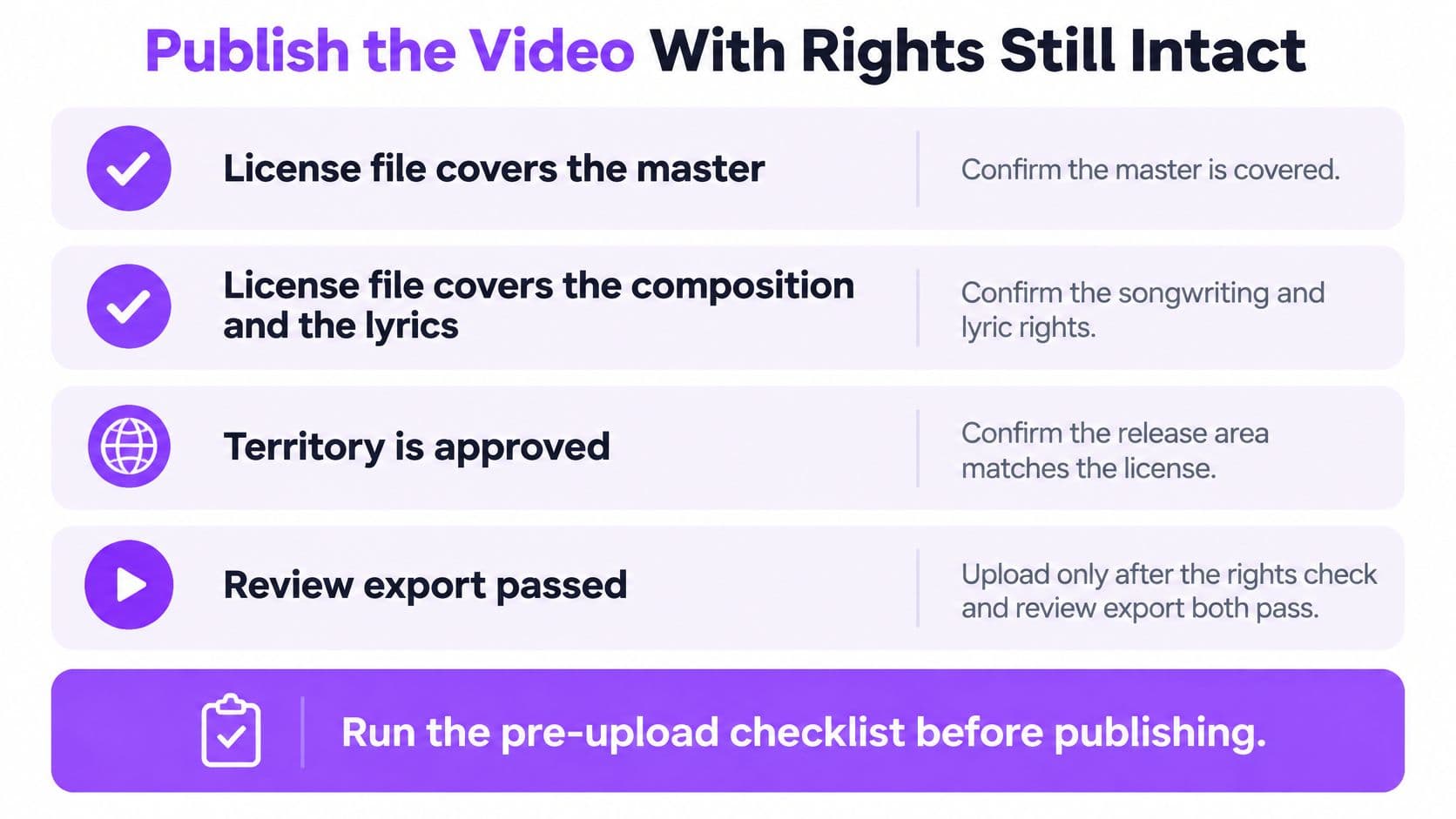
Run this checklist before you touch YouTube Studio:
- License file: Confirm it covers the master, the composition, and the lyrics, and store it beside the project file.
- Territory and monetization: Confirm where the video may play and who may earn from it.
- Evidence: Keep permission emails or license receipts where you can find them during a claim.
If your track contains a sample, don't guess what clearance costs or whether a short excerpt is safe. Take time to understand sample clearance fees before you publish, since sample permission sits on top of the lyric and recording rights you've already checked.
In Studio, title the upload with the song name and the words lyric video. Write a description that credits the artist, adds a one-line license note, and links the official pages the musician controls. Add a few accurate tags instead of unrelated trending words. Pick a thumbnail whose text stays readable at small size, then upload the 1080p MP4 and add your reviewed caption track in the original language, with each translation as its own track.
A finished upload isn't proof of permission. The YouTube guidance on claims and permission for copyrighted material states copyright owners determine whether a claimed song is monetized, blocked worldwide, or blocked in particular countries, and policies can change so availability may change later. Claims can also arise from a small amount of material. When a claim appears, match it to your license file before you dispute anything.
For a song that's already cleared, the build itself can be short. Our 1-Click Lyric Video Maker lets you upload a music video, paste its lyrics, and get a video with scrolling lyrics within 2 minutes. You can use your own audio, auto-sync from an isolated vocal track if you have one, or sync manually in the Sync Editor, then customize background, text, and colors and export with or without the vocal track. Clear one song, finish one previewed master, and publish that file.
Clear your next song first, then bring the master and checked lyrics to MyKaraoke Video to sync each word, customize the background, text, and colors, and export a 1080p MP4 with or without the vocal. Start with one previewed, rights-cleared track and publish a lyric video your viewers can sing along to on a phone.
