
You've got an MP3 in your Downloads folder, a block of lyrics open in a text file, and an empty karaoke editor waiting in your browser. You already know the song, the verses, and the visual style you want. The next action should be simple: move those files into the project and start creating.
Traditional upload controls can interrupt that momentum. You click Browse, search through nested folders, choose a file, confirm the selection, and then wait for a progress indicator that may appear to stall. If the wrong version of the song loads, you may not notice until much later. Drag and drop uploading reduces that hesitation by making the file movement visible and direct.
When Uploading Feels Like Friction
A creator's attention is usually on the finished karaoke video, not on the mechanics of finding a file. The MP3 may sit beside several similar downloads. The lyrics may exist as a plain-text document, an LRC file, or copied lines in another window. Each choice has already taken effort, so the upload should feel like the natural continuation of that work.
A conventional file picker adds a small interruption at exactly the wrong time. The creator must leave the editor, find their way through the file system, select a file, and return to the browser. A permission prompt or slow response can create uncertainty: did the click work, or is the page still waiting? That uncertainty matters because users often abandon a project before they can see any creative result.
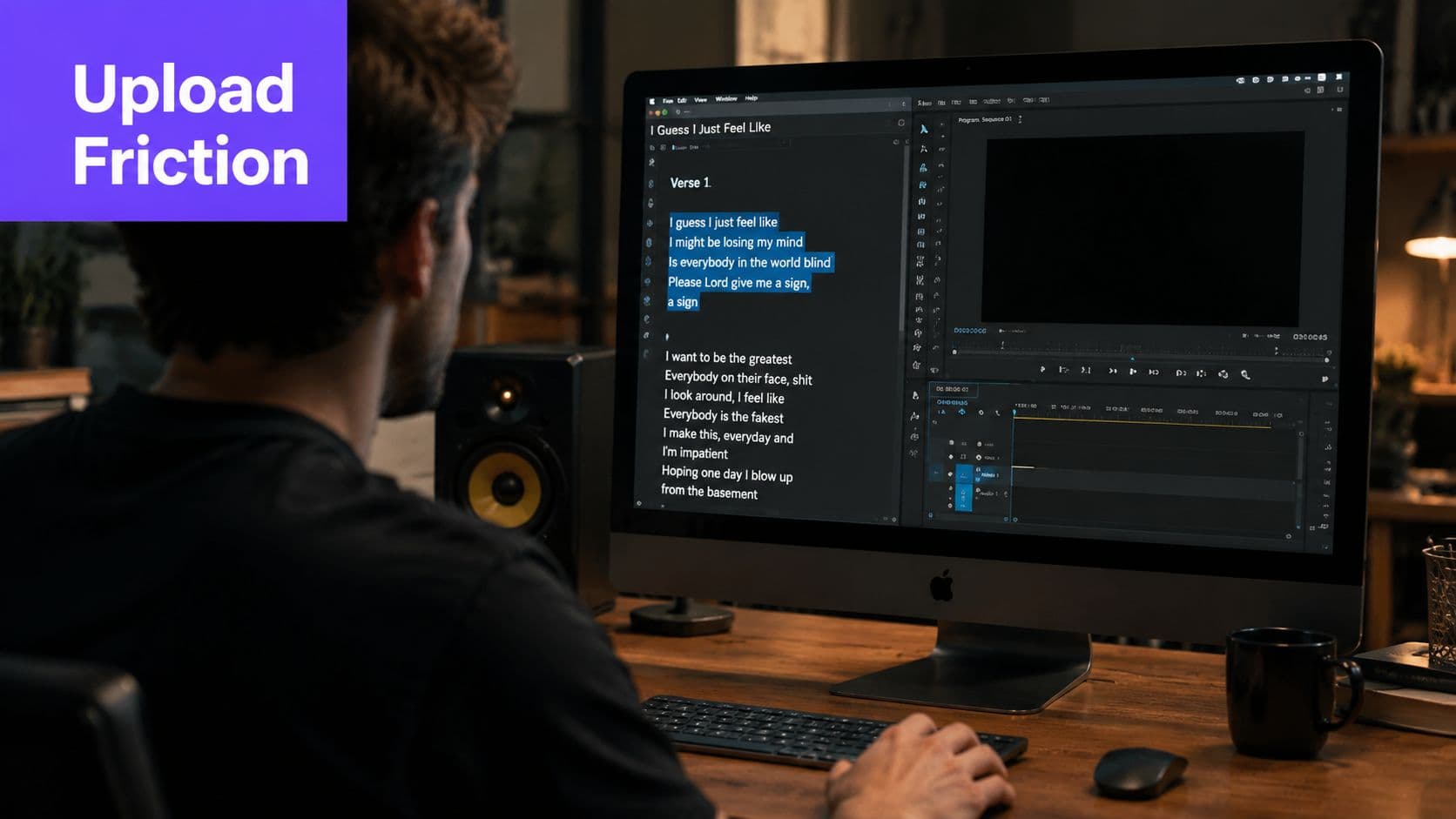
The gap between intention and confirmation
A good upload interaction answers three questions quickly:
- What can I add? The interface should name accepted file types and any limits in plain language.
- Where should I put it? The drop area should be obvious before the user starts dragging.
- Did it work? The interface should show validation, progress, success, or a clear error.
Without those answers, the creator has to guess. Guessing turns a straightforward action into a small risk, especially when the file is large or several files have nearly identical names.
Practical rule: The upload should confirm the creator's decision, not make the creator repeat it.
Drag and drop uploading helps preserve the original intention. The file is already visible in the file explorer, and the user moves it directly into the waiting editor. That doesn't eliminate validation or network delays, but it makes the first step easier to understand. For a first-time creator, that can be the difference between reaching the editing canvas and closing the tab.
What Drag and Drop Uploading Actually Means
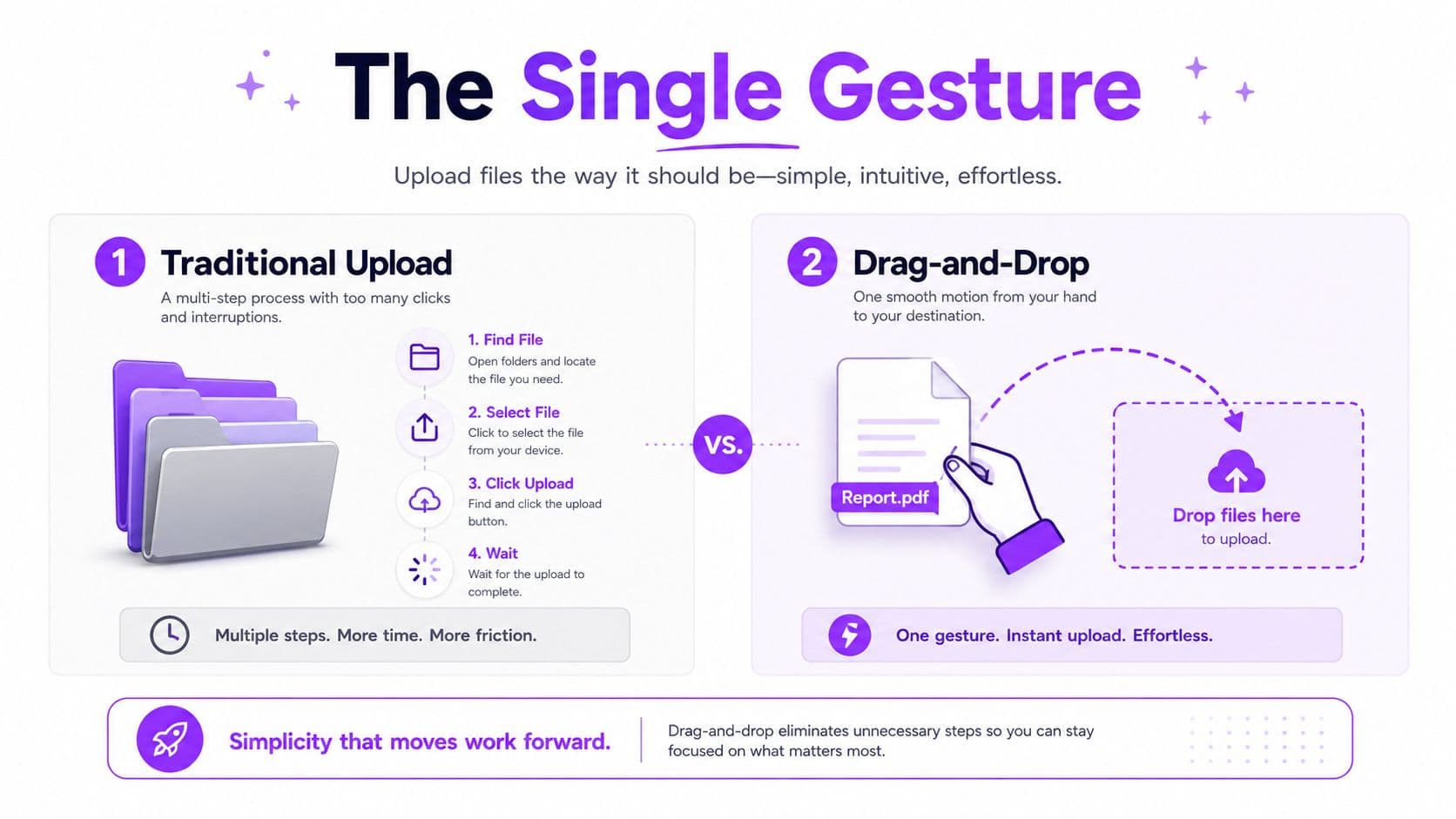
Drag and drop uploading is a file-transfer interaction built around one continuous gesture: click a file, hold the pointer, move it to a target, and release. Instead of opening a separate browser dialog to locate and confirm the file, you hand the file from one visible surface to another.
The browser handles several events during that movement. When dragging begins, a dragstart event identifies the action. As the pointer enters the target, dragenter signals that the file has reached the drop area, while dragover continues to report that the pointer is hovering there. Releasing the pointer triggers drop, which gives the page access to the selected file through a DataTransfer payload.
You don't see those events. You see a border change, a message such as “Drop your audio here,” and then a file name or progress indicator. That hidden technical activity is useful only when it produces clear visible feedback.
The browser still needs permission to accept the drop
There's a technical trap that affects developers. A browser won't normally fire the drop event unless the dragover handler cancels the default action. In practical terms, the drop zone must tell the browser, “This area accepts the dragged item.”
Complex zones also need careful handling of dragenter and dragleave. If a zone contains text, icons, or buttons, the pointer may appear to leave the zone whenever it crosses one of those children. Without a state counter or equivalent logic, the highlight can flicker and confuse the user. Technical guidance on HTML file upload behavior covers these browser-event concerns alongside validation and upload-state handling.
Drag and drop is therefore not a separate kind of file upload. It's a friendlier layer over the same underlying process. The browser still receives a File object, the application still checks the format and size, and the server still has to accept, inspect, store, or reject the content.
Why It Improves User Experience
The strongest benefit isn't that drag and drop looks modern. It's that the interaction keeps the creator oriented toward the task. A file picker pulls attention into a separate navigation step, while a drop zone lets the user act on a file already in view.
Feedback also arrives earlier. A clear hover state tells the user where the file can land. A validation message can identify an unsupported type before the creator waits through a transfer. After release, a visible filename, progress state, and final result replace the uncertainty that often follows an ordinary upload button.
Box's early HTML5 implementation shows why this pattern gained attention. In 2010, Box reported that HTML5 drag-and-drop uploading was already one of its most popular ways for users to place files on the platform within its first week, surpassing the older AJAX upload method. The early implementation also had a practical 25 MB limit, which illustrates an important point: the interaction can feel simple even when browser and transfer capabilities still constrain the underlying experience. Box's HTML5 adoption story documents that early trade-off.
| Dimension | Traditional Upload | Drag-and-Drop Upload |
|---|---|---|
| Starting action | Open a picker and navigate to the file | Move a visible file directly to the target |
| User feedback | Often begins after selection | Can show acceptance while hovering |
| Context | Temporarily leaves the editor | Keeps the editor and file visible together |
| Error discovery | May occur after transfer begins | Can begin with immediate validation |
| Perceived control | The system fetches a selected file | The creator visibly places the file |
Less friction can protect creative momentum
The effect becomes clearer when a project needs several assets. A creator might add audio, lyrics, and a background image. Each upload is a chance to lose context, misread a filename, or wonder whether the previous action completed. Three direct drops can feel like one continuous preparation phase, while three separate picker sessions create repeated interruptions.
That doesn't mean every user prefers dragging. Some people work with keyboards, touch devices, assistive technology, or file locations that make a picker easier. The primary UX improvement comes from giving users a direct path without removing the dependable alternatives.
Best Practices for Building a Drop Zone That Works
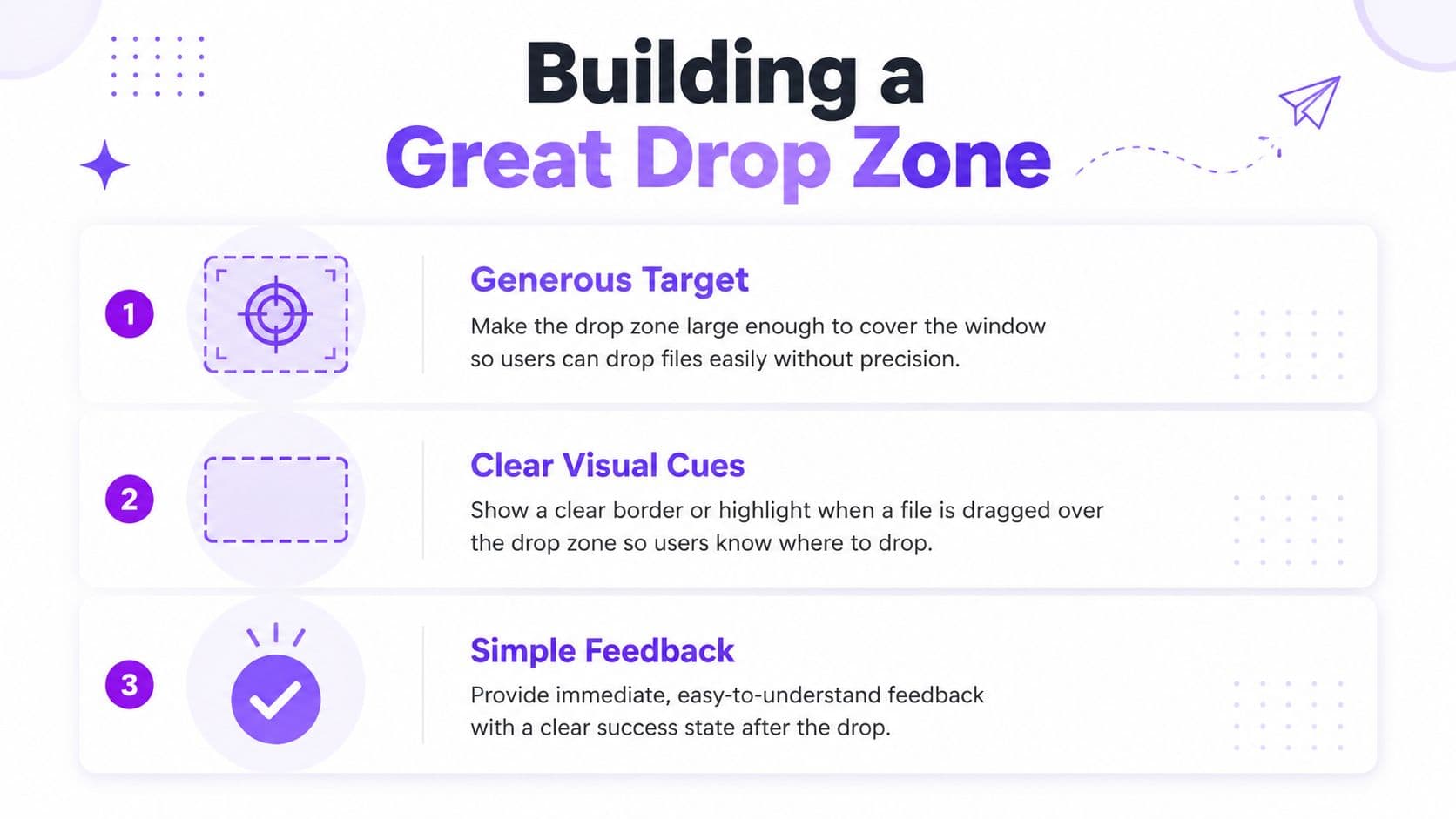
A reliable drop zone should communicate its behavior before the user reads documentation. Give it a generous target, a calm resting appearance, and a stronger active state when a file is moving over it. If the target is too small, creators may release a file beside it and assume the upload failed.
Use distinct visual states rather than one permanent message:
- Idle: Show what the user can upload and provide a visible file-picker control.
- Dragging: Change the border or background so the active target is unmistakable.
- Validating: Tell the user the file is being checked.
- Uploading: Show the selected filename and meaningful progress.
- Success or error: Confirm the result or explain the next corrective action.
The interface should also state accepted formats and size limits before selection. Client-side checks can provide fast feedback, but they aren't a security boundary. The server must enforce the same rules and inspect the content independently.
Design for recovery, not just the successful path
Large files and unreliable connections make failure normal. Model the upload as a set of explicit states, including pending, uploading, completed, failed, and cancelled. Each state should offer a useful message, such as retrying the upload, choosing another file, or removing the current item.
For larger transfers, chunked uploading can make recovery more practical because the application can retry portions rather than restarting the entire transfer. Progress should reflect actual bytes sent where possible, not just animate until the server responds.
A drop zone earns trust when it explains what happened after the release.
The fallback picker belongs inside the same component. A keyboard-clickable button or native file input ensures that users can reach the same function without dragging. The browser-based video editor guide offers useful context for thinking about uploads as one part of a larger in-browser editing workflow, where previews, validation, and recovery need to remain connected.
Accessibility and Security You Cannot Skip
Drag and drop should be a progressive enhancement, not the only upload method. The native file input must remain available, and the drop zone should include a visible control that users can activate with a keyboard or a single pointer action. This aligns with WCAG 2.5.7, which requires a single-pointer alternative for dragging movements. The U.S. Web Design System's file-input guidance also emphasizes keeping the native input available and making the drop area support the same function.
Keyboard users need a clear focus indicator, not just a hover effect. Screen-reader users need announcements when a file is added, rejected, begins uploading, completes, or fails. An aria-live region can communicate those changes without forcing the user to search the page for a visual status update.
Security requires a separate mindset. A drag gesture doesn't make a file safe. The client can check an extension or MIME hint for convenience, but the server must inspect the received content, enforce its own size limits, and reject unsupported files regardless of what the browser declares.
Trust is decided after the drop
Recent vulnerability reporting around drag-and-drop upload plugins has repeatedly described risks including arbitrary file upload, remote code execution, and stored cross-site scripting when validation or sanitization is weak. The CVE-2026-5718 security bulletin illustrates why a polished interface can't substitute for strict server-side controls.
A responsible implementation should store uploads away from directly executable web locations, assign safe server-generated names, scan where appropriate, and protect transfers with HTTPS. It should also log rejected attempts and make error messages useful without exposing internal details.
The creator sees a friendly drop zone. The server carries the responsibility for deciding whether the file is acceptable, safe to process, and safe to make available later.
Uploading Music and Lyrics in MyKaraoke Video
Open MyKaraoke Video in a desktop browser and the upload area gives you a clear starting point. Drag an audio file from your file explorer into the workspace, or use the same area to open the standard file picker if dragging isn't convenient.
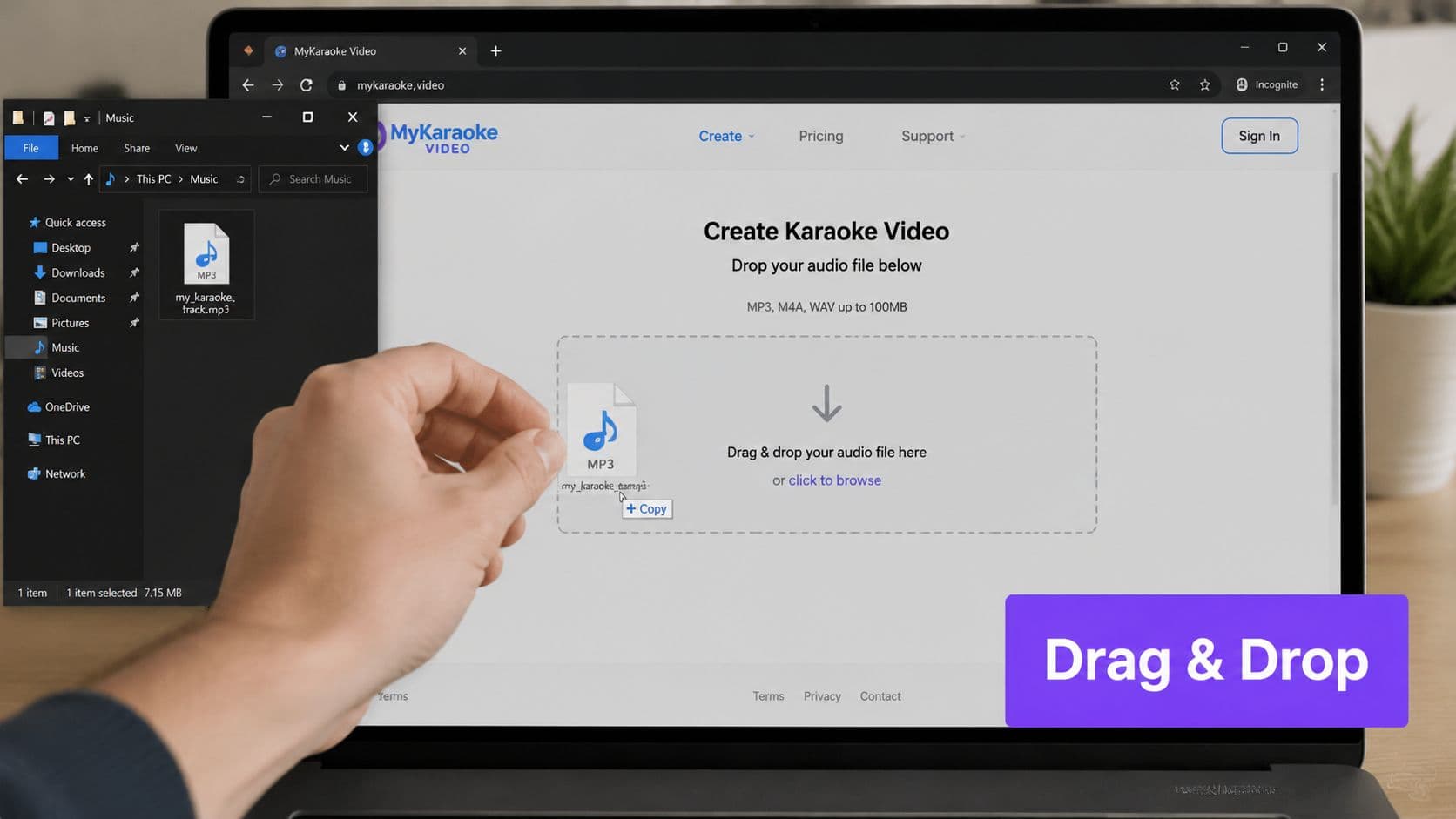
Once the audio is accepted, the project can use it as the foundation for the lyric video. The next task is getting the words into the editor. You can drag a plain-text or LRC file into the lyrics area, or click into the editor and paste the verses line by line. Time tags can be recognized when they're present, while untimed lyrics can be aligned against the audio through the editor's synchronization workflow.
For a deeper walkthrough of the lyric side of the process, see how to add lyrics to songs. Keeping the lyrics panel close to the audio timeline helps you catch line breaks, missing words, and timing issues before you spend time on styling.
After the core files are loaded, choose a visual theme and add a background image or video through the media area. Adjust the font, text placement, and highlight colors, then use the preview to play the song and scrub through the cues. The important UX detail is continuity: the upload state, editor state, and preview state should remain understandable as the project develops.
If you're preparing the finished track for a wider release, resources about music distribution for artists can help you think about where the completed content belongs after export.
The final stage is rendering. When the timing and appearance look right, export the project to create a shareable video file.
Troubleshooting Common Upload Issues
Most upload failures are understandable once you separate the file problem from the browser problem and the rendering problem. Start with the message on screen, then change one variable at a time.
The file is rejected immediately
An unsupported format, unusual encoding, or copy-protected audio file may fail before the editor can read it. Re-export the track to a broadly compatible audio format, then try the upload again. Keep an original copy, and use a consistent export preset for future projects so each new song starts with a known input.
The progress indicator stalls
A large file or interrupted network connection can leave the transfer waiting. Cancel the pending upload, try a smaller or recompressed source, and re-upload rather than repeatedly dropping the same file. For video assets, the guidance on compressing MP4 videos can help reduce unnecessary transfer weight before you return to the editor.
Lyrics appear but won't sync
Line breaks, hidden characters, or incompatible text encoding can prevent automatic timing from matching the audio. Paste clean text into a fresh document, keep each lyric line separate, and remove formatting copied from rich-text applications. If timestamps are missing or malformed, use the editor's timing controls against the waveform instead of trying to repair every tag manually.
The preview freezes after another track is added
A second audio item may conflict with the project's existing media state, especially after a failed replacement. Remove the extra track, refresh or restart the project, and add the intended source once. A useful habit is to confirm the first track loads and previews correctly before introducing another asset.
Export never completes
The source may pass the initial upload but fail during backend transcoding because of an encoding or container issue. Switch to a clean re-export, remove unnecessary media layers, and start the render again. If the problem continues, use the re-upload flow and keep the error message available when contacting support.
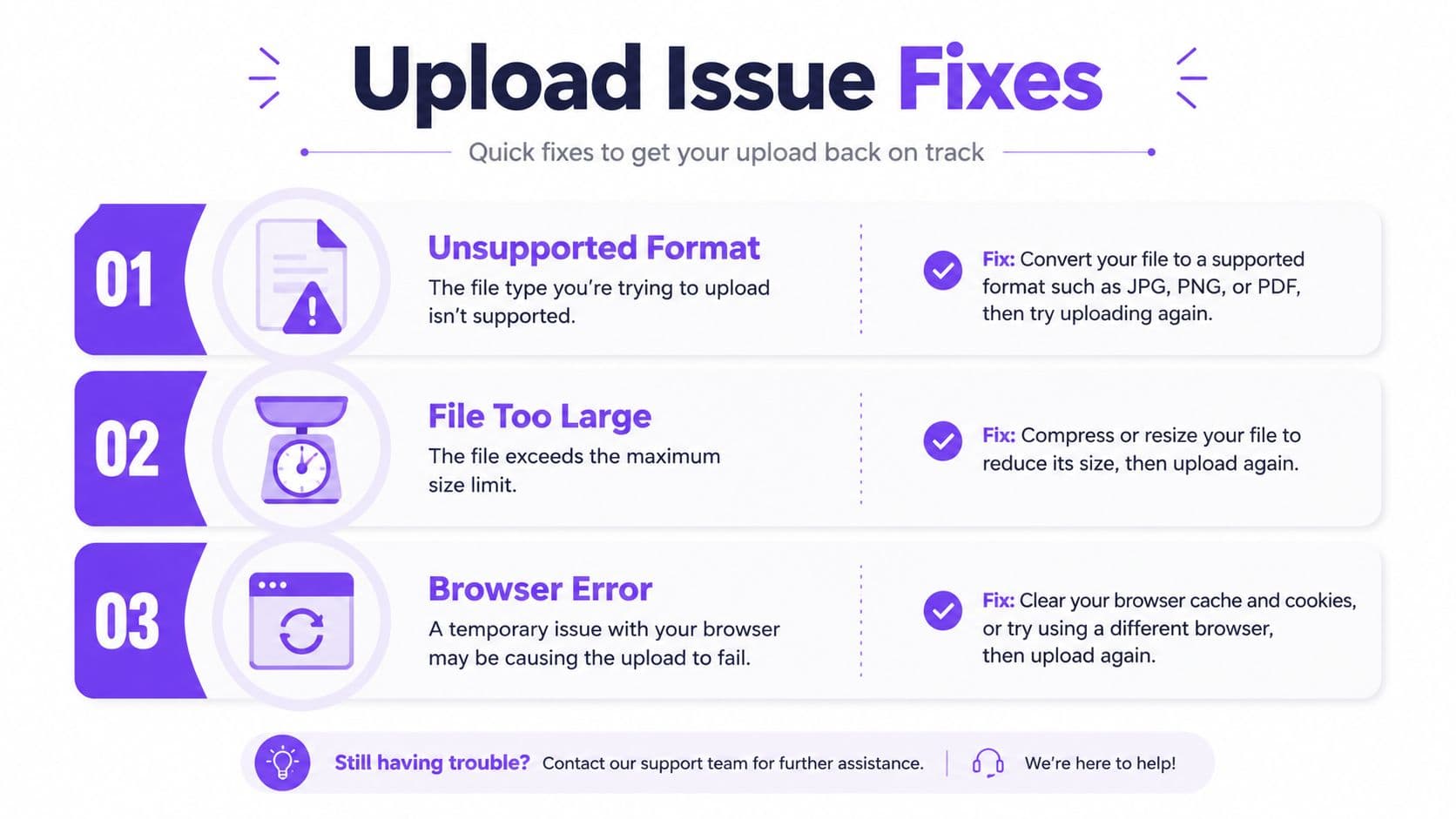
Recovery habit: Keep clean source files, use predictable export formats, and treat every error message as a clue rather than a dead end.
Try the format presets first, then restart the upload with one verified file. That approach keeps troubleshooting focused and makes it easier to identify whether the issue began during selection, transfer, lyric parsing, preview, or export.
MyKaraoke Video lets you bring audio, lyrics, and visual media into a browser-based karaoke or lyric-video workflow through drag-and-drop uploading, with editing, preview, synchronization, and export in the same project. Visit MyKaraoke Video with a clean song file and lyrics document ready, then turn that prepared material into a video you can review and share.
