You’ve probably been here already. You have a song, a set of lyrics, and a clear idea for a video. Then the editing part starts. Suddenly you’re downloading a heavy desktop app, waiting on installs, dealing with missing fonts, or wondering why a simple text sync job feels like professional post-production.
That frustration is exactly why the browser based video editor category matters. It takes work that used to belong to big desktop programs and moves it into a browser tab, where the workflow is lighter, easier to share, and often much easier to learn. For lyric videos and karaoke videos in particular, that shift is a big deal because the job is less about cinematic complexity and more about speed, timing, clean text, and repeatable output.
What Is a Browser Based Video Editor Anyway
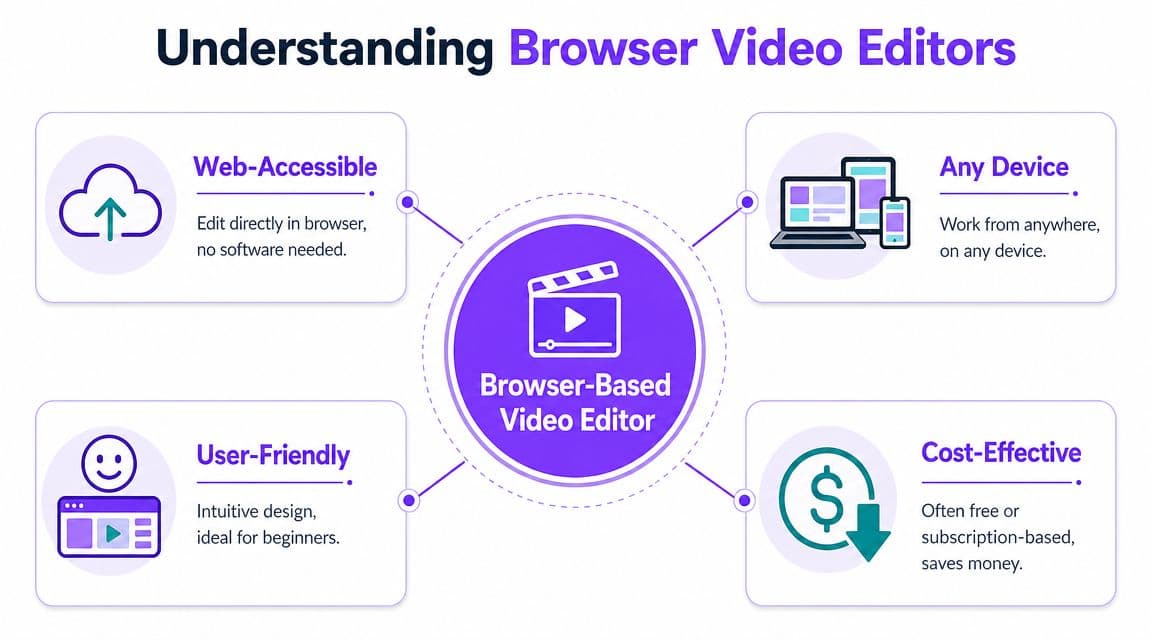
You open Chrome on a borrowed laptop, sign in, and your video project is there. The lyrics, timing, background, and edits are all waiting for you in the same workspace. That is the basic idea behind a browser based video editor.
A browser based video editor is video editing software that runs inside your web browser instead of as an installed desktop program. You go to a website, log in, and edit there. For a creative workflow like lyric or karaoke videos, that matters because the job often revolves around timing text, testing small changes, and getting a clean export without turning your computer into a full production studio.
Under the hood, modern browser editors use web technologies that let them preview video, place text accurately, and handle more complex editing than old online tools could manage. As described in this technical breakdown of video editing on the web, tools such as WebCodecs, WebGPU, and WebAssembly help browsers process video with much better speed and precision than earlier browser workflows.
What that means in plain language
You do not need to learn those technical terms to understand the benefit. The practical change is that editing in a browser now feels much closer to using real production software, especially for projects built around text, timing, and reusable templates.
That is a strong fit for lyric videos.
A lyric video usually does not need advanced film editing. It needs accurate text placement, readable fonts, easy timing adjustments, quick previews, and exports you can send to YouTube or social platforms without a long setup process. Browser tools are well suited to that kind of repeatable workflow because they keep the focus on the project itself, not on installing software, managing versions, or rebuilding the same layout on another machine.
A simple way to understand the category is this. A desktop editor is often tied to one computer setup. A browser editor works more like an online creative workspace that follows your account. If you want to compare Veed Io competitors, that workflow difference is often more useful than comparing feature lists line by line.
If you are still sorting through the category, this guide to best free online video editors gives a helpful overview of the tools people usually start with.
The Core Advantages Over Desktop Editors
Desktop editors still make sense for some jobs. If you’re cutting a film offline on one powerful machine, or doing deep color work without internet access, traditional software still has a place. But many creators don’t need that setup.
What they need is simpler. Open a project quickly. Make changes from anywhere. Share it without sending giant folders around.
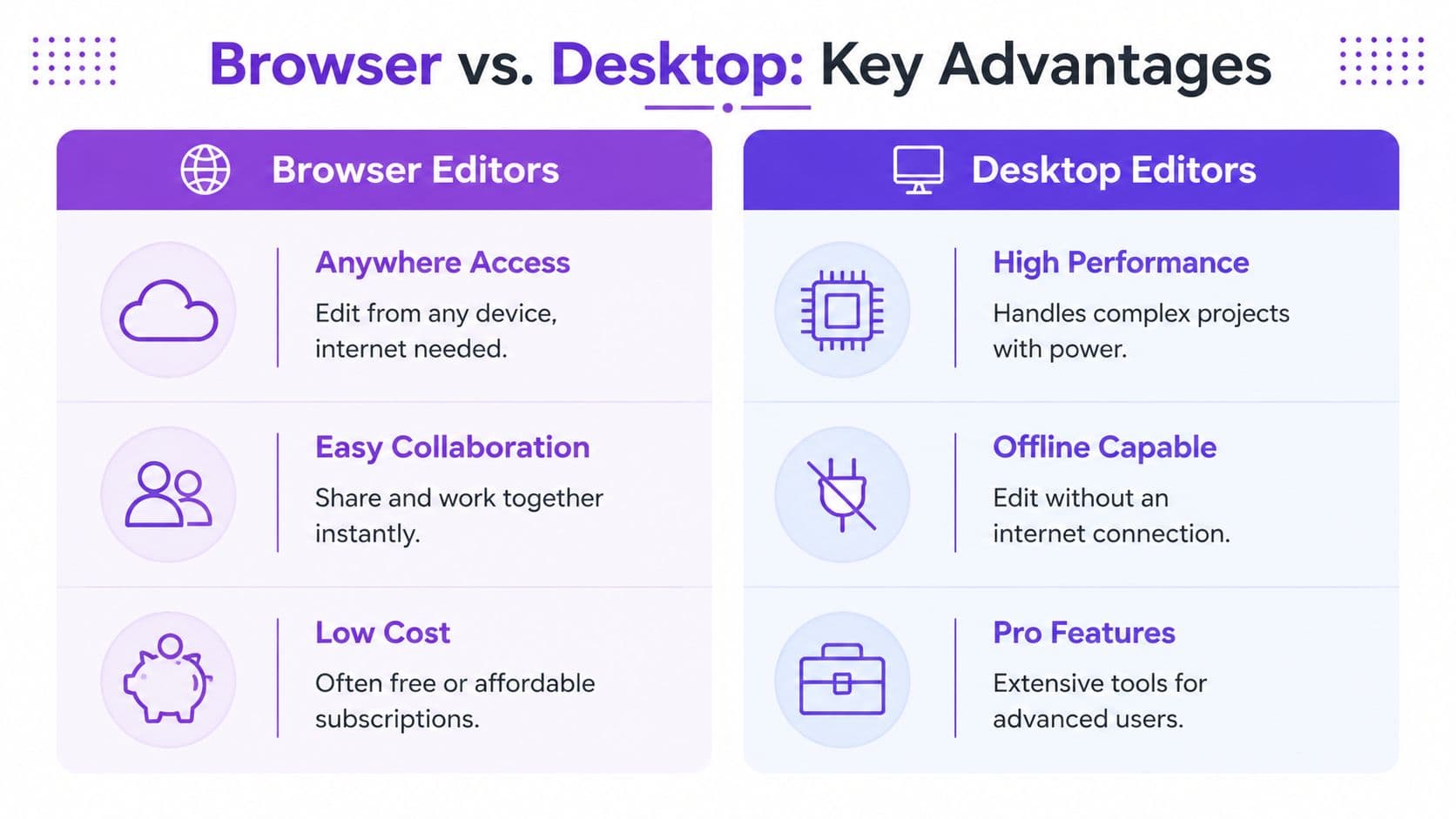
A side by side view
| Workflow need | Browser editor | Desktop editor |
|---|---|---|
| Getting started | Open a browser tab and log in | Install software and often manage updates |
| Switching devices | Usually straightforward | Often tied to one machine setup |
| Sharing work | Send a project or review link | Export files or transfer project folders |
| Offline work | Limited or dependent on the tool | Usually stronger |
| Heavy local processing | Depends on browser and platform design | Often stronger on high-end systems |
Accessibility matters more than people think
A desktop editor assumes your editing environment is already in place. A browser editor assumes you should be able to work from the machine you already have. That’s a meaningful difference for musicians, social media teams, and channel managers who may work across home, office, and travel setups.
Collaboration is where the browser model gets even more practical. Cloud-native workflows let teams comment, review, and revise without the usual “which version is final?” confusion. You’re working around the same source material instead of passing project files back and forth.
Performance is better than many people expect
A common objection is that browser tools must be weak with large files. That used to be a fair concern. It’s less true now, especially in tools built around proxy workflows.
Professional browser editors can use real-time proxy generation so people on low-bandwidth connections, even as low as 2 Mbps, can edit high-resolution footage. In one example, a 100GB 4K raw file can be proxied to about 10GB, which enables fluid editing and can reduce workflow time by up to 70% compared with export-and-upload review cycles, according to Massive’s overview of professional browser-based editing workflows.
Practical rule: If your main bottleneck is file handling and review cycles, not advanced finishing, a browser workflow can be the faster option.
Essential Features for Modern Content Creation
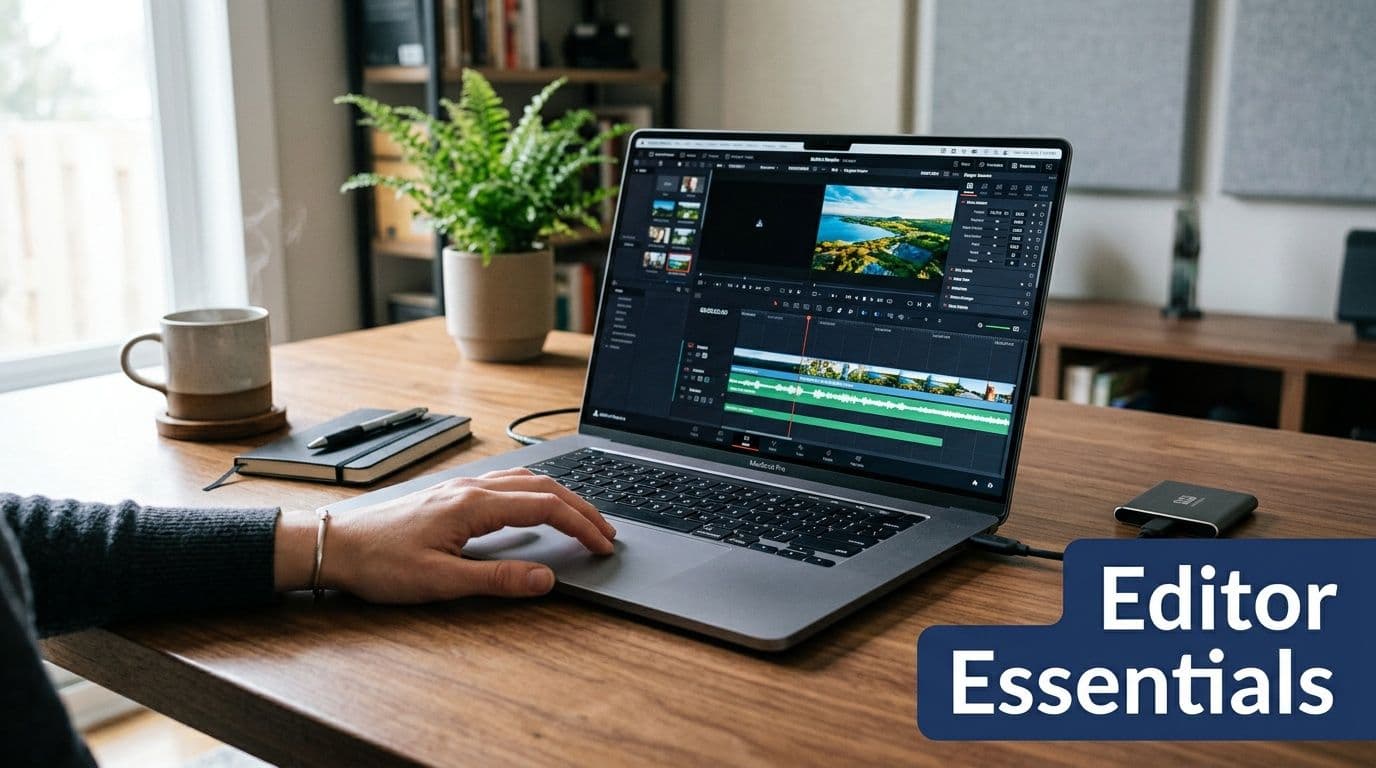
A good browser based video editor should shorten the path from idea to finished video. That matters most in projects with repeated timing decisions, repeated text styling, and repeated exports. Lyric and karaoke videos are a clear example because they stress the exact parts of an editor that creators use over and over.
A useful way to judge features is to ask a simple question. Does this tool help you finish the same kind of video faster next week, not just once today?
The features that save time
Start with the workflow basics first.
- A clear timeline: You should be able to move, trim, and line up text, audio, and visuals without hunting through menus. If timing changes are common in your work, the timeline is the editor.
- Strong text controls: For lyric videos, text is not decoration. It is the product. You need control over font, size, spacing, color, highlights, line breaks, and screen position.
- Aspect ratio support: One song clip may need a YouTube version, a vertical Short, and a square social post. Resizing should feel closer to changing a slide format than rebuilding the project from scratch.
- Asset support: Uploading a background image, looping video, album art, or audio track should be routine.
- Fast previewing: If every small timing adjustment forces a long wait, fine-tuning becomes frustrating.
These features sound basic. They are also where weak editors fall apart.
Why AI features matter now
AI features help when they remove repetitive work. They matter less when they add novelty without improving the edit.
For lyric video production, the highest-value AI feature is automatic lyric syncing. It handles the part of the job that usually takes the most patience: matching words to the music, then adjusting them when a line starts slightly early or late. Subtitle generation, beat-aware timing help, and text suggestions can also save time, but syncing is the feature that changes the workflow most.
That shift fits the broader market direction noted earlier. Browser editors are adding more automation because creators expect help with routine production tasks, not just a blank canvas. If you want to see how a dedicated online workflow approaches that problem, this guide to a lyric video maker online shows the kind of text-and-timing process specialized tools are built for.
If your work centers more on long-form publishing, channel growth, and recurring uploads, this guide on finding the right software for YouTube content can help you compare tools for that workflow.
The best feature is the one that removes a task you repeat every week.
A simple test before choosing a tool
Open a trial project and check three things.
- Can you get from raw media to a usable preview quickly?
- Can you adjust text timing without fighting the interface?
- Can you export the formats your audience already watches?
If all three feel easy, the editor is probably built for real production. For lyric videos, that usually matters more than a long list of advanced features you may never touch.
A Practical Guide to Making Lyric Videos Online
Lyric videos are a perfect test case for browser editing because they combine timing, typography, audio alignment, and repeatable exports. They also expose weak tools fast. If text is hard to style or timing is hard to adjust, the workflow becomes exhausting.
A practical browser workflow is much simpler.
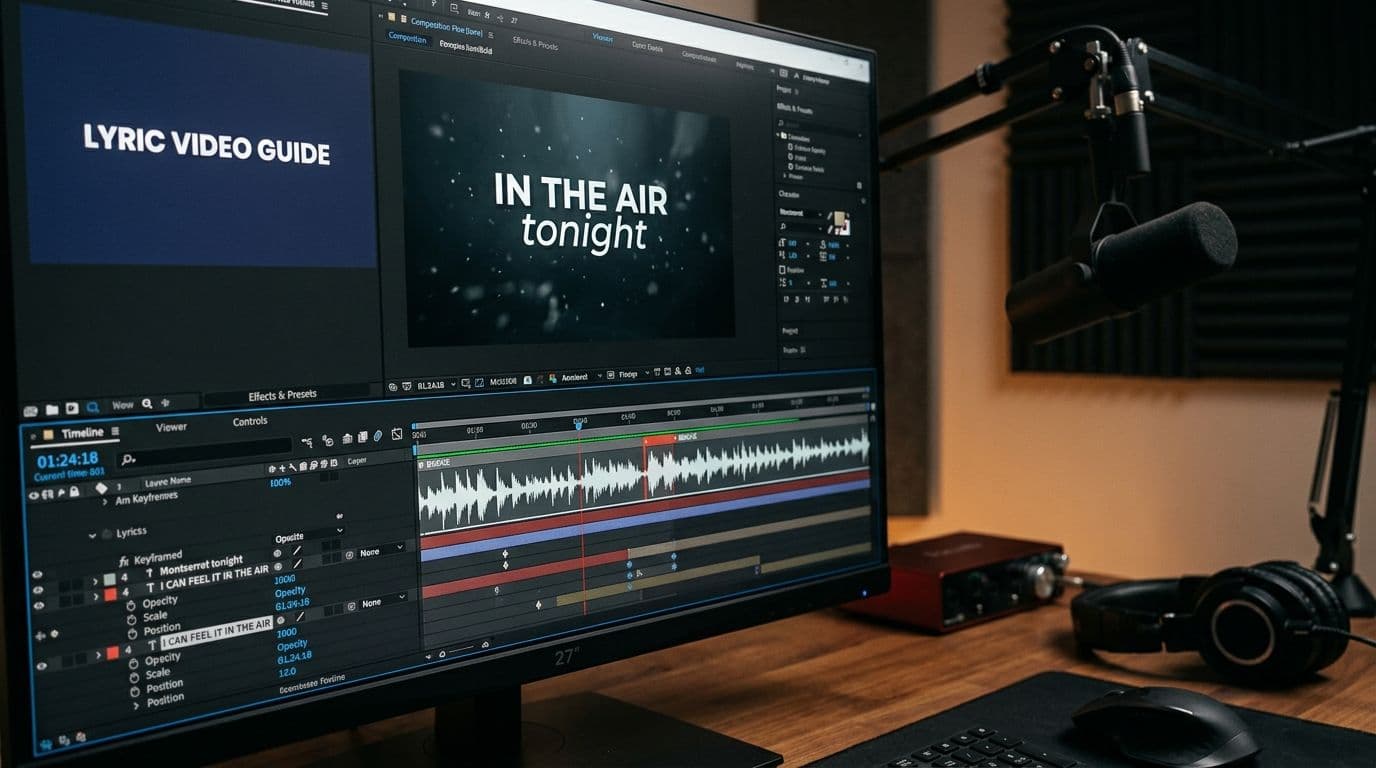
Step 1: Start with the song file
Upload your audio, usually an MP3 or another standard music format. In a browser tool designed for lyric work, the song becomes the anchor for everything else. You’re not building a complex multi-camera timeline first. You’re building around timing and readability.
Specialized online tools differ from general-purpose editors in their fundamental assumption. They often assume your central job is syncing words to music, not assembling dozens of unrelated clips.
Step 2: Paste in the lyrics
Next, bring in the lyric text. Clean formatting helps here. Short lines are easier to read on screen than long paragraphs, and natural phrase breaks make the video feel more musical.
If you want a visual example of what this workflow looks like in a dedicated online tool, this overview of a lyric video maker online shows the basic structure clearly.
A good habit is to check three things before syncing:
- Spelling: Fix mistakes before timing work begins.
- Line breaks: Match the rhythm of the song.
- Repeated phrases: Make sure choruses appear consistently.
Step 3: Use automatic sync, then fine-tune
This is the step that used to consume the most time. In older workflows, you’d drag text layers around by hand and nudge them repeatedly until they felt close enough. Browser tools with lyric-specific sync workflows can automate much of that first pass, then let you refine timing in an editor.
That “first pass plus adjustment” model matters because fully automatic timing is rarely perfect for every song. Fast vocals, pauses, ad-libs, and repeated words often need human judgment.
Clean lyric timing usually comes from automation first, then a human pass for phrasing.
Here’s a short demo that helps make the process more concrete:
Step 4: Design the look
Once the lyrics are aligned, styling becomes the creative part. You can choose fonts, text colors, highlight behavior, and background visuals. Some creators use abstract motion backgrounds. Others prefer a static image with clean typography. Karaoke channels often lean toward higher-contrast layouts because readability matters more than visual complexity.
A browser workflow feels especially efficient. You can preview changes quickly and avoid the old pattern of editing, exporting, uploading, spotting a mistake, and starting over.
A few design rules help:
- Use high contrast text. White or bright text over a dark or softened background is easier to follow.
- Don’t over-animate every line. Movement is useful until it competes with reading.
- Keep fonts consistent. One strong font usually works better than several decorative ones.
- Test chorus sections. If repeated sections stay readable, the rest usually will too.
Step 5: Preview and export
Before export, play through the whole song once without editing. You’re checking for late highlights, awkward line wraps, and any moment where the lyric disappears too early.
A browser-based lyric workflow can then export a standard format that’s ready for YouTube or direct sharing. The important point isn’t just file output. It’s that the full cycle, upload, sync, style, preview, export, can happen in one place instead of across multiple apps.
That’s the advantage. The tool isn’t only editing video. It’s reducing the number of decisions and handoffs in the process.
Common Use Cases and Ideal User Profiles
Not every creator needs the same editor. A browser based video editor makes the most sense when speed, accessibility, and frequent output matter more than deep post-production control.
That matches today’s publishing environment closely. By 2025, mobile devices are projected to generate over 75% of all video views, and about 80% of online content is projected to be short-form video. Browser-based editors are also described as performing best with videos under 50MB and shorter than 5 minutes, which fits platforms like TikTok and YouTube Shorts, according to Electro IQ’s video editing statistics roundup.
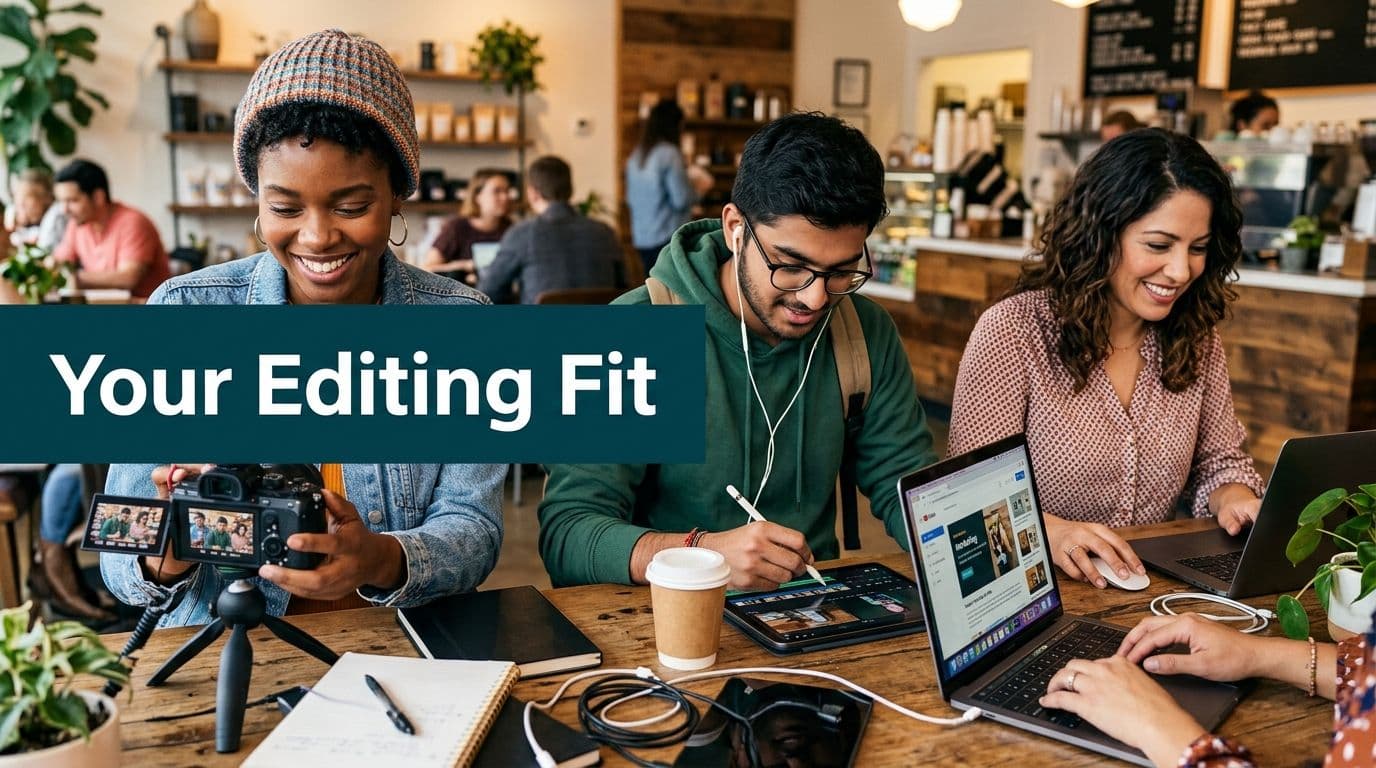
Four people who benefit most
The fit becomes clearer when you think in terms of actual users.
The karaoke channel manager needs a repeatable workflow. The priority isn’t cinematic experimentation. It’s producing clean, readable, well-synced videos consistently.
The independent musician wants a lyric video for a new release without hiring an editor or learning a complex desktop suite. A browser workflow lowers that barrier.
The social media manager often works across devices and on short deadlines. They need to create text-heavy clips, quick promos, and vertical edits fast.
The small business owner may only edit occasionally. For them, the biggest win is not needing to learn professional software just to make a product walkthrough or a simple customer-facing video.
A quick fit check
A browser editor is usually a good match if this sounds like you:
- You publish often: Regular output matters more than rare, highly technical projects.
- You work with text a lot: Captions, titles, lyrics, or explainers are central to the content.
- You collaborate informally: Clients, teammates, or collaborators need easy review access.
- You use lightweight hardware: You don’t want your workflow to depend on a high-spec editing machine.
If you work on ChromeOS or lightweight laptops, this guide to top Chromebook video editing apps is a useful companion resource.
For many creators, “good editing software” really means “software I can open quickly, understand immediately, and finish work in.”
How MyKaraoke Video Solves Key Editing Pain Points
The biggest obstacle for many lyric and karaoke creators isn’t creativity. It’s friction. General-purpose editors ask you to assemble a workflow from parts: audio handling in one place, text timing in another, style changes somewhere else.
A specialized browser workflow removes a lot of that overhead. MyKaraoke Video is built around one specific job: turning a song and a set of lyrics into a finished karaoke or lyric video in the browser. That includes uploading music, pasting lyrics, using automatic sync, refining timing in a sync editor, adjusting visual styling, previewing changes, and exporting a standard video format.
That matters because users still face a real trade-off between local and cloud processing. Cloud tools can have latency spikes, while local tools can put more pressure on the device and may require 8GB+ RAM for heavier work. As described in wide.video’s discussion of local versus cloud browser editing, a cloud-based, no-install workflow lowers the hardware barrier and makes 1080p MP4 output more accessible without requiring a powerful computer.
For lyric videos, that’s a practical solution to four common pain points:
- Software complexity: A guided lyric workflow is easier to learn than a full desktop timeline built for every use case.
- Manual sync work: Automatic sync gives you a faster starting point.
- Hardware limits: No-install editing is easier on people using everyday machines.
- Slow revision cycles: Real-time previews make text and design fixes less painful.
If your main goal is making karaoke or lyric videos efficiently, that focused workflow usually matters more than having every advanced editing feature imaginable.
If you want a simpler way to turn songs into polished lyric or karaoke videos, MyKaraoke Video gives you a browser-based workflow built for exactly that job. You can upload your track, paste your lyrics, sync them, style the video, preview the result, and export without installing traditional editing software.
