You've uploaded the song, pasted the lyrics, and clicked auto-sync. The first preview looks promising until the second verse arrives early, a chorus line lags behind the singer, and the fastest words blur into an unreadable block. Many creators respond by dragging every cue on the timeline. That's usually the slowest possible fix.
The efficient way to create lyric videos with AI is to let automation build the first pass, then correct only the moments viewers notice. AI handles transcription, section detection, initial timing, scene assembly, and browser-based previews well. Human judgment still matters when vocals overlap, lyrics are repeated, or production effects hide the words.
Why AI Changed Lyric Video Production Forever
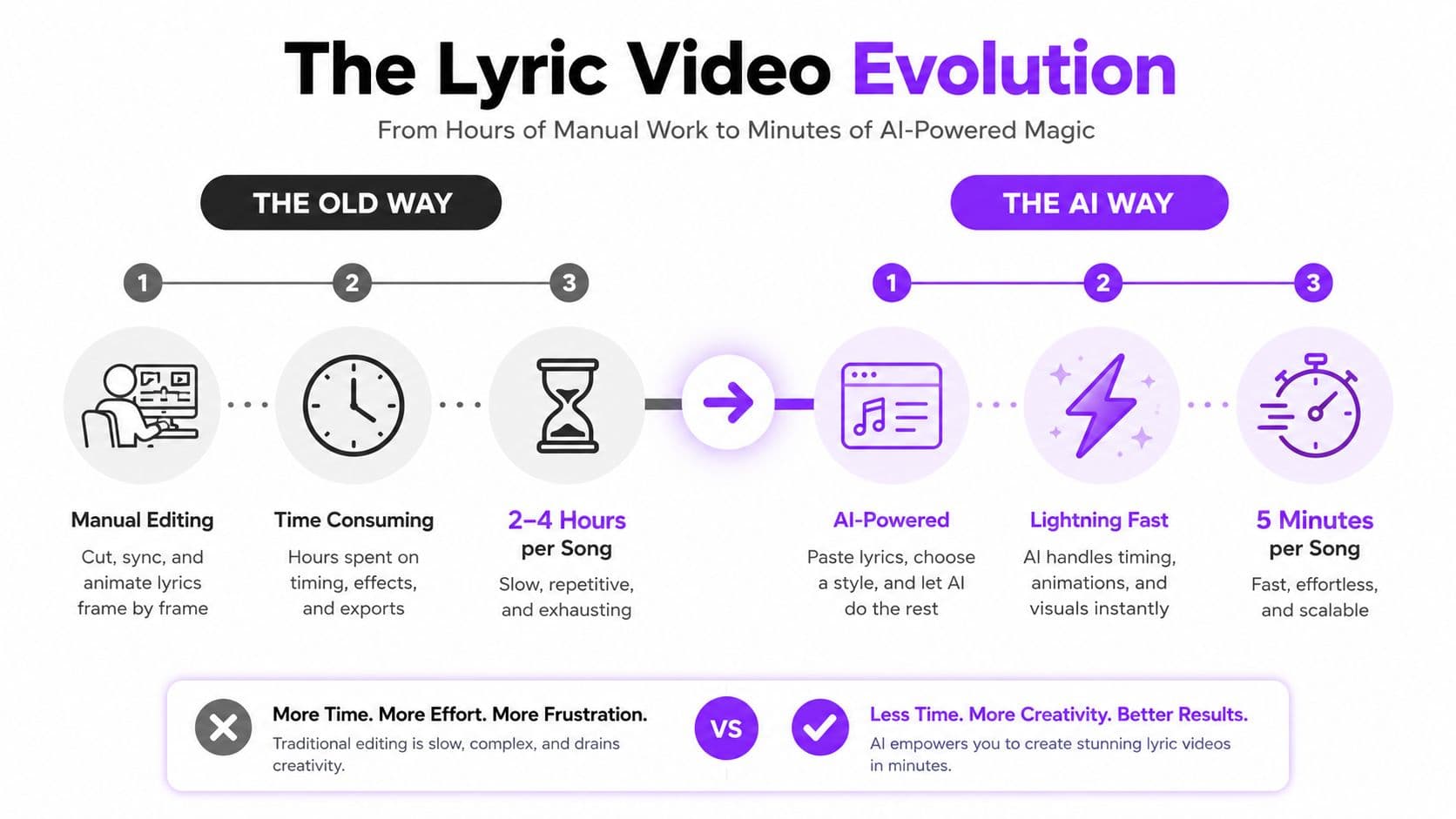
A traditional lyric video workflow starts with a desktop editor, an audio track, a lyric document, and a long timeline. You place one line, listen for the entrance, drag the cue, repeat the process, and then do it again when the chorus returns. Frame-by-frame syncing gives you control, but it also makes a simple karaoke upload feel like a full post-production job.
Modern browser tools change the order of work. You upload audio, provide lyrics, and let an AI system analyze the vocal track before creating an initial set of timed captions. You can then inspect the result in a live preview, adjust cue boundaries, change typography, and render without installing a large editing application.
The broader market helps explain why this workflow has moved beyond a niche experiment. The global AI video generator market was valued at USD 716.8 million in 2025, with one forecast projecting USD 847 million in 2026 and USD 3.35 billion by 2034, implying an 18.8% CAGR during that forecast period, as summarized by AI video generation market statistics. A separate estimate projects growth from USD 788.5 million in 2025 to USD 3.44 billion by 2033, while a broader category covering AI editing and post-production projects USD 24.89 billion by 2036. These are market forecasts, not guarantees for any individual tool, but they show that automated video assembly has become a substantial software category.
Automation handles the repetitive layer
AI is particularly useful for tasks that follow recognizable patterns:
- Transcription: It turns vocal audio into editable lyric text.
- Alignment: It estimates when lines or words begin and end.
- Scene assembly: It pairs lyric sections with backgrounds, effects, or animated text.
- Previewing: It lets you identify timing and readability problems before export.
Adoption is already substantial. A 2026 industry summary reports that 63% of video marketers use AI tools to help create or edit marketing videos, up from 51% the previous year, according to AI video adoption and usage data. Lyric videos use many of the same automated tasks, including text timing, scene changes, caption generation, and visual assembly.
Practical rule: Treat AI as a fast first-pass editor, not as the final quality-control operator.
The strongest workflow is hybrid. Let the system synchronize the song, then review the first line of every major section, dense vocal passages, and repeated choruses. That small review habit separates a convincing karaoke video from one that feels visibly out of step.
Uploading Audio and Preparing Your Lyrics
A lyric project can lose time before syncing even begins. Upload the cleanest permitted audio, preferably the original master or an uncompressed export. A platform recording may contain extra compression or background noise, leaving the alignment system fewer clear vocal cues and making later word-level corrections harder.
Prepare the text as production data, not as a finished lyric sheet. Remove stray timestamps from plain text, delete speaker labels that should stay off-screen, and compare repeated lines with the actual recording. Keep verse and chorus breaks visible. Those breaks help divide the song into sections that are easier to inspect and correct.
Set up the lyric source for fast corrections
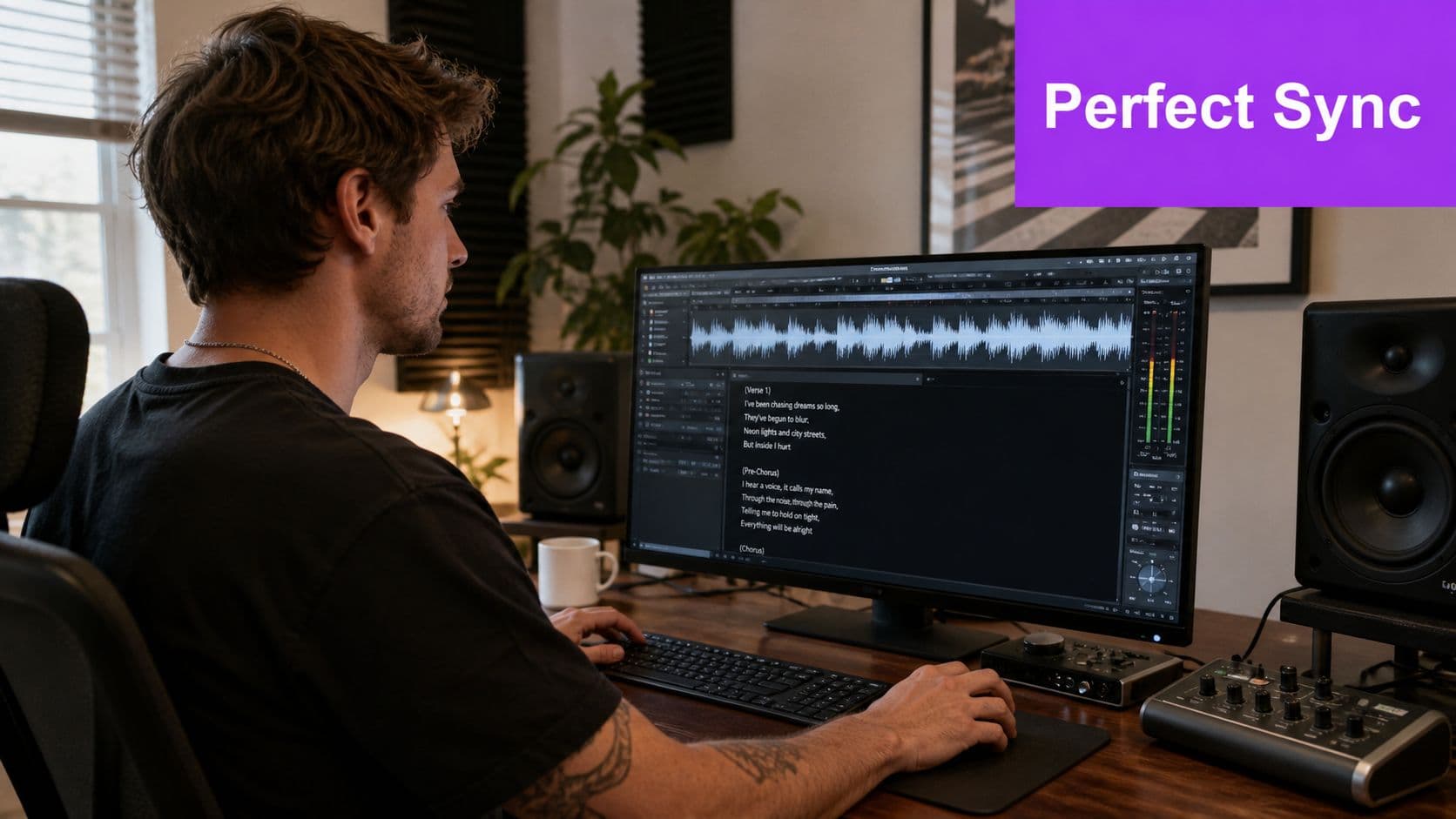
Plain pasted lyrics are the practical choice for a new song because the AI can calculate timing from the supplied audio. Use a timestamped .lrc file when timing has already been checked in an earlier karaoke project. That choice preserves dependable cues, but an incorrect .lrc file can carry its errors into the new video.
Before importing, check the details that commonly create hidden timing problems:
- Match the audio version: A radio edit, live take, music-only introduction, or extended mix can shift every later cue.
- Keep section breaks intentional: Separate verses, pre-choruses, choruses, bridges, and repeated hooks rather than pasting one uninterrupted block.
- Check punctuation and spelling: Unusual names, slang, ad-libs, and phonetic spellings often require manual review.
- Protect special characters: For accented characters or non-Latin scripts, preview the rendered text before applying project-wide styling.
- Separate ad-libs carefully: Decide whether background vocals need their own cues or should remain omitted.
The review should target likely errors instead of every timestamp. Mark lines with rapid syllables, repeated hooks, drawn-out words, or overlapping backing vocals. Those are the places where AI most often starts a cue early, ends it late, or assigns a phrase to the wrong repeated line. Correcting a few marked lines after import is faster than rebuilding timing across the whole track.
The upload goal is clean material for matching, not perfect formatting. For file-selection steps, use this music file upload guide. For broader audio video production workflows, keep audio preparation separate from visual design so timing changes do not force unnecessary scene work.
Wait to build backgrounds, animations, and transitions until the lyric import passes a quick playback check. A clean source and deliberate section breaks reduce correction time, while focused review catches the lines that automated syncing handles poorly.
How Automatic Lyric Syncing Works
Automatic lyric syncing uses forced alignment. The system analyzes the audio, detects vocal activity and pauses, then compares those sound patterns with the lyrics you provide. Depending on the editor, it creates timestamps for complete lines, individual words, or both.
The workflow has three stages:
- Audio analysis: It identifies vocal peaks, silence, phrasing, and other timing signals.
- Text matching: It connects sung or spoken patterns to the matching lyric sequence.
- Cue generation: It produces timed lines or word-level highlights for preview and editing.
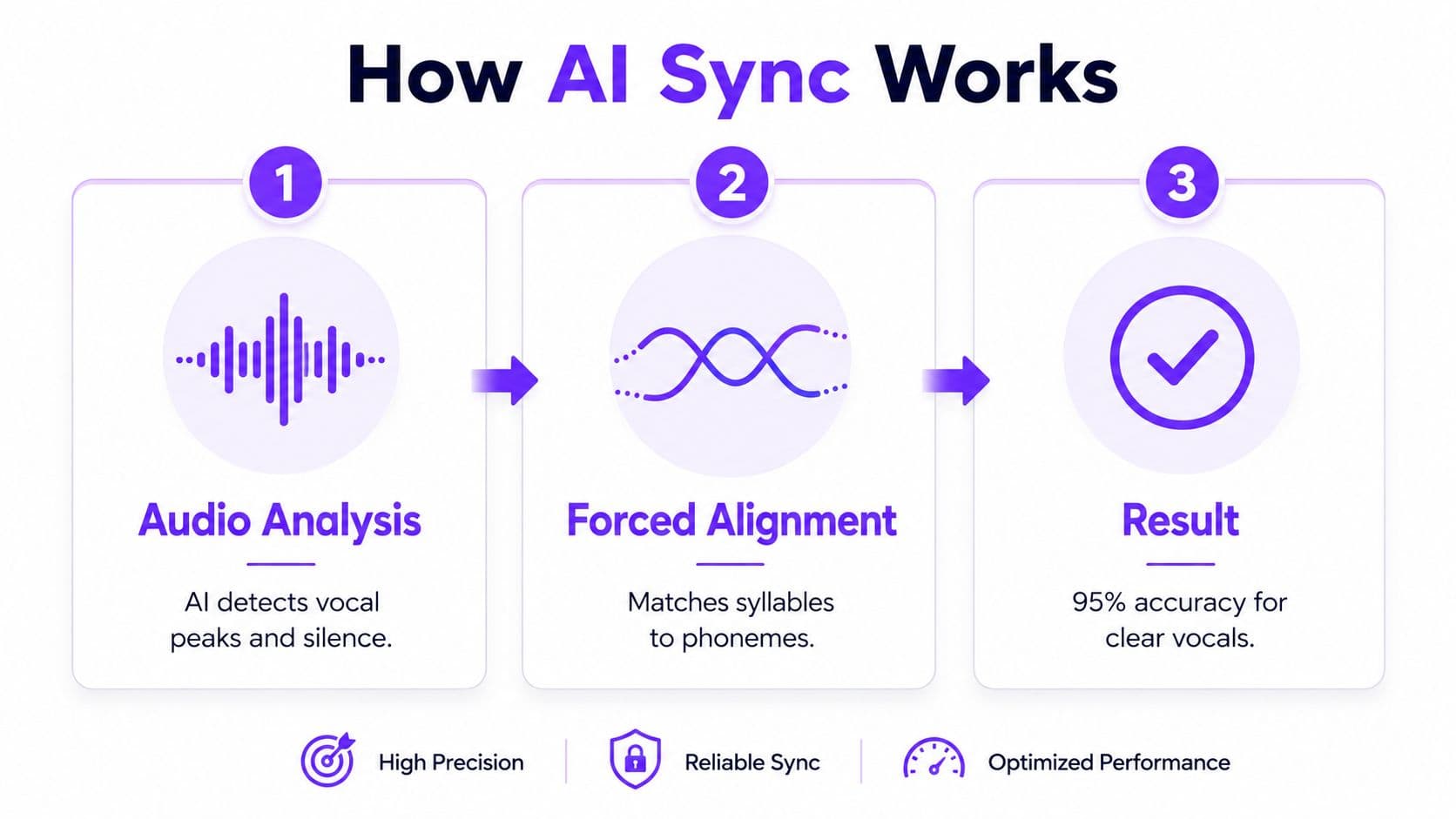
Clear vocals and space around the singer usually produce the cleanest results. Accuracy drops with rapid syllables, overlapping voices, long held notes, vocal effects, and dense mixes. Guidance on lyric timing accuracy describes the same pattern: simple vocal recordings align more reliably, while fast or heavily processed performances need closer review.
Spot drift before it spreads
Review each section from its first lyric cue, not only from the song's opening. If the first line appears correctly but later lines drift, the system may have misread a sustained vowel, pause, or compressed phrase. If every cue in that section is shifted by the same amount, move the section together instead of adjusting each word.
The lines most likely to need correction are easy to identify:
- Rapid phrases may start before the first syllable is sung.
- Held vowels may leave the lyric on screen after the phrase ends.
- Repeated hooks can be matched to the wrong occurrence.
- Backing vocals and vocal effects can pull a cue toward the wrong voice.
Check these lines during playback and correct only the affected cue. A small timing adjustment usually takes seconds, while re-timing the full track creates unnecessary work. Alignment systems can reach fine timing resolution on clean audio, but that capability does not remove the need for a human playback check.
For lyric videos, readable timing matters more than microscopic precision. A cue should appear with the sung phrase and remain visible long enough to read. The audio-to-video matching workflow explains how to assess that connection between soundtrack timing and the visual timeline.
Keep the first review focused. Once the marked problem lines play naturally, proceed to visual design instead of checking every timestamp manually.
Fixing Timing Errors Without Re-Timing Everything
Timing corrections become faster when you isolate the type of error before editing. A cue that is late from start to finish needs a simple shift. A cue that begins correctly but loses alignment partway through needs to be split. Treating both problems the same way creates unnecessary rework.
Correct the smallest unit that is wrong
Start playback a few seconds before the suspect lyric. Listen for the singer's first consonant, not just the loudest waveform peak. AI commonly places text late on fast phrases, leaves held vowels visible too long, or attaches a repeated hook to the wrong occurrence. Layered vocals, backing parts, and vocal effects create similar errors.
Use this short correction pass:
- Locate the first incorrect cue. Keep earlier lines untouched if they already match the performance.
- Move the cue entrance. Align the displayed text with the first sung syllable.
- Split a crowded line. Divide a long lyric at a natural vocal or musical break when only part of it drifts.
- Adjust the affected phrase. Nudge one word or phrase instead of rebuilding the entire section.
- Check repeated sections. A chorus with the same arrangement can usually reuse its approved timing, while a changed vocal delivery needs a fresh check.
- Replay both sides of the edit. The line before and after the correction should not create a gap or overlap.
The practical rule is simple: correct the smallest unit that explains the problem. A section-wide shift calls for a section edit. A single late word calls for a word edit.
The first line of a section acts like an anchor. Fix it before you touch the lines beneath it.
Fast rap verses often need phrase-level adjustments because there are fewer pauses for automatic alignment. Live recordings require attention to crowd noise and tempo variation. For layered hooks, choose whether the text follows the lead vocal, the clearest repeated phrase, or a shorter version that viewers can read comfortably.
A timeline can look accurate while the cue still feels late. Singers often attack a phrase before the waveform reaches its strongest peak, so preview at normal speed rather than judging by the visual shape alone. Replay only the transition that feels wrong. This targeted pass catches the errors viewers notice without forcing a full-track retime.
Keep visual preview checks focused after the timing pass. Typography animation can delay the moment when the lyric becomes readable, even when the cue itself is synchronized. Confirm that the text appears on time, remains readable through the phrase, and does not let background motion distract from the correction.
Customizing Visuals for Maximum Viewer Engagement
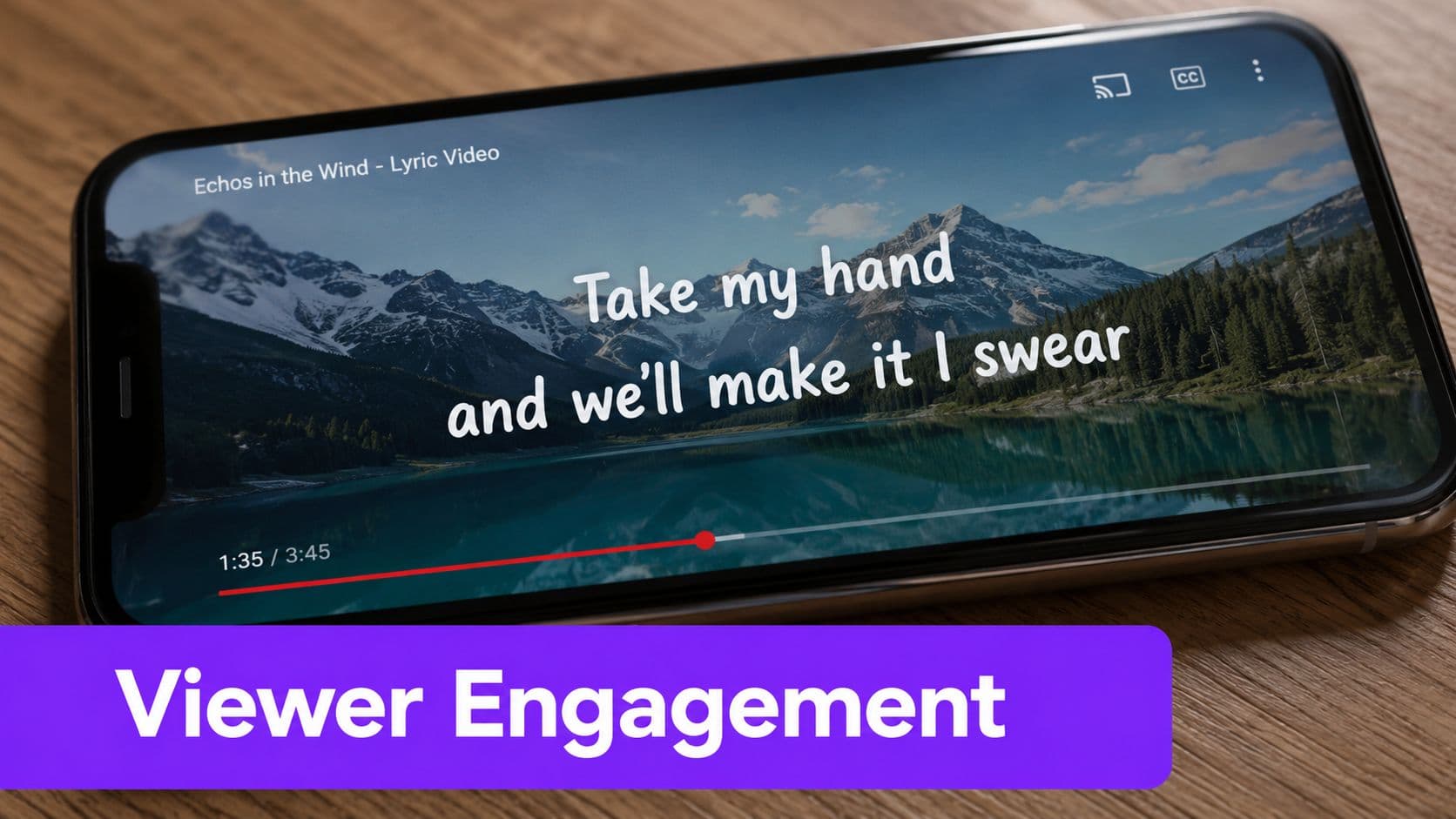
Viewer retention starts with readable lyrics. Set typography before adding effects. Choose a font with distinct letterforms, enough weight to survive compression, and spacing that stays clear on a phone. A decorative typeface may fit the song, but it often fails when a verse moves quickly or the rendered video is viewed at a smaller size.
Contrast must survive every background frame. Place light text over a darkened or softened area, and dark text over a bright, uncluttered field. If the footage changes constantly, use a shadow, outline, translucent panel, or controlled color treatment. Check the lyric over the busiest frame, not only over the clean opening shot.
Make motion serve the vocal
Animation should mark phrasing rather than compete with it. A soft fade suits a reflective track, while a word highlight can support a rhythmic vocal. Keep the effect count under control. If every word bounces, rotates, scales, and changes color, viewers spend attention decoding the design instead of reading the lyric.
Match the background to the song's emotional temperature:
- Minimal backgrounds: Use gradients, soft textures, or restrained color fields when the lyric carries the story.
- Photographic scenes: Leave negative space behind the text and avoid busy detail in the reading area.
- Looping motion: Keep movement smooth and predictable so the eye remains on the words.
- Section changes: Save stronger visual shifts for musical changes such as a chorus or bridge.
Preview at the smallest screen you expect viewers to use. A title that looks balanced in a desktop editor can feel cramped on a phone, while a thin outline may disappear after compression. Scrub through dense verses and chorus transitions, checking whether the lyric stays readable as the background moves.
For kinetic typography guidance, see animated text for videos. Keep lyric placement stable unless a deliberate composition change gives viewers a clear reason to look elsewhere. Consistent positioning reduces visual friction, particularly during fast verses where there is less time to search for each line.
Set the canvas for the destination before styling the video. A wide layout suits standard music uploads. Vertical publishing needs larger text, shorter visual travel, and safe margins around interface overlays. Cropping a finished wide video can cut off lyrics or place them beneath controls, so build a separate composition when the audience and screen shape justify it.
Export Settings and Quality Benchmarks
Set the destination before exporting. For most lyric-video publishing, 1080p MP4 remains the practical baseline because it works across common platforms and keeps lyrics readable without creating an unnecessarily large file. Match the canvas to the upload rather than expecting a later crop to preserve the composition.
Run the quality check on the rendered file, not only in the editor. Compression can soften letter edges, clip text, drop characters, change loudness, or expose a timing problem that was easy to miss during editing. Check the opening, the first chorus, the densest vocal passage, and the final lyric. Those points reveal rushed cues and unreadable lines quickly.
Verify the file in this order
- Resolution: Confirm that the export matches the selected canvas and that moving text stays sharp.
- Format: Use MP4 unless the destination requires another container.
- Audio: Test headphones and speakers for clipping, missing channels, or sudden loudness changes.
- Text rendering: Inspect apostrophes, accents, line breaks, and non-Latin characters after export.
- Playback: Open the completed file outside the editor before uploading.
Timing deserves its own short pass. If one lyric arrives early, identify that cue and nudge or split the phrase rather than re-timing the entire song. If several lines shift together, check the section boundary first. AI sync commonly handles repeated, clearly separated phrases well, but it can misread quiet entries, ad-libs, held syllables, and lines that run into the next vocal phrase. Correct those isolated cues before judging the whole render.
A wide YouTube-style upload benefits from stable 16:9 framing and generous text margins. Vertical publishing needs a separate 9:16 composition, repositioned lyrics, and larger type that stays readable around interface overlays. A promotional excerpt should receive its own cut instead of an automatic crop.
Higher-resolution export helps when the source artwork and platform support it, but it increases file size and processing demands. It cannot repair weak alignment, poor contrast, or crowded placement. Export settings preserve a careful source and review pass. They do not replace either one.
Troubleshooting Common Production Problems
Most failed lyric videos fall into a few recognizable categories. Lyrics that appear early or late usually need a cue adjustment, not a complete project restart. If the entire section is shifted, move the section. If only one phrase is wrong, split or nudge that phrase and leave the surrounding cues intact.
When the timing worsens as the song progresses, check whether you uploaded a different edit from the lyric sheet. An extended intro, alternate master, live performance, or inserted backing track can create apparent drift even when the alignment process followed the supplied text correctly. Start again only when the audio and lyric source are completely different.
A repeatable diagnosis checklist
- Upload fails: Convert the audio to a supported format, remove unusual filename characters, and try the clean source file again.
- Lyrics import incorrectly: Simplify formatting, remove accidental timestamps, and separate sections with clear line breaks.
- Words are missing: Compare the transcript with the supplied lyrics, especially ad-libs, repeated hooks, and quiet entries.
- Sync drifts gradually: Inspect the first incorrect cue and check for an audio-version mismatch before changing later lines.
- Export is corrupted: Preview the project, render again, and open the new file in a separate media player before publishing.
- Text is unreadable: Reduce background detail, strengthen contrast, increase type size, or shorten the amount of text shown at once.
A browser-based workflow that supports pasted lyrics or timestamped .lrc input, preview before export, and standard 1080p MP4 output addresses the most common delivery needs described in the practical timing guidance above. Keep a clean master project, save corrected lyric text separately, and reuse approved section timing when the musical arrangement repeats.
The production habit that saves the most time is simple: automate the first pass, inspect section anchors, correct dense passages, preview the rendered result, and publish only after the file plays correctly outside the editor. That process preserves human quality control without returning you to frame-by-frame editing.
MyKaraoke Video lets you upload music, paste lyrics, automatically sync the text, and refine timing in a browser-based editor with visual customization and real-time preview. Visit MyKaraoke Video to turn your next track into a polished karaoke or lyric video while keeping manual correction focused on the lines that need it.
