If you’ve ever used a Mac, you know the deal with iMovie. It’s simple, surprisingly capable, and best of all, free. So when people move to a new platform, the hunt for a true iMovie equivalent for Windows begins almost immediately. The good news? The options on Windows aren't just equivalent; in many ways, they're even better.
Why You Need a True iMovie Equivalent for Windows
Let's be honest, when someone asks for an "iMovie for Windows," they're not just looking for any free video editor. They want that specific iMovie magic: a clean, intuitive workspace that lets you create a polished video without needing an engineering degree. It’s all about hitting that sweet spot between simplicity and genuine power.
This is where the platform differences really come into play. Windows dominates the desktop market with an impressive 45.50% market share, making it the go-to OS for everyone from casual users to large-scale production houses. For you, this means software developers are constantly competing to build high-quality, feature-packed video editors specifically for the Windows ecosystem.
Finding Your Perfect Fit on Windows
The sheer number of choices on Windows can feel a bit paralyzing at first, but it's actually your biggest advantage. Instead of being stuck with one pre-installed option, you get to pick the tool that perfectly fits your project.
- For quick, template-based videos: Microsoft's own Clipchamp is often more than enough to get the job done.
- For professional-grade power (for free): The free version of DaVinci Resolve is in a league of its own.
- For a great all-arounder: Editors like Filmora have become incredibly popular by balancing powerful features with a user-friendly design.
A solid video editor is a must-have for any modern creator. It’s just one piece of the puzzle, and to see how it fits into a complete toolkit, it's worth exploring the best tools for content creators to round out your workflow.
The real challenge isn't a lack of an iMovie equivalent for Windows—it’s choosing the right one from a sea of great options. The 'best' editor depends entirely on whether you’re making a quick social media clip, a detailed tutorial, or a perfectly synced lyric video.
This guide is here to help you move past the "I wish I had iMovie" phase. We'll dive into the rich world of Windows video editors and help you find the perfect software for what you actually want to create.
Comparing The Top 3 Free iMovie Equivalents
If you're coming to Windows from a Mac, you'll quickly realize there isn't a single, perfect stand-in for iMovie. The good news is that you have several excellent free options, but each one approaches video editing from a different angle. It really comes down to what you need to do and how much time you're willing to invest in learning a new piece of software.
We're going to look at three of the biggest names in the free Windows video editing space: Microsoft Clipchamp, DaVinci Resolve, and Shotcut. Each one caters to a completely different user, from social media creators to aspiring filmmakers.
Microsoft Clipchamp: The User-Friendly Starter
If you loved iMovie's simple, drag-and-drop feel, Microsoft Clipchamp is going to feel the most familiar. It’s already built into Windows 11, so there's nothing to install. Its entire workflow is based on templates and straightforward tools, making it fantastic for whipping up quick videos for social media, family events, or simple marketing clips.
The trade-off for this simplicity is a lack of depth. Clipchamp’s timeline editing is quite basic, and it doesn't handle complex, multi-layered projects well. It's the right tool for a quick job, but you'll hit its limits fast if your ambitions grow. For more powerful browser-based tools, our guide on the best free online video editors has some great alternatives.
DaVinci Resolve: The Professional Powerhouse
At the complete opposite end of the spectrum is DaVinci Resolve. Frankly, it's incredible that the free version is as powerful as it is, packing in features you'd normally find in expensive, professional-grade software. It’s legendary for its industry-standard color grading tools, and its multi-track timeline gives you absolute control over every frame of video and audio.
But all that power comes with a steep learning curve. If you’re coming straight from iMovie’s friendly interface, Resolve can feel intimidating. It’s the perfect choice if you want to learn professional editing techniques without spending a dime, but it's complete overkill for just trimming a video or making a photo slideshow.
This flowchart can help you decide which free iMovie equivalent for Windows is the right fit for your specific project.
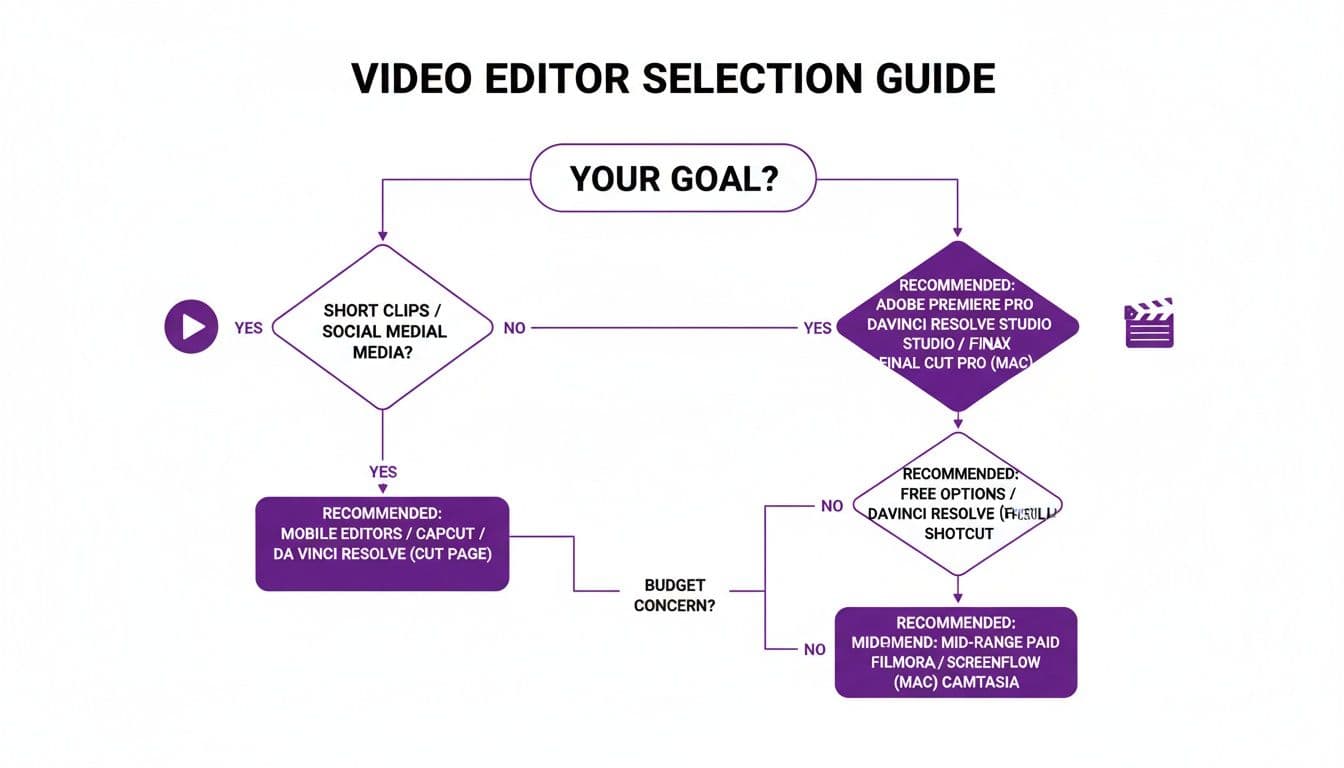
As you can see, the "best" tool truly depends on what you're trying to create.
Shotcut: The Open-Source Middle Ground
Shotcut finds a nice sweet spot right between Clipchamp’s ease of use and Resolve’s overwhelming complexity. Because it's an open-source project, it has a surprisingly deep feature set that goes far beyond the basics, including advanced audio filters and broad format support. It's the logical next step for anyone who feels held back by Clipchamp but isn't quite ready to commit to a professional suite like Resolve.
While you're exploring options, you might also find that a tool like vidcloner fits your needs as a solid iMovie alternative.
At a Glance Comparing Free Windows Video Editors
To make the choice even clearer, here’s a quick breakdown of how these three editors stack up against each other.
| Feature | Microsoft Clipchamp | DaVinci Resolve (Free) | Shotcut |
|---|---|---|---|
| Best For | Absolute beginners, social media | Aspiring professionals, complex projects | Hobbyists, intermediate users |
| Ease of Use | Very Easy | Very Difficult | Moderate |
| Timeline | Single-track, very basic | Advanced multi-track | Standard multi-track |
| Color Grading | Basic filters | Industry-standard tools | Intermediate controls |
| Audio Editing | Basic | Advanced (Fairlight) | Advanced filters & mixing |
| Export Options | Good (up to 1080p free) | Excellent (up to 4K) | Excellent (wide format support) |
| System Impact | Low | High | Medium |
This table shows the clear trade-offs: Clipchamp gets you started fast, Resolve gives you unlimited power, and Shotcut provides a capable, balanced experience.
The biggest mistake you can make is picking the wrong tool for the job. Using DaVinci Resolve for a 30-second social media clip is like using a sledgehammer to crack a nut. But trying to edit a detailed video in Clipchamp will just leave you frustrated.
So, take a moment to assess your goals. If you need something quick and easy, Clipchamp is your answer. If you're serious about learning the craft of video editing, dive into DaVinci Resolve. For everything else in between, Shotcut is a flexible and powerful choice that won't let you down.
Evaluating Paid Alternatives for Demanding Projects
Free tools will get you surprisingly far, but eventually, you'll hit a wall. When projects get more ambitious, investing in a paid editor isn't just about unlocking fancy features—it's about saving time and achieving a professional finish that free software can't quite deliver. This is where you find a true premium iMovie equivalent for Windows.
We're going to look at three of the most popular paid options that each cater to different needs: Adobe Premiere Elements, Filmora, and CyberLink PowerDirector. They all go beyond the basics to give you a more powerful and refined editing experience when you're ready to step up your game.
Adobe Premiere Elements for Guided Editing
If you've ever felt intimidated by professional editing software, Adobe Premiere Elements is your on-ramp. It’s built around a fantastic feature called "Guided Edits," which are essentially step-by-step tutorials that help you create complex effects like animated overlays or cool double exposures. It’s perfect for anyone who wants high-end results without a steep learning curve.
One of its biggest selling points is the pricing. Unlike the subscription-only Premiere Pro, Elements is a one-time purchase. This makes it a smart choice for hobbyists or small businesses who want powerful, AI-assisted tools without another monthly bill.
Filmora for Content Creators and Asset Libraries
Filmora has become a massive hit within the creator community for good reason. It has one of the most intuitive interfaces out there, managing to feel both powerful and incredibly easy to use. Its real killer feature, though, is the enormous built-in library of effects, transitions, titles, and stock media.
For YouTubers and social media creators, this is a game-changer. Filmora's subscription gives you a constant flow of fresh assets and templates, so your content always looks current and engaging without you having to hunt for materials across different sites. You can see how it stacks up in our complete video editing software comparison guide.
PowerDirector for Speed and Performance
CyberLink PowerDirector has a long-standing reputation built on two things: raw speed and a feature set that feels like it should cost way more. It consistently tops the charts for rendering and export speeds, which is a lifesaver when you're working against a deadline.
Beyond its speed, PowerDirector is packed with a full suite of tools, from AI motion tracking to a surprisingly deep audio editor. With both subscription and perpetual license options, it's a heavyweight contender for anyone needing maximum performance without breaking the bank.
While the professional market is dominated by tools like Adobe Premiere Pro with its 35% market share, you don't need the biggest name to create great videos. User-friendly alternatives like Filmora (holding 5% of the market) and CyberLink PowerDirector (with a 2% share) have proven to be incredibly compelling options on Windows. You can find more statistics in this video editing software market report.
Why Standard Editors Fail for Lyric and Karaoke Videos
So, we've walked through some great general-purpose editors—both free and paid. But as powerful as they are, they all stumble when you ask them to do one specific thing: create a polished lyric or karaoke video.
Whether you're using a free tool or a pro-level suite, you'll quickly discover that even the best iMovie equivalent for Windows is the wrong tool for this job. The problem isn't a missing feature here or there; it's baked into their very design. These editors were built to cut, arrange, and color video footage. Their text tools are just a side feature, perfect for a quick title card or a lower third, but completely out of their depth when syncing hundreds of words to a song.
The Frustration of Manual Syncing
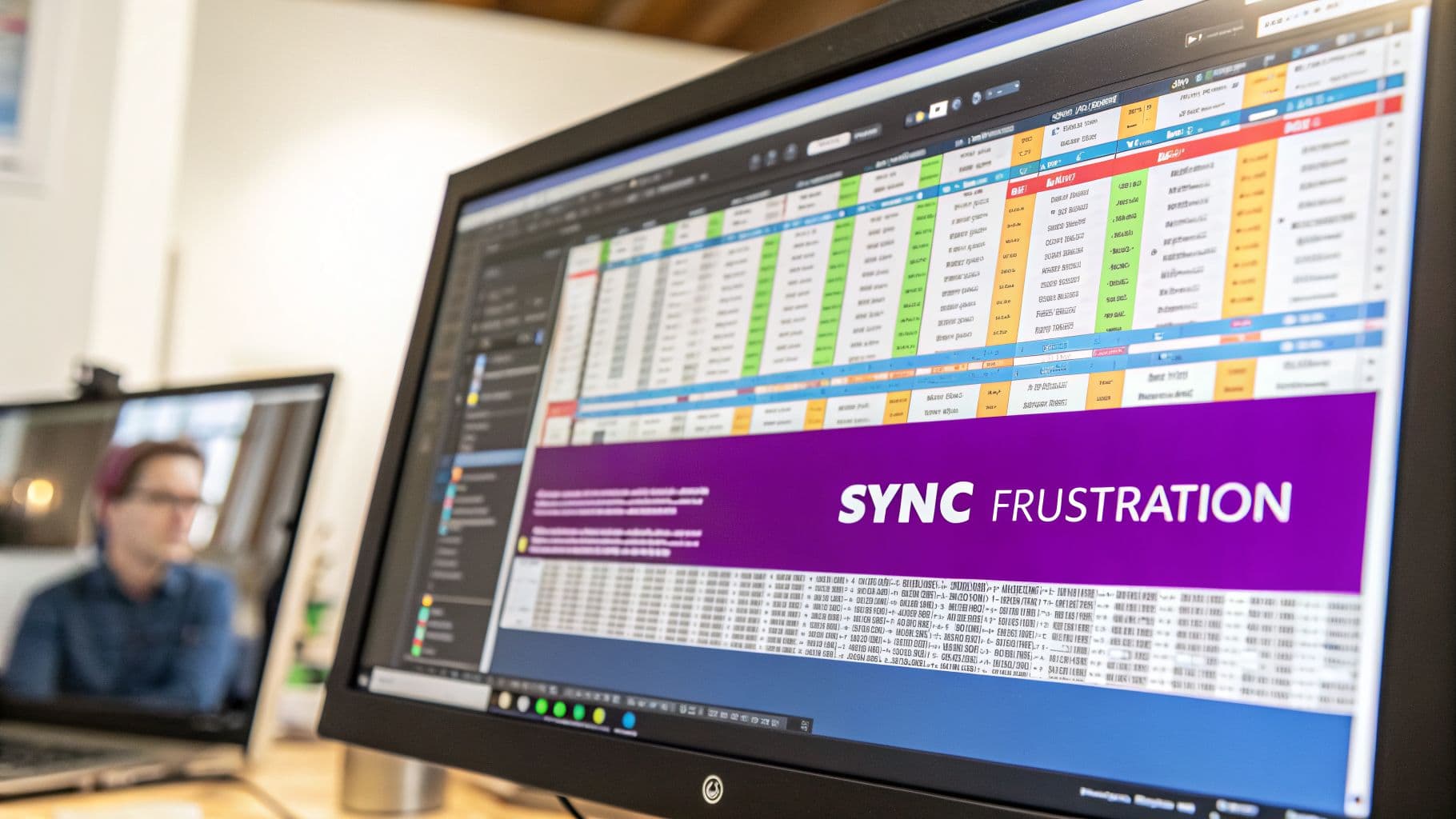
Anyone who has tried to make a lyric video in a standard editor knows the pain. It’s an exercise in extreme patience, forcing you to wrestle with the software's timeline in a way it was never meant to be used.
Here’s a glimpse into that soul-crushing workflow:
- Endless Timeline Nudging: You have to manually create and position every single text block on the timeline. Then, you zoom way in and nudge it frame by frame, trying to get the timing just right with the audio waveform. For a simple 3-minute song, this can mean hundreds of tiny, painstaking adjustments.
- No Real Karaoke Control: Want that classic karaoke effect where words light up as they're sung? In a regular editor, your only option is to break words into individual syllables, put each one on a separate text layer, and then time every single layer. It's a logistical nightmare that can take hours for a single song.
- The Unmanageable Timeline: Before you know it, your project timeline is a chaotic mess of dozens, if not hundreds, of tiny text clips. Need to change the font or fix a typo? Good luck finding the right layer and applying changes without breaking something else.
This isn't about a learning curve. It's about using the wrong tool for the job. You can hammer in a nail with a wrench, sure, but the process will be slow, messy, and incredibly frustrating.
Traditional video editors are built to cut video clips, not to time text to music. This fundamental design gap is why a simple lyric video becomes a multi-hour chore.
If you’ve struggled with this before, it’s not your fault. The software is the problem. Even high-end editors like DaVinci Resolve or Camtasia just don't have the specialized features needed for lyric timing. They leave you to do all the tedious, manual work that a purpose-built tool could automate.
The Fastest Way to Create Lyric Videos on Windows
So, we've walked through the headaches of trying to force standard video editors to do something they were never designed for: making lyric videos. It’s a grind. But what if the tool you used was built from the ground up just for this? That's where a specialized, browser-based iMovie equivalent for Windows completely flips the script.
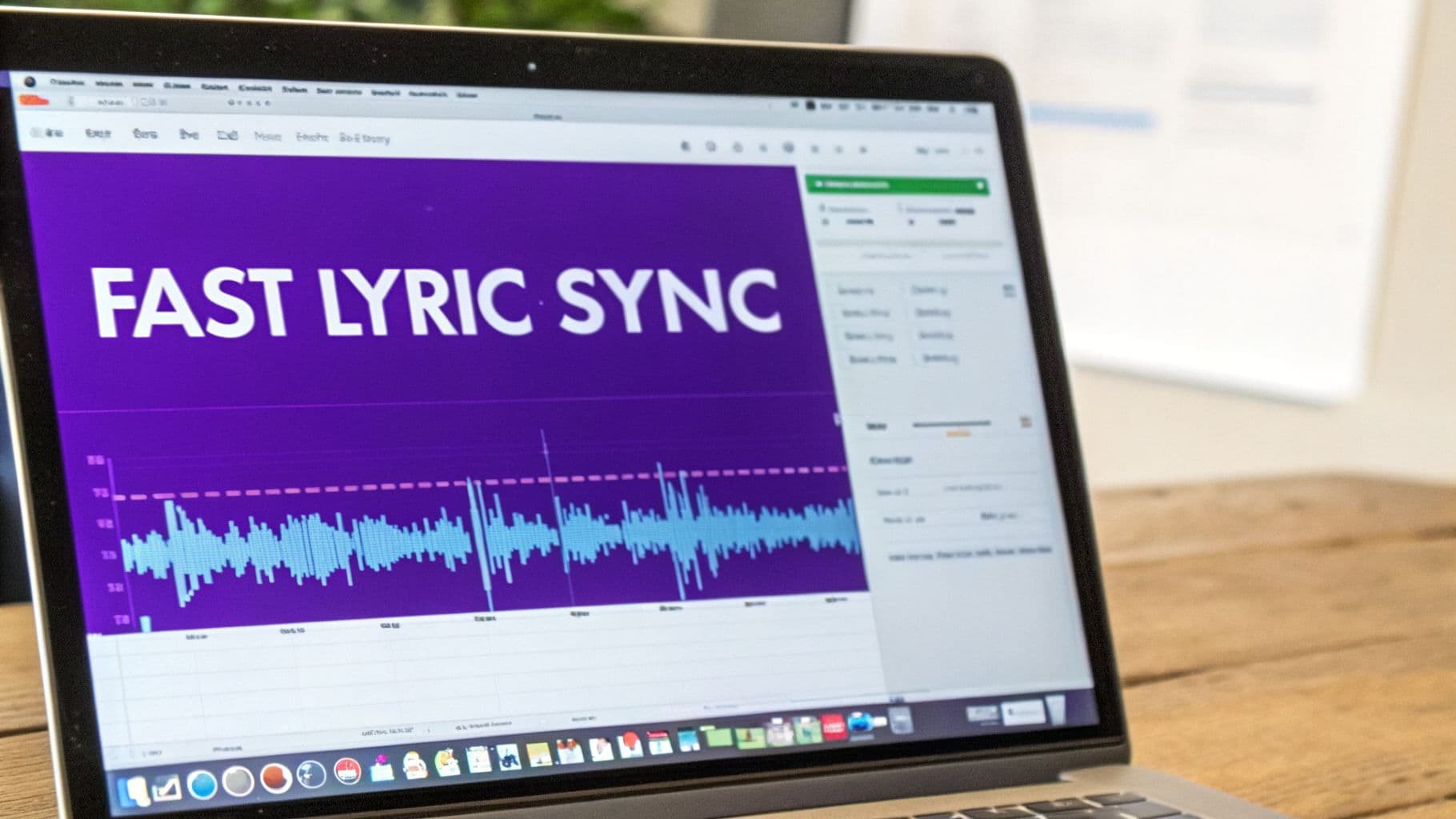
This is the exact problem a purpose-built tool like MyKaraoke Video solves. Since it runs entirely in your browser, there's nothing to download or install, and you never have to worry about compatibility. It just works—on any Windows machine, right away.
Automating the Most Tedious Work
Let's be honest: the absolute worst part of making a lyric video is the manual syncing. It can take hours of painstakingly nudging text boxes around on a timeline. MyKaraoke Video tackles this with its AI-powered automation. You just upload your audio, paste in your lyrics, and let the tool do the heavy lifting of timing the text to the music.
What was once a multi-hour chore becomes a task that takes a couple of minutes. The AI gives you a perfectly synced foundation, getting you 90% of the way there before you even touch an edit.
Taking Control with a Specialized Editor
Of course, automation is just the start. You still need creative control. This is where MyKaraoke Video really shines, with an intuitive sync editor designed specifically for lyrics. Forget wrestling with a confusing multi-track timeline. Here, you get a clean, straightforward interface to:
- Adjust timing with a click: Simply drag to refine when lines appear and disappear.
- Merge and split lines instantly: Correct lyrical phrasing on the fly without adding new text layers.
- Perfect syllable-level highlights: Get that professional karaoke "bouncing ball" effect with simple controls—a task that’s a nightmare in other editors.
This purpose-built environment means you’re spending your time being creative, not fighting the software. It’s this focus on efficiency and professional results that is driving growth in the video editing market, which is projected to hit $4.81 billion by 2030. As 91% of businesses now use video marketing, the demand for accessible, high-quality production tools has never been greater.
MyKaraoke Video isn't just another editor; it's a specialized lyric video generator. It automates the tedious parts, letting you focus on the creative 10% that makes your video stand out.
Real-Time Previews and Easy Customization
One of the biggest workflow killers in traditional video editing is the slow "render and review" cycle. You tweak something, wait for it to render, and only then see if it worked. MyKaraoke Video throws that out the window with a real-time preview that updates instantly.
Whether you're changing fonts, adjusting colors, or swapping backgrounds, you see the result immediately. This instant feedback lets you experiment freely and quickly land on a look you love.
When you're happy with your work, you can export your creation in high-quality 1080p MP4 format, ready for YouTube, Instagram, or any other platform. To get a closer look at how these features work together, check out our complete guide to using a lyric video creator online.
A Few Common Questions
Trying to find a true iMovie equivalent for Windows can feel like a maze. Let's clear up some of the most common questions people have so you can pick the right tool with confidence.
What’s the Closest Free iMovie Equivalent for Windows?
If you're looking for that simple, get-it-done feel, Microsoft Clipchamp is your best bet. It’s already built into Windows 11 and really nails the drag-and-drop, template-driven experience that makes iMovie so approachable for quick social posts or family videos.
However, if your ambition is to build professional-level skills, you should look at the free version of DaVinci Resolve. Just know what you're getting into—it’s an incredibly powerful suite, but the learning curve is steep. It's more of a professional tool that happens to be free than a simple iMovie alternative.
Can I Make Good Karaoke Videos With These Windows Editors?
Honestly, while you technically can, you’ll probably regret trying. Using a general editor like Filmora or DaVinci Resolve for karaoke means manually timing every single word or line of your lyrics. This is painstaking work that can easily eat up hours for just one song.
General-purpose video editors simply weren't built for this. They don't have the automated lyric syncing or syllable-timed highlighting that you need for a polished karaoke video. For a specific job like this, a purpose-built tool will always win.
The frustration and massive time sink are exactly why dedicated solutions exist. It saves you from that tedious, manual grind.
Should I Learn a Free Pro Tool or Use a Specialized One?
This really comes down to what you spend most of your time creating. If you're building a channel with a wide range of content—vlogs, tutorials, product reviews—then putting in the hours to learn a powerful free editor like DaVinci Resolve is a fantastic investment. It’s a versatile skill that will pay off across all your projects.
On the other hand, if your content is all about music, lyric videos, or karaoke, your time is far more valuable using a specialized tool like MyKaraoke Video. The speed you gain is enormous. You'll be able to produce more high-quality, niche content much faster, which is what really drives audience growth in a specific community.
Is a Browser-Based Editor Really as Powerful as Desktop Software?
For its specific job, absolutely—and in many ways, it's far more effective. A huge desktop program like Adobe Premiere Pro or Camtasia is powerful because it can do thousands of different things. But it has zero features for automatically syncing lyrics to audio.
A tool like MyKaraoke Video is "powerful" in a different way. Its entire design, from the AI to the editor interface, is focused on doing one thing perfectly: creating lyric and karaoke videos in minutes. For that one specific task, its focused workflow is much more powerful than any jack-of-all-trades desktop software. It's all about using the right tool for the job.
Ready to stop wrestling with clunky editors and start making stunning lyric videos in minutes? Join thousands of creators who have discovered the smarter, faster way to bring songs to life. Try MyKaraoke Video for free and experience the power of automated syncing today by visiting https://www.mykaraoke.video.
