You've spent the evening syncing every word to the beat. The lyrics look crisp on your monitor, white letters sitting cleanly over a dark verse. Then the chorus hits, the footage cuts to a bright stage, and the line you're supposed to sing disappears. That's not a timing problem. It's high contrast text failing the moment the background stops cooperating, and it's the most common readability failure in lyric videos.
Why Lyric Lines Vanish on Bright Footage
The editor lies to you in a specific way. You pause on a frame, the singer's in shadow, the lyric reads perfectly, and you move on. Play the song and that same line crosses a white shirt, a blown out stage light, or a pale sky. The letters haven't changed. Whatever sits behind them has, and readability in video is always a relationship between the two, never a property of the text alone.
That's what high contrast text means in practice. It isn't bright text or bold text. It's lettering that stays separated from its background on every frame it occupies, including the worst one. A screenshot is a weak test because it only proves the line worked for the instant you grabbed it.
The Parts That Fail First
The main lyric line usually gets the most attention, so it isn't always the first casualty. Smaller and more decorated elements go earlier.
- The sung word highlight: A wipe color picked for energy can sit much closer to the footage than the idle lyric color does.
- Countdown numbers and metadata: Song titles, artist credits, and timing cues are often smaller, thinner, and placed wherever there's space left.
- Thin and decorative fonts: Hairline strokes lose their edges under compression and shrink further on a phone screen.
- Glow effects: A soft halo blurs the letter edge instead of sharpening it, especially over detailed footage.
None of this is a rare edge case. Low contrast text is a widespread production risk across digital work generally, since WebAIM's analysis of the top one million home pages found detectable low contrast text on 85.3% of sites, with an average of 36 distinct insufficient contrast instances per page. Websites sit still. If static pages miss this often, text laid over moving footage has no chance unless you check it deliberately.
Three habits hide the problem until export. Trusting white text as automatically safe is the first, because white over a bright frame has almost no separation at all. Checking only the default theme is the second. Judging a paused frame instead of playback is the third, and it's the one that lets the other two slip through.
Running a contrast checker after picking colors is also too late if the template was never rendered over real frames. The check belongs after rendering, against the backgrounds the song contains.
A lyric line doesn't need to pass on the frame you paused. It needs to pass on the brightest frame it will ever sit on.
The fix follows a production order. Lock measurable contrast first, then style the type, then control the background, then watch the moving result. Every step after the first one protects a decision you've already verified.
Pick Colors That Clear the Contrast Bar
Contrast ratios confuse people because eyes judge color and the math judges light. Two colors can look completely different from each other, a saturated red against a saturated blue, and still fail because they're close in brightness. The standard measures relative luminance, meaning how much lighter one color is than the other, rather than simple RGB brightness or hue difference.
That distinction explains most failed brand palettes. Vivid doesn't mean separated. A bright yellow lyric and a bright cyan background are both loud, and they're nearly the same luminance, so the letters dissolve even though nothing on screen looks dull.
Where the Numbers Come From
High contrast text became a formal international web accessibility requirement with the World Wide Web Consortium's Web Content Accessibility Guidelines, WCAG 2.0, published in December 2008. As described in the W3C guidance for WCAG Success Criterion 1.4.3, normal sized text needs a minimum ratio of 4.5:1 against its background, while large scale text gets a lower minimum of 3:1 because bigger characters are easier to distinguish. The same source notes that WCAG 2.1 and 2.2 kept those thresholds at Level AA, while the stricter Level AAA raises normal text to 7:1.
Large text has a specific definition here. It means at least 18 pt, or 14 pt bold. A lyric line that merely looks big in your preview hasn't automatically earned the lower threshold, particularly once it's scaled down to a phone.
The requirement covers text and images of text, with exceptions for purely decorative text, inactive interface elements, and text embedded in images that carry significant visual content. Lyrics are none of those. They're the readable content the whole video exists to deliver, so they don't get an exemption.
Contrast Targets for Lyric Text
| Text role | Size assumption | Minimum ratio | When to go stricter |
|---|---|---|---|
| Idle lyric line | Normal text | 4.5:1 | Aim for 7:1 over uncontrolled footage |
| Sung word highlight | Normal text | 4.5:1 | Match or beat the idle line, never drop below it |
| Large chorus line | At least 18 pt or 14 pt bold | 3:1 | Stay higher if the background moves or brightens |
| Countdown and metadata | Normal or smaller | 4.5:1 | Target 7:1 because small text has no margin |
Check Every Pair That Actually Appears
A karaoke template doesn't have one text color. It has several, and each one needs checking against the background region behind it.
- The idle lyric color: The line waiting to be sung, often shown dimmer by design, which is exactly why it fails.
- The wipe or highlight color: The fill that sweeps across each word as it's sung.
- The outline color: It becomes the effective edge of the letter, so it needs separation from both the fill and the footage.
- Any gradient stop: Both ends of a gradient must pass, not just the average.
Logos and brand colors prove nothing here. A channel watermark can sit at whatever contrast the brand book allows. That tells you nothing about whether a viewer can read the second line of the bridge.
Working rule: If a color pair hasn't been measured, it isn't high contrast yet. It's just a color you like.
Treat the ratio as the entry ticket. Clearing 4.5:1 means your colors are eligible. It doesn't mean the line survives motion, compression, or a cut to a brighter shot, and the sections ahead deal with why.
Style Fonts Outlines and Shadows for Readability
Once your colors clear the bar, the letter edge becomes the weak point. A compliant fill color in a hairline typeface still fails a viewer, because there's barely any letter there to read. Styling is where you give the glyph enough physical presence to hold up after export.
Weight Before Decoration
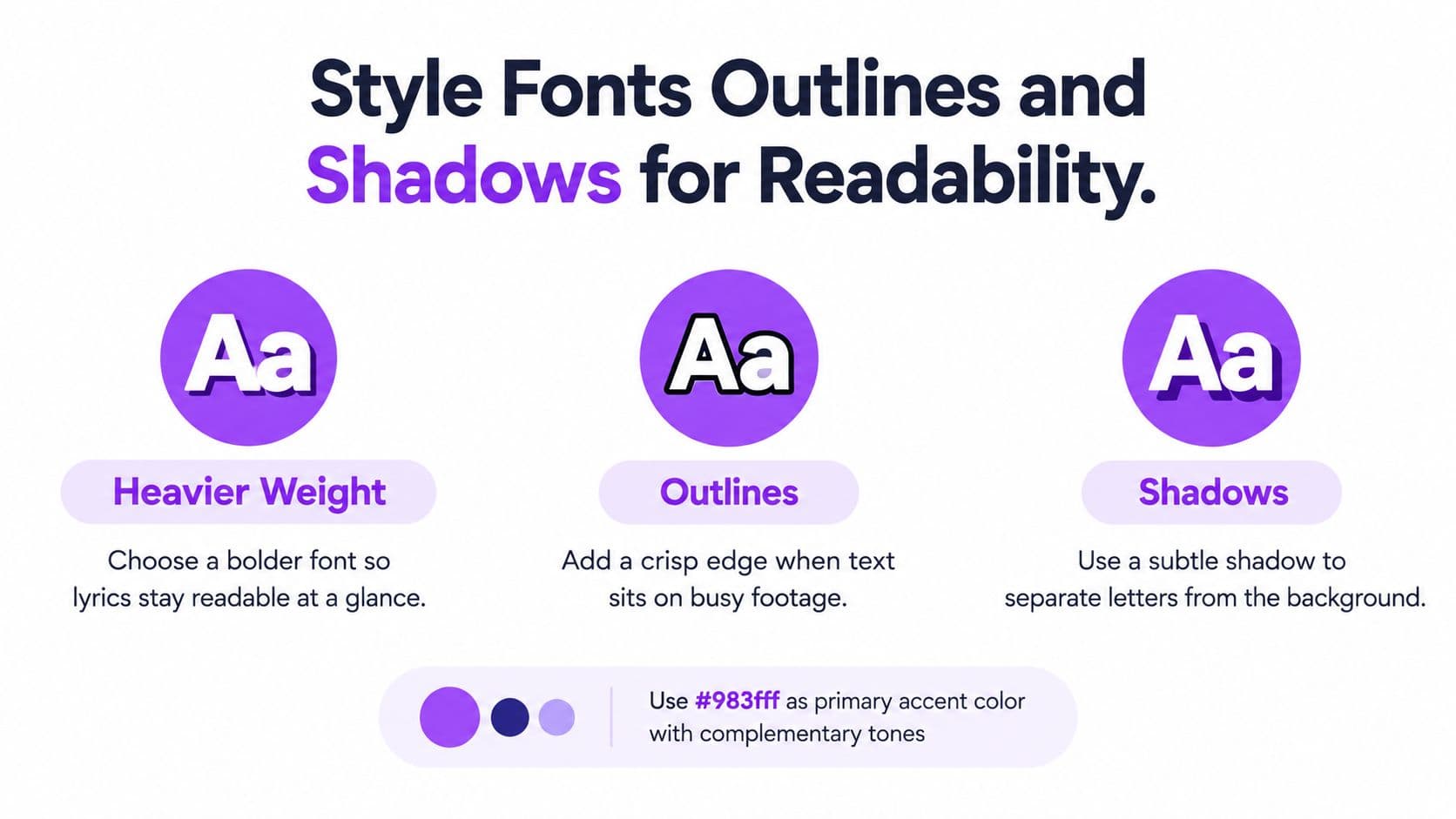
Lyrics get read at a glance, mid phrase, often from across a room or on a small screen. That argues for a heavier weight than you'd choose for a title card. Thin strokes and high contrast letterforms, the kind with dramatic thick and thin transitions, lose their counters when video compression softens the frame. The inside of an e or an a fills in, and the word becomes a shape the viewer has to guess.
Decorative faces have their place in thumbnails and end screens. For the working lyric line, a sturdy face with even stroke thickness survives conditions a display font won't. If you're unsure how to judge that trade off, this breakdown of choosing a good subtitle font covers the legibility traits worth prioritizing.
Playful display treatments follow a different logic altogether. If you want inflated, dimensional lettering for a hook or a title moment, you can create inflatable text with Nim and keep it for short bursts. Just don't ask that kind of lettering to carry a full verse at reading speed.
Outlines and Shadows in the Right Order
An outline works when it's a controlled halo. It needs real thickness, and it needs a color that contrasts with both the fill inside it and the footage outside it. A dark, firm outline around a light fill gives the eye a consistent edge even when the background swings from dark to bright mid line.
A same hue glow does the opposite. It spreads the letter's color into the background and softens the boundary you're trying to create. It looks atmospheric in a paused preview and falls apart in motion.
Drop shadow belongs last, as an assist rather than the contrast system itself. On busy footage a soft shadow gets lost in the detail, and a shadow that's too close in tone to the background can shrink the separation between text and scene instead of widening it.
An outline that lowers the effective separation between letter and background is a failed effect, even if it looks stylish in a paused preview.
Style the sung word fill as its own decision. The highlight shouldn't drop below the idle line's separation just because it's the accent color, and it has to stay distinguishable from the unsung portion of the same word.
Apply the same order to every song. Choose a readable face, set the fill, add a high contrast outline, then add shadow only if the edge still needs help on a busy frame.
Control the Background Behind Every Line
Colors and styling assume the background holds still. It doesn't. The most reliable way to keep high contrast text readable is to stop depending on the footage and give the lyrics a surface you control.
Three Treatments and What Each Actually Solves
Full frame blur knocks down detail. It's useful behind a crowd shot, a busy street, or confetti, because detail is what competes with letter edges. But blur changes texture, not brightness. A uniformly bright frame stays bright after you blur it, so white lyrics over a washed out sky fail just as cleanly.
A translucent band locked behind the lyric lines gives the text a known surface. The ratio stops depending on the shirt behind the singer because the band sits between the letters and the shirt. This is the most dependable option for performance footage you didn't shoot and can't grade. If you're building that layer from stills, these notes on adding background images to karaoke video help you set it up without fighting the text.
A designed overlay or color wash treats the whole frame. It earns its place when the entire image is the problem, an overexposed clip or a grade that shifts between shots. The risk is crushing the performance underneath it. Keep it as light as the text allows.
Picking a Polarity and Committing to It
You're choosing between a dark panel with light type and a light panel with dark type. Either can work. What doesn't work is letting polarity flip with the footage, because the viewer's eye has to recalibrate on every cut and the text effectively changes identity mid song.
It's also worth being clear about what passing a checker doesn't cover. As the accessibility notes in the APCA and WCAG comparison project point out, passing a contrast checker isn't the same as remaining readable in real video, since WCAG thresholds don't fully account for font weight, polarity, display quality, motion, compression, changing backgrounds, or viewing distance. That same guidance relays Microsoft's position that high contrast mode shouldn't be treated as the primary solution for poor readability.
That last point matters for exported video. A viewer can't switch your MP4 into a system high contrast mode and rescue the lyrics. The default presentation is the only presentation, so it has to be readable on its own.
Design a controlled contrast layer instead of hoping the color grade stays dark. Then judge that layer against the brightest, darkest, most saturated, and most detailed moments in the song, not against the frame you'd pick for a thumbnail.
Test High Contrast Text While the Video Moves
Testing isn't a second design pass. It's verification of decisions you've already made, run under the conditions your viewer gets.
The Contrast First Sequence
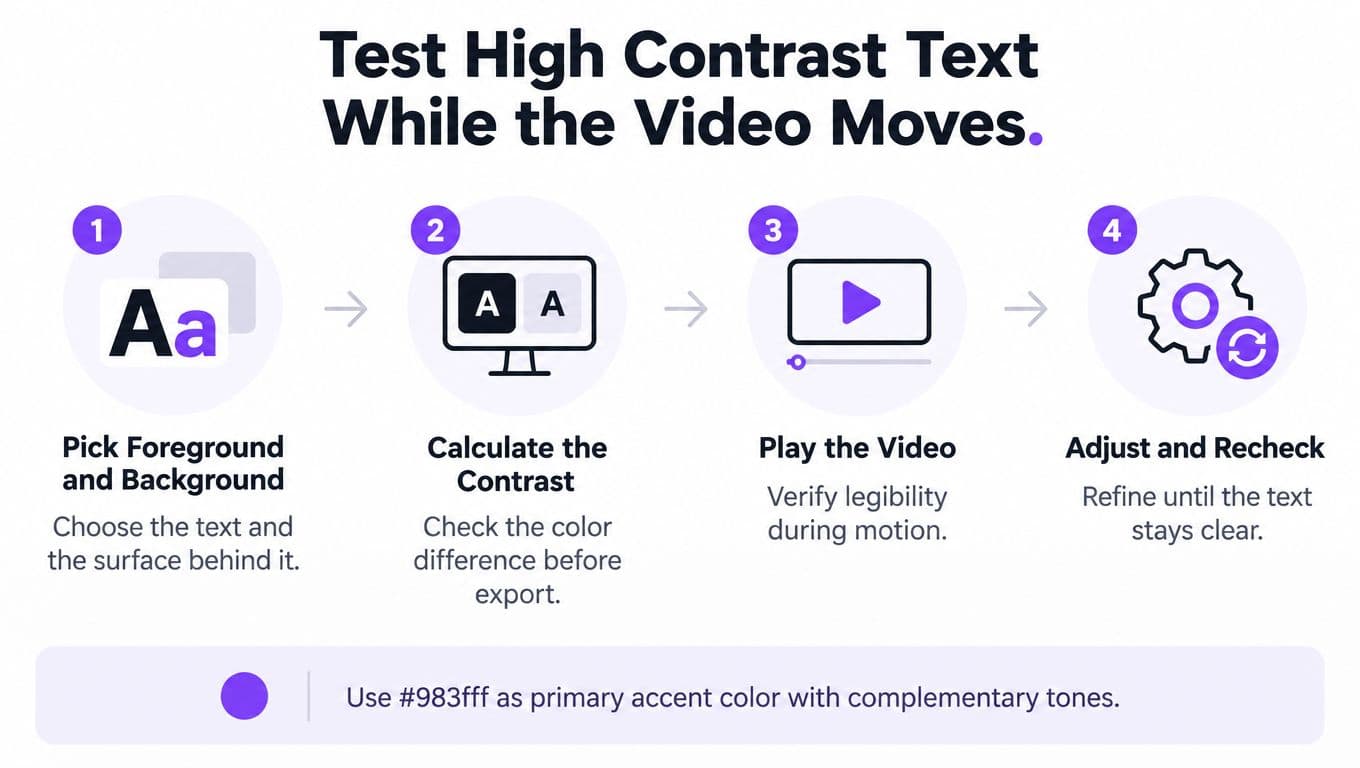
Mozilla's developer guidance on color contrast and WCAG supports a contrast first workflow for karaoke and lyric video text. Select your colors, calculate the WCAG relative luminance ratio, require at least 4.5:1 for normal text and 3:1 for large text, defined as at least 18 pt or 14 pt bold, and target 7:1 when you need maximum readability. Then recheck every combination of lyric color, highlight, shadow, outline, gradient, and video background together, since those elements interact on screen.
- Pick foreground and background: Name the exact pair you're judging, including the panel or overlay if you added one.
- Calculate the contrast: Check the idle color and the highlight color separately.
- Play the video: Watch at full speed, because motion blur and transitions don't show up in a still.
- Adjust and recheck: Change one variable at a time so you know what fixed it.
Test the Worst Frames, Not the Average Ones
Render representative lines over four kinds of frames. The brightest, the darkest, the most saturated, and the most detailed. Watch the normal lyric, the word currently being sung, timing cues, and small metadata as separate items, because they fail independently.
Judge both the idle frame and the worst frame during playback. A line that passes against one background region can fail a second later when the shot changes, and that second is the one your viewer remembers.
Inspect the delivered file, not the editor preview. Play the exported 1080p MP4 on a phone. Desktop previews hide thin strokes and flatter compression artifacts, and the phone is where a large share of your audience watches. If you're cleaning up source footage that already has burned in captions competing with your lyrics, Nereo's guide to subtitle removal is a useful reference before you layer your own text over the top.
Automated checks catch machine detectable failures. They can't tell you whether a thin typeface survives compression.
That's why a person still has to watch the render. Animation timing, low vision readability, and the way a wipe interacts with a moving background aren't things a checker evaluates.
Stop doing four things. Testing only the default theme. Validating still screenshots instead of video frames. Assuming white text is always safe. Allowing outlines or shadows you chose for style to eat the separation you measured.
Build a Repeatable Karaoke Text Preset
Everything above becomes manageable once you stop rebuilding it per song. A house preset turns contrast from a rescue job into a starting point.
What Belongs in the Preset
- A heavy, readable font: One face you trust at phone size, kept consistent across your catalog.
- A verified fill and highlight pair: Both colors measured, with the highlight never weaker than the idle line.
- A firm outline: Set thickness and color, not adjusted by feel each time.
- A stable background layer: A band or overlay that stays put while footage changes.
- A worst frame preview habit: Scrub to the brightest moment before you export, every time.
The preset flexes by job without new math. A phone first social clip wants the heavier end of your font choice and the stronger band, because the text renders small and competes with platform compression. A living room karaoke screen gives you size and viewing distance, so you can lean harder on the outline and let more of the performance show through. The color pair doesn't change. The safety margins around it do.
Templates make this stick. Saving the combination once and reapplying it beats remembering your own settings, and this walkthrough on using karaoke video templates shows how to keep a working setup reusable across songs.
MyKaraoke Video is where we apply this ourselves. You can set text, wipe, and outline colors, choose from over 1,500 fonts, and put lyrics on a color, image, or video background. Instant Preview lets you see every change live, with or without vocals, before spending a credit on export.
The Karaoke layout is built for this kind of check. It shows two lines at a time, fills each word as it's sung, and counts down before every verse. That means the idle line, the highlight, and the countdown are all on screen together, in motion, exactly as your viewer gets them.
Load one song you already know well. Apply the preset, scrub to the brightest moment in the chorus, and read the line at arm's length from your phone. If it holds there, export it.
Build your preset once in MyKaraoke Video, where you can set text, wipe, and outline colors, pick from over 1,500 fonts, and preview every change live before you export. Load a song, scrub to the brightest frame in the chorus, and confirm your high contrast text still reads before you spend a credit.
