
You've got a song you want to use right now. Maybe it's for a cover, a karaoke night, a lyric video, or background music for a short-form clip. The problem is simple. The lead vocal is baked into the track, and you need it gone without turning the whole song into a watery mess.
That's where a good song voice remover matters. The old way involved awkward audio tricks, lots of guesswork, and results that were usually disappointing. The current workflow is much easier. Browser-based AI tools can split a track into vocals and background music without asking you to install a DAW, learn routing, or spend your evening nudging EQ bands around.
The catch is that not every method works the same way. If you understand why AI separation beats older vocal removal tricks, you'll waste less time and get cleaner backing tracks faster.
Your Guide to Creating Perfect Karaoke Tracks
Visitors to this page often share a common objective. They've identified the desired song, but lack a vocal-free version that is satisfactory. While backing tracks are available for some songs, this doesn't address situations requiring a specific rendition, a remix, or a track that doesn't exist in karaoke format.

The good news is that vocal removal isn't a niche studio trick anymore. Modern browser-based tools can separate vocals from the music quickly, which makes the process practical for creators who just want to move from song file to finished karaoke track without opening complex editing software. If you're planning an event around sing-alongs, it also helps to think beyond the file itself. For party planning ideas that fit karaoke naturally, you can discover 1021 Events' NYE karaoke ideas.
What people usually need from a song voice remover
- A clean music track for singing: Covers, rehearsals, auditions, and live warmups all benefit from a quick backing track.
- A usable base for video: If you're making lyric or karaoke content, you need something that won't fight the on-screen words.
- A fast workflow: You don't want to spend an hour testing plugins for one song.
A browser-first workflow solves most of that friction. If you want the broader karaoke production process after separation, this practical guide on how to create karaoke tracks is the natural next step.
Practical rule: For karaoke, “clean enough to sing over” matters more than “scientifically perfect separation.”
That distinction saves time. Plenty of creators chase flawless stems when they only need a backing track that feels stable, musical, and free of obvious vocal residue. The useful standard is simple. If the audience notices the song, not the removal artifacts, the track is doing its job.
AI Separation vs Phase Cancellation Explained
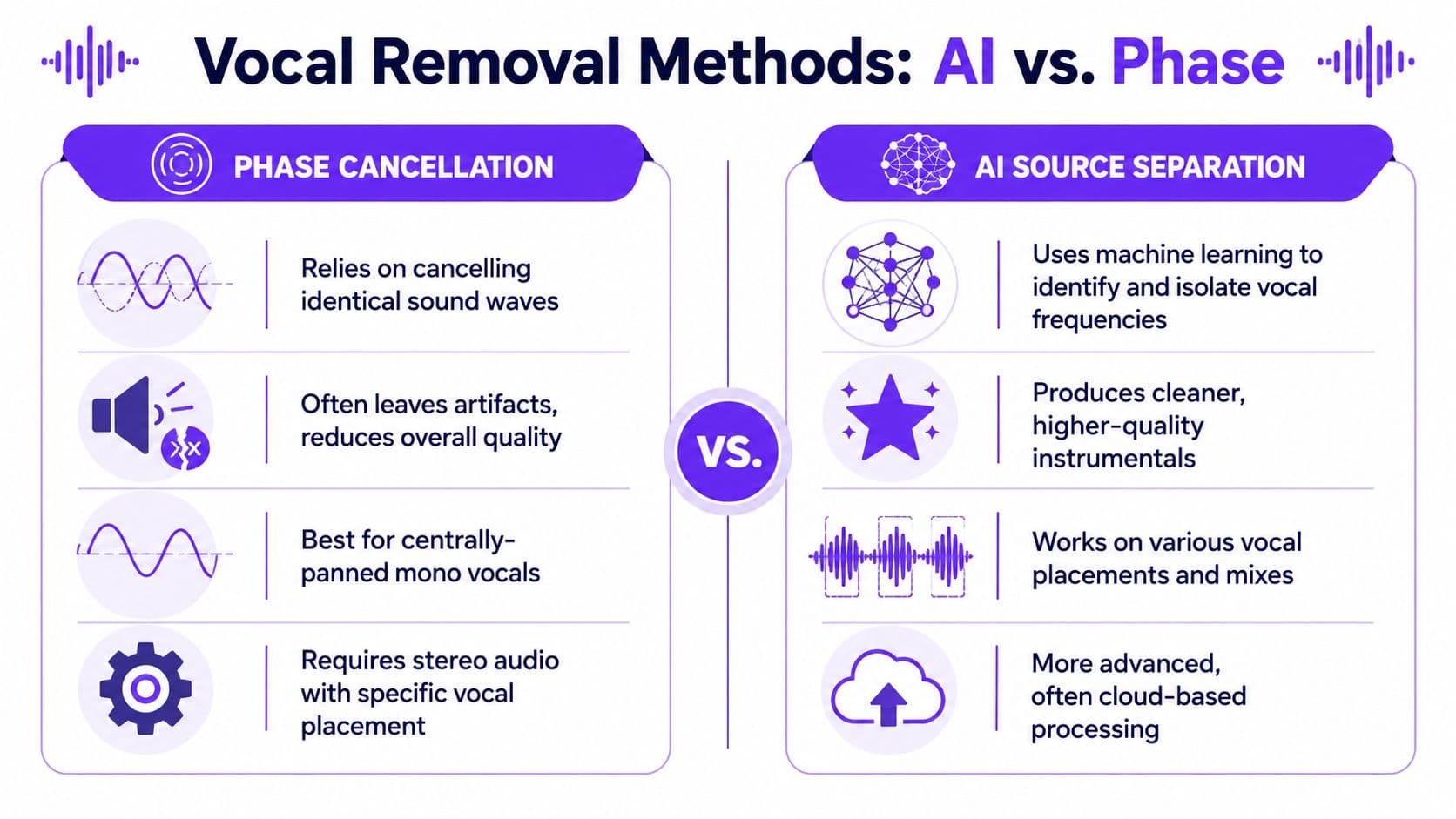
The biggest mistake I see is treating all vocal removal methods like they're basically the same. They aren't. Phase cancellation and AI source separation operate on different ideas, and the results are usually far apart.
Why phase cancellation struggles
Phase cancellation is the older trick. In plain language, it tries to remove sound that appears identically in the center of a stereo mix by inverting one channel against the other. If the lead vocal is perfectly centered, some of it cancels.
That sounds clever until you try it on real songs.
According to the scientific benchmark discussed in this source separation analysis, AI-powered vocal removal rarely achieves perfect separation, with success rates typically exceeding 80% only when the Signal-to-Noise Ratio is at least 0 dB. The same analysis notes that open-source options like Spleeter or Audacity's built-in phase cancellation fail entirely on mono tracks and often produce mono output, with negligible results when vocals aren't perfectly centered.
That lines up with what many users learn the hard way. A lot of commercial tracks aren't mixed in a way that phase cancellation likes. Even when the lead vocal sits near center, reverb, doubles, harmonies, and stereo effects keep parts of the voice alive. Meanwhile, center-panned instruments can also get damaged.
What AI is actually doing
AI source separation doesn't rely on a single stereo trick. It analyzes spectral and phase information to identify what sounds like a voice and what sounds like instrumentation. That's a very different job from trying to null the center channel.
Here's the practical difference:
| Method | What it needs | Common result |
|---|---|---|
| Phase cancellation | Stereo file, centered vocal, favorable mix | Hollow instrumental, vocal bleed, lost center instruments |
| AI separation | A normal song file | Cleaner split, more usable instrumental, wider compatibility |
That's why current tools are so much more useful in everyday creator workflows. If you want a broader look at the current AI approach, this overview of an AI vocal remover workflow breaks down the process in practical terms.
Older non-AI methods aren't useless. They're just narrow. They work in specific mix conditions, not as a dependable solution for random songs.
When phase cancellation still makes sense
There are a few edge cases where I'd still try it:
- You already know the mix is favorable: Some older karaoke hacks still work on tracks with tightly centered dry vocals.
- You're testing for free before using AI: If the song is simple and stereo, there's no harm in checking.
- You only need a rough practice track: For private rehearsal, perfection may not matter.
Phase cancellation, though, is typically a time sink. AI isn't magic, but it's the first method that behaves like a general-purpose tool instead of a niche workaround.
How to Remove Vocals with MyKaraoke Video
If your goal is speed, the cleanest workflow is to use a browser-based remover and stay in one environment from upload to export. That's where MyKaraoke Video fits well for karaoke creation because it combines vocal removal with the next stage of turning the result into a lyric or karaoke video.

A browser workflow matters more than people think. You don't have to install software, configure plugins, or move files between separate apps just to get from song to backing track.
The basic upload process
The starting point is simple:
- Open the tool in your browser Use your normal desktop or laptop setup. No install is required.
- Upload your song file A good MP3 or WAV is fine. Better source files usually lead to better splits.
- Let the AI process the track Browser-based AI vocal removal tools demonstrated in 2026 can process files in 2 to 60 seconds, and some examples complete the split in under 10 seconds, as shown in this browser-based vocal remover demo.
- Review the outputs You'll typically get a vocals-only track and a backing track.
That speed changes the whole experience. You're no longer deciding whether vocal removal is worth the effort. You can test a song, hear the split, and decide in minutes.
What to listen for after separation
Don't just hit download and move on. Preview the music with purpose.
Check these points:
- Lead vocal residue: Listen in intros, sustained notes, and reverb tails.
- Snare and synth clarity: These often reveal whether the separator confused instruments with vocal content.
- Chorus density: Busy chorus sections expose artifacting faster than sparse verses.
- Stereo feel: If the track suddenly sounds narrow, flat, or hollow, something got lost in the center.
A useful karaoke instrumental doesn't have to be flawless. It has to stay musical once someone starts singing over it.
That's why solo monitoring can mislead you. Tiny remnants that sound obvious on headphones often disappear in context once lyrics, room sound, and live singing enter the picture.
Moving from instrumental to karaoke video
Once the separation is done, productivity gain comes from not stopping there. If you're creating karaoke content, the next step is syncing lyrics and exporting a finished video instead of juggling multiple tools.
This embedded walkthrough shows the kind of workflow that makes sense for quick production:
For creators, that all-in-one path is usually the difference between finishing the project today and leaving a half-complete audio file on the desktop.
A fast practical workflow
Here's the version I recommend when you just want to get the job done:
- Start with the cleanest file you have.
- Run one separation pass first. Don't overcomplicate the first attempt.
- Preview the music track where vocals were strongest.
- Use the result if it already works in context.
- Only do cleanup if the artifacts are obvious.
Modern browser tools now beat older methods by a mile. You're not spending most of your time trying to force a technique to work. You're evaluating the output and deciding whether small touch-ups are worth it.
Preparing Your Files for the Best Results
The separator can only work with the audio you feed it. If your source file is weak, the output usually shows it. Low-quality audio tends to carry compression artifacts, smeared highs, and muddy mids, which makes it harder to distinguish voice from instrumentation cleanly.
Choose the cleanest source you can get
If you have options, start with the highest-quality file available. Lossless files are ideal because they preserve more detail, but even a strong MP3 can work well if it hasn't been aggressively compressed or ripped from a poor source.
A bad source creates two common problems:
- More vocal bleed: The remover has less clean information to separate.
- More music portion damage: Shared frequencies become harder to classify.
If your song currently lives inside a video file, pull the audio out properly first. This guide on how to get audio from video is the cleanest place to start before you run separation.
Match the export to the job
Not every output needs the same format. Keep the destination in mind.
- For casual playback or practice: A compressed format is usually fine.
- For video editing or more audio work later: Export a higher-quality file so you don't stack losses.
- For archive purposes: Keep the cleanest version you can, then make smaller copies from that.
Garbage in, garbage out applies hard to vocal removal. The AI can separate a song. It can't restore detail that the source file already threw away.
That one step alone fixes a lot of disappointment. Many “bad AI remover” complaints are really “bad input file” problems.
Troubleshooting Common Vocal Removal Issues
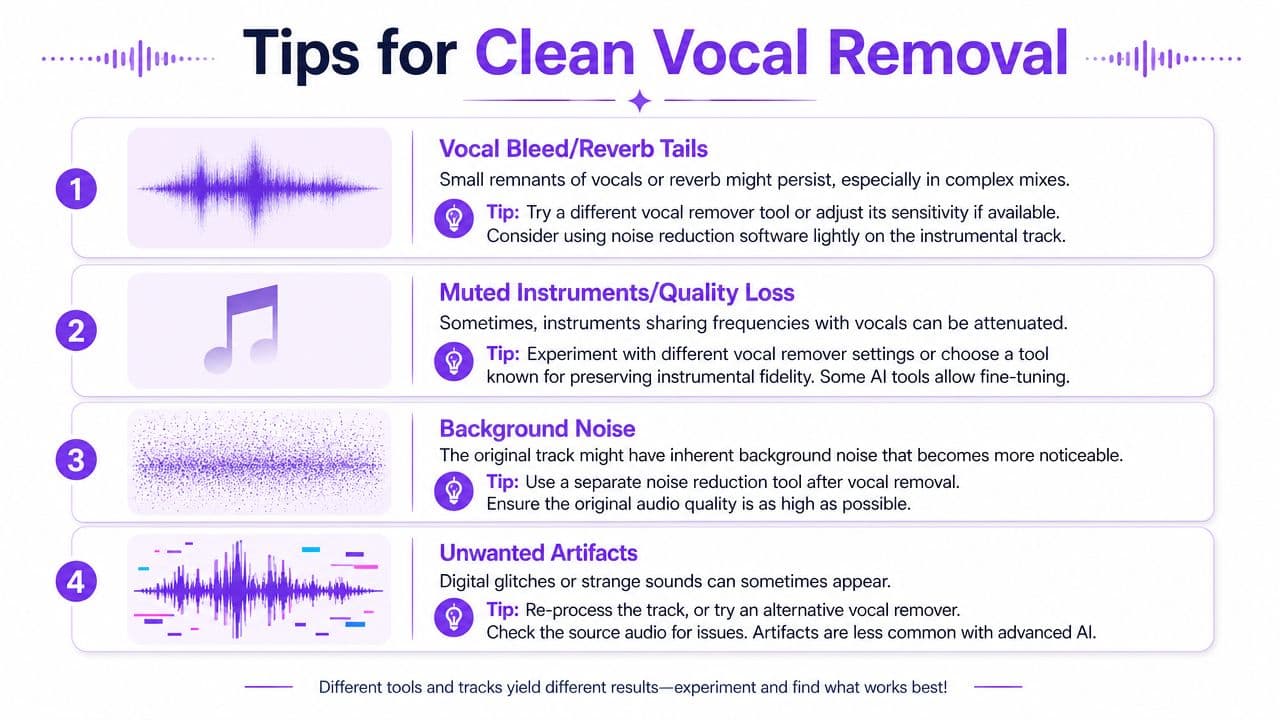
Even a strong song voice remover leaves artifacts on some tracks. That doesn't mean the tool failed. It means the mix is fighting back. Dense choruses, wide vocal effects, layered harmonies, and reverb-heavy masters are the usual culprits.
The issues you'll hear most often
The first is vocal bleed. You mute most of the singer, but traces remain in held notes, echoes, or background doubles. The second is instrument loss, where guitars, keys, or snare presence get shaved off because they overlap with the vocal range.
Then there's synth bleeding, which is a more specific and annoying problem. In expert discussion around model combinations for Ultimate Vocal Remover, practitioners note that synth bleed often shows up around the 2 kHz range, where targeted EQ or multiband splitting can help. That same benchmark thread reports that sequential model pipelines deliver cleaner results than single-model passes, and that optimal combinations can reach 85% to 90% success on standard pop tracks in good conditions, based on the workflow notes in the UVR model discussion.
What actually helps
If the extracted music is close but not quite there, try small corrections instead of starting over from scratch.
- Use light EQ cuts: If vocal remnants poke through in a narrow band, a gentle reduction can hide them without gutting the whole track.
- Focus on problem sections: The chorus may need attention while the verses are already usable.
- Accept context over isolation: What sounds exposed solo may be fine under live or recorded vocals.
Here's a simple triage table:
| Problem | Likely cause | Practical fix |
|---|---|---|
| Faint vocal echo | Reverb tails or harmonies | Light EQ, minor noise cleanup, test in context |
| Thin instrumental | Vocal and instruments shared the same range | Re-run if available, or keep if singing will mask it |
| Synth smear near upper mids | Model confusion around the vocal region | Targeted EQ around the problem area |
If a track is already singable, stop editing. Extra cleanup often removes as much music as it removes artifacting.
When not to fight the file
Some songs are just poor candidates. Big ambient ballads, washed-out live recordings, and dense electronic productions often resist clean isolation. In those cases, the smart move is to change the source version if one exists, not to keep forcing post-processing.
That's the practical difference between theory and use. The winning workflow isn't the one with the most steps. It's the one that gets you to a believable vocal-free version before the cleanup starts hurting the song.
Putting Your New Instrumental Track to Work
Once you've got a workable backing track, it becomes much more than a stripped song file. It turns into a reusable creative asset. Karaoke is the obvious use, but it's far from the only one.

Musicians use these tracks for rehearsal, arrangement testing, and quick cover production. Video creators use them under intros, montages, and social clips when they want the feel of a familiar arrangement without the competing lead vocal. Event organizers can turn songs into ready-to-sing backing tracks without waiting on custom edits.
Why this is more accessible now
The market has shifted toward easy entry. As of 2026, vocal removal tools include free starter options and paid plans ranging from $4.99 to $19.99 per month, with examples documented on LALAL.AI pricing and plan information. That range matters because it lowers the barrier for creators who want to test a few songs before paying for more capacity.
That accessibility changes who gets to make polished karaoke and lyric content.
- Creators can test ideas cheaply
- Musicians can prep practice tracks quickly
- Small teams can build video assets without audio software overhead
The shift isn't just better separation. It's that a useful workflow now fits inside a browser and inside a normal budget.
If you want to turn a song into a karaoke-ready video without bouncing between separate tools, MyKaraoke Video gives you a browser-based path from vocal removal to synced lyrics and final export.