Your Chromebook can edit video far better than is commonly expected. ChromeOS started as a web-first platform after Google announced Chrome OS in 2009, and Chromebooks began reaching consumers in 2011. That history matters because it pushed creators toward browser-based tools instead of traditional installed desktop software. You can still see that DNA today in editors like Clipchamp for Chromebook, which says it works with “no downloads required.”
That doesn't mean every Chromebook editor feels the same. Some are best when you want speed and cloud rendering. Some Android apps give you a more familiar mobile timeline. A few go much further and feel close to a compact NLE on the right hardware. If you're trying to choose video editing software for Chromebook without wasting an afternoon testing random apps, this list will save you time.
For readers comparing budget options across platforms, it also helps to compare affordable video editing tools.
1. MyKaraoke Video
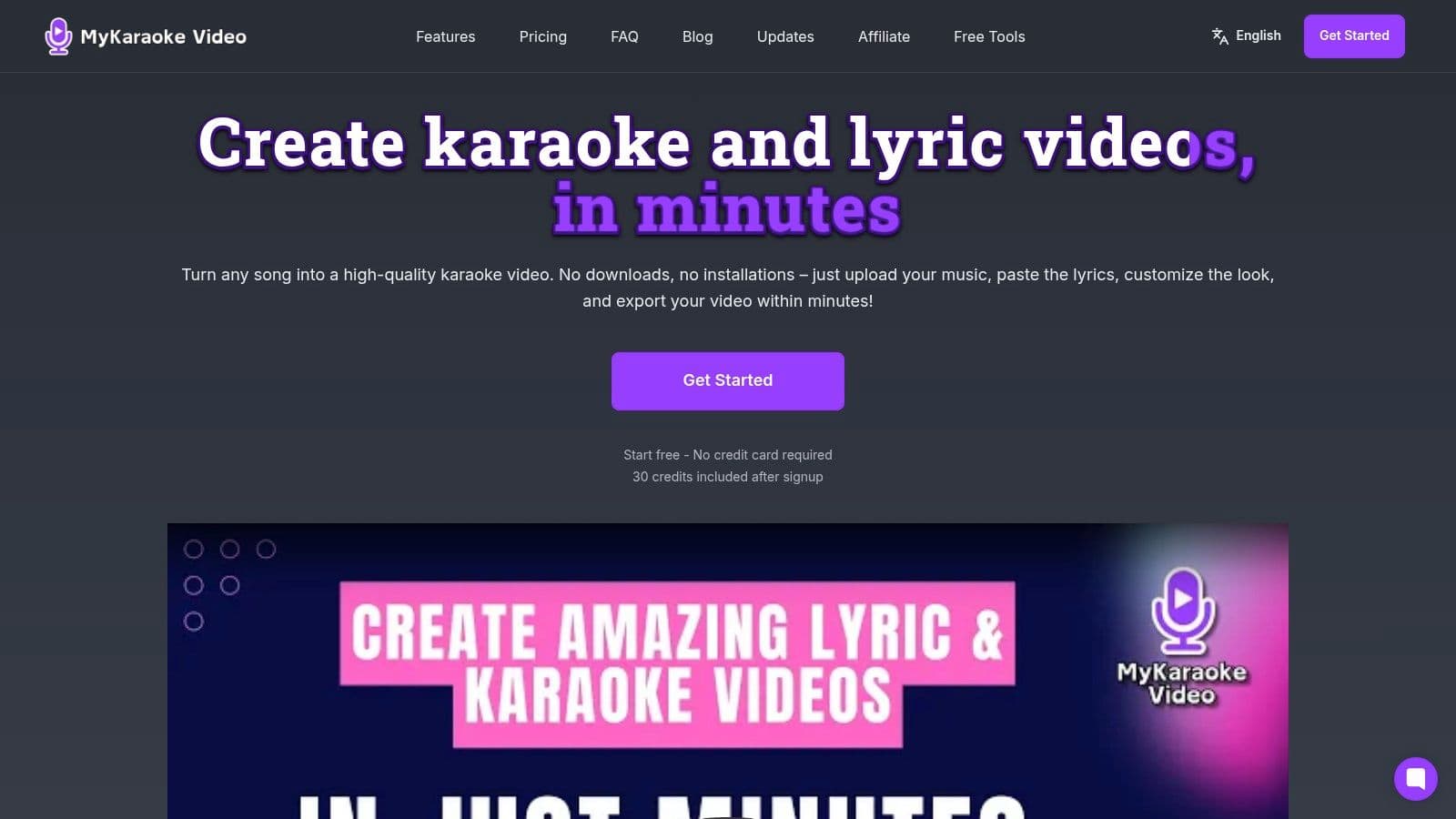
A common Chromebook editing problem goes like this. You have an MP3, a lyric sheet, and a deadline, but no interest in building word-by-word timing by hand in a general editor. For that job, MyKaraoke Video makes more sense than forcing Clipchamp, CapCut, or another all-purpose tool into karaoke duty.
It fits the first workflow category in this guide: browser-based editors. That matters on ChromeOS because the work happens in the browser, not through a heavy local app that eats storage and struggles on lower-end hardware.
Best for karaoke videos and lyric-first music content
I'd point this at karaoke channel owners, musicians releasing lyric videos, DJs making sing-along visuals, and event hosts who need a clean on-screen lyrics format fast. General video editors can produce the same result, but the process is slower. You usually end up syncing lines manually, building text layers one by one, and spending more time on timing than on the actual presentation.
MyKaraoke Video cuts out a lot of that setup. You upload the song, add lyrics manually or start from transcription, use vocal removal if needed, then adjust the sync in an editor built for lyric timing. That workflow is the reason it stands out on a Chromebook. The machine is handling a browser session, while the service handles the heavier processing.
The customization is better than many web tools in this niche. Fonts, colors, backgrounds, and layout options are easy to change, and the live preview helps catch timing or readability problems before export. If the goal is a polished 1080p karaoke or lyric video, it gets there quickly.
Practical rule: If the project depends on accurate lyric timing, start with a specialist tool instead of a general timeline editor.
Pricing is straightforward once you understand the credit model. There's a free starting tier with credits and no card requirement, then paid credits or subscriptions if you need regular output. That works well for occasional creators who only publish a few songs each month. If you export often, especially with rush jobs, keep an eye on credit usage because this does not behave like a flat monthly unlimited editor.
A basic karaoke video uses a small number of credits, while instant exports cost more. That trade-off is reasonable for browser processing, but frequent users should price their workflow before committing.
Here's the practical fit on a Chromebook:
- Workflow category: Browser-based
- Best for: Karaoke videos, lyric videos, sing-along tracks, and text-led music visuals
- Biggest advantage: Auto-sync, vocal removal, and karaoke-specific output save a lot of repetitive timeline work
- Main limitation: It is specialized. Use something else if you need layered narrative editing, motion graphics, or detailed color correction
- Important caution: Commercial song rights are still your responsibility
That specialization is the whole point. If your exact goal is karaoke content, this is one of the few Chromebook-friendly tools that solves the main production bottleneck instead of just giving you a blank timeline.
Use MyKaraoke Video if you want the fastest route from song file to finished lyric or karaoke video.
2. Microsoft Clipchamp
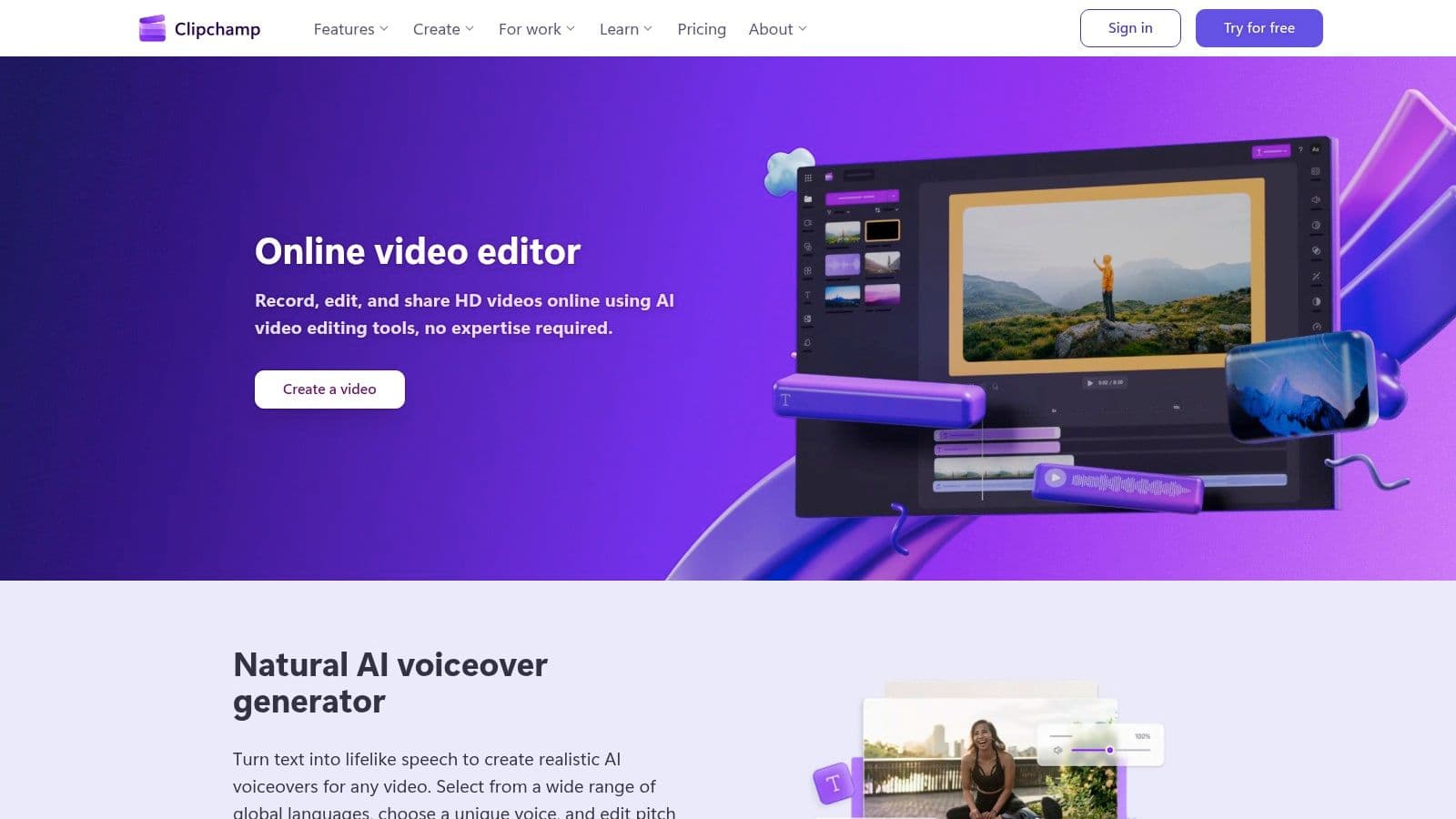
Clipchamp is the easiest recommendation for people who want a clean browser editor for day-to-day work. Social clips, YouTube intros, talking-head edits, and screen recordings are where it feels most comfortable.
The Chromebook fit is straightforward. Clipchamp's Chromebook editor is explicitly presented as working with no installation, and it also documents Google Drive integration plus 1080p HD export in its Chromebook workflow guidance. That combination makes it practical when your local storage is limited and most of your footage already sits in Drive.
Best for simple browser editing
Clipchamp feels balanced. It gives you a proper timeline, templates, screen and webcam capture, and useful text tools without dropping you into a pro-level interface that fights back. That's why it works well for students, solo creators, and anyone who needs something that “just opens in Chrome.”
Its free tier is one of the better starting points in this category because you can get real work done before deciding whether the Microsoft 365 tie-in matters to you.
- Use it for: Explainers, class projects, webcam commentary, and quick branded social posts.
- Skip it for: Dense multi-layer edits, advanced color work, or projects where you want deep audio control.
- Know the catch: Premium value is strongest if you're already in the Microsoft ecosystem.
Clipchamp is what I'd hand to someone who wants a low-friction editor, not a hobby project in learning software.
If your priority is speed, browser convenience, and a free path to polished 1080p output, Microsoft Clipchamp is still one of the safest Chromebook picks.
3. Adobe Premiere Rush
Premiere Rush makes sense for creators who want Adobe's style without the weight of Premiere Pro. On a Chromebook, that usually means using the Android app, and the experience depends heavily on your device.
Rush works best when your content is short, repeatable, and destined for YouTube or social platforms. The multi-track timeline is approachable, the motion presets are useful, and Adobe's cloud sync is handy if you also touch projects on another device.
Best for creators already using Adobe
This isn't the app I'd choose for a budget Chromebook that already struggles with multitasking. But on newer hardware, it's a solid middle ground between simple browser tools and heavier editing apps.
Its strengths are practical, not flashy:
- Cross-device continuity: Start on Chromebook, continue elsewhere in the Adobe ecosystem.
- Fast social workflow: Motion templates and direct sharing cut down assembly time.
- Familiar layout: If you've used Adobe tools before, Rush feels immediately understandable.
The trade-off is subscription pressure. You can test it, but unlimited exports and premium assets sit behind paid access. For many people, Rush is less about being the absolute best Chromebook editor and more about keeping your workflow consistent across devices.
Go with Adobe Premiere Rush if you want Adobe familiarity and don't need deep desktop-style control.
4. CapCut
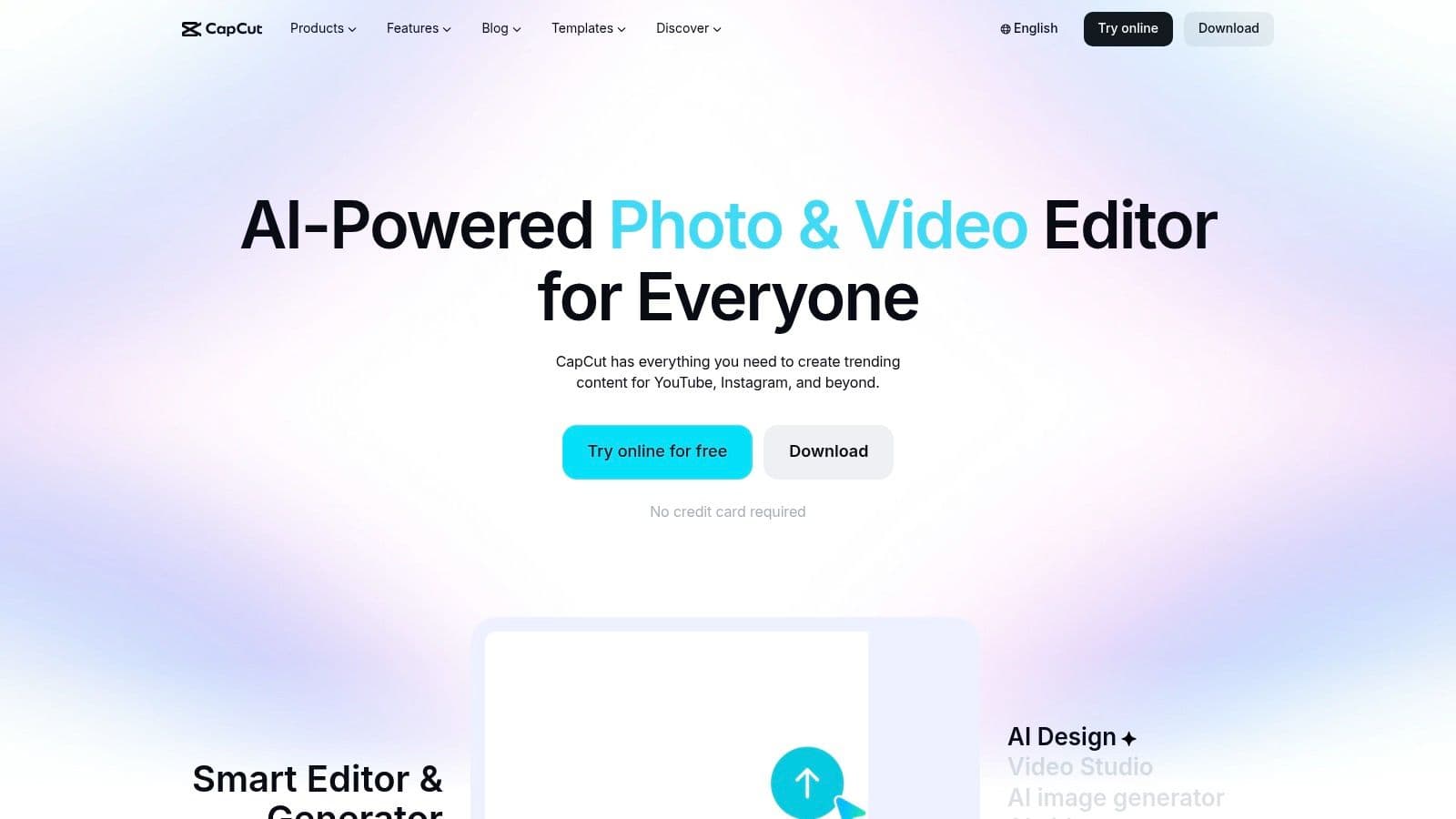
CapCut is the fast-twitch option. If you make Shorts, Reels, TikToks, product teasers, or trend-driven clips, it gets you from raw footage to publishable output quicker than most traditional editors.
It works on ChromeOS through both the web editor and Android app, which is useful because some users prefer a browser tab while others want a more app-like workspace. The feature mix leans social: templates, auto-captions, effects, background removal, stock assets, and cloud projects.
Best for social media shorts
This is one of the strongest fits for the current Chromebook editing reality. Broader Chromebook editor guidance has increasingly centered on web apps such as Flixier, Kapwing, VEED, WeVideo, Clipchamp, and Adobe Express because ChromeOS devices vary widely in power and storage, so lightweight cloud-first workflows tend to be the safest choice. CapCut fits that same logic even if you approach it through its app as well.
If you want more browser-first options in this style, this roundup of best free online video editors is worth checking.
What I like most is the turnaround speed. What I like least is that larger edits start to reveal the limits of a social-first tool. It's excellent for momentum, not for intricate long-form post-production.
- Pick CapCut if: You post often, need captions fast, and care more about output speed than timeline purity.
- Avoid it if: You want a calm, traditional editing environment for long projects.
- Watch for: Plan and feature differences across platforms and regions.
CapCut is one of the best answers for creators who treat a Chromebook as a social publishing station first and an editing machine second.
5. WeVideo
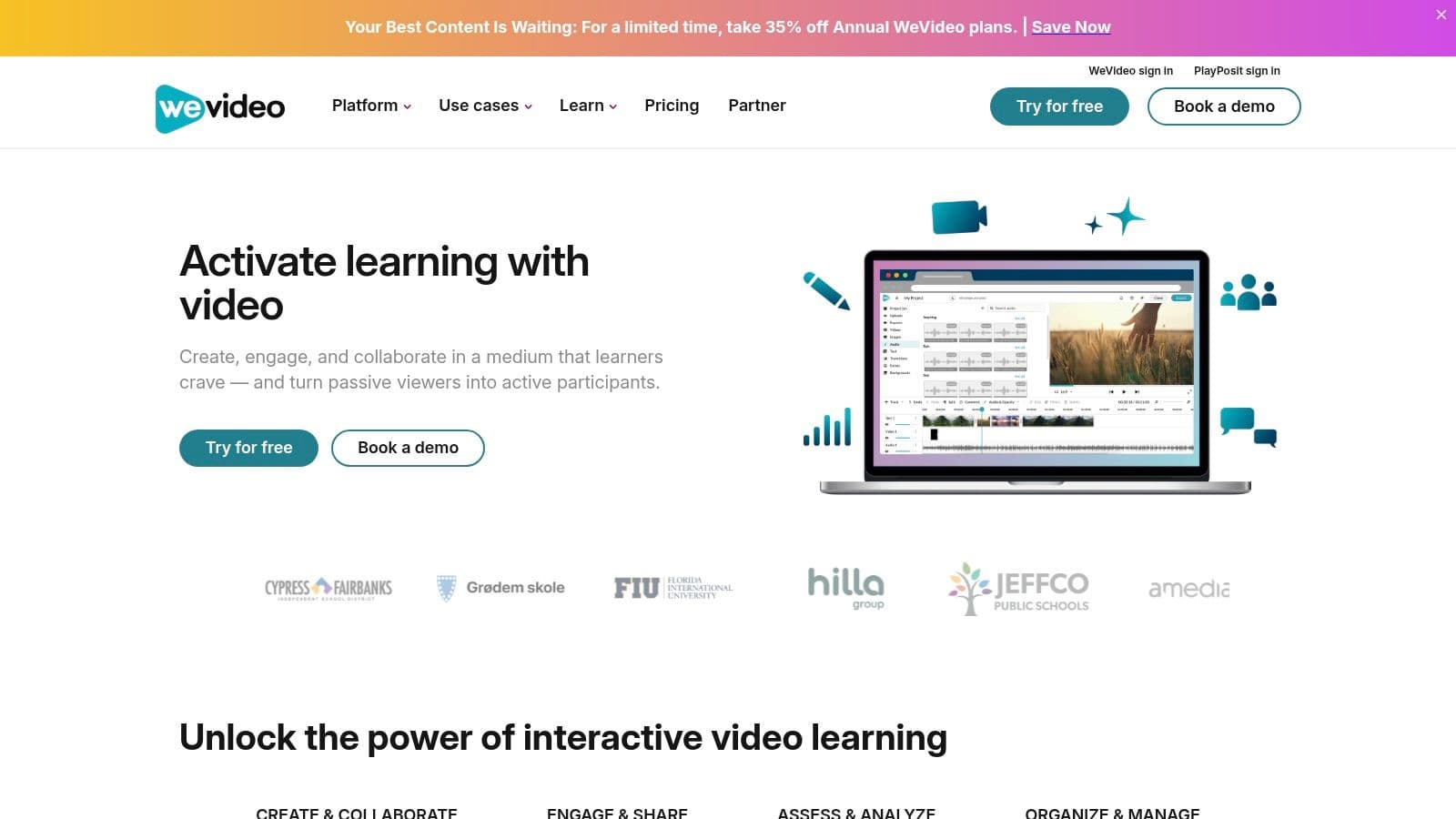
WeVideo has been a Chromebook staple for a long time, and that shows in the product. It feels built for schools, collaborative teams, and users who need cloud access more than raw editing muscle.
WeVideo markets a web-based editor for Chromebook with “no app download required,” which matches the original browser-led ChromeOS model that shaped this whole category. It also advertises exports up to 4K and editing across Chromebooks, Macs, PCs, iOS, and Android, which makes it useful for mixed-device teams.
Best for classrooms and shared workflows
If multiple people need access to projects, WeVideo becomes much more attractive. Shared workspaces, brand tools, screen recording, stock media, and direct sharing make it practical for school assignments, training videos, internal comms, and simple team marketing.
For a deeper look at this kind of cloud workflow, this guide to a browser-based video editor is relevant.
The usual caveat applies. Because it's cloud-centered, your experience rises and falls with your connection quality. If your internet is unstable, timeline confidence drops fast.
Teams usually do better in WeVideo than solo perfectionists do.
Use WeVideo when collaboration matters more than squeezing every last bit of control from the timeline.
6. LumaFusion
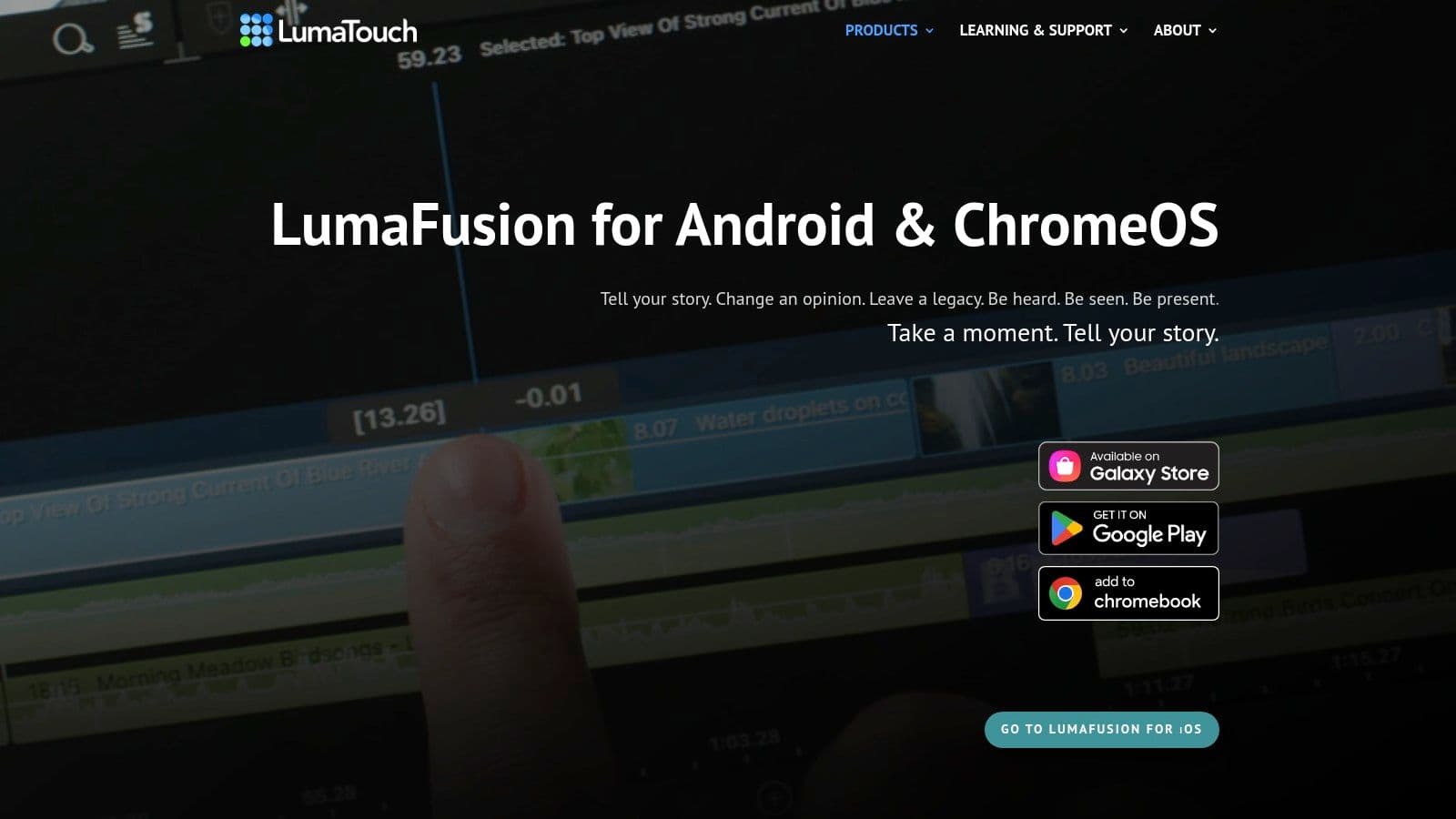
LumaFusion is where Chromebook editing starts to feel serious. It arrived on ChromeOS and Android as a notable step for creators because it brought a formerly iOS-exclusive editor onto the platform, and reporting around that launch highlighted practical 4K editing on supported Chromebooks through coverage of LumaFusion on ChromeOS.
That matters because LumaFusion isn't a dressed-up template editor. It's a real multi-track NLE with keyframing, advanced audio work, speed control, effects, color tools, and strong export options.
Best for pro-level Android editing
If your Chromebook has decent hardware, LumaFusion is the clearest answer for people who keep asking, “What's the closest thing to desktop editing on ChromeOS?” This is it. You can build layered edits, cut interviews, manage B-roll, and deliver polished work without feeling boxed into a toy timeline.
The trade-off is simple. This app asks more from both the machine and the editor.
- What works well: Documentary-style edits, YouTube projects, client reels, travel films, and projects with several layers of audio and video.
- What doesn't: Old or underpowered Chromebooks, or users who only need fast captioned social clips.
- Why it stands out: One-time purchase instead of a subscription-first model.
LumaFusion rewards patience. If you want something easy in the first ten minutes, this isn't the winner. If you want room to grow, LumaFusion is one of the strongest tools on this list.
7. CyberLink PowerDirector
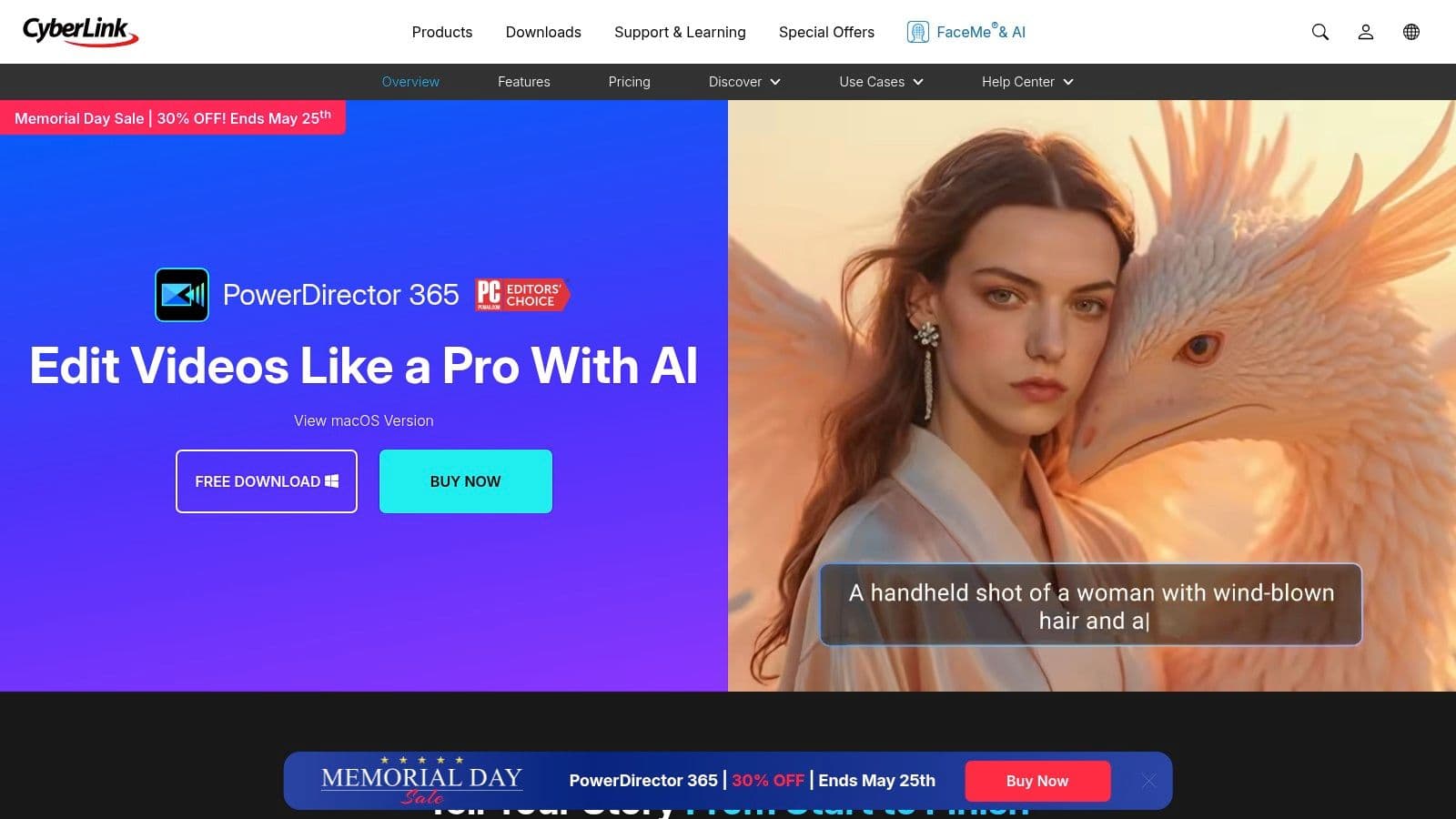
PowerDirector sits in a useful middle lane. It's more capable than the average template-first editor, but it's less intimidating than a full pro NLE. For Chromebook users installing Android apps from the Play Store, that balance is valuable.
You get a multi-track timeline, effects, transitions, motion titles, voiceover tools, speed controls, stabilization, and support for 4K output on compatible devices. In practice, it's a good fit for YouTube creators and hobbyists who want more control without jumping straight to LumaFusion.
Best for users leveling up from basic editors
PowerDirector's interface can feel busy on smaller Chromebook screens, but it usually clicks once you've done a couple of projects. It's the kind of app that rewards mouse use more than pure touch input.
I'd recommend it to people who've outgrown Canva or Clipchamp and want a stronger sense of “real editing” without entering advanced-post territory.
- Strong fit: YouTube edits, tutorials, commentary videos, and projects that need a few layers and effects.
- Weak fit: Minimalist users who hate dense interfaces.
- Watch for: Some premium effects and stock assets sit behind subscriptions.
CyberLink PowerDirector is the practical upgrade path when you want more timeline control on ChromeOS but don't want a steep learning cliff.
8. VEED.IO
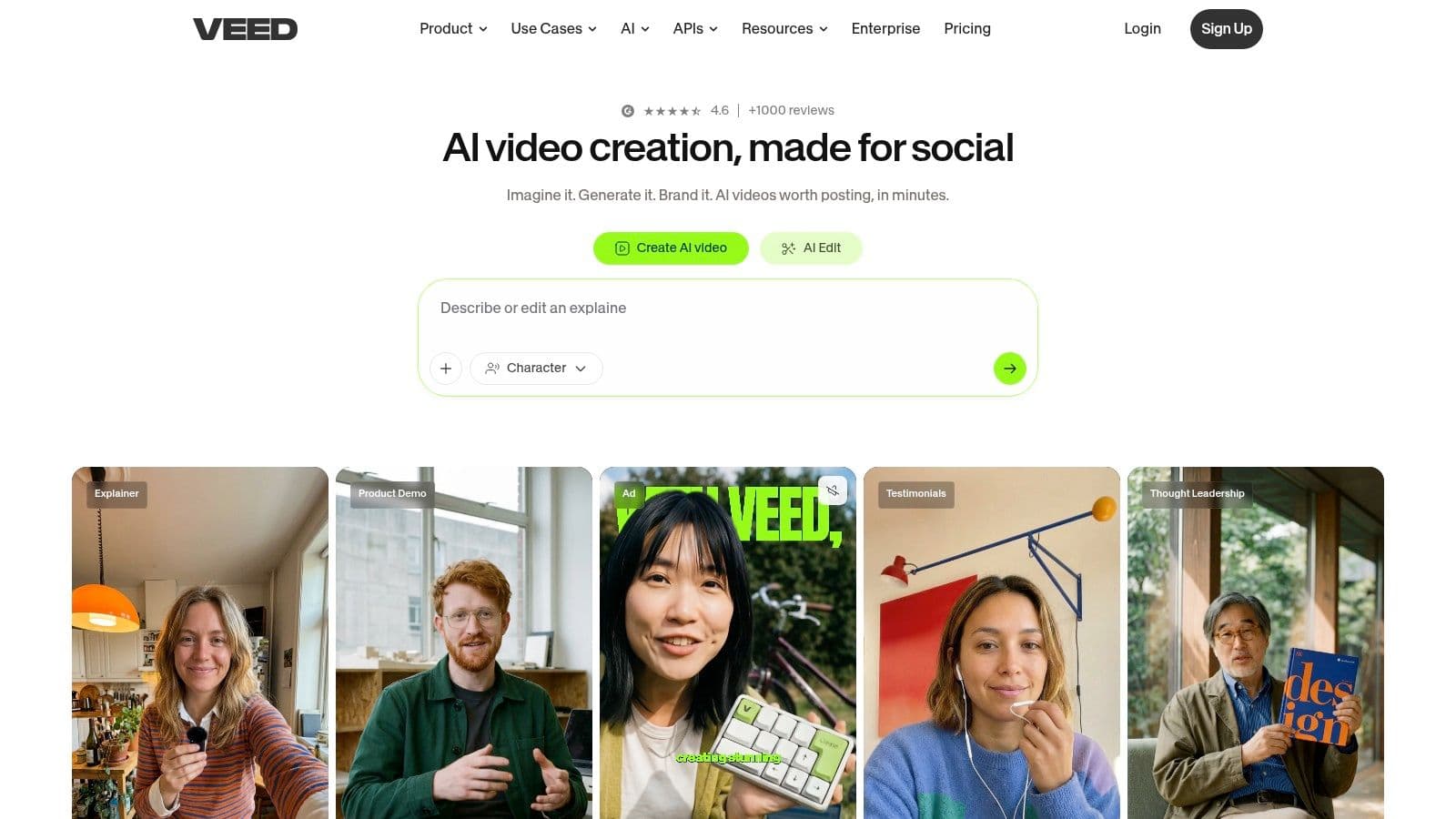
VEED.IO is for people who think in captions first. If your videos need subtitles, translated text, talking-head cleanup, quick resizing, and consistent branding, it's one of the better browser options on a Chromebook.
That matters more now because Chromebook video editing isn't just about asking whether editing is possible. The primary question has shifted toward which workflow works best for high-volume, caption-centric content creation without installing heavy software, as discussed in this Chromebook video editor overview.
Best for caption-heavy content
VEED.IO is strong when the text layer is the product, not just decoration. Short explainers, repurposed podcast clips, coaching content, product demos, and multilingual snippets all fit its strengths.
The browser-based nature also helps on weaker Chromebooks. You're not asking the device to behave like a desktop workstation. You're using the machine as a window into a cloud editing workflow.
If subtitles are non-negotiable, start with VEED.IO or Kapwing before you try to force a general editor into that role.
The downside is flexibility. Once a project becomes long, layered, and structurally complex, VEED starts to feel less comfortable than a stronger timeline editor.
For speed and text-centric output, VEED.IO is a smart Chromebook pick.
9. Canva Video Editor
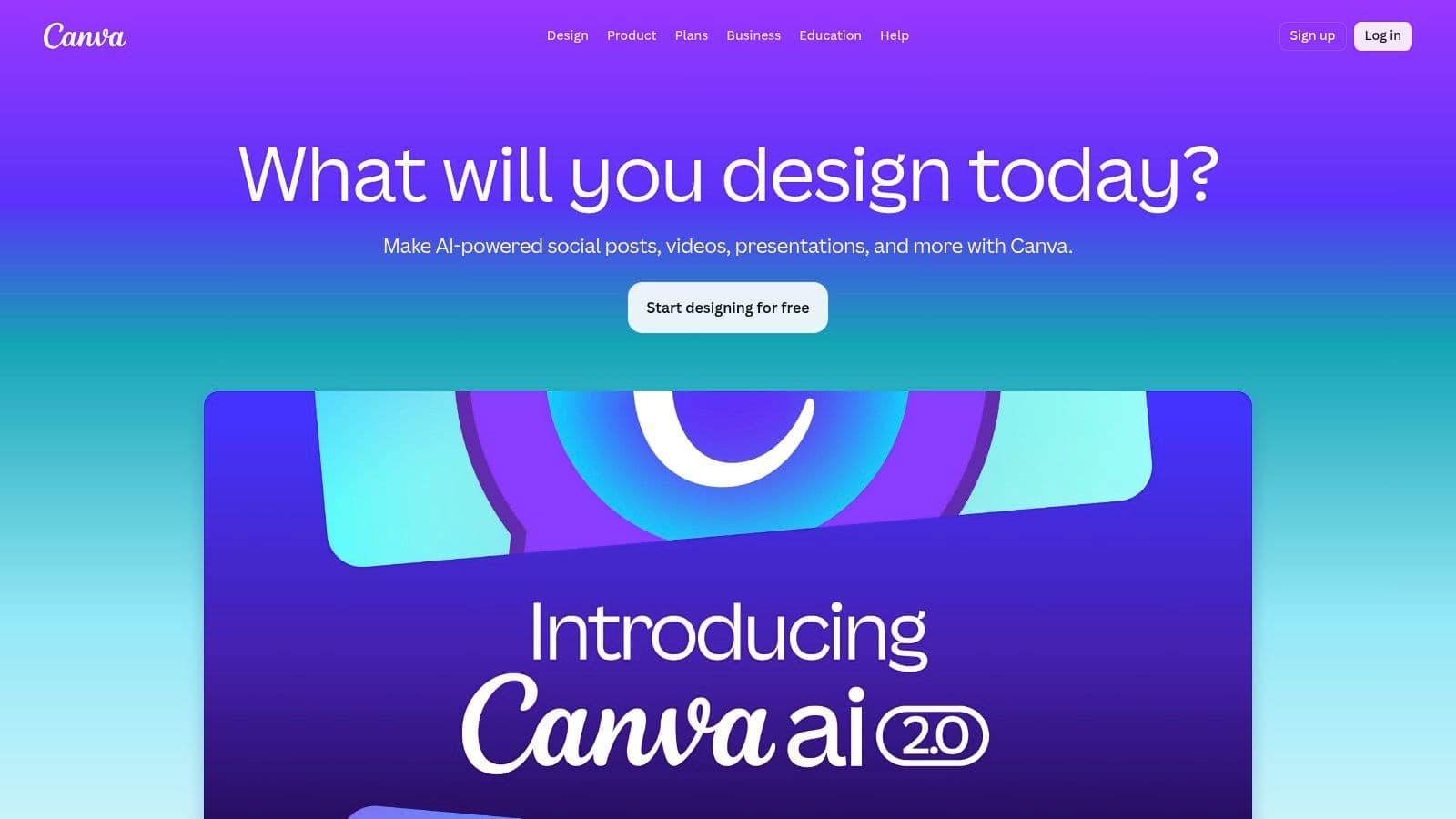
Canva isn't the best editor here if you think like a film editor. It is one of the best if you think like a marketer, teacher, solo business owner, or creator making text-forward content.
The appeal is obvious on a Chromebook. You open a browser tab, grab a template, drop in clips, add typography, align colors to your brand, and export without messing with a complicated timeline. For lyric-style visuals, quote videos, promo slideshows, and lower-thirds-heavy content, Canva often gets to “good enough” very quickly.
Best for branded promos and text-led visuals
Canva shines when the design layer matters more than editing precision. That makes it particularly good for branded shorts, event promos, announcement videos, and simple lyric-style presentations where typography is doing the heavy lifting.
It's also one of the easiest tools to hand off to a non-editor. A marketing assistant or teacher can usually become productive fast because the interface feels closer to design software than post-production software.
A few honest trade-offs:
- Big advantage: Template speed and brand consistency.
- Main limit: Fine timeline control is modest compared with dedicated NLEs.
- Ideal user: Someone who wants to publish attractive videos, not study editing craft.
If that matches your workflow, Canva Video Editor is one of the most practical browser tools for Chromebook users.
10. Kapwing
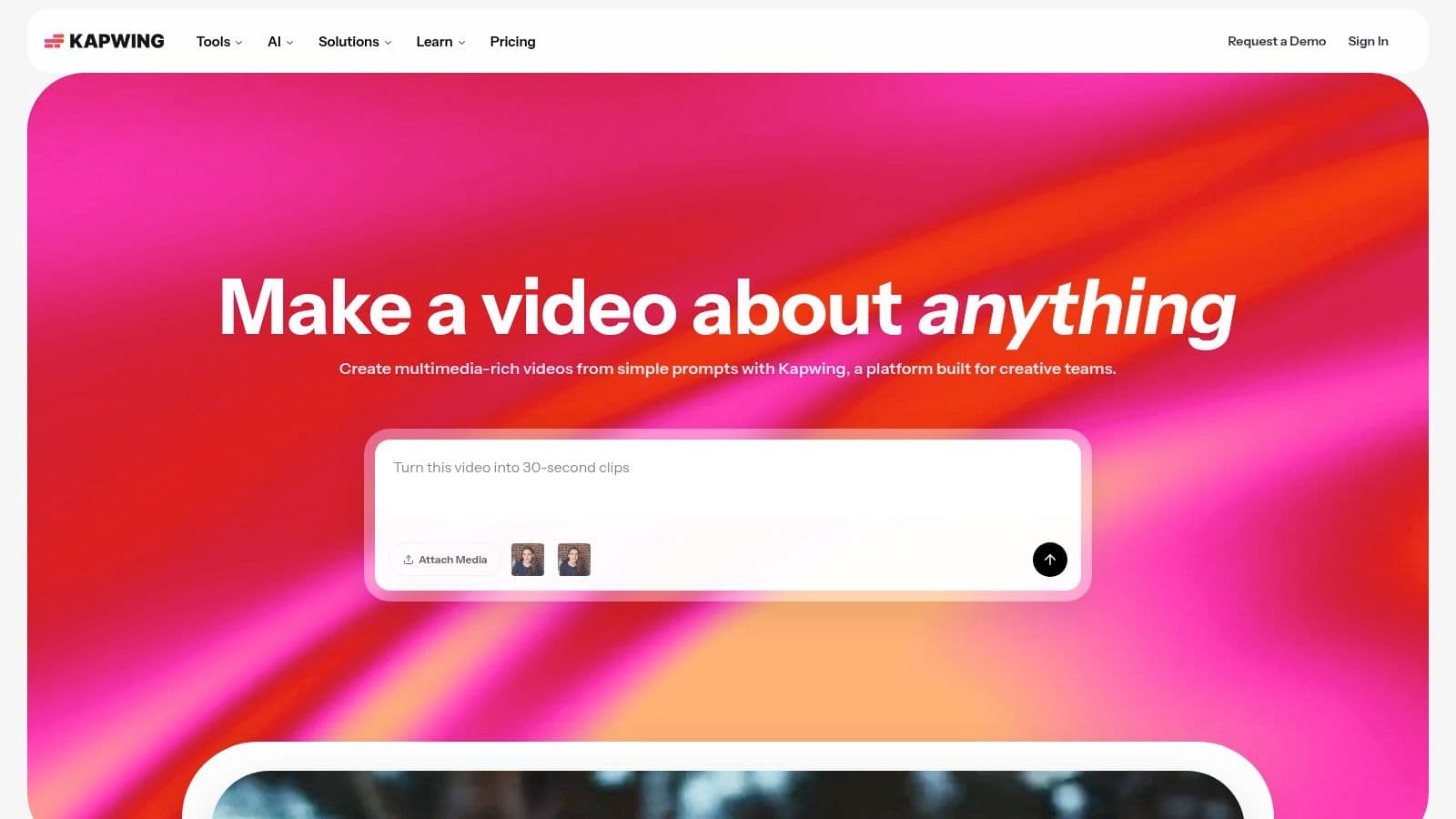
Kapwing has a very specific personality. It's quick, browser-native, collaborative, and especially good at internet-shaped content. Memes, subtitled clips, social cutdowns, podcast snippets, short explainers, and repurposed content are its natural habitat.
Its Smart Cut and auto-subtitle workflow are where the immediate value of the software is often realized. You can move from rough footage to a social-ready asset fast, which is why Kapwing stays popular with creators and teams who publish often.
Best for fast repurposing and team edits
If your Chromebook is primarily a content management and publishing machine, Kapwing makes a lot of sense. It runs in the browser, onboarding is simple, and teams can move through revisions without treating video like a heavyweight production process.
For people who want an install-free approach in the same spirit, this guide on how to edit videos online with no download is a useful companion.
Kapwing is less convincing for long-form editing. Once a project turns into an extensively layered timeline with many moving parts, it starts to feel like the wrong tool.
- Best at: Shorts, social clips, meme formats, talking-head cutdowns, and collaborative revisions.
- Not best at: Feature-rich long-form edits.
- Worth knowing: Free-plan limitations can become annoying quickly if you publish often.
Kapwing is one of the cleanest browser answers for high-turnover content on ChromeOS.
Top 10 Chromebook Video Editors: Feature Comparison
| Product | Core features | UX & Quality ★ | Price / Value 💰 | Target audience 👥 | Unique selling points ✨ |
|---|---|---|---|---|---|
| MyKaraoke Video 🏆 | AI auto-sync, vocal removal, 1080p MP4 exports, real-time preview, sync editor | ★★★★☆ (fast, accurate) | 💰 Free trial (30 credits); Pay-as-you-go $0.10/credit; Std $7.99/mo (300/mo); Prem $14.99/mo (600/mo) | 👥 Karaoke creators, musicians, channel managers, event pros | ✨ 1‑Click Karaoke/Lyric Makers, server exports, powerful sync editor |
| Microsoft Clipchamp | Browser timeline, templates, screen/webcam recording, auto-captions | ★★★★☆ (smooth in Chrome) | 💰 Generous free tier (1080p); Premium via Microsoft 365 | 👥 Social creators, educators, MS365 users | ✨ Chrome-optimized, Microsoft 365 integration |
| Adobe Premiere Rush | Multi-track timeline, motion presets, auto-ducking, cloud sync | ★★★★☆ (Adobe continuity) | 💰 Subscription (starter free; full with Adobe plan) | 👥 Creators wanting Adobe workflow, cross-device users | ✨ Adobe ecosystem, device syncing, presets |
| CapCut | Web + Android editor, AI templates, auto-captions, background remover | ★★★★☆ (fast for shorts) | 💰 Robust free tier; paid features vary by region | 👥 TikTok/Shorts creators, fast editors | ✨ Strong AI templates, cloud project sync |
| WeVideo | Browser timeline, stock media, screen recorder, collaboration | ★★★★☆ (mature cloud tool) | 💰 Tiered plans (individual, team, edu); free limited | 👥 Classrooms, small businesses, teams | ✨ Education/team workspaces & brand kits |
| LumaFusion | Pro multi-track NLE, keyframing, LUTs, 4K export, advanced audio | ★★★★★ (desktop-class on capable devices) | 💰 One-time purchase (premium value) | 👥 Mobile filmmakers, pro editors on powerful Chromebooks | ✨ Desktop-grade editing, professional exports |
| CyberLink PowerDirector | Multi-track, effects, chroma key, stabilization, 4K | ★★★★☆ (feature-rich mobile NLE) | 💰 Freemium; subscription for premium assets | 👥 Advanced hobbyists, mobile editors needing power | ✨ Mature feature set, frequent updates & sales |
| VEED.IO | One-click captions, AI voiceover, noise removal, brand kit | ★★★★☆ (fast for captioned content) | 💰 Freemium + credit-based AI tools | 👥 Social teams, marketers, caption-heavy creators | ✨ AI captions/translations, low-friction browser UX |
| Canva Video Editor | Drag-and-drop templates, animations, Brand Kit, music library | ★★★★☆ (very beginner-friendly) | 💰 Freemium; Pro unlocks brand features & assets | 👥 Non-specialists, social/brand teams | ✨ Huge template library, text-forward lyric styles |
| Kapwing | Online timeline, auto-subtitles, Smart Cut, collaborative workspaces | ★★★★☆ (quick and simple) | 💰 Freemium; paid to remove watermark & unlock limits | 👥 Short-form creators, teams needing fast captions | ✨ Fast subtitling, simple collaboration and templates |
From Lightweight Laptop to Editing Studio
A Chromebook stops feeling limiting once you pick the right workflow. That's the whole trick. People get frustrated when they expect every editor to behave like desktop software, but ChromeOS has always leaned toward cloud-connected, lightweight creation. That's why browser editors became the default path early on, and it's also why they still solve the most common editing jobs so well.
The cleanest way to choose is to sort tools by workflow, not by brand hype. Browser-based editors like Clipchamp, WeVideo, VEED.IO, Canva, Kapwing, and MyKaraoke Video are usually the safest fit for most Chromebook users. They avoid install friction, work well with Drive-based media, and make sense on devices with modest local storage. If your work is mostly shorts, explainers, captions, school projects, or lyric videos, this category is often all you need.
Android apps are the next step when you want more timeline control or better offline behavior. Premiere Rush, CapCut, and PowerDirector sit here. They're useful when you want a more app-like experience and don't mind that performance will vary more from one Chromebook to another. This group is strongest for creators who've outgrown template-only editing but don't need a full pro environment.
Then there's the pro-level Android route. LumaFusion is the standout because it gives Chromebook users a much more serious NLE feel on supported hardware. For those cutting layered YouTube videos, documentaries, or client work, ChromeOS proves capable beyond simple convenience.
My practical recommendation is simple. Match the tool to the job:
- For karaoke videos: MyKaraoke Video
- For quick browser editing: Clipchamp
- For social media shorts: CapCut
- For classrooms or teams: WeVideo
- For caption-heavy content: VEED.IO or Kapwing
- For branded promo graphics: Canva
- For pro-level editing on stronger hardware: LumaFusion
- For the middle ground between basic and advanced: PowerDirector
Don't overthink the first choice. Visit the site of the tool that matches the kind of videos you make, open the free plan or trial if one exists, and build one short test project. On a Chromebook, that test tells you more than any feature list ever will. The best video editing software for Chromebook isn't the one with the longest spec page. It's the one that fits your footage, your device, and the way you like to work.
If you make karaoke videos, lyric videos, or music content on a Chromebook, MyKaraoke Video is the easiest tool here to turn into a real workflow. It runs in the browser, skips the install headaches, and handles the parts that usually eat hours, including lyric syncing, vocal removal, and polished 1080p export.
