Alright, before you can start belting out your favorite tunes, the first step is getting the Singing Machine karaoke app set up on your phone. Think of this as the soundcheck before the main event—a few quick steps to make sure everything runs smoothly so you can focus on your performance.
Your First Steps With the Singing Machine Karaoke App
Getting the app up and running is pretty painless. We’ll walk through finding the right one, creating your account, and giving it the permissions it needs to work its magic. Let's get you ready to sing.
Finding and Installing the Correct App
First things first, you need to download the official app. Head over to the Apple App Store for your iPhone or the Google Play Store for an Android device. A quick search for "Singing Machine Karaoke" will get you there.
Be a little careful here. You'll probably see a few copycat apps. Make sure you're downloading the one from the developer The Singing Machine Company, Inc. This is the only way to guarantee it will work seamlessly with your hardware and give you access to the full, licensed song library.
Once you’ve found the right one, just tap "Install" or "Get." On a decent Wi-Fi connection, it'll be on your phone in less than a minute.
Account Creation and Initial Setup
Now that the app is installed, open it up and create an account. This is a crucial step because your account is where all your favorite songs and recorded performances will live. You can usually sign up with an email or connect a social media account to get in faster.
As you launch it for the first time, the Singing Machine karaoke app will ask for a few permissions. It’s tempting to just tap through these, but they’re genuinely important for the app to function properly.
- Microphone Access: This one’s a no-brainer. The app needs to hear you to record your vocals.
- Storage/Media Access: This lets the app save your amazing audio and video recordings right onto your phone.
- Bluetooth Access: You’ll need to grant this so the app can find and connect to your Singing Machine or any other Bluetooth speaker.
Getting these permissions sorted out from the start saves you a ton of headaches later. If you do accidentally say no, don't worry—you can always fix it by going into your phone’s main settings, finding the app, and toggling the permissions back on.
With that out of the way, you’re all set. The stage is yours
Alright, you've got the app installed and ready to go. Now for the fun part: connecting your hardware to turn that phone app into a full-blown karaoke stage. This is where you transform your living room into a concert venue.
Connecting Your Hardware for the Ultimate Karaoke Night
The first thing we need to do is get the sound from your phone to the karaoke machine's speakers. This happens over Bluetooth, and it’s the key to channeling both the music and your voice through one powerful system.
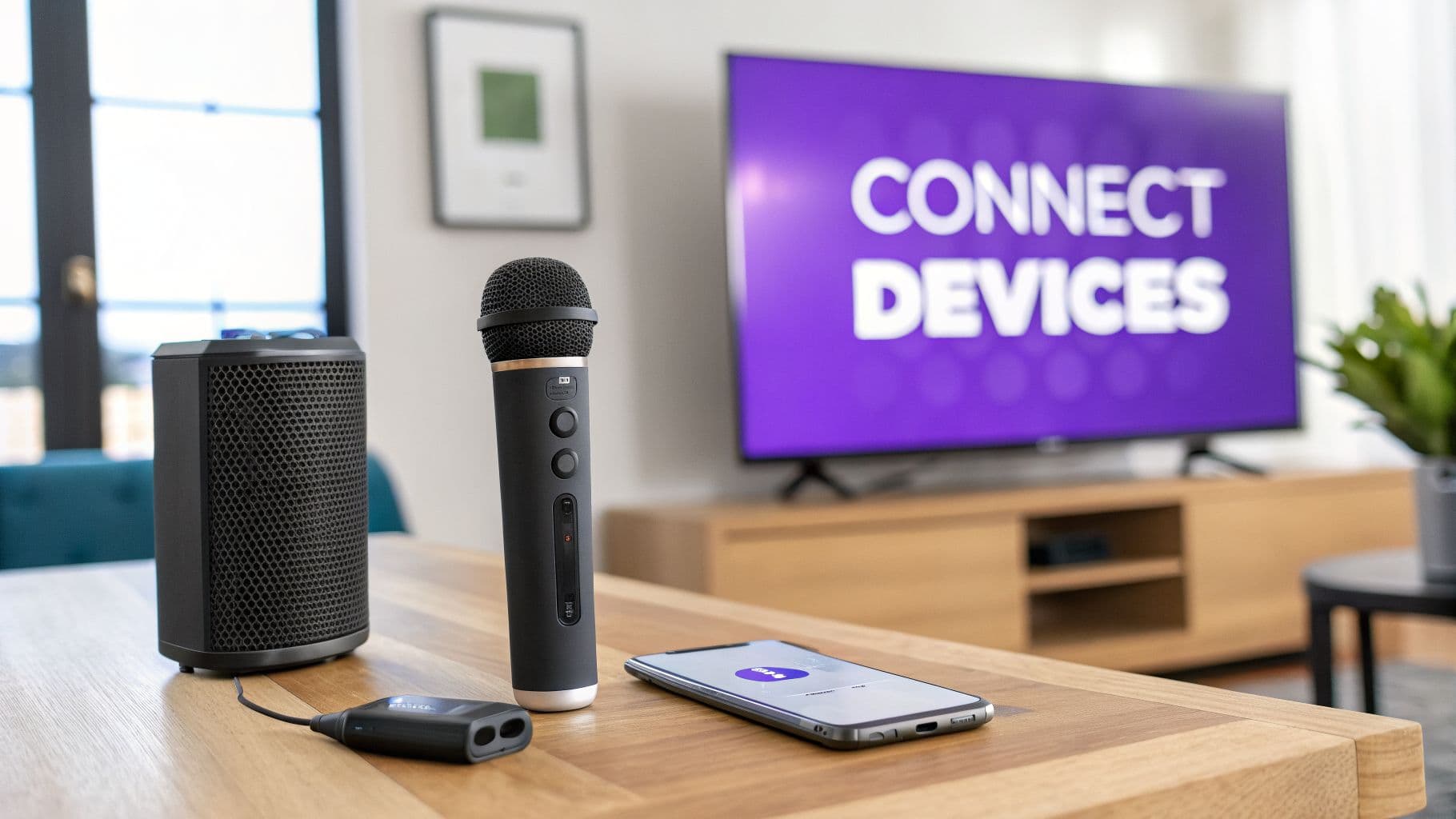
This connection is what makes the Singing Machine karaoke app feel like a real karaoke experience, not just a mobile game.
Pairing Your Devices via Bluetooth
Go ahead and turn on your Singing Machine. Find its Bluetooth pairing button and give it a press—you should see a light start flashing or hear a chime letting you know it's ready to connect.
Now, grab your phone or tablet, open its Bluetooth settings, and scan for new devices. You're looking for something obvious, usually named "Singing Machine" or a model number like "SMC-XXX." Tap it to connect.
Once the connection is successful, that flashing light on your machine will turn solid. That’s it! Any audio from the app, from the background track to your vocals, will now blast through your machine’s speakers.
If things aren't connecting, don't panic. From my experience, a simple reboot of both the phone and the karaoke machine fixes pairing issues over 80% of the time. If that doesn't work, try going into your phone's Bluetooth menu, "forgetting" the Singing Machine, and starting the pairing process over.
Projecting Lyrics onto Your TV
Let's be honest, no one wants to huddle around a tiny phone screen. To get the whole group involved and create that authentic karaoke bar vibe, you absolutely need to get those lyrics up on a big screen. Your TV is the perfect candidate.
Most Singing Machine models give you a couple of solid, lag-free ways to do this:
- HDMI Cable: This is your best bet for crisp, clear video and audio. Just connect an HDMI cable from the output port on your karaoke machine directly to an open input on your TV.
- RCA Cables: If you're working with an older TV or machine, the classic red, white, and yellow RCA cables still work great. Simply match the colored cables to the corresponding jacks on both devices.
Don't forget this crucial last step: use your TV remote to switch to the correct input source (like HDMI 2 or AV). It's a simple thing that's easy to overlook, but the lyrics won't show up until you do.
By linking up your hardware, the Singing Machine karaoke app goes from being a personal practice tool to the command center for a fantastic party. If you want to explore more advanced setups, be sure to check out our complete guide to setting up your karaoke system at home.
Finding Your Songs and Fine-Tuning Your Sound
Alright, your hardware is paired, and you're ready to sing. This is where the real fun begins. Let's get you comfortable with the Singing Machine karaoke app's music library and show you how to control the sound like a pro.
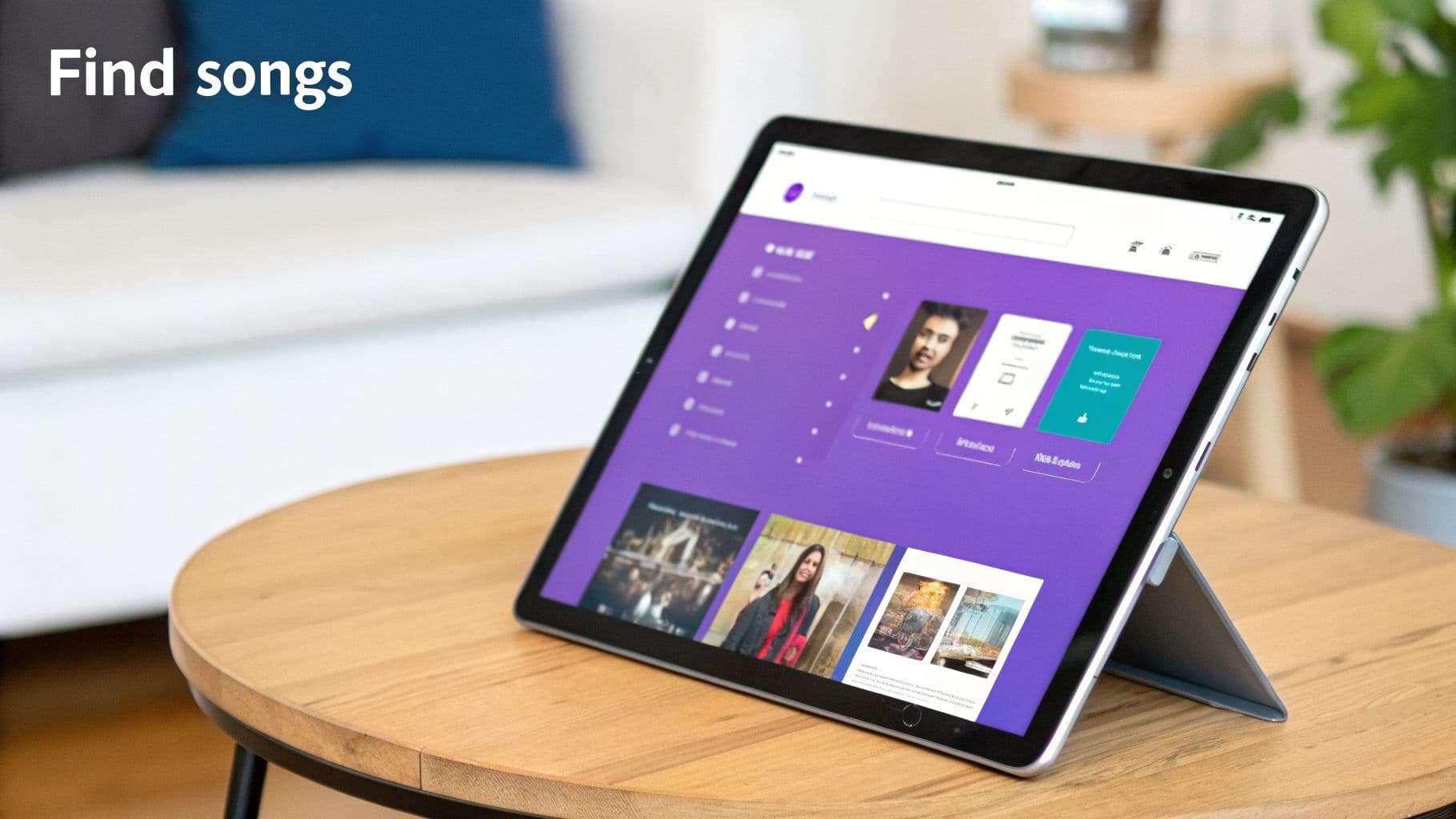
Sure, you can just type in a song title or an artist's name, and that works perfectly fine. But the best karaoke nights happen when you dig a little deeper. The app’s discovery features are what truly make it a powerful tool for any party.
How to Find the Perfect Song
Instead of just singing your usual go-to tracks, try building a playlist that perfectly fits the mood. The filtering options are your best friend here. Planning a throwback night? Easy. Feeling like you want to belt out some power ballads? You can find those, too.
Here are a few ways I like to hunt for hidden gems:
- Filter by Decade: This is my secret weapon for themed parties. An '80s rock night or a '90s R&B jam session is just a couple of taps away.
- Browse by Genre: When I'm not sure what to sing, I'll wander through genres like "Movie Soundtracks" or "Country Classics" for inspiration. You'd be surprised what you'll find.
- Explore Curated Playlists: The app’s own playlists, like "Karaoke Classics" or "Today's Top Hits," are a fantastic starting point. They’re updated regularly and are a great way to find songs that are popular right now.
This kind of curated discovery is what separates a great karaoke app from just scrolling through videos online. It helps you craft an experience. If you’re just getting started and feel a bit overwhelmed, check out our list of easy karaoke songs for beginners for some surefire hits.
Taking Control of the Playback Screen
Once you've picked your song, the playback screen is your new best friend. This is where you can tweak the audio to match your voice, which can make all the difference between a good performance and a great one.
Here's a tip I give to every new singer: pay attention to the key adjustment. If a song feels just a little too high or uncomfortably low, don't strain your voice! Just tap the key controls to shift the pitch up or down until it sits perfectly in your range.
Another incredibly useful feature is the vocal guide. When you're learning a new song, leave the guide vocals on. It’s like having a backup singer helping you with the timing and melody. Once you've got it down, switch them off and take the spotlight solo. I use this all the time when I'm practicing.
Finally, a quick note for the karaoke veterans out there. If you have an old hard drive packed with CDG or MP3+G files, you're in luck. The app often lets you import your personal collection, blending your classic tracks with its modern streaming library. It's truly the best of both worlds.
Recording and Sharing Your Star Performances
You’ve practiced your heart out, and you just nailed a take that gave you chills. Now what? It’s time to capture that magic. The Singing Machine karaoke app has a handy built-in recording feature that saves your audio, turning a great moment into a track you can listen to over and over.
Before you even hit record, think about your space. I've learned this the hard way: recording in a big, empty room with hardwood floors will make you sound like you're singing in a tin can. A smaller, carpeted room with a couch and curtains is your best friend. All those soft surfaces soak up the echo and give your voice a much warmer, richer quality.
Also, get your mic technique down. A good rule of thumb is to hold the microphone about three to six inches from your mouth. This is the sweet spot. It captures your voice with clarity but avoids those harsh "popping" sounds you get from being too close or the faint, distant sound from being too far.
Saving and Sharing Your Tracks
Once you’ve hit that final, glorious note, the app will let you save the performance. Give it a name, and then take a listen. Hearing your own voice back can be a little strange at first, but it’s one of the best ways to actually improve. You'll catch little things in your pitch and timing you might have missed in the heat of the moment.
Ready to show it off? Sharing from the app is a breeze. You’ll see the usual options to send your audio file through a text, email, or your go-to social media apps. It’s perfect for getting some quick feedback from friends or just sharing a fun performance.
Capturing high-quality audio is the first and most important step. For a more detailed breakdown of techniques, you can explore our guide on how to properly record your voice for singing, which covers everything from mic placement to room acoustics.
From Audio Clip to Polished Video
The app's recorder is fantastic for saving audio, but what if you have bigger plans? Maybe you're dreaming of starting a karaoke YouTube channel or creating eye-catching videos for your Instagram or TikTok. This is where you graduate to a dedicated video creation tool.
For anyone serious about creating content, the next move is to pair that great audio you recorded with a professional-looking video. Instead of just sharing an audio file, you can create a full-on visual experience with dynamic backgrounds, slick fonts, and lyrics that sync up perfectly.
This is where a web-based tool like MyKaraoke Video comes in. It's designed to let you take any audio file and quickly turn it into a polished lyric video.
This workflow gives you total creative freedom to produce clean, modern MP4 files that are ready for any platform. Once you have a performance you're proud of, you might even want to learn how to create viral content that captures an audience. It’s how you turn a simple phone recording into something truly shareable.
Pro Tips for Creating Your Own Karaoke Content
The Singing Machine karaoke app is a blast for a party or just practicing on your own. But if you're serious about creating karaoke content for a YouTube channel or building a following on social media, you'll quickly hit the limits of what an all-in-one app can do.
To get that polished, professional look, you'll want to break out of the app's built-in recording functions. It’s all about adopting a workflow that gives you total control over the final product. This means using a few specialized tools, each one the best at its specific job, to create branded content that truly stands out.
Building Your Track from Scratch
First things first: you need a clean instrumental. While you can find official karaoke versions for popular songs, what about that deep cut or indie track you love? That's where a dedicated tool comes in.
I've had a lot of success using AI-powered software like Moises. You can just upload an MP3 of the original song, and it does a surprisingly good job of stripping the lead vocals out. What you’re left with is a clean, usable instrumental backing track. This completely opens up your options, letting you create karaoke for practically any song you can get your hands on.
With your instrumental MP3 ready, it's time to build the actual video. This is where you can really make your content shine way beyond a simple screen recording.
Crafting the Perfect Video with MyKaraoke Video
Instead of just singing over a static lyric screen, a tool built for this purpose, like MyKaraoke Video, lets you create a modern, dynamic lyric video from the ground up. You start by importing that instrumental track you just made and then paste in the lyrics.
The platform's AI then does an initial pass at syncing the lyrics to the music. This gets you about 90% of the way there automatically, which is a massive time-saver.
The real magic for creators, though, is in the sync editor. After the AI does its initial work, you can dive in and adjust the timing for every single word or even syllable. This is how you get that flawless, on-screen timing that separates amateur videos from professional ones.
The process of taking a performance and sharing it with the world becomes much more powerful when you use the right tools for each step.
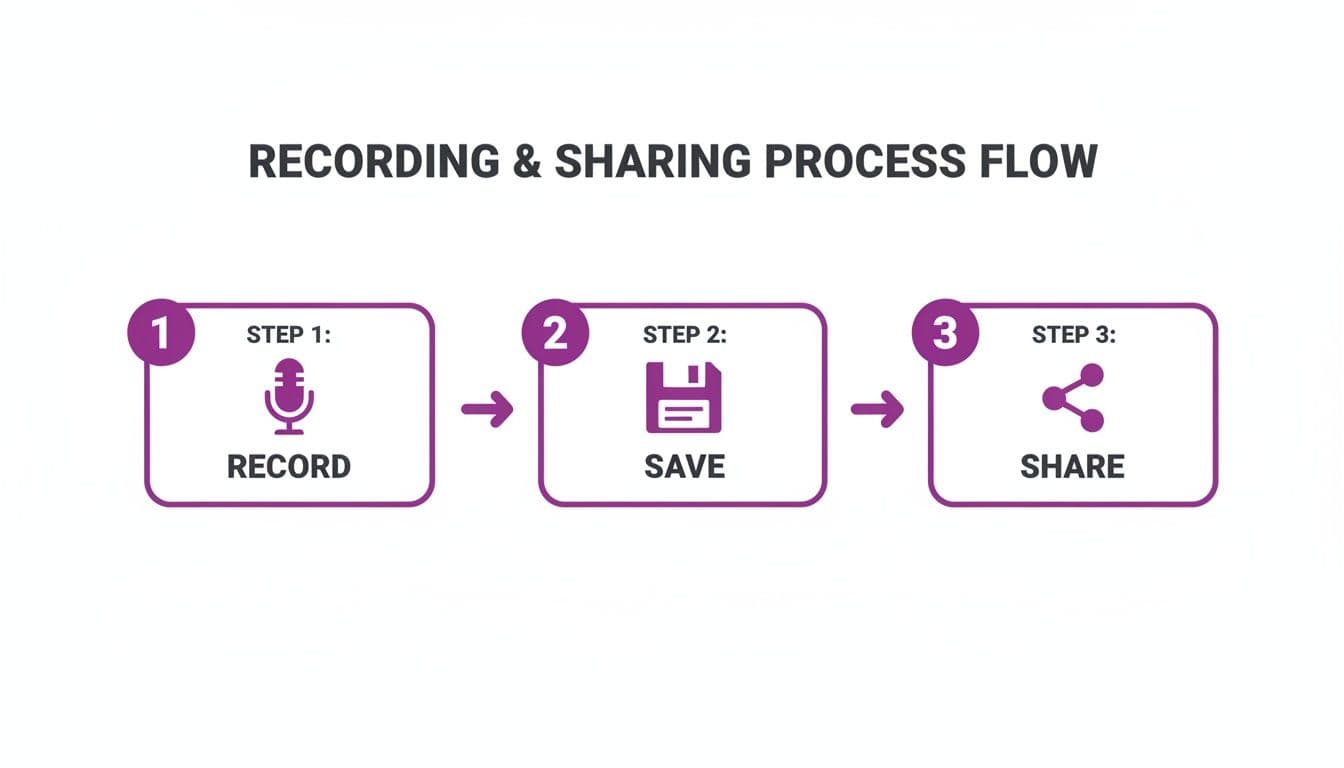
Working this way also gives you complete control over the look and feel of your videos. You can add your own branded backgrounds, pick custom fonts, and create a unique color palette—all crucial elements for building a recognizable channel.
When you're done, you get a crisp 1080p MP4 file, ready to be uploaded anywhere. Following this workflow really elevates your hobby into a legitimate content creation process.
A Few Common Questions Answered
Alright, even after walking through the setup, a few questions always seem to pop up. I've heard these a lot over the years, so let's get into some of the most common things people ask about the Singing Machine karaoke app and making great karaoke videos.
So, Is the Singing Machine App Actually Free?
Yes and no. You can download the app for free, and it usually includes a handful of songs—maybe five or so—right out of the box.
Think of the free songs as a taster. They're enough to let you kick the tires, connect your machine, and make sure everything works. But if you're planning a party or want to sing more than just the basics, you'll definitely need the paid subscription to unlock the full catalog of tens of thousands of tracks.
Can I Use the App Without a Singing Machine?
You absolutely can. The app works just fine on its own as a karaoke player on your phone or tablet. You can practice with your device's microphone and speakers, which is perfect for working on a song when you're away from your main setup.
But let's be honest—the experience is designed for dedicated hardware. Connecting to a Singing Machine, or even just a decent Bluetooth speaker, will make a world of difference. Your phone's tiny speakers just can't deliver the rich sound and volume you need to really feel the music.
What If a Song Isn’t in My Vocal Range?
This is a huge one, and thankfully, the app has your back. Almost every song in the Singing Machine karaoke app library gives you pitch or key control.
Never, ever strain your voice trying to hit a note that’s a struggle. That’s a fast track to a sore throat. Just tap the key controls on the screen to nudge the song up or down, one half-step at a time, until it sits comfortably in your sweet spot. This one trick will make you sound instantly better.
Can I Make High-Quality YouTube Videos with It?
The app's recorder is great for capturing your audio, but it's not built for creating professional-looking videos for a platform like YouTube. If you try to screen-record, you'll often end up with a lower-resolution video that might even have the on-screen controls showing.
For anyone serious about building a channel, the real workflow is to record your vocals and then use a separate tool to assemble the final video. This is how you get those clean, high-definition MP4s with custom backgrounds and perfectly timed lyrics that all the successful karaoke channels use.
Ready to turn your vocal tracks into polished, professional karaoke videos? MyKaraoke Video is designed specifically for creating custom, HD MP4s with flawless lyric syncing. Start creating for free at MyKaraoke.video and see the difference it makes.
