You've got a song that would make a great karaoke track, but the original tempo drags. The groove feels sleepy, the lyric timing feels loose, and the whole thing needs more lift before you turn it into a sing-along video. That's a common GarageBand job.
The catch is simple. Speeding up a song is not the same as changing its tempo properly. If you use the wrong method, the backing track gets brighter, thinner, and unnaturally high. For karaoke and lyric video creators, that usually makes the final video feel cheap, even if the lyrics are synced perfectly.
GarageBand can handle this well, but only if you use the right tool for the type of audio you have. Recorded-in-project audio, imported files, Mac workflows, and iPhone edits don't all behave the same way. Once you understand that split, how to speed up songs on GarageBand becomes much more predictable.
Why Just Hitting Fast-Forward Is Not Enough
A lot of creators start with the same instinct. They import the song, look for anything that says speed, move it up, and expect the track to feel tighter. Then they hit play and hear vocals or instruments sounding wrong.
That problem matters even more for karaoke. If your backing track shifts upward in pitch, singers don't just hear a faster version. They hear a different key feel, a different vocal comfort zone, and often a less natural tone across the mix. If you're making a lyric video, the mismatch gets worse because the faster pace may feel exciting, but the audio itself starts sounding artificial.
Playback speed and tempo are not the same
The easiest way to think about it is this:
- Playback speed changes everything together. Time changes, and pitch usually changes with it.
- Tempo editing tries to change timing while keeping the musical key intact.
- Karaoke-friendly editing usually means preserving the feel of the original song while making it move more quickly.
If you've ever heard an old recording spun too fast, you already know the effect. Everything gets shorter and higher. That can be a creative choice for social clips, but it's rarely what you want for a polished backing track.
Practical rule: If the singer would suddenly need to sing higher just because you sped the song up, you changed playback speed, not tempo in a useful production sense.
Why creators run into this in GarageBand
GarageBand is friendly, but it hides some power features behind terms that sound more technical than they really are. Flex and the Tempo Track are the two that matter most here. If you ignore them, GarageBand may play the file faster in a crude way, or it may refuse to make the imported audio follow the project tempo at all.
On Mac, you have stronger control for this kind of job. On iPhone and iPad, you can still work, but the path is less flexible and better for lighter edits than deep cleanup.
For karaoke work, the right question isn't “How do I make this file play faster?” It's “How do I make this backing track feel faster without wrecking the key or timing?”
Understanding Tempo Fundamentals in GarageBand
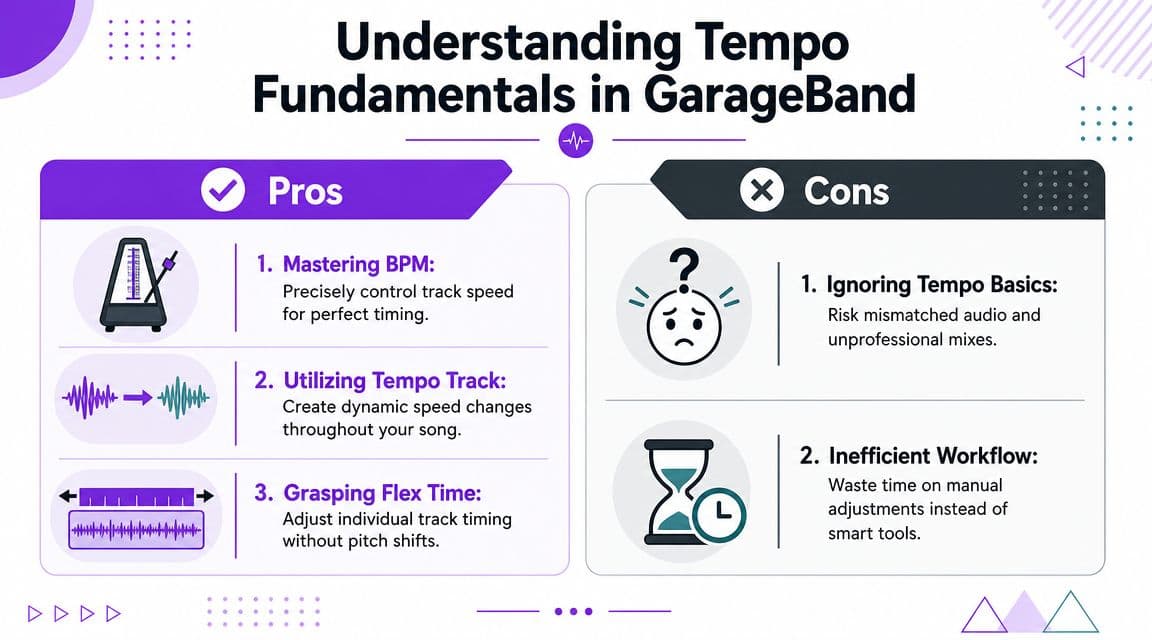
A karaoke track can sound wrong fast if the project tempo, the audio file, and the edit method are not working together. In GarageBand, the three controls that matter are BPM, the Tempo Track, and Flex Time.
BPM means beats per minute. It sets the pace of the project. If your backing track was built around 120 BPM and you move the project to 126 BPM, the song should feel tighter and a little more energetic. For lyric video work, that small change can make on-screen phrasing feel more lively without pushing singers into a completely different performance.
The Tempo Track handles tempo changes across the timeline. GarageBand lets you add points and raise or lower the tempo for specific bars, which is useful if you want a short pickup into the chorus or a slightly faster outro, as described in Apple's GarageBand tempo discussion.
What changes, and what does not
GarageBand treats recorded and imported audio differently. That catches a lot of creators the first time they try to speed up a backing track.
Audio recorded inside the project can often follow tempo changes more cleanly if Follow Tempo and Pitch is available and enabled. Imported full-song files are less predictable. A stereo mix of a finished song has drums, instruments, reverb tails, and transients all glued together, so GarageBand has to guess how to stretch it. Sometimes it does a solid job. Sometimes the groove gets smeared, especially on dense mixes.
That matters for karaoke because your goal is usually not just “faster.” You need a track that still feels natural under lyrics, cue points, and on-screen word timing.
Flex Time, explained in plain language
Flex Time lets GarageBand compress or stretch the timing inside an audio region so it follows the project tempo more musically. In practice, it is the feature that gives you a usable sped-up backing track instead of a chipmunk-style novelty result.
I usually explain it this way to creators. Basic playback speed treats the whole file like one object. Flex Time tries to respect the rhythm inside the file.
| Tool | What it does | Best use |
|---|---|---|
| Basic speed-up | Makes the whole recording run faster | Rough previews, intentional special effects |
| Flex Time | Retimes audio to fit a new project tempo while trying to preserve musical feel | Karaoke backing tracks, rehearsal versions, lyric video prep |
| Tempo Track | Changes tempo in selected bars or sections | Intros, chorus lifts, custom pacing |
For karaoke and lyric video creators, the trade-off is simple. A small tempo increase often works well and keeps the backing track singable. Bigger jumps can introduce warbling, blurry drum hits, or awkward phrasing. If I am preparing a track for singers, I test the chorus first. If the chorus holds up, the rest of the song usually follows.
If tempo changes solve the energy problem but the singer still needs a better vocal range, pair that edit with this guide on how to change the key of a song.
Start by deciding whether you need one steady BPM increase or a few targeted tempo moves inside the song. That choice determines whether Flex Time, the Tempo Track, or both will give you the cleanest result.
Speeding Up a Full Song on GarageBand for Mac
If you're on a Mac, this is the most practical workflow for speeding up an entire song while keeping it usable for karaoke.
The workflow that usually works best
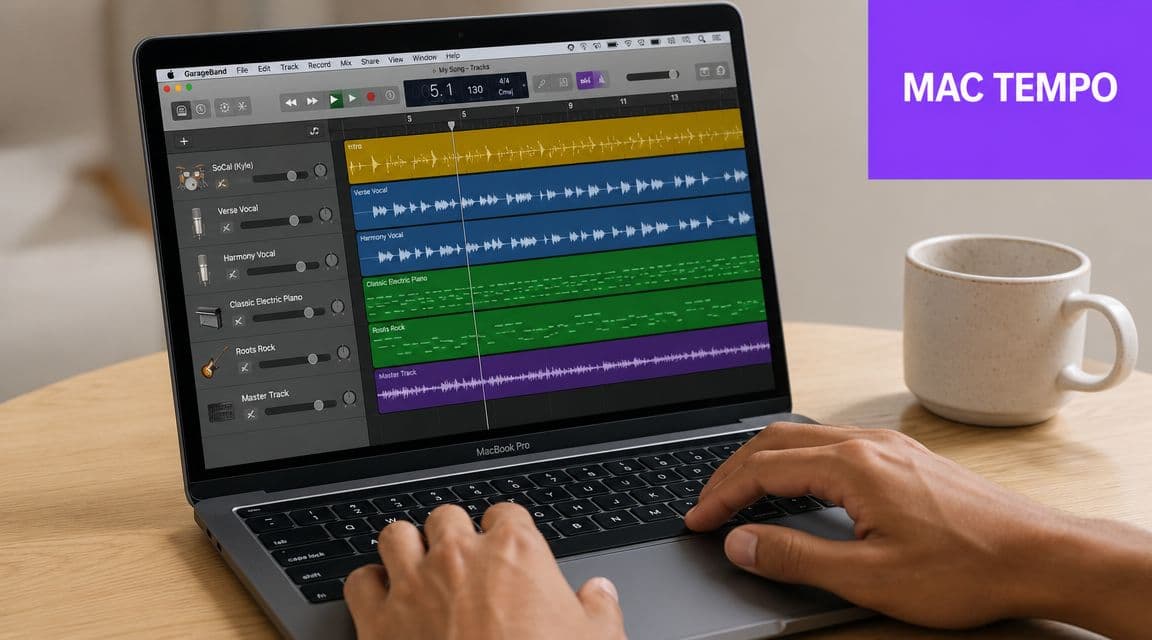
For full-song tempo changes in GarageBand on Mac, the practical method is to enable Flex on the target track and then raise the project BPM in the tempo display so the audio conforms to the new tempo. One tutorial presents moving a song from 126 BPM to 200 BPM as a valid test case in this workflow, as shown in this GarageBand speed-up walkthrough.
That's the important part. You're not just making playback faster. You're asking GarageBand to adapt the track to a faster project tempo.
Step by step on Mac
-
Import the song into GarageBand
Drag your audio file into a new project. If this is a karaoke backing track, trim any dead space at the start before you do tempo work. Clean starts make lyric syncing easier later.
-
Turn on Flex for the track
Select the track you want to speed up. Enable Flex so GarageBand knows this audio should respond to tempo changes more musically.
-
Choose an appropriate Flex behavior
For a full mixed song, a broad mode that handles layered material is usually the safest choice. You're asking GarageBand to deal with drums, instruments, and vocals or stems all at once.
-
Raise the project BPM
Go to the main tempo display and increase the BPM. Start small if you want to judge quality carefully. If you already know the track needs a dramatic lift, you can push further and listen for artifacts after each move.
-
Audition problem spots
Don't listen only to the chorus. Check intros, sustained notes, drum fills, and any exposed musical breaks. Those areas reveal stretching problems first.
What the 126 BPM to 200 BPM example tells you
The 126 BPM to 200 BPM example is useful because it shows GarageBand can handle a large tempo jump in the right setup, not just tiny nudges. It also gives creators a reality check. If a track can survive that kind of test, smaller or moderate changes usually feel much safer.
That doesn't mean every song will love an aggressive increase. Dense electronic production often behaves differently from loose live recordings. Acoustic strums, room ambience, and long vocal tails can reveal stretching faster than tight programmed material.
Here's a useful visual reference before you start adjusting aggressively:
What works and what usually doesn't
Usually works well
- Tight pop productions: Quantized drums and clean transients often adapt better.
- Backing tracks without exposed solo vocals: Fewer obvious artifacts.
- Projects with a clear downbeat: Easier alignment against GarageBand's grid.
Often needs caution
- Live recordings: Natural timing drift can fight the grid.
- Songs with rubato intros: GarageBand may not interpret free timing cleanly.
- Heavily compressed mixes: Artifacts can become more obvious after stretching.
If the track starts sounding “watery,” “grainy,” or oddly detached from the beat, back the BPM down and test a smaller increase.
A practical karaoke mindset
For karaoke and lyric video work, perfection isn't always the goal. Stable timing matters more than squeezing every last BPM out of the file. A backing track that feels lively and stays easy to sing with will usually outperform a more aggressive edit that sounds strained.
When you export, listen once with headphones and once through speakers. Karaoke viewers may be hearing your track on TVs, phones, laptops, or PA systems. A tempo edit that seems acceptable in one setup can feel rough in another.
Changing Song Speed on GarageBand for iOS
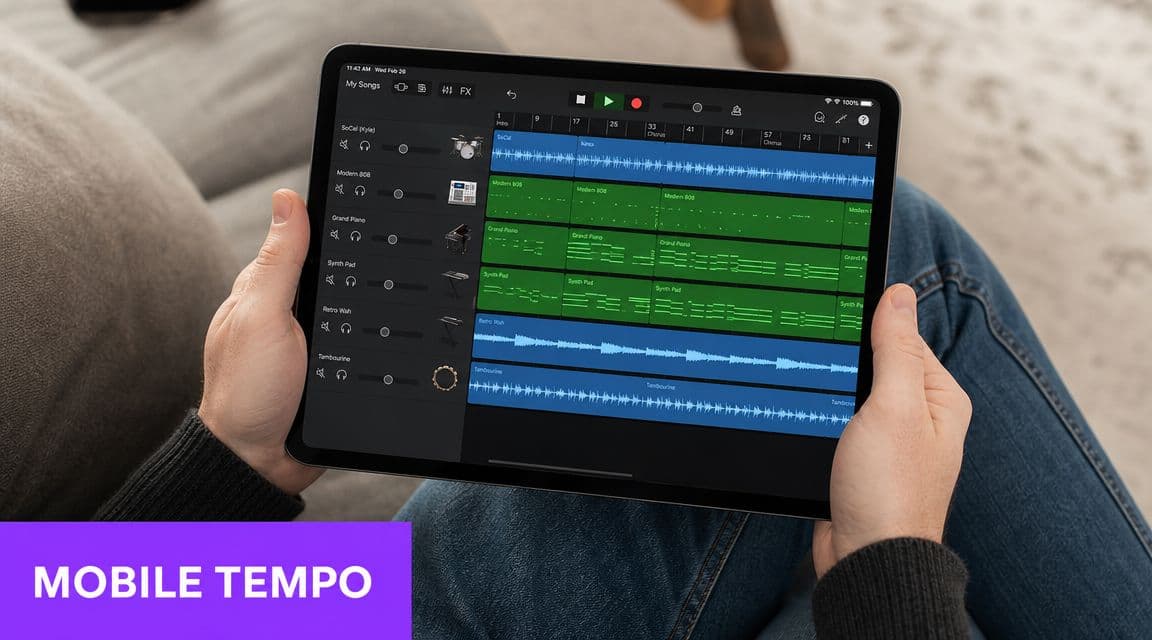
GarageBand on iPhone and iPad can still help when you need a faster version on the go, but it's not the same experience as the Mac version. You have less room for detailed correction, and complex imported tracks can be harder to control cleanly.
That said, for quick karaoke prep, rehearsal backing tracks, or a lyric video draft, iOS can be enough.
The mobile mindset
On iOS, it helps to think in sections rather than in big studio-style edit views. You're managing the song layout first, then adjusting tempo with more limited controls.
That's why creators sometimes feel confused when trying to use iPhone GarageBand exactly like the Mac version. The app is capable, but it doesn't expose everything in the same way.
A workable iPhone and iPad process
Try this sequence when you need a consistent sped-up result:
- Open the project and inspect song sections: Make sure the song length and section structure reflect the material you need. If the ending is cut short, tempo changes won't save the arrangement.
- Set the project tempo early: Establish the faster pace before doing detailed alignment work. It's easier to clean up after one tempo decision than after several revisions.
- Duplicate sections if needed: If your arrangement needs more bars to preserve the flow after edits, section duplication can help keep the timeline manageable.
- Check each section boundary: Small timing problems often show up where one song section hands off to the next.
Where iOS feels limited
The biggest limitation is control. On Mac, you can lean into a fuller Flex-based workflow for a whole imported song. On iOS, you'll usually be making broader decisions with less fine-grained repair.
That means mobile GarageBand is best when:
| Good fit for iOS | Better saved for Mac |
|---|---|
| Quick tempo adjustments | Detailed artifact cleanup |
| Draft karaoke versions | Final polished backing tracks |
| On-the-go edits | Large imported full-song reshaping |
How to avoid extra work later
If your real goal is a finished lyric or karaoke video, keep the iOS stage lean. Get the pace close, export a clean version, and avoid stacking too many edits on top of each other inside the app.
For creators building entire videos on mobile, this guide on making a music video on iPhone is a useful next step once the audio timing feels right.
A good iOS edit is often a “good enough to move forward” edit. Don't force desktop-level surgery from a phone screen.
Pro Tips for Karaoke and Lyric Video Creators
The technical part is only half of the decision. The more important question is why you're speeding the song up in the first place.
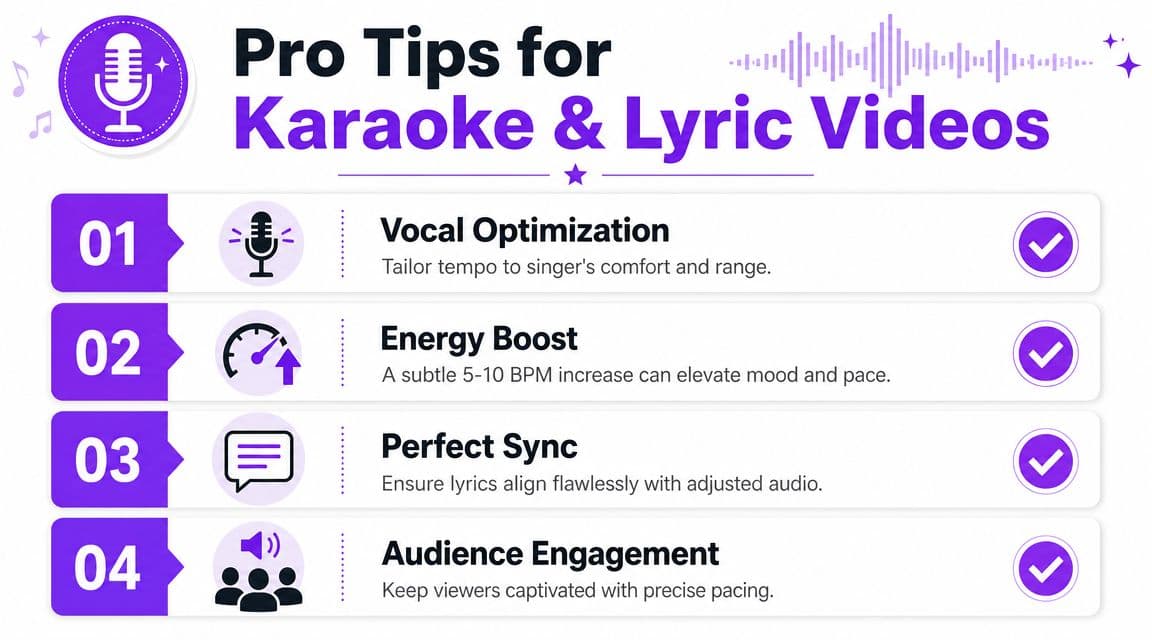
For karaoke, a slightly faster backing track can make a singer feel more supported. The song feels like it's moving forward, the phrasing tightens, and the final video often lands with more energy. For lyric videos, stronger pace can also help text feel more naturally connected to the beat.
Where speed changes help most
Not every track benefits equally. In practice, these are the situations where a faster version often helps:
- Flat-feeling ballads: A modest lift can make the track feel less sleepy without changing its character.
- Crowd-facing karaoke versions: A room full of singers usually responds better to a backing track that keeps momentum.
- Short-form lyric content: Faster pacing can help the visual rhythm feel more deliberate.
The opposite is also true. If a song already feels busy, extra tempo can make lyrics harder to follow and breath points harder to sing.
Match the audio edit to the visual plan
Tempo changes affect more than sound. They change subtitle timing, line breaks, transitions, and the breathing room between lyric phrases. That's why experienced creators usually lock the audio first and build visuals second.
If you're planning a more polished production pipeline, it's worth reviewing some expert music video budgeting tips so you can decide where to spend time and money. Even small karaoke and lyric projects benefit from clear production choices.
Faster isn't automatically better. Better is when the singer, the lyrics, and the groove all feel like they belong together.
Export habits that save headaches
Use a simple finishing checklist before you move into video editing:
- Listen from the very start: Catch clipped intros and timing drift.
- Check the last line: Tempo edits sometimes leave endings feeling abrupt.
- Name versions clearly: Keep the original, the sped-up version, and any lyric-ready export separate.
- Test lyric timing after export: Even a good audio edit can shift where lines feel natural on screen.
If your audio and visuals drift after export or after a later edit, this guide on resyncing audio and video can help you recover the project without rebuilding everything.
Troubleshooting Common Tempo Issues
Tempo edits in GarageBand usually fail in a few predictable ways. Once you know what caused the problem, the fix is usually straightforward.
The audio sounds robotic or smeared
That sound usually comes from pushing the tempo too far, especially on a full stereo file with vocals, reverb tails, pads, or sustained guitars. Flex Time can stretch audio, but it cannot rebuild detail that was never separated into individual stems.
Start by pulling the tempo back a little. A smaller increase often keeps the track energetic without adding obvious artifacts. If I am making a karaoke version, I would rather land on a cleaner track at a slightly lower speed than force a faster one that sounds cheap.
Check the trouble spot, not just the whole song. Choruses sometimes survive a tempo change better than intros, outros, or breakdowns.
The song is not following the new tempo
This usually means GarageBand is treating the file like plain imported audio instead of audio that should follow the project tempo.
On Mac, confirm that you enabled the track setting that lets the audio conform before changing the project tempo. If you change the BPM first and only then turn on the time-stretching behavior, GarageBand may not react the way you expect. In practice, I fix this by resetting the track, enabling Flex-related behavior, and then applying the tempo change again.
One section feels out of sync
This happens a lot with older songs, live recordings, and intros played without a click. The waveform may not line up neatly to the grid because the original performance was never perfectly grid-based.
Use the grid as a reference. Use your ears as the final judge.
For karaoke and lyric video work, the key question is simple: does the singer feel the line landing in the right place? If the phrase feels natural but the visual marker looks slightly early or late, adjust the lyric timing to the performance instead of forcing the music into a rigid bar line.
The track is faster, but harder to sing
That is usually a creative problem, not a technical one. The export may be clean, but the result can still be wrong for karaoke.
Listen for shortened breath gaps, crowded consonants, and phrases that now feel rushed on screen. A backing track should support the singer and leave enough space for readable lyric timing. If speeding the song up makes the chorus harder to enter or makes line changes feel abrupt in your lyric video, reduce the BPM and test again.
The best karaoke speed is often the one that adds energy without making the performance feel tense.
If you've got your audio sounding right and want to turn it into a polished karaoke or lyric video without wrestling with complex video software, MyKaraoke Video makes that next step much easier. You can upload your finished track, add lyrics, sync them cleanly, and export a professional-looking video from the browser.
