A "song without word" is really just a piece of instrumental music, often for piano, that's composed to feel like a vocal melody but without any actual singing. The idea has been around since the 19th century, but it's found a whole new audience in the digital age, becoming the backbone for everything from karaoke nights to viral social media clips.
Why These Videos Just Work
Before we jump into the how-to, it’s worth taking a moment to understand why making a video from a song without words is such a great move for any creator. These videos, whether they’re classic instrumentals or today’s karaoke backing tracks, have a knack for pulling in huge audiences.
This isn't some new fad. The concept actually goes way back to classical composers who figured out that by dropping the lyrics, they could forge a more universal emotional connection with listeners.
From Classical Halls to Streaming Playlists
Felix Mendelssohn was one of the pioneers with his "Songs Without Words" (Lieder ohne Worte) series, which kicked off back in 1830. He created 48 piano pieces that felt like someone was singing, but the "voice" was the piano itself. This allowed the music to do all the talking.
Fast forward to today, and that same idea is absolutely booming online. Instrumental music's share of global Spotify streams jumped by a massive 55% between 2019 and 2023. It now makes up 15.2% of all instrumental plays, largely thanks to the explosion of wellness and focus playlists. If you want to dig deeper into the numbers, you can check out the full global music report.
The Big Idea: A song without words is powerful because it's universal. When there are no lyrics to pin down a specific story, listeners are free to connect with the music on their own terms. This makes it incredibly versatile for all kinds of content.
The Creator's Edge in Today's World
For anyone making content today, this timeless quality presents a golden opportunity. Karaoke channels, wellness influencers, and even short-form video creators all depend on high-quality instrumental audio. Building your own lyric or karaoke video isn't just a cool project—it's a smart way to meet a real demand.
The good news is that modern, browser-based tools have made this easier than ever. With a platform like MyKaraoke Video, you don't need to be a video editing wizard anymore. You can:
- Make professional-looking videos with zero technical background.
- Get it done in a fraction of the time it would take with traditional software.
- Tweak every little detail to perfectly match your brand or the vibe of the song.
This guide is here to walk you through the entire process, showing you how to turn any instrumental track into a polished, captivating video.
Getting Your Audio and Lyrics Ready
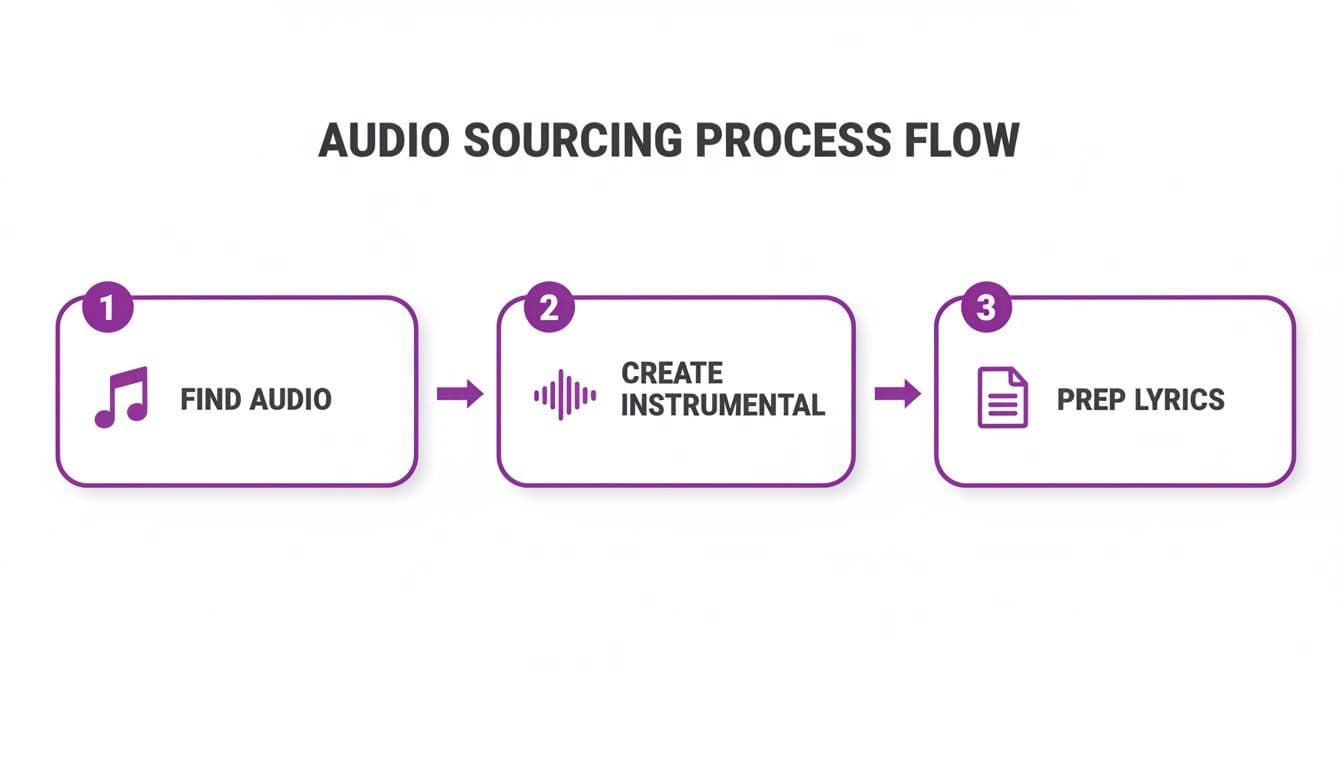
Every great karaoke video is built on two things: a clean instrumental track and perfectly timed lyrics. The first choice you'll make—how to get that instrumental—is a big one. It really sets the tone for the entire project and has a huge impact on the final quality of your video.
You've got two main ways to go. You can hunt down a high-quality, pre-made instrumental track, which is the more traditional route. Or, you can take matters into your own hands and use an AI-powered vocal remover to strip the vocals from the original song yourself.
Finding or Creating Your Instrumental Track
Sourcing a ready-made instrumental is often the fastest way to get the ball rolling. A good place to start is looking for official instrumental versions released by the artists themselves. If that's a dead end, you can often find high-quality remakes on royalty-free music sites. The big win here is that you're guaranteed a clean, professionally mixed track without any weird vocal echoes left behind.
On the other hand, AI vocal removers give you a ton of flexibility. These tools are pretty amazing—they analyze a song and digitally pull the vocal track apart from the instruments. While the results can be fantastic, the final quality really depends on how the original song was mixed. A really busy, layered track might leave behind some faint vocal artifacts, so always give the result a close listen before you commit.
Here's a quick breakdown to help you decide which path is right for your project.
Audio Source Comparison for Your Karaoke Video
| Method | Audio Quality | Time & Effort | Best For |
|---|---|---|---|
| Pre-Made Instrumental | Often professional and pristine. No vocal artifacts. | Can be quick if an official version exists, but can involve a lot of searching. | Projects where audio perfection is critical and an official instrumental is available. |
| AI Vocal Remover | Varies. Great on clean mixes, but can leave artifacts on complex tracks. | Very fast. Just upload the original song and let the AI do the work. | When you can't find an instrumental or want to work with a less common song. |
Ultimately, both methods can get you a fantastic result. It just comes down to the specific song you're working with and how much control you want over the final sound.
The idea of a "song without words" isn't new. It has deep roots, kind of like the karaoke boom itself. Way back in 1835, Felix Mendelssohn's instrumental piano pieces, Lieder ohne Worte, sold over 10,000 copies across Europe, making instrumentals a common household listen. For creators today, this history means there's a world of options out there, especially since about 52% of modern karaoke videos are built around guitar-led instrumentals. You can dive deeper into the evolution of the musical instruments market to see how things have changed.
Once you’ve locked in your audio, the next piece of the puzzle is just as important: getting the lyrics ready.
Formatting Lyrics for a Flawless Sync
Properly formatted lyrics are the secret ingredient for a smooth, frustration-free syncing process. The goal is to create a super simple, clean text file that the software can read without getting confused.
First, find a reliable source for the lyrics and double-check them against the actual song. You'd be surprised how many popular lyric sites have small errors. If you're pulling lyrics from a music video, knowing how to transcribe video to text online can be a massive time-saver and boost your accuracy.
Here’s the best way to structure your lyric file for success:
- One Phrase Per Line: Each distinct lyrical phrase should get its own line. Don't crowd them together.
- Plain Text is Your Friend: Use a basic text editor like Notepad (Windows) or TextEdit (Mac). This avoids any hidden formatting from programs like Word that can trip up the sync tool.
- Add Instrumental Cues: To give the singer a heads-up, add non-lyrical cues like
[Intro]or[Guitar Solo]on their own lines. It makes the final video feel much more professional.
For instance, a section of your text file might look like this:
[Intro]
First line of the verse goes here
And the second line follows
[Chorus]
This is the main chorus line
It repeats throughout the song
[Guitar Solo]
This simple, clean structure gives clear instructions to the AI auto-sync and also makes your life way easier if you need to jump in and tweak the timing by hand. If you need more tips on tracking down audio, be sure to check out our guide on how to download songs for karaoke.
Getting the Timing Just Right: How to Sync Your Lyrics
Okay, you've got your instrumental track and your lyrics are ready to go. Now for the fun part—the step that really brings your song without word video to life: syncing the lyrics to the music. This is where you transform a static text file and an audio track into a perfectly timed, follow-along experience for your audience.
The whole point is to make the words pop up on screen exactly when they need to be sung. MyKaraoke Video gives you two fantastic ways to nail this: a super-fast AI-powered auto-sync and a hands-on manual editor for when you want to get every detail perfect.
The Quick and Easy Way: AI Auto-Sync
If you're short on time or just want to get a project moving, the AI auto-sync is going to feel like magic. It’s designed to listen to your instrumental, analyze its rhythm, and intelligently place your lyrics where they belong. It’s surprisingly good at this and often gets you 90% of the way there in just a few seconds.
Think about it this way: you've got the instrumental for a popular song and the lyrics copied to your clipboard.
- First, you upload your instrumental audio file.
- Then, you paste the lyrics right into the text field.
- Finally, you hit the "sync" button, and the AI takes over.
In less time than it takes to make a cup of coffee, you'll have a working preview. For a lot of songs, the result is so solid you can jump right into making it look pretty.
My Two Cents: The AI is smart, but it's not a mind reader. The better your source material, the better the result. A clean instrumental track and accurately transcribed lyrics give the AI the best shot at getting it perfect on the first try.
For the Perfectionists: Fine-Tuning with the Manual Sync Editor
While the AI is a brilliant starting point, sometimes you need to be in the driver's seat. Maybe a singer holds a note a little longer, or the rhythm is just a bit quirky. That's what the manual sync editor is for. It lets you fine-tune the timing of every word and phrase, giving you complete creative control. Understanding the fundamentals of how to sync audio with video can be a big help here, as many of the same principles apply.
The editor lays everything out visually for you. You'll see your lyrics line by line right next to the audio waveform, which is basically a picture of your music. This makes it incredibly intuitive to see where the beats and pauses are.
Here are a few tricks I've picked up from spending time in the manual editor:
- Nudging the Timings: If a line shows up a beat too early, you can just grab it on the timeline and slide it into place. It's perfect for matching those little nuances in a vocal performance that the AI might miss.
- Breaking Up Long Lines: Ever have a lyric that's sung slowly over several bars? Instead of leaving one long line on screen, you can split it. Highlighting just a few words at a time makes it much easier for the singer to follow along.
- Combining Quick Phrases: On the flip side, if you have a bunch of short, rapid-fire words, they can look choppy on screen. Merging them into a single, slightly longer line can make the video feel smoother and less frantic.
This level of control is what elevates a decent karaoke video into a truly professional one. If you're serious about quality, spending a few extra minutes in the manual editor is always worth it. If you're looking for more tips on creating eye-catching lyric videos, you should check out our guide to finding the right https://www.mykaraoke.video/blog/lyric-video-creator-online.
Designing a Visually Engaging Karaoke Experience
So, your lyrics are perfectly synced and timed to the music. That’s a huge step, but now comes the fun part: making it all look incredible. A great song without word video isn’t just about getting the text right; it’s about creating a visual package that captures the song's vibe and keeps the singer hooked from start to finish.
This is where your inner director gets to shine. The visual design sets the tone, turning a basic lyric track into something that feels professional and polished. Let's dive into the tools MyKaraoke Video gives you to customize every element and bring your vision to life.
Choosing the Perfect Backdrop
Think of the background as the stage for your lyrics. A bad choice can make the words impossible to read or just feel jarringly out of place. But the right choice? It can elevate the entire experience.
You've got a few solid options here, each with its own strengths.
A simple solid color or a clean gradient is a classic for a reason. Dark backgrounds—think deep blues, purples, or just plain black—make lighter text pop, which is priority number one for readability.
If you want something with a bit more flair, you can upload your own image or even a seamless video loop. Picture a slow-motion clip of city lights for a power ballad, or a cool, abstract animation for an energetic dance track. The trick is to find something that complements the song without competing with the lyrics. If you're stuck, our guide on choosing the perfect background for a lyric video has plenty of inspiration.
Your background has a direct impact on how long people watch. From what we've seen, videos with high-contrast, easy-to-read text against a clean background have an average completion rate that's 25% higher than those with busy or low-contrast visuals.
Mastering Typography and Color
The fonts and colors you choose are just as crucial as the background. They instantly convey the song's personality before the first note even plays.
Font Selection
When picking a font, keep a few things in mind:
- Match the Mood: A heavy rock anthem practically screams for a bold, blocky font. A delicate folk song, on the other hand, might work better with a softer, more rounded typeface.
- Legibility is King: Steer clear of super decorative or thin fonts. They might look cool, but they can be a nightmare to read quickly, especially on a phone screen.
- Keep it Simple: Stick to one or two fonts at the most. This ensures your video looks clean and cohesive, not cluttered.
Color Choices
Color is your secret weapon for guiding the singer. In MyKaraoke Video, you can set separate colors for the upcoming lyrics (inactive) and the line being sung right now (active).
Here’s a pro tip that works almost every time: use a muted color like a soft gray or light blue for the inactive text. This lets the singer read ahead without being distracted. Then, for the active text, hit them with a vibrant, high-contrast color like bright white, yellow, or even a neon cyan. It immediately draws the eye and makes the timing crystal clear. This one simple technique makes the whole experience feel intuitive and effortless for the performer.
Finalizing and Exporting Your Video Like a Pro
You’ve synced the lyrics and polished the visuals, so you're officially on the home stretch. This is the last stop before you send your creation out into the world, and taking a few extra moments here can make all the difference. Think of it as your final quality check.
Before hitting that export button, do one final, full preview. Don't just scrub through it—watch it from the very beginning to the very end, preferably on the biggest screen you have available. This is where you'll catch those tiny sync issues, a sneaky typo, or a visual element that doesn't look quite right on a larger display.
I can't tell you how many times I've found a tiny timing issue on a final watch-through. A single line that appears half a second too late can throw off the entire experience for a singer. This final preview is your best defense against those "I wish I'd caught that" moments.
Choosing the Right Export Quality
Once you're happy with how everything looks and flows, it’s time to export. MyKaraoke Video keeps the options straightforward, and your choice really comes down to where your video is going to live.
- 720p (HD): This is a fantastic, versatile option. The video will look sharp on phones and laptops, and the file size won't be enormous, making it perfect for quick uploads to social media.
- 1080p (Full HD): For the absolute best quality, this is the way to go. If your masterpiece is heading to YouTube or you plan on showing it on a big screen, 1080p is the professional standard and ensures every detail is crystal clear.
A Few Words on Platform-Specific Settings
Where you post your video matters. Different platforms handle video files differently, so it pays to export with the final destination in mind.
If you're uploading to YouTube, always choose 1080p. High quality is the expectation there, and its compression system is built to handle larger files without a problem.
On the other hand, for platforms like TikTok or Instagram Reels, 720p is usually more than enough. It'll upload faster and play back smoothly for mobile viewers, who likely won't even notice the difference in resolution on a smaller screen. A little bit of planning here ensures your video looks great, no matter the platform.
Common Questions About Making Karaoke Videos
As you start diving into creating your own karaoke videos, you're bound to have a few questions. The process is pretty straightforward, but getting a handle on a few common sticking points can save you a ton of time and help you nail it on your first try. Let's go over the big ones.
Can I Make a Karaoke Video From Any Song?
Yep, you absolutely can. The whole trick is getting your hands on an instrumental version of the track. You can either find one that's already out there, or you can make your own by running the original song through an AI vocal remover.
These tools are surprisingly good, but the final quality often depends on how the original song was mixed. For the cleanest possible result, always start with a high-quality, lossless audio file of the song if you can get one. It just gives the AI more data to work with, which usually means a better instrumental track.
What's the Best Way to Format My Lyrics?
Keep it simple. A plain text file (the kind that ends in .txt) is your best bet. You can whip one up in any basic text editor like Notepad or TextEdit.
Just paste your lyrics in, making sure every single line of the song gets its own new line in the document. This clean, no-fuss structure is exactly what the AI needs to process and sync your lyrics accurately.
Pro Tip: Don't paste lyrics that already have timestamps or weird formatting. Instead, you can add helpful labels like
[Verse]or[Chorus]on their own separate lines. This gives the singer useful cues without messing up the automatic syncing process.
How Can I Get the Automatic Lyric Sync to Be More Accurate?
The auto-sync feature is a huge time-saver, but you can definitely help it do its best work. Its accuracy really boils down to two things: how clear your audio is and how precise your lyrics are.
To get the tightest sync right from the start:
- Use a clean audio track. A crisp instrumental without any lingering vocal echoes or background fuzz makes a huge difference.
- Proofread your lyrics. Make sure the words you paste are 100% accurate and match the song exactly. Even a small typo can throw the timing off for a whole line.
If a few lines are still a little off after the auto-sync, that's what the manual sync editor is for. It's built for exactly this kind of fine-tuning, letting you nudge the timing down to the millisecond until it's perfect.
What Kind of Background Should I Use?
The right background really depends on the vibe of the song and where you're going to post the video. For that classic, no-distractions karaoke feel, a simple dark background—like a solid blue or a subtle gradient—is a great choice. It makes sure the lyrics pop and are easy to read.
But if the song has a strong theme, a high-res image or a soft, looping video that fits the mood can work wonders. If you're making something for social media, a more vibrant, eye-catching background might be the way to go. The golden rule is to pick a background that adds to the experience without making the text hard to see.
Ready to get started? With MyKaraoke Video, you have all the tools you need to turn your favorite songs into incredible, professional-looking karaoke videos in just a few minutes.
