A scrolling text maker is your shortcut to creating those slick, professional-looking lyric videos where the text moves perfectly with the music. Instead of fighting with keyframes and timelines for hours, this kind of software handles the synchronization for you, turning a tedious task into something you can do in minutes.
Why a Scrolling Text Maker Is Your Secret Weapon for Engagement
Let's be honest, in a world of endless scrolling, a static image with a song playing in the background just doesn't cut it anymore. Your content needs to grab and hold attention from the very first second. This is exactly where a scrolling text maker gives you a massive edge. It uses the same core principle that makes apps like TikTok so sticky: dynamic motion that keeps our brains engaged.
When you see lyrics appear on screen exactly as they're sung, it pulls you in. You’re not just passively listening anymore; you're actively reading and following along. This creates a much deeper connection to the music and, more importantly, keeps people watching for longer.
The Power of Automation and Efficiency
Before tools like this existed, making a decent lyric video was a real grind. You’d have to sit in a complex video editor, painstakingly timing every single word or line by hand. It was slow, frustrating, and a huge barrier for anyone who wasn't a professional video editor.
Thankfully, that old way of doing things is dead. The move to automated, AI-driven tools has been a game-changer. Early on, as user-generated content began to take over, the demand for animated lyric tools shot up by a staggering 450%. By 2020, the average creator was spending 4-6 hours on a single video just getting the text synced up. A good scrolling text maker slashes that time to under 30 minutes. The results speak for themselves: videos made this way keep viewers watching 37% longer.
Let’s put that into perspective with a quick comparison.
Manual Syncing vs AI Scrolling Text Maker
| Feature | Manual Process (Traditional Software) | AI Scrolling Text Maker (MyKaraoke Video) |
|---|---|---|
| Initial Setup | Import audio, create text layers, set up timeline manually. | Upload audio, paste lyrics. That's it. |
| Text Synchronization | Hours of manually placing and timing each word or line with keyframes. | AI analyzes the audio and syncs the text automatically in seconds. |
| Editing & Revisions | A tiny timing change can require re-timing the entire rest of the video. | Drag-and-drop adjustments on a simple timeline. Changes are instant. |
| Time Investment | 4-6 hours per song is common. | Typically under 30 minutes from start to finish. |
| Skill Requirement | Intermediate to advanced video editing skills. | Beginner-friendly, no technical expertise needed. |
The efficiency gained by switching to an AI-powered tool is undeniable. It's not just about getting one video done faster; it's about being able to produce high-quality content consistently without burning out.
Key Takeaway: The single biggest advantage of a scrolling text maker is time. What once took an entire afternoon can now be accomplished during a coffee break, freeing you to focus on creating more content.
This isn’t just about saving a few hours. It’s about empowering you to produce better videos, more often. The right tools also make it easy to resize your content for different platforms, a must-have skill we break down in our guide on social media video formats.
To see how these tools fit into a larger content strategy, check out these top social media content creation tools. At the end of the day, using a scrolling text maker isn't just a technical choice—it's a smart strategy to boost your engagement, increase your watch time, and build a stronger connection with your audience.
Setting Up Your First Lyric Video Project
Diving into your first lyric video project can feel a little daunting, but the setup is actually quite straightforward. The whole process happens right in your browser, which is a huge plus—no need to download or install bulky software like you would with traditional video editors. You can just jump right in.
Everything starts with the music. The song is the foundation, so you need a clean, high-quality audio file to build on. MyKaraoke Video works with standard formats like MP3 and WAV, which covers most bases. I always recommend giving your track one final listen before uploading to catch any weird glitches or long, silent gaps at the start or end.
Get Your Assets Ready for a Smooth Workflow
Once you’ve got your audio sorted, it's time to think about the lyrics. This might seem like a small detail, but how you prep your text file can make a world of difference later on. For the smoothest experience with any scrolling text maker, it’s best to have your lyrics typed out in a plain text file (.txt) or just ready to copy and paste.
Here are a few pointers I've picked up that save a ton of time:
- One Line, One Line: Make sure every single sung line has its own line break in your document.
- Proofread Now, Not Later: A quick spell-check right now will save you from making frustrating edits inside the editor.
- Instrumental Breaks: You don't usually need to mark these out. The AI is pretty smart about identifying and handling musical interludes on its own.
Honestly, taking a few minutes to get your audio and text files prepped and organized is the single best thing you can do for your workflow. It turns a potentially messy start into a focused, efficient process from the get-go.
This little bit of prep work really paves the way for a much easier time when you get to the syncing stage. The flowchart below really drives home how much faster this approach is compared to old-school, manual methods.
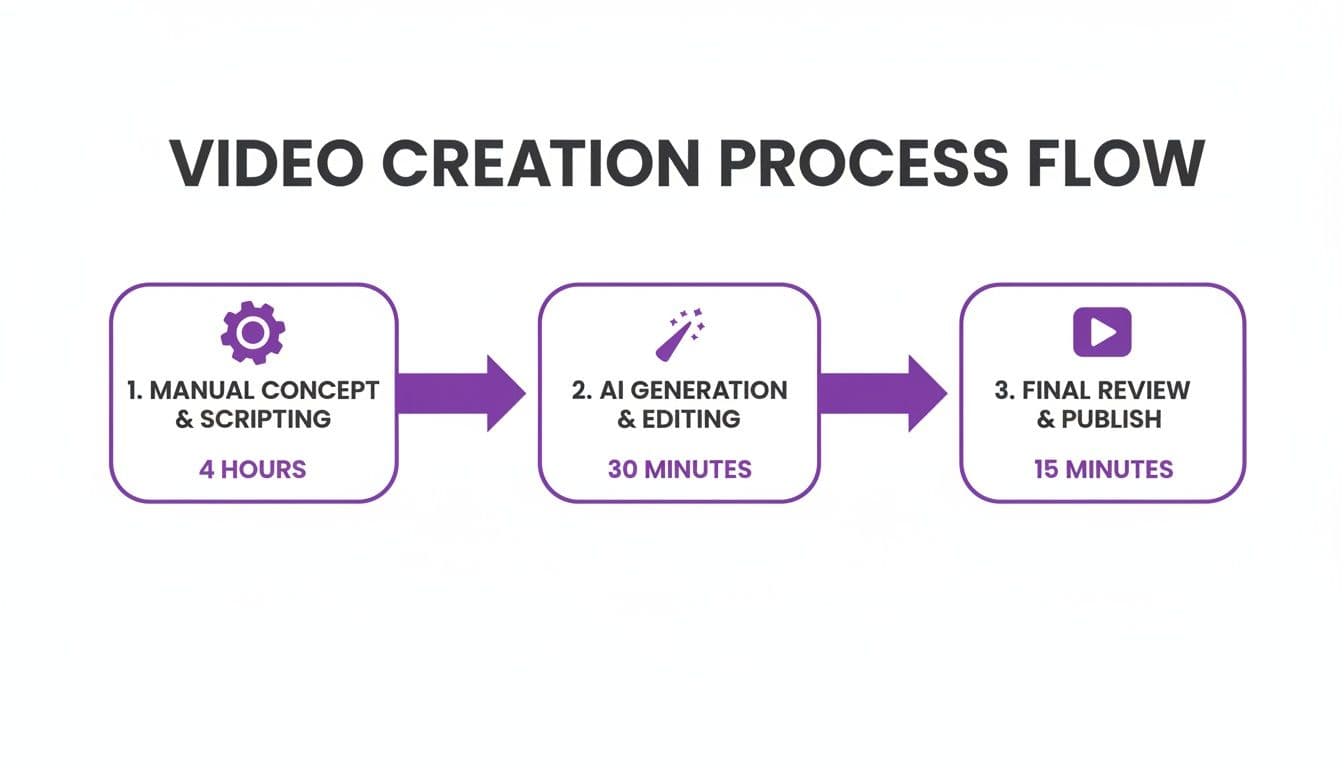
As you can see, this approach takes what used to be a multi-hour chore and cuts it down to just a few minutes. That frees you up to focus on the creative side of things instead of getting bogged down in tedious tasks.
Bringing Your Files into the Project
With your files ready to roll, the last step is to get them into MyKaraoke Video. The user interface is really intuitive here. You’ll see a clear prompt to upload your audio file first. Once that's loaded and you can see its waveform, you'll get the option to either paste your lyrics right into a text box or upload the text file you already prepared.
This whole setup process takes just a minute or two, but it lays the entire groundwork for your video. When you get this part right, you’re giving the AI clean data to work with, which almost always results in a more accurate first sync and saves you a bunch of editing time. And just like that, you've set the stage for the fun part: bringing your scrolling text video to life.
Putting the AI to Work: Automatic Lyric Synchronization
This is where the magic really happens. The biggest time-saver in any modern scrolling text maker is its power to automatically sync your lyrics to the music, and it’s all thanks to some seriously smart technology.
When you upload your song, the tool doesn't just see a silent audio file. It immediately gets to work analyzing the waveform, pinpointing the precise peaks and valleys that line up with the vocal performance.
Think of it as the AI "listening" to your track. It maps out exactly when each word is sung, how long a note is held, and where the natural pauses fall. It then takes the lyrics you provided and aligns them to those vocal cues. In just a few seconds, it accomplishes what would have taken hours of painstaking manual effort. This first pass is usually surprisingly accurate and handles all the heavy lifting for you.
How the AI Tackles Tricky Musical Passages
Of course, music isn't always straightforward. A great sync tool has to be clever enough to handle the complex, real-world parts of a song.
What about a long guitar solo in the middle of the track? The AI is trained to recognize these extended instrumental breaks. It will simply pause the lyrics on screen and wait patiently for the vocals to kick back in, so you don't have to manually create a huge, awkward gap in your timeline.
Or consider a fast-paced rap verse with a cascade of words. The technology is sensitive enough to detect those quick, distinct phonetic sounds, creating individual sync points for each word. This prevents them from blurring together into an unreadable block of text. It can even distinguish a lead vocal from background harmonies, ensuring the main lyrics stay perfectly on beat.
Pro Tip: The quality of your audio file makes a huge difference in the AI's accuracy. A clean recording with clear, front-and-center vocals will always yield a much better automatic sync than a track that’s muddy, noisy, or has buried vocals.
This intelligent analysis creates a rock-solid foundation for your video, letting you jump from raw assets to an almost-finished product in minutes. You'll always have the option to make manual adjustments for artistic effect, but the AI nails the most tedious part of the process with impressive precision.
This kind of automation is no longer a luxury; it's essential. As content creators, we need to move fast. It's why a browser-based scrolling text maker is so powerful—it gives creators without a technical background the ability to produce professional-level videos. This shift is happening everywhere, with businesses using AI to create more engaging content that performs better and keeps audiences hooked.
The goal is to get you 95% of the way there automatically. To see this in action, you can dive deeper in our complete guide to using an AI lyric video generator. This frees you up to focus on the final 5%—the creative polishing that makes your video uniquely yours.
Perfecting Your Timing with the Sync Editor
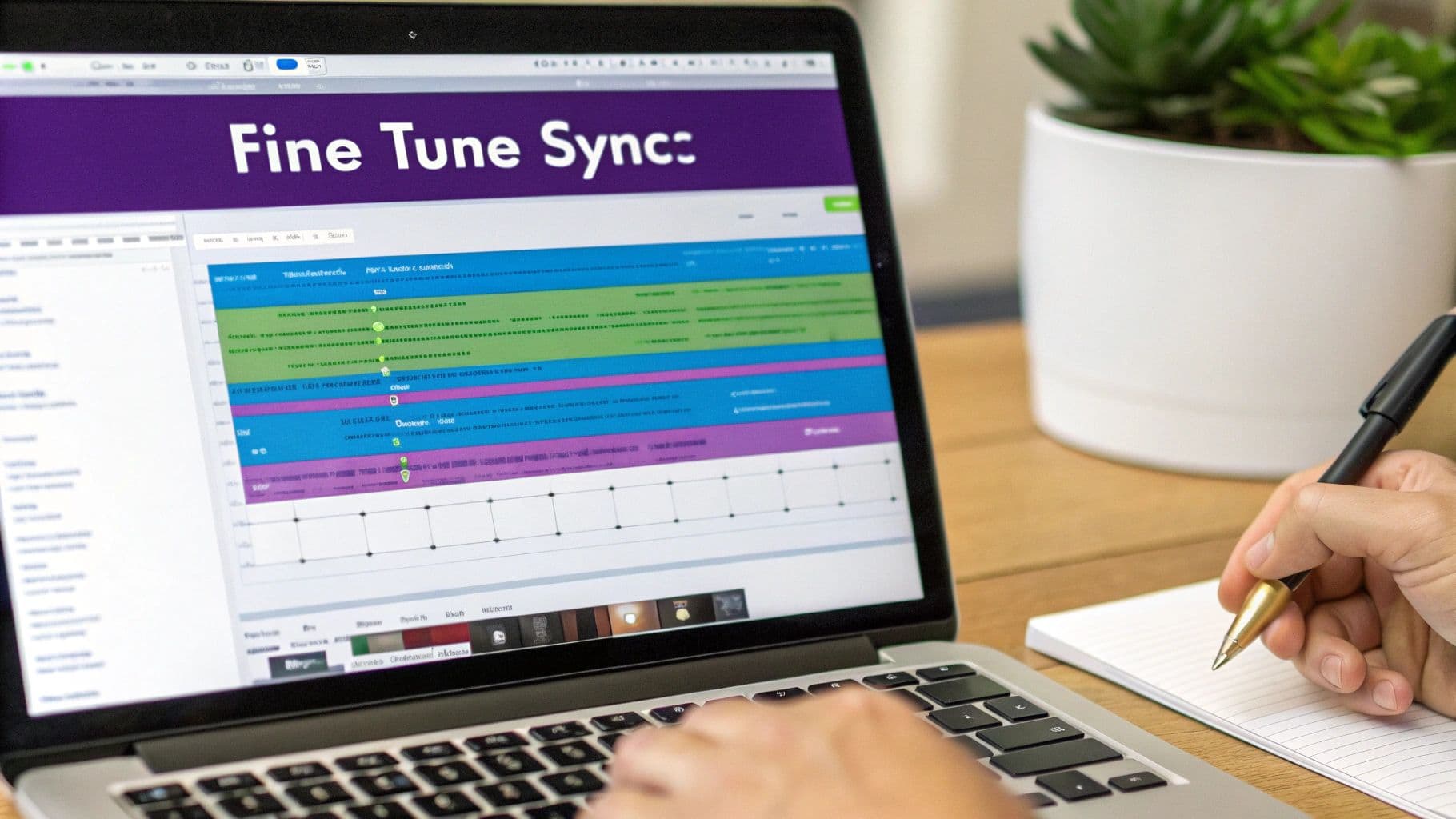
While the auto-sync feature does an amazing job of getting you 90% of the way there, the real magic happens in the final tweaks. This is where you step in. The sync editor inside a good scrolling text maker is what elevates a project from decent to truly professional.
The AI lays down a solid framework, but music is rarely perfect. Singers bend notes, rush a line for emotional effect, or hang on a word just a little longer than you'd expect. These are the human elements that make a song great, and the sync editor is how you make sure your text honors them.
Getting Around the Sync Editor Interface
Once you jump into the editor, you'll see your audio waveform laid out visually with your lyrics displayed on a timeline. Each word or phrase usually appears as a little block you can click on and move around.
Your job here is pretty straightforward: play the track and watch. As the song plays, see when each word highlights. If a word shows up a split-second too early or hangs around too long, just grab its block and nudge it left or right. It’s a very hands-on process that feels much more intuitive than typing in timecodes.
The goal isn’t to "fix" the AI's work, but to add your own human touch. A great lyric video feels like it breathes with the music, and this editor is the tool that makes that connection happen.
Don't underestimate how much these tiny adjustments matter. When the timing is spot-on, the whole video just feels more polished and keeps viewers locked in.
Advanced Tweaks for Creative Control
Beyond just nudging words, the sync editor gives you some powerful creative options. Sometimes a single line of lyrics needs to be broken up to really match the singer's delivery and land with more impact.
For example, imagine the lyric is, "I can't... believe you're gone." A standard sync might just show the whole sentence at once. To give it more emotional weight, you can split this into separate pieces right in the editor:
- First, have "I can't..." appear by itself, perfectly timed to the vocal.
- Let it hang there for the beat of silence.
- Then, bring in "...believe you're gone" to match the rest of the phrase.
This is a fantastic technique for slower, more emotional tracks. On the flip side, if you're working with a fast-paced rap verse, you might need to do the opposite—tightening the timing between each word so it pops on screen with the same rapid-fire energy as the artist.
This is the stuff that brings a video to life. It’s the difference between a video that just displays lyrics and one that truly performs them. Mastering the sync editor is how you go from just using a tool to becoming a real video creator.
Designing Visuals That Stop the Scroll
Getting the timing perfect is the heart of a great lyric video, but what makes someone actually stop scrolling to watch? The visuals. Your design choices—from the background you pick to the font you use—are what turn a simple sing-along into a real experience that captures the vibe of the song or your brand.
This is where a solid scrolling text maker like MyKaraoke Video really shines. It puts you in complete control of the look and feel. It’s not just about making words appear on a screen; it’s about making them part of the art. You get to set a mood that perfectly matches the music, whether that’s a bold, gritty font for a rock anthem or a flowing script for a heartfelt ballad.
This level of creative control is what helps you stand out in a crowded feed. Think about how you can use the visuals to make the song's message even more powerful.
Choosing Fonts and Colors with Purpose
The font you choose is basically the visual voice of the lyrics. It needs to be an intentional choice that backs up the emotional tone of the song. A classic mistake I see all the time is picking a cool-looking font that's nearly impossible to read against a moving background. That pretty much defeats the whole point.
To sidestep that problem, keep these tips in mind:
- Match the Mood: Pair a fun, rounded font with an upbeat pop track. For a more serious or introspective song, a clean, classic serif font often works beautifully.
- Readability Comes First: Always, always prioritize legibility. Before you commit, test your font choices on different screen sizes to make sure they stay clear and easy to read.
- Embrace High Contrast: Use strong contrast between the text and the background. There's a reason classics like white text on a dark background (or vice-versa) are so common—they just work.
Color does more than just make things look nice; it makes people feel something. A warm palette of reds and oranges can give off a vibe of passion and energy, while cool blues and greens can create a sense of calm or even sadness. MyKaraoke Video’s real-time preview is your best friend here, letting you experiment with different combinations until you land on the one that feels just right.
Custom Backgrounds to Build Your World
The background you choose sets the entire stage. A simple solid color can certainly be effective, but using custom images or video clips adds a layer of depth and polish that looks far more professional. A static photo of a quiet landscape can perfectly complement a folk song, just as an abstract motion graphic can match the high energy of an EDM track.
The real trick is making sure your background supports the lyrics without overpowering them. A busy, distracting background can make even the clearest font a struggle to read. If you're set on using a complex image, try applying a subtle blur or a dark overlay to really make the text pop.
People are used to seeing dynamic visuals online. Scrolling animations on websites have become a design standard, with recent data showing that 58% of landing pages now use clickable graphics with scrolling features. That expectation for motion carries over to video. For MyKaraoke Video users, creating this effect with custom fonts and colors can save hours of work, and the high-quality 1080p MP4 output looks sharp on the 23.27% of desktops that use this resolution.
By developing a distinct visual identity, you make your content instantly recognizable. For a deeper dive into what makes visual motion so effective, check out these principles of captivating motion design. You can also learn how to create even more compelling visuals in our guide on adding animated text for videos.
Answering Your Top Questions About Scrolling Text Makers
Once you start using a scrolling text maker, a few questions almost always come up. It's one thing to know how a tool works, but it's another to handle the unique quirks of your own projects. Let's walk through some of the most common hurdles I see people run into and how to get past them.
"Does My Audio Quality Really Matter That Much?"
This is probably the first question everyone asks. While you don’t need a track mastered at Abbey Road Studios, a clean audio file makes a night-and-day difference. Think of it this way: the AI "listens" to the vocals to sync the lyrics. If the singer is drowned out by a screaming guitar solo or a lot of background hiss, the AI will have a tough time picking out the words.
A crisp vocal track gives the AI the best shot at an accurate first pass, which saves you a ton of editing time later.
Can I Use Different Languages or Special Characters?
Of course. Any decent scrolling text maker should be able to handle a wide range of languages and characters without breaking a sweat. Whether your lyrics are in Spanish, Japanese, or you want to throw in some emojis, the process should be exactly the same. Just paste your text, and the software will take care of the rest.
I've personally used this on songs with verses that switch between English and Korean, and it works perfectly. The only thing to watch for is that your original text file is saved with standard encoding (like UTF-8), which is the default for pretty much any text editor you'd use today.
What if the AI Gets a Word Wrong?
This is a fantastic question because it highlights how you should be working with the AI, not just relying on it. AI is a powerful assistant, but it’s not perfect. It might get tripped up if a singer has a unique pronunciation or a word is mumbled.
That's exactly what the sync editor is for. If you spot a word that’s just a little bit off, you don't have to start over. Just jump into the timeline, find that specific word's block, and drag it right where it needs to be. It’s a two-second fix that puts you in the driver's seat.
The best workflow is to let the AI do the heavy lifting to get you 95% of the way there. Then, you step in with the editor to make those final, precise tweaks. It’s the perfect balance of saving time while keeping total creative control.
How Should I Handle Really Fast or Slow Songs?
Pacing is another big one. A lightning-fast rap verse and a slow, emotional ballad are two completely different beasts, but a good tool can tame both.
- For Fast Songs: The AI is surprisingly good at keeping up with rapid-fire lyrics. Your main job in the editor is to make sure the words have enough breathing room on screen. You might need to tighten the timing on individual words so they pop with the same energy as the delivery.
- For Slow Songs: With ballads, you get to be more artistic. You can let a line linger on screen to build emotion or break a single phrase into smaller pieces to emphasize each word. The goal is to match the music's deliberate, unhurried pace.
Ultimately, the tool is your instrument. The AI gets you in the right key, but how you play the notes—the timing, the pauses, and the rhythm—is what creates a captivating performance. Once you get the hang of these common issues, you’ll go from just using the tool to truly mastering it.
Ready to stop wrestling with complicated software and start creating stunning lyric videos in minutes? MyKaraoke Video gives you the AI-powered tools and creative freedom you need. Try it for free and make your first video today!
