Before you even think about opening your slideshow software, take a step back. The most impactful slideshows—the ones that get shared and remembered—start with a solid plan. It's about telling a story, not just throwing images on a timeline.
Think of it this way: you’re the director. Your job is to build a narrative that guides your audience from one feeling to another. Get this part right, and the technical side becomes so much easier.
Laying the Foundation for a Memorable Slideshow
Let's get our hands dirty with the prep work. This is where the magic really happens. A little planning now saves you from major headaches later and ensures your final product feels intentional, not accidental.
Define Your Purpose and Story
First things first: what are you trying to say? What's the one feeling or message you want your audience to walk away with? Your answer will shape every single decision, from the music you choose to the speed of your transitions. Knowing how to create video from photos free is the basic skill, but building a story is the art.
Think about the context. The approach for a wedding tribute is completely different from a corporate year-in-review.
- Heartfelt Wedding Tribute: You're aiming for nostalgia and emotion. The story naturally flows from childhood, through dating, to the wedding day. It’s a classic progression for a reason—it works.
- Dynamic Corporate Recap: Here, the story is about success and energy. You'll want to highlight achievements chronologically, building momentum to show growth and team wins.
- Engaging Social Media Post: This needs to be fast and punchy. Grab their attention in the first three seconds and end with a clear takeaway or call to action.
Curate Your Visuals Ruthlessly
Now it's time to gather your photos and video clips. The biggest mistake I see people make is trying to include everything. Don’t do it. Curation is your best friend. A tight, powerful slideshow with 25 incredible photos will always beat a bloated one with 100 mediocre shots.
Your goal isn't just to show pictures; it's to guide an emotional journey. Each image should earn its place by advancing the narrative or evoking a specific feeling.
Once you’ve made your selects, arrange them. Every good story has a beginning, a middle, and an end. For a birthday slideshow, you might start with baby pictures (the beginning), move through school years and key life adventures (the middle), and wrap up with recent photos and a "happy birthday" message (the end). This simple arc makes the viewing experience so much more satisfying.
If you're new to the more technical aspects of assembling clips, our video editing tips for beginners can give you a solid starting point.
Storyboard Your Slideshow
I know, storyboarding sounds like extra work, but trust me, it’s a game-changer. It doesn't have to be fancy—no art degree required. A simple list on a notepad or a few boxes drawn on a whiteboard will do the trick.
Just map out the key moments. "Intro: scenic shot of the venue," "Verse 1: photos of the bride getting ready," "Chorus: first look and ceremony." This simple exercise forces you to see the big picture, spot gaps in your story, and figure out your pacing before you’ve invested hours into editing. It’s the difference between a cohesive, polished video and a random jumble of images.
Finding the Perfect Soundtrack for Your Story
With a solid plan for your story, it's time to find its soul: the music. The right soundtrack does far more than just fill the silence. It breathes life into your photos, dictates the pace, and connects with your audience on an emotional level. Honestly, this is one of the most critical decisions you'll make when creating a slideshow with music.
The biggest hurdle? Finding an amazing track without getting tripped up by copyright issues. The good news is, you have plenty of great, legal options.
Sourcing Legal and Effective Music
Before you fall in love with a song, think about licensing. If you're creating a slideshow for a public audience on YouTube or Instagram, grabbing the latest pop hit is a recipe for disaster. It’ll likely get your video muted or even taken down.
Don’t let a copyright strike undo all your hard work. For any slideshow you plan to share publicly, always stick with legally cleared music. For a private screening with family, you've got a lot more freedom.
So, where do you find these safe-to-use tracks? Here's a rundown of my go-to sources.
To help you decide, here’s a quick comparison of the most common music sources. Each has its pros and cons depending on your project's needs and budget.
Music Licensing Options for Your Slideshow
| Source Type | Best For | Typical Cost | Key Consideration |
|---|---|---|---|
| Subscription Services | Frequent creators, YouTubers, professionals | $15-$30/month | Offers a massive, high-quality library for a flat fee. |
| Free Audio Libraries | Beginners, personal projects, tight budgets | Free | Quality can be mixed, but great for starting out (e.g., YouTube Audio Library). |
| Pay-Per-Track | One-off projects, specific song needs | $20-$100+ per track | You get a perpetual license for a single song, which can be cost-effective. |
| Creative Commons | Hobbyists, non-commercial use | Free (with attribution) | You must follow the specific license rules, which often means giving credit. |
Ultimately, choosing a source comes down to balancing cost, quality, and how often you'll need music. For most serious creators, a subscription service offers the best long-term value.
Once you have your soundtrack, it's worth learning the basics of how to add music to video online, as different tools handle this process differently.
Matching the Music to Your Narrative
Picking a song isn't just about finding a nice melody. It’s about finding a track that mirrors the emotional arc of your story. Listen closely to a potential song's structure—its intro, verses, chorus, and bridge. Think of this as a musical roadmap for your visuals.
A slow, building intro, for example, is the perfect backdrop for your opening titles or a wide, establishing shot. As the first verse kicks in, you can start introducing your key subjects or the beginning of your photo sequence. Then, when the chorus hits with all its energy, that’s your moment to drop in your most powerful, emotionally charged images. It's a proven formula; one study noted that over 70% of popular videos align their key visual moments with musical peaks to create maximum impact.
For slideshows driven by lyrics—like a tribute set to a meaningful song—specialized tools can be a lifesaver. A platform like MyKaraoke Video is built for this exact purpose, making it incredibly simple to create lyric videos by automatically syncing the text to the music. And if you're still on the hunt for that perfect track, you might find our guide on great music for editing videos helpful.
Getting Your Photos Ready for the Spotlight
Okay, last step before we start building. Make sure your visuals are just as polished as your audio. A little prep work here makes a world of difference.
Start with some basic color correction. You want your photos to feel cohesive, so adjust the brightness and saturation to create a consistent look across all the images.
Also, think about cropping your photos to a uniform aspect ratio, like 16:9. This simple move gets rid of those distracting black bars on the sides of vertical photos and gives your final slideshow a clean, professional finish. It’s a small detail that ensures your visual quality lives up to the emotional power of your soundtrack.
Syncing Your Slideshow to the Music's Beat
This is the part where the magic happens. You’re not just putting photos and a song together anymore—you're crafting a single, cohesive experience where the visuals and audio feel like they were made for each other. The biggest hurdle when you make a slideshow with music is getting that perfect timing down.
You could do it all by hand. It's a painstaking process of dragging each photo onto a timeline, trying to land a powerful image right on a drum hit or a key lyric. This gives you ultimate control, sure, but it's also incredibly time-consuming and can get frustrating fast.
Automating the Rhythm
Luckily, modern tools can take the guesswork out of syncing and give you a much more precise result. Going the manual route can feel like trying to catch raindrops in a bucket, while automated tools act like a funnel, guiding everything perfectly into place. This is a lifesaver for projects built around lyrics.
For instance, if you're making a karaoke video or a tribute slideshow set to a special song, you don't need to spend hours manually aligning text and images. With an AI-powered platform, you can just upload your song and lyrics, and the tool does the heavy lifting of syncing it all up for you.
Before you even get to syncing, though, all your media needs to be prepped and ready. This is a crucial step for a polished final product.
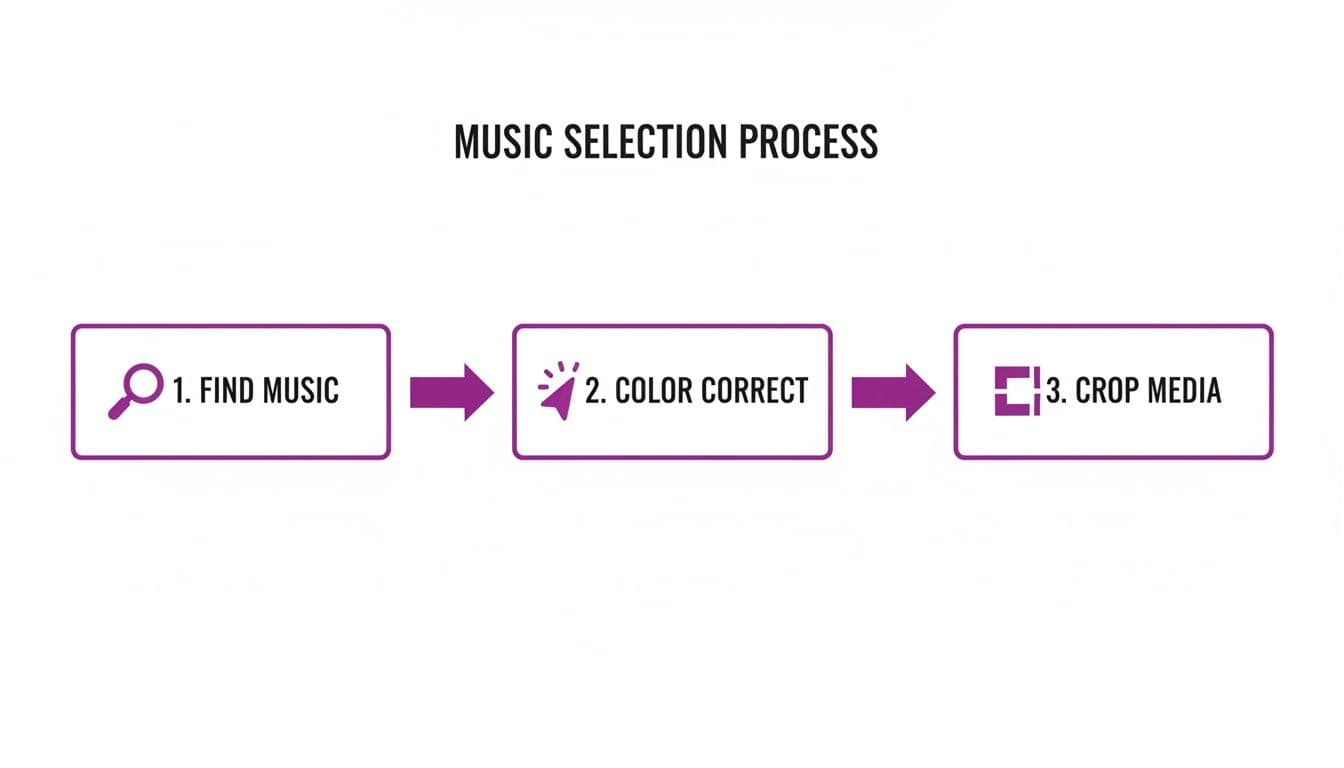
As this process shows, finding the right music is just the beginning. Taking the time to color correct and crop your images consistently is what really elevates the look and feel.
Pacing to Match the Energy
Let the song's tempo be your guide. You wouldn't use the same pacing for a slow, reflective ballad as you would for a high-energy rock anthem. The feeling would be completely off.
- For a slow ballad: Let your photos breathe. Use longer slide durations, maybe 5-8 seconds each. This gives your audience time to really take in the image and connect with the emotion of the music. Think slow, gentle transitions like fades and dissolves.
- For a high-energy anthem: Quick cuts are your best friend. Aim for short durations, around 1-3 seconds per image. Don't be afraid to time your cuts directly to the beat of the music. Sharp, fast-paced transitions will amplify the song's energy and keep your viewers hooked.
Your goal is to create something more than just a sequence of pictures. You're building a dynamic video where every visual change feels intentional and tied directly to the heartbeat of the music.
For lyric-heavy projects, specialized tools like MyKaraoke Video are designed specifically to handle this synchronization automatically, saving you hours of tedious work. This opens up a fantastic way to tap into the massive music libraries on streaming services.
Think about the potential here. By the end of 2025, streaming platforms were home to an incredible 253 million tracks, yet the top 0.2% of those songs accounted for almost half of all global plays. This points to a huge untapped well of incredible music just waiting for creators to discover and feature in projects like karaoke slideshows.
Precision with a Timeline Editor
Even when you use automated tools, a good timeline editor is your secret weapon for fine-tuning. This is where you can make those small, final tweaks that make a big difference.
Maybe you want a specific photo to appear exactly when a guitar solo kicks in, or you want to linger on a precious family portrait for an extra second during a quiet moment in the song. The timeline is where you dial in that perfection.
If you're looking to really master this, check out our in-depth guide on how to sync audio with video. It covers more advanced techniques to help you get that professional-grade polish.
Adding Professional Polish with Transitions and Effects
So, you've got your photos and music timed out perfectly. Great! Now for the fun part: adding the final polish that makes a slideshow feel truly professional instead of just a collection of pictures. This is all about thoughtful transitions and effects. They’re the secret sauce that guides your audience's eye and amps up the emotional impact of your story.
Think of transitions like punctuation in a sentence. A simple, hard cut from one photo to the next is your period. It's clean, direct, and keeps the energy high. I lean on cuts heavily for upbeat songs, especially when I need to sync to quick, punchy beats.
On the other hand, a soft cross-dissolve—where one image gently fades into another—is your comma. It creates a smooth, connected flow, which is perfect for those slower, nostalgic moments in a ballad or when blending two visually similar scenes together.
Choosing Transitions with Purpose
I know it’s tempting to try out every flashy effect your software has, but trust me on this: resist. The spinning cubes, page peels, and star wipes that were cool a decade ago will instantly date your project and make it look amateurish. The truth is, the best transitions are the ones you don't even consciously notice.
Here’s the approach I’ve settled on after years of editing:
- Cuts: Make these your default. Seriously. Use them for about 80% of your project. They are crisp, professional, and keep the focus right where it should be—on your photos.
- Dissolves: Save these for specific moments. They're fantastic for showing the passage of time or signaling a gentle, emotional shift in the narrative.
- Subtle Wipes: A simple, linear wipe can add a touch of style, but only if you use it sparingly and time it perfectly with a sound, like a cymbal crash or a subtle musical swell.
The most powerful effects are often the most subtle. Your goal is to enhance the story, not distract from it. If the viewer is thinking about the transition itself, it's not working.
It’s no secret that the music industry has become a visual-first business. We see old songs get a second life all the time thanks to a new video treatment. It just goes to show how powerful good editing is. Today, streaming makes up 84% of the industry’s $20.4 billion in revenue, driven by over 800 million paid subscribers worldwide. For anyone creating content, this means there’s a massive audience waiting for well-made, music-driven videos. For more on this, check out the latest data in the 2025 music industry report on chartmetric.com.
Adding Text Overlays and Titles
Text elements are what give your slideshow structure and context. Things like a title slide, captions, or closing credits add that final professional touch. This becomes absolutely crucial when you want to make a slideshow with music that has a strong lyrical component.
The font choice alone can completely change the vibe. For a wedding slideshow, a classic serif font like Garamond can create a feeling of timeless elegance. For a corporate recap video, a bold, modern sans-serif like Montserrat feels much more appropriate.
This is where a tool like MyKaraoke Video really shines, especially for lyric-focused projects. It gives you fine-tuned control over every text element. You can tweak fonts, colors, and animations to sync up perfectly with the song’s style, ensuring every part of your video feels intentional and cohesive.
You’ve poured your heart and soul into creating the perfect slideshow, carefully syncing every image to the rhythm of the music. Now for the final hurdle: getting it out into the world. This is where a lot of hard work can be undone. Exporting might sound technical, but getting it right is the difference between a crisp, professional video and a pixelated mess that’s too big to upload.
Let's make sure your project looks just as stunning on someone else's screen as it does on yours.
The key to a successful export is knowing its final destination. The settings you’d use for a massive 4K TV are worlds apart from what you need for a quick Instagram Reel. This isn't about getting lost in technical jargon; it's about making a few smart choices to preserve all the effort you've put in.
For most online platforms—think YouTube or Facebook—a 1080p MP4 file is your best bet. It strikes the perfect balance, delivering a sharp, high-definition experience without creating a file so large it takes forever to upload. On the other hand, if you just want to text the video to a friend, a smaller 720p file will send in a flash.
Matching Your Export to the Platform
Where your slideshow will be viewed dictates its shape and size. You wouldn't wear hiking boots to a wedding, so why force a widescreen video into a vertical-only app? Understanding aspect ratios is fundamental to making your work look like it truly belongs wherever you post it.
Here’s a quick guide to the most common formats:
- 16:9 (Widescreen): This is the standard for YouTube, Vimeo, and virtually all modern TVs and computer monitors. It's your default choice for any traditional video project.
- 9:16 (Vertical): Absolutely essential for Instagram Reels, TikTok, and YouTube Shorts. Trying to squeeze a widescreen video here leads to awkward black bars or, even worse, automatic cropping that cuts off key parts of your images.
- 1:1 (Square): A great option for Instagram feed posts and some Facebook ads. It offers a nice, balanced look that fills the screen well as people scroll on their phones.
My best advice? Decide on the aspect ratio before you start building your slideshow. If you know it's destined for TikTok, create it in a 9:16 format from the get-go. It saves you from the major headache of trying to crop and reframe everything later on.
A Quick Word on Formats and Bitrate
Beyond the shape of your video, two other settings are critical: the file format and the bitrate.
When it comes to format, MP4 is the undisputed champion. It’s universally compatible, working on nearly every device and platform, and it provides an excellent balance of quality and file size.
Bitrate, on the other hand, controls how much data is packed into each second of your video. A higher bitrate equals better quality but also a much larger file.
Think of bitrate like the thread count of your bedsheets. A higher thread count feels smoother and more luxurious, but it's also more expensive. Similarly, a higher bitrate gives you a cleaner image, but the "cost" is a bigger file.
For a high-quality 1080p HD video meant for streaming, a bitrate between 8-12 Mbps is the sweet spot. This keeps your video looking sharp and prevents the blocky compression artifacts that can ruin an otherwise beautiful project.
Taking a moment to dial in these settings is a simple step to ensure your efforts to make a slideshow with music truly shine in the final product. With the global music streaming market projected to grow 19% annually through 2029 and people spending an average of 27 hours a week listening to music, the opportunity is huge. Creators using intuitive tools like MyKaraoke Video for easy font, background, and 1080p MP4 exports are perfectly positioned to connect with this massive audience. You can find more music streaming growth insights on explodingtopics.com.
Your Slideshow Questions, Answered
Even with the best plan, you're bound to hit a few snags. It's just part of the creative process. So, I've put together some quick answers to the most common questions that pop up when making a slideshow with music. Think of this as your cheat sheet for solving problems fast and getting back to what matters.
What's the Best Software for Making a Slideshow?
Honestly, there's no single "best" tool—it all boils down to what you're trying to achieve. For a quick family vacation slideshow, the apps already on your computer or phone are often more than enough. If you’re a pro aiming for pixel-perfect control, something like Adobe Premiere Pro gives you all the power you could ever want, but be ready for a serious learning curve.
But what if your project is all about the music and lyrics? That’s where specialized tools shine. A browser-based platform like MyKaraoke Video was built specifically for this. It takes the most tedious part—syncing lyrics to the audio—and automates it. This can save you hours of frustrating manual work and deliver a polished, professional result for any music-driven video.
How Long Should I Keep Each Picture on Screen?
There’s no magic number here. Your best director is the music itself.
As a general rule of thumb, for a song with a steady, moderate tempo, showing each image for about 3 to 5 seconds works well. It gives your audience enough time to take in the photo without things feeling slow.
But you have to adapt. For a fast, upbeat track, quick cuts of just 1 to 2 seconds per photo can match that high energy. On the flip side, if you're working with a slow, emotional ballad, letting a powerful image linger for 6 to 8 seconds gives it the emotional weight it deserves. The real secret is to vary the timing and sync key photos to the beat drops or a meaningful lyric. That's what creates a dynamic rhythm and stops your slideshow from feeling like a boring flipbook.
The rhythm of your slideshow should flow directly from the music. Varying the slide duration and syncing to the beat is what elevates a good slideshow to a great one.
How Can I Add Perfectly Synced Lyrics?
If you’ve ever tried to sync lyrics manually, you know the pain. It's a mind-numbing process of listening, pausing, timing each line, and meticulously placing text blocks on a video timeline. Getting it right can easily eat up an entire afternoon.
There's a much smarter way to do this. Using a tool designed for the job turns this chore into a simple step. With a platform like MyKaraoke Video, for example, the whole process is streamlined. You upload your audio file, paste in the lyrics, and its AI engine does the heavy lifting, analyzing the song and creating perfectly timed text for you. A difficult, multi-hour headache becomes a task you can knock out in just a few minutes.
Can I Use Any Popular Song I Want?
This is a big one, and getting it wrong can cause major problems.
If your slideshow is strictly for personal use—like showing it at a family gathering or a private party—you're generally in the clear. Go ahead and use that hit song.
However, the moment you decide to post it publicly on a platform like YouTube or Instagram, you're entering the world of copyright. Using a popular song without the proper license is a gamble. Your video could get muted, demonetized, or even taken down entirely by a copyright strike.
For any public project, the safe (and professional) route is to use royalty-free music. There are fantastic resources out there like Epidemic Sound, Artlist, and the free YouTube Audio Library that provide high-quality tracks you can use without worry.
Ready to create stunning lyric videos without the headache of manual syncing? MyKaraoke Video transforms any song into a professional karaoke or lyric slideshow in minutes. Upload your audio, paste your lyrics, and let our AI handle the rest. Try it today at MyKaraoke.video.
