To create a video that loops, you essentially need to find a clip, pinpoint the perfect start and end frames, and then use an editor to blend them together. The most common way to pull this off is by duplicating the clip and applying a subtle crossfade. This technique creates a continuous, almost hypnotic effect that's perfect for social media, website backgrounds, or any creative project you can dream up.
Why Seamless Looping Videos Work So Well
Have you ever found yourself completely mesmerized, watching the same short clip over and over? That’s the magic of a well-crafted video loop. There's something about the continuous, repetitive motion that taps into a fundamental part of our psychology, creating a deeply satisfying and calming experience. This is precisely why looping videos are such a powerful tool for engagement.
When a video loops seamlessly, it gets rid of the abrupt stop-and-start you see in a normal clip. This creates what feels like an infinite piece of content, encouraging viewers to watch it cycle through multiple times. For creators, this is a massive win, boosting key metrics like watch time and audience retention on platforms like Instagram and TikTok, where algorithms reward content that holds a viewer's attention.
The Power of Continuous Engagement
The real beauty of a good loop is its ability to hold your focus without demanding it. Think about a looping video on a website's homepage—maybe gentle, rolling waves or a subtle animation of a product. It adds life and a touch of dynamism to the page without being distracting. Your brain quickly recognizes the pattern, which makes the whole experience feel polished and comfortable.
This captivating effect is driven by a few key psychological triggers:
- Pattern Recognition: Our brains are hardwired to find and enjoy patterns. A perfect loop delivers a predictable, satisfying visual rhythm.
- Anticipation and Reward: Watching a loop build to its reset point and then flow perfectly back to the beginning creates a small, gratifying reward cycle in our minds.
- Reduced Cognitive Load: Because the video has no definitive beginning or end, it doesn't require the mental energy needed to process a full story. You can just watch.
Tools for Every Creator
The best part? You don't need to be a professional video editor to make a great loop. There are tons of accessible tools out there for every skill level. In fact, the global video creation tool market was valued at USD 653.18 million in 2024 and is expected to climb to an incredible USD 1,406.97 million by 2033. This boom shows just how much demand there is for easy-to-use video software. If you're interested in the numbers, you can dive deeper into the complete market analysis on straitsresearch.com.
No matter what tool you use, the core technique for a great loop is always the same: Find perfect start and end points, and then blend them so subtly that the transition becomes invisible.
How to Create Flawless Loops With Desktop Video Editors
When you need absolute, frame-by-frame control to make a video loop, nothing beats a powerful desktop editor. While online tools are quick and convenient, software like Adobe Premiere Pro, Final Cut Pro, or DaVinci Resolve is where you get truly professional results. They give you the precision needed to make the transition completely invisible.
The secret to a great loop starts with finding the perfect "seam." This isn't just about finding two frames that look similar; you have to analyze the motion within the shot. If you're looping a cityscape, look for a moment where the cars or clouds are in nearly the same position at the start and end of your clip. For something like a dance move, you want the action to feel complete right before it restarts.
The Overlap and Blend Method
Once you've dropped your chosen clip onto the timeline, the classic technique is to duplicate it. Butt the second copy right up against the end of the first one. Now, slide the second clip to the left so it slightly overlaps the end of the first clip. This little overlap is where the magic happens.
Apply a subtle crossfade or dissolve transition over this overlapped section. I’m not talking about a long, dramatic fade. You want something incredibly short, maybe just 5-10 frames long. This tiny transition is enough to smooth over any jarring jump, tricking the viewer's eye into seeing one continuous, unending motion.
The goal here is invisibility. If you can actually see the transition happening, it’s too long. Keep shortening it frame by frame until the end flows back to the beginning without a single hiccup.
This simple but highly effective workflow is the foundation of almost every professional loop you see.
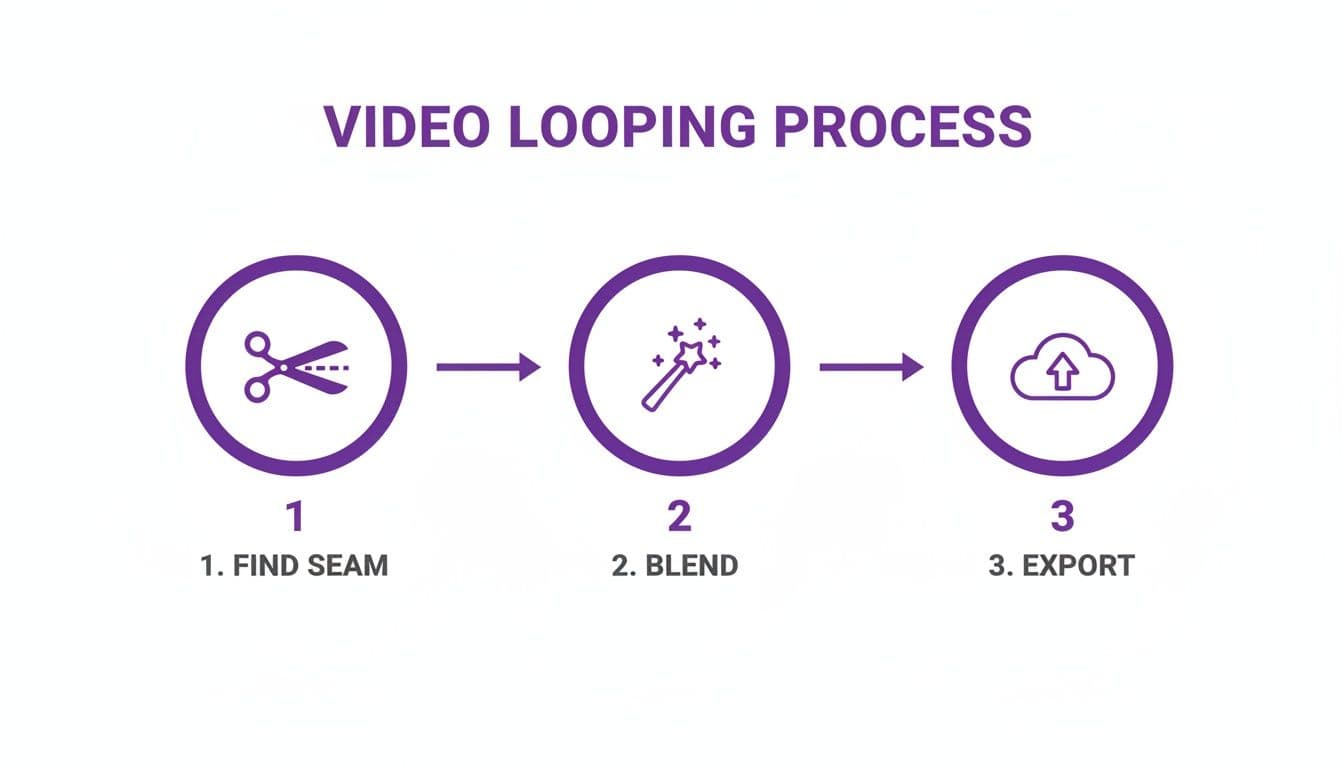
As you can see, it really boils down to three key actions: finding your seam, blending the clips together, and exporting the final video. Many of the best video editing apps for TikTok have simplified versions of these controls, showing how universal this technique is.
A Few More Pro-Level Tricks
Beyond a simple dissolve, you have other creative options at your disposal.
- The Reverse Technique: This is my go-to for creating a perfect "boomerang" effect. Just duplicate your clip, apply a reverse effect to the second copy, and place it immediately after the first. The action plays forward and then seamlessly rewinds to the starting point. It’s a guaranteed perfect loop every time.
- Use Your Ears: Don't forget about the audio! If your video has ambient sound, like waves crashing or a crowd murmuring, look at the audio waveform. By lining up matching peaks or valleys in the sound, you can reinforce the visual loop and make it feel even more natural.
This level of hands-on control is what truly separates a decent loop from a great one. If you're still weighing which program is right for you, we've broken down the popular choices in our video editing software comparison guide.
Making a Video Loop on Mobile and Online
Not every project calls for the firepower of a high-end desktop editor. In fact, most of the time you just need a fast and easy way to loop a clip for a social media story or a quick post. This is where mobile apps and online video editors really come into their own, letting you create polished looping videos right from your phone or web browser.
I've used countless apps for this, and popular choices like CapCut make it almost laughably easy. Their interfaces are built for touch, so you can just drag to trim your clip, tap a button to duplicate it, and add a simple crossfade. The whole thing often takes less than a minute—perfect when you're out and about and need to get content up fast.
A Quick Walkthrough for Mobile Looping
Let's say you're a small business owner who just recorded a short video of a new product spinning on a display stand. You want to turn it into an endless loop for your Instagram Story. Here's how you'd do it on your phone:
- Import the Video: First, open your editing app of choice and load the footage from your camera roll.
- Trim for Perfection: Next, you need to find the perfect loop point. Cut the clip right as the rotation is about to begin again, so the start and end frames match up. This is the most important step.
- Duplicate and Dissolve: Now, copy that trimmed clip and stick it right on the end of the original. To smooth over the seam, add a very short "Dissolve" or "Mix" transition between the two clips.
- Export and Post: That's it! Save the final video, and it’s ready to be uploaded.
This method is my go-to for quick and effective content. You do trade some precision for speed—mobile apps don't typically offer the frame-by-frame control or advanced blending modes you'd find on a desktop. But for most social media, the results are fantastic. Many of these tools also have browser-based versions; our guide on how to edit videos online with no download can help you pick the right one.
The Rise of AI in Quick Looping
And things are getting even easier thanks to artificial intelligence. AI is fundamentally changing how we create loops and other video content. The market for AI video makers is projected to explode from USD 716.8 million in 2025 to USD 2.56 billion by 2032. This isn't just hype; it reflects real-world adoption, with 75% of video marketers already using AI tools in their workflow.
Before diving into the specifics of creating loops, a solid foundation in general techniques for making videos is invaluable.
Ultimately, online and mobile editors are the perfect entry point. They give everyone the power to create professional-looking, looping content without needing a powerful computer or years of training. For any modern creator, having a good mobile editor in your back pocket is non-negotiable.
Making a Karaoke Video Loop With MyKaraoke Video
Creating a simple video loop is one thing. But making a karaoke video loop? That’s a whole different ballgame. You're not just trying to make a visual repeat smoothly; you have to get the lyrics and music to sync up perfectly so the chorus or hook feels like it could play forever. This is exactly where a specialized tool like MyKaraoke Video shines, turning what could be a massive editing headache into a quick, creative job.
Trying to time every single word by hand in a standard video editor is a painful process. I've been there—it can easily eat up an entire afternoon. MyKaraoke Video, on the other hand, uses AI to do the heavy lifting. All you have to do is feed it the audio and lyrics, and it handles that initial, tedious synchronization for you. This frees you up to think about the fun part: making the loop look and feel great.
The whole interface is built for speed. You can upload your song, paste in the lyrics, and get an instant preview. That immediate feedback is so important for getting the timing just right without having to navigate a complex piece of software.
Building Your Lyric Loop From the Ground Up
Let’s walk through how this works in a real-world scenario. Say you want to make a YouTube Short of a song's really catchy chorus. The plan is to create a loop where the music and lyrics repeat flawlessly, getting people to watch it over and over (and maybe sing along).
You'd start by uploading your audio file and pasting in the full lyrics for the song. The AI will then generate a completely synced video for the whole track. Now, here's the key step: you jump into the Sync Editor to zero in on the exact section you want to loop—in our case, the chorus.
This editor is where you get granular control. You can drag the start and end points of your audio clip to make sure you’re capturing a complete musical phrase. A classic mistake is cutting the audio off-beat, which makes the loop feel abrupt and clunky. My advice is to always trim your clip right at the beginning of a measure and end it just as the next one is about to start.
A seamless karaoke loop hinges on both musical and lyrical satisfaction. The audio needs to end on a strong, resolving beat, and the on-screen lyrics should finish their thought just as the video restarts. When you nail this, the loop feels deliberate and completely natural.
Customizing the Visuals for a Flawless Loop
Once you've got your audio and lyrics timed to perfection, it's time to work on the visuals. A great looping karaoke video needs a background that works with the repetition, not against it. MyKaraoke Video has a whole library of animated backgrounds built specifically for this.
Here are a few quick tips for making your visuals loop beautifully:
- Go for Subtle Motion: Pick a background that has slow, continuous movement, like floating particles or soft color gradients. These don't have a clear start or finish, which is perfect for looping.
- Keep Fonts and Colors Consistent: Don’t go crazy with different font styles or color palettes within the clip. Consistency helps sell the illusion of a single, continuous piece of content.
- Choose Simple Lyric Animations: Stick with simple animations, like the classic karaoke highlight or a gentle fade-in effect. Anything too flashy can break the trance-like feel of a good loop.
By pairing the AI-powered sync with some smart visual choices, you can create a video loop that isn't just technically correct, but genuinely mesmerizing. When you're done, you can export a professional-quality 1080p MP4, giving you a looping lyric video that's ready for any social platform—all done in a tiny fraction of the time it would take with traditional software.
Getting Your Export Settings Right for a Flawless Loop
You've spent all this time trimming and blending to create the perfect loop. Now for the final, and arguably most important, step: the export. Getting this wrong can ruin all your hard work, turning a seamless video into a jumpy, stuttering mess. Let's make sure that doesn't happen.
The first thing to consider is the combination of format and codec. Think of the format as the box (like MP4 or MOV) and the codec as how the video is packed inside that box (like H.264). For virtually any loop you'll use online, MP4 with the H.264 codec is your golden ticket. It's the universal standard for a reason—it gives you great quality without a huge file size, which is exactly what you need for fast-loading websites and social media feeds.
Technical Settings That Make or Break Your Loop
Beyond just picking MP4, a couple of specific settings in your export panel are mission-critical. This is where most people go wrong and end up with that jarring "hiccup" when their video restarts.
The two main culprits are almost always frame rate and bitrate.
- Consistent Frame Rate (FPS): This one is non-negotiable. Your export frame rate absolutely must match your original footage. If you shot at 30 FPS, export at 30 FPS. If you mix and match, the software has to drop or duplicate frames to compensate, and that often happens right at the loop point, making the seam painfully obvious.
- Constant Bitrate (CBR): Most editors default to Variable Bitrate (VBR) because it’s efficient for general videos. But for a loop, you want to switch to CBR. This keeps the data rate steady throughout the entire clip, preventing any weird quality shifts between the last frame and the first frame.
Getting these settings right is the final, crucial step to make a video loop that feels truly infinite. A perfect technical export is what makes the creative work invisible, allowing the viewer to get lost in the motion.
This attention to detail is especially vital for complex projects like looping lyric videos. The video processing industry is exploding, with projections showing the market growing from USD 9.8 billion in 2025 to USD 49.7 billion by 2035. This massive investment in processing power is what allows tools like MyKaraoke Video to manage demanding real-time exports, ensuring every MP4 loop you create is silky smooth. If you're curious about the numbers behind this trend, you can read the full market report for a deeper dive.
Optimal Export Settings for Popular Platforms
Where your video will live determines your exact export settings. A looping background on a corporate website has very different needs than a punchy Instagram Reel.
Here’s a quick cheat sheet to get you started with the best settings for the most common places you'll be sharing your loops.
| Platform | Recommended Format | Recommended Codec | Key Considerations |
|---|---|---|---|
| Website | MP4 | H.264 | File size is everything. Compress it well and remove the audio track. |
| MP4 | H.264 | For Stories and Reels, a 9:16 aspect ratio is a must. | |
| YouTube Shorts | MP4 | H.264 | Stick to the 9:16 aspect ratio and keep your video under 60 seconds. |
Tailoring your export for each platform ensures your loop looks just as good on someone's phone as it did in your editor. For a more exhaustive breakdown, be sure to check out our complete guide on social media video specs.
Common Questions About Looping Videos
Once you get the hang of creating a basic video loop, you’ll probably run into a few specific quirks. Getting the fundamentals down is one thing, but mastering the art of the perfect, seamless loop means knowing how to troubleshoot these common hurdles.
Let’s dig into some of the most frequent questions I hear. Answering these will help you make sure your loops are always flawless.
The biggest giveaway of a clumsy loop is that noticeable “jump” or “hiccup” right when the video resets. It completely shatters the mesmerizing effect you’re after. The real goal is to create a seam so invisible that no one ever spots it.
How Do I Make a Video Loop Without a Noticeable Jump?
The secret is all in the timing and finding the right start and end points. You’re looking for a moment where the background and any moving elements are in nearly identical positions.
Once you’ve found that sweet spot, apply a very short crossfade or dissolve transition. I’m talking just a few frames long. This simple trick helps blend the end of the clip back into the beginning. This works incredibly well for scenes with constant, ambient motion—think flowing water, rustling leaves, or drifting clouds.
If your clip features a clear action, like a person dancing or an object spinning, the approach is a bit different. You’ll want to end your video clip just after the main action completes. Then, set your starting point right as that same action is about to begin again. This makes the repetition feel intentional and adds to the rhythm of the piece.
Another fantastic technique, and my personal favorite for a guaranteed perfect seam, is the "boomerang" effect:
- Play your original clip forward.
- Make a copy of it and apply a reverse speed effect.
- Place the reversed copy right after the original.
This method is foolproof. The last frame of the reversed clip is identical to the very first frame of the original, creating an endless and satisfying forward-and-backward motion.
What Is the Best Format for a Looping Website Background Video?
When you’re making a loop for a website background, it's a constant balancing act between visual quality and file size. A massive video file will bring your page loading speed to a crawl, and that’s a quick way to lose visitors.
For website backgrounds, MP4 with the H.264 codec is almost always the right choice. It offers excellent compression, keeping file sizes small without sacrificing too much quality, and it has wide support across all modern browsers.
To really optimize it, stick to a 1080p or even 720p resolution if you can. Most importantly, keep the video short—under 30 seconds is a solid rule of thumb. And always, always remove the audio track. It's dead weight that just adds to the file size.
Can I Turn My Looping Video Into a GIF?
Absolutely, and it’s a great move for sharing your work on social media or in emails since GIFs loop automatically by nature. Most modern video editors, along with countless online converters, have a straightforward "Export as Animated GIF" option.
Just be aware of the trade-offs. GIFs are limited to just 256 colors, which can sometimes cause a visible drop in quality, especially if your video has a lot of gradients or fine detail. They can also end up with surprisingly large file sizes compared to the original MP4. For the best results, keep the GIF’s dimensions and frame rate on the lower side to help manage that final file size.
Why Does My Looping Karaoke Video Feel Awkward?
An awkward loop in a karaoke or lyric video is almost always a rhythm problem. It happens when the music gets cut off mid-beat or the lyrics on screen don't resolve with the musical phrase. It just feels… off.
To fix this, you have to be precise with your audio editing. Use your editor’s tools to trim the audio so it ends on a complete musical measure—like at the end of a full four or eight beats. The goal is for both the sound and the visuals to feel finished right at the very end. That way, when it restarts, it feels like a natural continuation of the song, not an abrupt and jarring interruption.
Ready to create your own flawless karaoke loops without all the hassle? MyKaraoke Video uses AI to handle the tricky lyric syncing and gives you a powerful editor to perfect your loop's timing and visuals. You can start making high-quality looping lyric videos in minutes over at https://www.mykaraoke.video.
