It's time to stop thinking of subtitles as an optional extra. They're one of the most powerful tools you have for boosting your video's performance, making it more discoverable, and connecting with a much larger audience. The reality is, adding text to your video dramatically increases its chances of being seen and understood, especially on social media where most videos start playing on mute.
Why Subtitles Are a Game-Changer for Your Videos
We all know subtitles are crucial for accessibility, but their impact goes so much further. Think about your own habits. How often do you find yourself scrolling through your phone on a noisy commute or in a quiet waiting room? In those moments, if a video doesn't have captions, its message is completely lost.
This isn't just a hunch; it's a massive shift in how people watch videos. The global demand for subtitles is skyrocketing, with the market projected to grow from USD 0.48 billion in 2026 to an incredible USD 1.13 billion by 2035. That kind of growth tells a clear story: viewers don't just appreciate subtitles, they expect them. You can explore the subtitle market's impressive growth and see the data for yourself.
The Real-World Benefits of Adding Captions
Beyond accommodating silent viewing, subtitles deliver tangible results that directly impact your video's success. They're your secret weapon for getting more views and keeping people hooked.
- Skyrocket Your Watch Time: It’s simple—when people can read along, they stick around longer. Videos with subtitles almost always have better viewer retention because the text helps hold attention, particularly for complex subjects or speakers with accents.
- Supercharge Your SEO: Search engines are powerful, but they can't watch your video. What they can do is read text. A subtitle file is essentially a full transcript of your content, packed with keywords that tell platforms like Google and YouTube exactly what your video is about, helping you rank higher in search results.
The Bottom Line: Learning how to add subtitles to a video is one of the smartest investments of your time. It turns your video into a powerful asset that performs better everywhere.
When you skip subtitles, you're actively choosing to shrink your audience and leave engagement on the table. Whether you're a musician who wants your lyrics to hit home, a marketer chasing higher conversions, or a creator trying to maximize your reach, subtitles are the bridge to a wider, more connected audience.
Manual vs. AI: Choosing Your Subtitling Workflow
When it's time to add subtitles to your video, you’re standing at a fork in the road. One path leads to the meticulous, hands-on control of manual creation; the other offers the breakneck speed of AI-powered services. There's no single "best" answer here—the right choice really boils down to your project, your timeline, and your budget.
The Precision of Manual Creation
Going manual is the classic approach, and for good reason. It gives you absolute authority over every single detail. You control the timing down to the millisecond, decide exactly where each line breaks, and can ensure every word perfectly captures the speaker's intent.
Think of it this way: for creative projects like lyric videos or films where nuance and rhythm are everything, this level of precision is non-negotiable. You’re not just transcribing; you’re orchestrating how the words dance on screen. This method guarantees 100% accuracy because a human—you—is making every call, leaving no room for a machine to misinterpret context or tone.
Of course, that level of control comes at a price: time. Building a subtitle file from scratch is a labor-intensive process, especially for longer videos. It demands a good ear and a lot of patience, but the result is a professional, perfectly polished output that automated tools can rarely match.
The Speed of AI-Powered Tools
On the flip side, you have AI-powered subtitle generators. These tools have completely changed the game for creators working on tight deadlines or producing content at scale. The process couldn't be simpler: upload your video, and an AI transcribes the audio and syncs the text for you, often in just a few minutes.
This quick decision guide shows why adding subtitles is a no-brainer for any serious video creator.
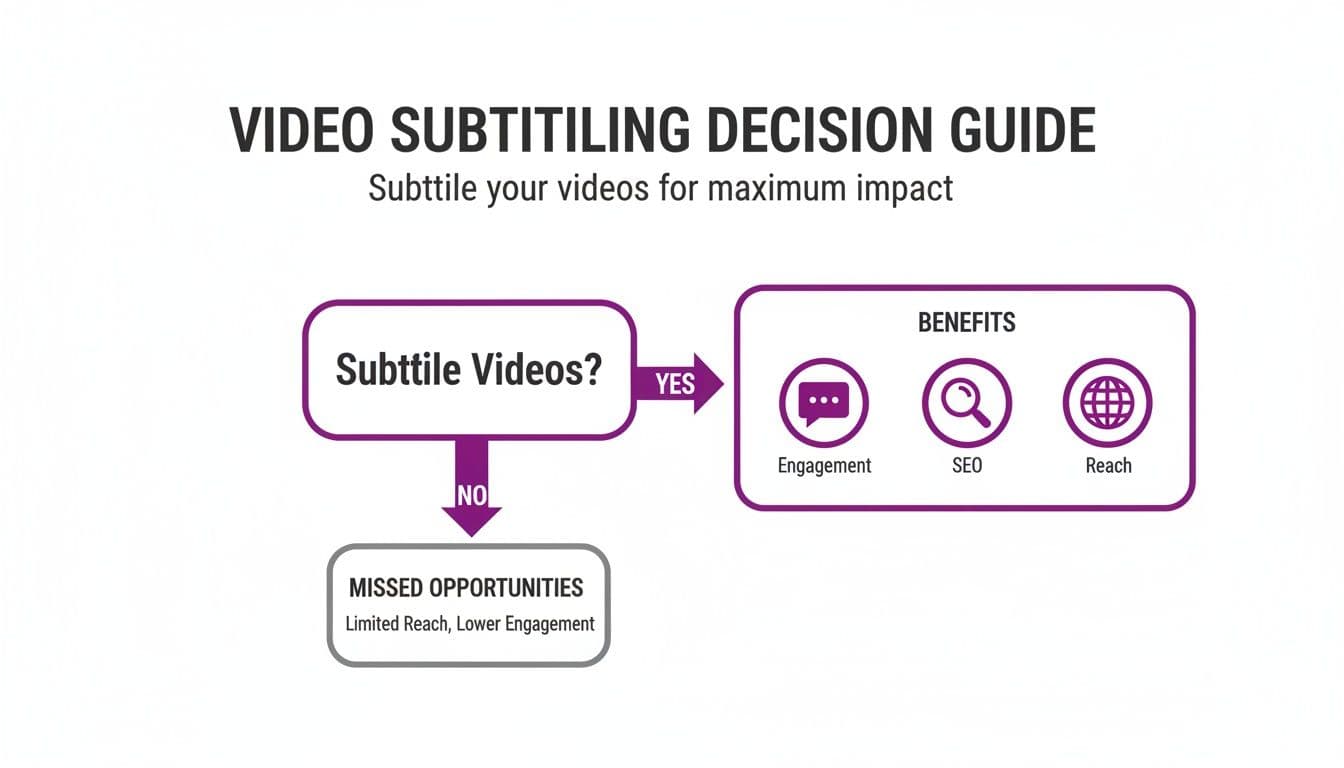
As the graphic makes clear, subtitles are a direct line to better engagement, improved SEO, and a wider global audience. AI tools make achieving these benefits incredibly easy. The demand is huge, which is why the AI-powered subtitle generator market is projected to grow from USD 441.52 million in 2025 to USD 466.13 million in 2026 alone.
With modern tools boasting accuracy rates often clearing 95%, the process is usually just a quick proofread away from being perfect.
But AI isn't flawless. You'll almost always need to jump in for a final check to fix proper nouns, technical jargon, or slightly awkward timings. If you're curious about which tools are leading the pack, we've got a great rundown in our guide to the best software for transcribing video.
Subtitle Creation Methods At a Glance
So, how do you decide which path is right for you? This table breaks down the core differences to help you choose.
| Feature | Manual Subtitling | Automatic (AI) Subtitling |
|---|---|---|
| Accuracy | 100% with careful work | Typically 90-98%, requires human review |
| Speed | Slow; can take hours for longer videos | Extremely fast; generates subtitles in minutes |
| Cost | Free if you do it yourself, costly if you hire a pro | Affordable, often a low monthly subscription or pay-per-minute |
| Control | Complete control over timing, style, and line breaks | Limited control until the editing phase |
| Best For | Creative films, lyric videos, high-stakes content | Social media, corporate training, lectures, quick turnarounds |
Ultimately, the best workflow for many creators is a hybrid one.
Use an AI tool to do the heavy lifting—generating the initial transcript and timings. Then, bring that file into an editor for a manual polish. This approach gives you the best of both worlds: the raw speed of automation combined with the final, nuanced touch of a human expert.
How to Create an SRT File From Scratch
Ready to roll up your sleeves and get complete control over your subtitles? Building an SRT file by hand might sound intimidating, but it's actually a straightforward process. This method gives you total command over timing and line breaks, which is absolutely essential for projects like lyric videos where every millisecond counts.
You don't need fancy software—just a plain text editor. I'm talking about tools like Notepad on Windows or TextEdit on a Mac. The critical thing to remember is to stay away from rich text editors like Microsoft Word or Google Docs, as they sneak in hidden formatting code that will corrupt your file.
Understanding the SRT Structure
Every subtitle entry in an SRT file follows a very specific, non-negotiable format. Nail this structure, and you're good to go. Each block of text is built from three main parts:
- Sequence Number: This is just a counter to keep your subtitles in order, always starting with 1.
- Timestamp: The precise time the subtitle should pop onto the screen and when it should vanish.
- Subtitle Text: The actual words you want people to read. You can use one or two lines.
After each complete entry, you need to add a single blank line. This space is crucial—it signals to the video player that one caption has ended and the next one is about to begin.
Pro Tip: If you're using TextEdit on a Mac, your first step should be to go to
Format > Make Plain Text. This one tiny action will save you from a world of formatting headaches down the road.
The timestamp is where the magic really happens. It follows a strict hours:minutes:seconds,milliseconds format. So, if you wanted a subtitle to show up at exactly 10 and a half seconds and disappear at the 13-second mark, the timestamp would look like this: 00:00:10,500 --> 00:00:13,000.
A Practical Example
Let’s bring this to life with a real example. Imagine we're creating subtitles for the classic lyrics, "Twinkle, twinkle, little star / How I wonder what you are."
Here’s what that would look like in your plain text file:
1 00:00:05,250 --> 00:00:07,800 Twinkle, twinkle, little star
2 00:00:08,100 --> 00:00:10,500 How I wonder what you are
See how there's a blank line separating the first and second subtitle blocks? That's the key. Once you’ve transcribed and timed everything, just save the file with a .srt extension, like my-video-subtitles.srt.
While creating SRTs manually is a great skill to have, it can get tedious for longer videos. If you find yourself needing a more visual and efficient workflow, you might want to explore some dedicated tools. Check out our guide on the 7 best subtitle editor software picks for flawless syncing in 2025 to find software with timelines and real-time previews that can seriously speed things up.
Crafting Engaging Lyric Videos with MyKaraoke Video
Let's be honest, creating an SRT file from scratch can be a real grind. While it gives you total control, it's a slow, painstaking process. For musicians and creators who need a professional-looking lyric video now, that’s a huge bottleneck.
This is exactly why specialized tools exist. Instead of wrestling with a text editor, a media player, and a stopwatch, a platform like MyKaraoke Video brings the whole workflow under one roof. It’s designed specifically for this task, saving you from hours of tedious timestamp adjustments.
This shift toward dedicated tools makes sense when you look at the bigger picture. The market for captioning and subtitling solutions hit USD 351.16 million in 2024 and is still climbing, according to Univdatos.com. Why? Because accessible video with good subtitles can increase viewer retention by a massive 40%. People stick around when they can follow along easily.
Getting Started with Your Lyric Video
The best part about using a dedicated tool like MyKaraoke Video is how simple it is to get going. You don't even need a finished music video; the process starts with just the song itself.
To kick things off, you only need two things:
- Your audio track (usually an MP3 or WAV)
- Your lyrics (just a plain text file)
You simply upload your audio and paste your lyrics right into the editor. This one step completely replaces the frustrating setup of juggling multiple windows in traditional video editing software. It gets you straight to the fun, creative part of the process.
Here’s a look at the starting workspace. You can immediately see the audio waveform and the lyrics editor sitting side-by-side. Having your audio and text integrated like this is the key to a smooth workflow. Everything you need is right there before you even start syncing.
Syncing Lyrics with Precision
Once your song and lyrics are loaded, the real work begins—and it’s surprisingly quick. MyKaraoke Video’s AI takes the first pass, automatically syncing the lyrics to the audio. I've found it gets you most of the way there, handling the heavy lifting right out of the gate.
But for a truly professional lyric video, "close enough" isn't good enough. The timing has to be perfect. That's where the sync editor is indispensable.
My Takeaway: The sync editor is a game-changer. It's a visual timeline that shows your audio waveform next to your lyric blocks. Forget manually typing timestamps—you just listen and click to set the start and end point for each line.
This visual approach to adding subtitles to a video is so much more intuitive than coding an SRT file by hand. You can literally drag the timing blocks with your mouse to nudge them into place, making sure every word hits right on the beat. This combination of an AI starting point and manual fine-tuning gives you both speed and absolute precision.
Customizing and Exporting Your Final Video
With your lyrics perfectly timed, you're on the home stretch. Now it's time to style the video to match your brand or the vibe of the song. You can play around with everything from fonts and colors to animated backgrounds and cool text effects. The platform gives you a live preview, so you can see exactly how your changes look in real time.
When you're happy with how it looks and feels, you can export a high-quality, 1080p MP4 file that's ready to upload to YouTube, Instagram, or anywhere else. It really demystifies the whole process, turning what used to be a technical headache into a genuinely creative and enjoyable task.
Styling and Exporting Your Subtitles for Maximum Impact
Getting your subtitles timed perfectly is a huge step, but the job isn't quite done. How your subtitles look—their style, size, and placement—and how you package them with your video can make or break the entire viewing experience. These final touches are what really give your video that polished, professional feel.
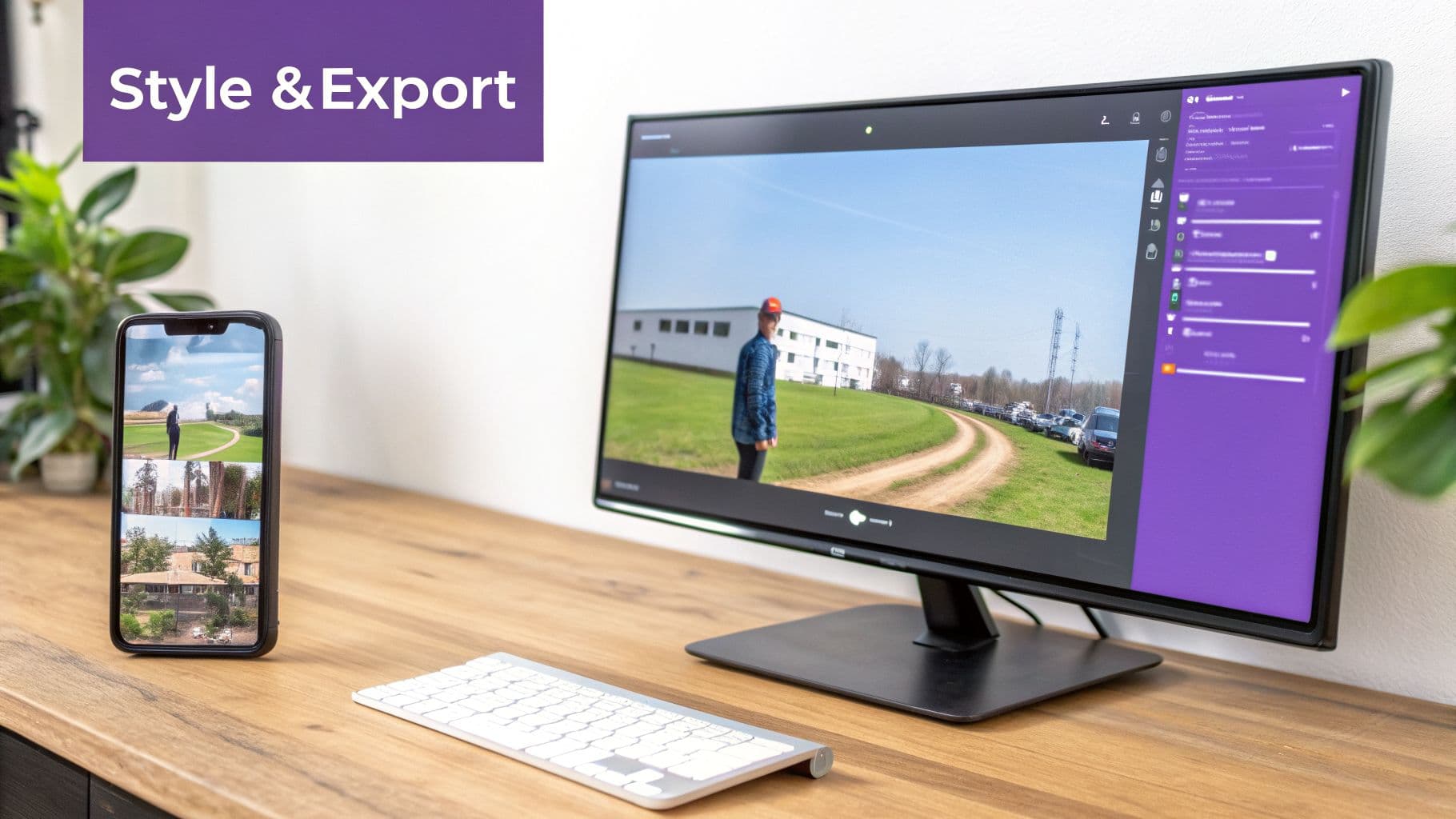
One of the most critical decisions you'll face is whether to "burn" the subtitles into your video or keep them as a separate file. This choice fundamentally changes how people will interact with your content.
Burned-In vs. Soft Subtitles Explained
Burned-in subtitles (often called open captions) are literally stamped onto your video frames. They become part of the image itself and can't be turned off. This is the standard for social media platforms like Instagram or TikTok, where videos often start playing silently. If you want to hook a viewer who’s scrolling with their sound off, burned-in text is non-negotiable.
On the flip side, we have soft subtitles (or closed captions). These are contained in a separate sidecar file, like the SRTs we talked about earlier. Platforms like YouTube and Vimeo use this method, giving viewers the power to toggle captions on or off. This approach is far more flexible, supports multiple languages, and is a big win for accessibility.
My Two Cents: For social media feeds, always go with burned-in captions to grab attention from the first frame. For long-form content on platforms like YouTube, soft subtitles are the way to go because they give the viewer control.
Design Tips for Readable Subtitles
After you've picked a side in the burned-in vs. soft debate, it's time to style your text. Subtitles that are hard to read are almost worse than having none at all.
Here are a few simple rules I always follow to make sure my captions are crystal clear:
- Font Choice: Keep it simple. Stick with clean, sans-serif fonts like Arial, Helvetica, or Roboto. They're incredibly easy to read on screens of any size, unlike fussy serif or decorative fonts.
- Size Matters: Always test your subtitles on a mobile phone. What looks great on your 27-inch monitor might be completely unreadable on a smaller screen. Find a size that’s present but not overpowering.
- High Contrast is King: This is the most common pitfall I see. Text that blends into the background is a disaster. The classic, can't-go-wrong combination is white text with a subtle black outline or a semi-transparent black background box. This combo works against virtually any video background.
At the end of the day, the goal is effortless reading. You want people focused on your message, not squinting to decipher your text. Once you’ve dialed in the style, export your video as a high-quality MP4. It's the most widely supported format and ensures your hard work will look fantastic wherever you upload it.
Answering Your Most Common Subtitle Questions
Once you get the hang of adding subtitles, you start running into those little "what if" scenarios. I've been there. Let's tackle some of the most common questions that pop up so you can get back to creating.
What's the Real Difference Between Subtitles and Captions?
People throw these terms around as if they're the same thing, but there's a subtle and important distinction. Think of it this way:
Subtitles assume the viewer can hear but doesn't understand the language. Their only job is to translate the spoken words.
Captions, however, are built for viewers who can't hear the audio at all. They cover everything—dialogue, of course, but also crucial sound cues that add context, like [phone ringing] or [tense music swells].
For a lyric video project, what you're making is technically a subtitle track. But the process and principles of timing and clarity are identical to creating captions.
My Two Cents: Use subtitles for pure language translation. Opt for captions when you need full accessibility, including all the audio details. The creation process is virtually the same for both.
SRT vs. VTT: Which Subtitle Format Should I Use?
This one trips up a lot of people, but the choice is usually pretty straightforward. For the vast majority of creators, SRT (SubRip) is your best friend. It’s the most widely accepted format out there, working perfectly with YouTube, Vimeo, and nearly every social media platform. It's a simple, no-frills text file that just works.
The newer kid on the block is VTT (WebVTT). Its big selling point is the ability to handle more advanced styling—things like text color and positioning—right inside the file itself.
Here's the quick breakdown:
- SRT: Go with this for maximum compatibility and ease of use. It’s the safe bet.
- VTT: Consider this only if you need custom styling and know your hosting platform supports it.
Honestly, 99% of the time, sticking with SRT will save you headaches and deliver exactly what you need.
Help! My Subtitles Are Out of Sync. How Do I Fix Them?
Nothing kills the vibe of a video faster than subtitles that are off-beat. How you fix this depends on how they were made in the first place.
If you coded an SRT file by hand, you'll have to dive back into that text file and start adjusting the timestamps. It's tedious work, as even a fraction of a second can make a difference.
A much better approach, especially if you used an AI tool, is to use a visual sync editor. Many tools, including MyKaraoke Video, provide a timeline where you can just drag the subtitle blocks to line them up perfectly with the audio. It’s so much more intuitive than messing with raw numbers.
A pro tip: this problem often starts with your source video. If your video was recorded with a variable frame rate (VFR), the timing can drift over the course of the clip. Before you even start on subtitles, run your video through a converter to lock it into a constant frame rate (CFR). This one small step can prevent a world of pain later.
Ready to skip the headaches and create perfectly synced lyric videos in minutes? MyKaraoke Video uses a powerful AI and an intuitive sync editor to make the process fast, fun, and professional. Get started for free today!
