A free online karaoke maker is pretty much what it sounds like: a tool that runs right in your browser, letting you create custom karaoke videos by syncing lyrics to a song. The best part? You don't have to download a single piece of software. These platforms have completely changed the game, making it incredibly easy for anyone to create professional-looking content from their laptop.
Why Online Karaoke Makers Are Taking Over
Remember the days of heavy, clunky karaoke machines? You'd have to lug one to a party, and if you didn't own one, you were out of luck. It got to the point where local libraries started loaning them out like books, right alongside sewing machines and ukuleles. Thankfully, those days are behind us. The whole process has moved online, putting powerful video creation tools just a click away.
This shift isn't just about ditching the hardware; it's about giving you total creative freedom. A modern online tool hands you the reins to produce a polished video for just about anything. Whether you're building a YouTube channel, crafting a personalized birthday message, or just want to have a fun night with friends, you’ve got everything you need.
The New Wave of At-Home Creation
The hunger for simple, accessible creative tools has exploded. People are looking for straightforward ways to make cool stuff without getting bogged down by complicated software or expensive subscriptions. This is exactly where a free online karaoke maker fits in.
It hits all the right notes for modern creators and hobbyists:
- No Experience Needed: You don’t have to be a video editing pro. Most of these tools are designed with beginners in mind, featuring intuitive interfaces and automated functions.
- Quick Turnaround: You can literally go from a song file to a finished video in minutes. The AI does the heavy lifting, especially with the tedious task of syncing lyrics to the music.
- Endless Customization: Forget those generic blue screens from the '90s. Online makers let you tweak everything—fonts, colors, backgrounds—to perfectly capture the vibe of the song.
This boom in user-friendly tech is backed by some serious numbers. The global karaoke app market was valued at a whopping USD 6,186.13 million in 2023 and is on track to hit USD 14,814.88 million by 2032. That massive growth tells you everything you need to know about the public's appetite for digital karaoke. If you're curious, you can dive into the full karaoke app market analysis to see just how fast this space is moving.
Before jumping into a tool, it helps to know what features actually matter. Here’s a quick breakdown of the essentials to look for in any free online karaoke maker.
Essential Features in a Free Online Karaoke Maker
| Feature | What It Really Does | Why This Matters for Your Project |
|---|---|---|
| Automatic Lyric Syncing | Uses AI to analyze the audio and time the lyrics to the vocals. | This is the biggest time-saver. Manually timing every single word is a huge pain, so a good auto-sync feature is non-negotiable. |
| Visual Customization | Gives you control over fonts, colors, backgrounds, and text animations. | Your video needs to match the song's mood. This lets you go from a somber ballad to a high-energy pop track with just a few clicks. |
| High-Resolution Export | Allows you to download the final video in at least 1080p quality. | A blurry, pixelated video looks unprofessional. 1080p is the standard for crisp, clear playback on YouTube, TVs, and social media. |
| No Watermark (or Removable) | The free version either doesn't add a logo to your video or gives you a way to remove it. | A big, distracting watermark can cheapen your final product. A clean export makes your content look much more polished and professional. |
| Manual Timing Editor | Lets you fine-tune the AI's timing word-by-word or line-by-line. | AI is great, but it's not perfect. Having the ability to make small adjustments ensures your lyrics are perfectly on beat. |
Having these features on hand, even in a free plan, is what separates a genuinely useful tool from a frustrating one. They give you the flexibility and quality you need to create something you're actually proud to share.
The real magic of an online karaoke maker is how it opens up video creation to everyone. It takes a process that once demanded expensive software and a ton of technical skill and puts it in the hands of anyone with an internet connection.
This accessibility has kicked off a whole new wave of user-generated content, empowering musicians, teachers, and party planners to produce fantastic videos without breaking a sweat. It’s a perfect example of how technology can unlock the creativity in all of us.
Getting Your Audio and Lyrics Ready
Every great karaoke video begins with the right ingredients. Before you even touch a free online karaoke maker, taking a moment to prep your audio and lyrics is the most critical part of the whole process. Trust me, getting this foundation right from the start saves you a ton of editing headaches down the road and helps the AI sync everything perfectly.
Prepping Your Audio Track
First up is your audio. You really have two options here: find an instrumental version of the song or make your own by removing the vocals from the original track.
A high-quality instrumental is always the cleanest choice, giving you that professional studio sound. The only catch is that finding the right one can sometimes feel like a treasure hunt.
The other route—using a vocal remover—gives you a lot more freedom since you can work with almost any song you can find. Today's tools are surprisingly good at this. If you need a hand picking one, our guide on choosing a free vocal remover online walks you through the best options out there.
This infographic shows just how far we've come from the clunky karaoke machines of the past to today's slick, browser-based tools.
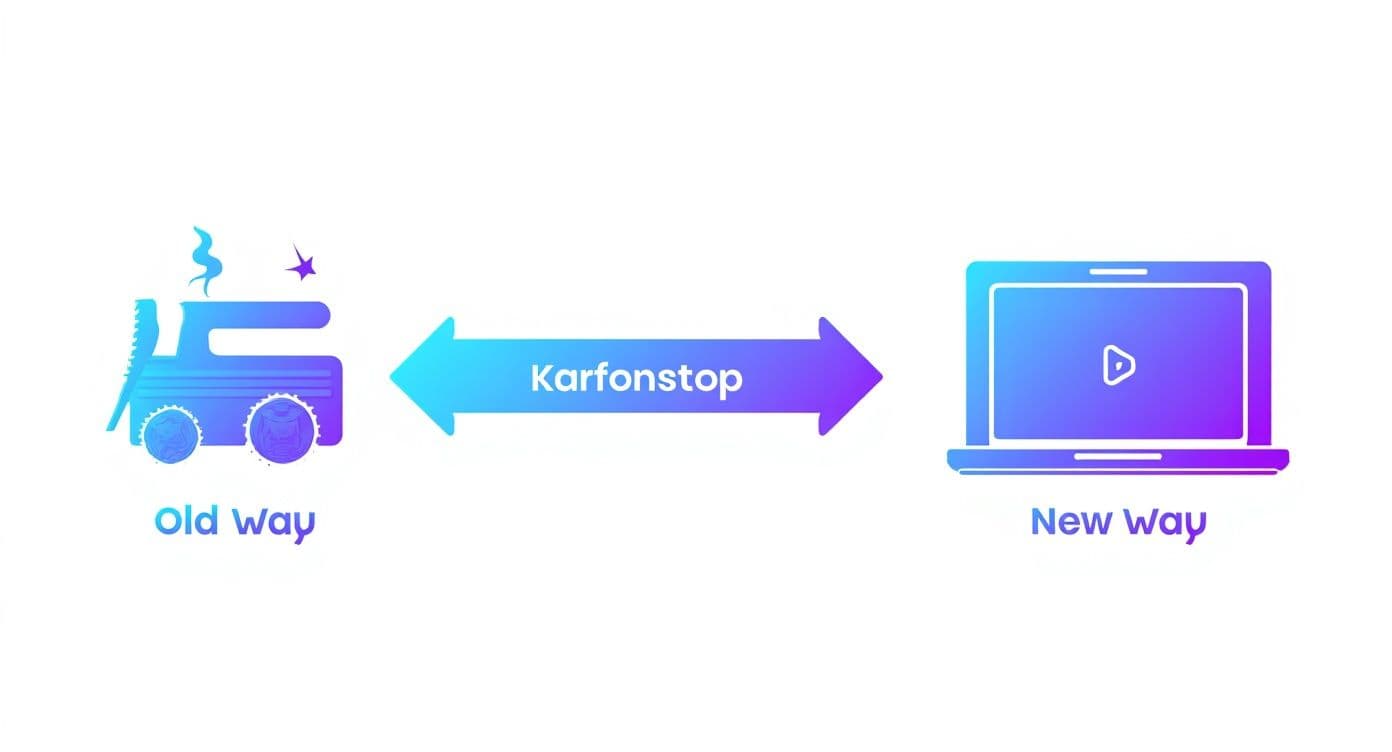
The big takeaway here is how simple the whole process has become. You no longer need special equipment, just a web browser.
Getting the Lyric File Just Right
With your audio sorted, it's time to tackle the lyrics. This might seem like a simple copy-and-paste job, but tiny errors here are what cause the most sync problems later. The goal is to create a clean, plain text (.txt) file that the software can easily understand.
Find a trustworthy source for the lyrics and paste them into a basic text editor (like Notepad on Windows or TextEdit on Mac). Read through them with a fine-tooth comb. Every typo, misplaced comma, or missing word will show up in your final video.
Pro Tip: The secret to perfect AI synchronization is all in the formatting. Every time you hit 'Enter' to start a new line, you're telling the software "this is a separate timing cue."
Think about how you want the words to flow on screen. It’s often better to group short, related phrases on one line or break up a really long sentence right where a singer would naturally take a breath. This simple tweak makes the karaoke experience so much better for the person singing along.
Formatting Lyrics for Flawless Sync
Proper formatting is what connects your text file to a perfectly timed video. The AI treats each line in your .txt file as a separate event, so how you structure it is everything.
Here are a few essential tips I've learned from experience:
- One Phrase, One Line: Don't cram multiple vocal phrases onto a single line. A natural pause from the singer is a great signal to start a new line in your file.
- Strip It Clean: Your text file should be only lyrics. Get rid of any timestamps like
[00:15.32]or labels like[Chorus]and[Verse]. These will just confuse the system. - Watch for Stray Spaces: Do a quick find-and-replace for any double spaces, and make sure there are no extra spaces at the beginning or end of your lines.
For a head start on accuracy, you might want to try using AI-powered audio transcription tools to get a base transcript from your audio file. This can drastically cut down on manual typing and help you avoid typos. A few extra minutes of prep work here will make the rest of the creation process a breeze.
Letting the AI Do the Heavy Lifting
https://www.youtube.com/embed/bqy64namuow
Alright, you've got your audio and lyrics ready to go. Now for the fun part. This is where a modern free online karaoke maker completely changes the game, turning what used to be a mountain of tedious work into a few simple clicks. It's time to hand your files over to the AI.
Most online tools keep the interface straightforward. You'll see obvious buttons to upload your instrumental track (usually an MP3 or WAV file) and your lyrics file (a plain .txt works best). Once they're uploaded, you just hit a "sync" button and let the magic happen.
What's going on behind the scenes is pretty sophisticated. The AI isn't just matching text to audio; it’s actually analyzing the music. It listens for the rhythm, follows the melody, and identifies vocal cues in the original track to figure out where each word belongs. It then maps your lyric file onto that audio timeline with impressive precision.
What to Expect from the First Sync
After a minute or two, you'll get back a fully synchronized draft. Honestly, it's often shockingly good on the first try, especially for songs with a clear beat and clean vocals. The AI does an incredible job of laying down a solid foundation, which is easily the most time-consuming part of this whole process.
But it’s important to see this first pass for what it is: a very good rough draft. The AI is a powerful tool, but it can’t read the artist's mind. You might notice a few quirks, especially with more complex music.
- Fast-Paced Vocals: For genres like rap or high-energy pop, the AI might sometimes bunch words together a little too tightly.
- Long Instrumental Breaks: If there's a lengthy guitar solo or a synth breakdown, the AI can sometimes get a bit lost without any vocal cues to guide it.
- Tricky Rhythms: Songs with syncopated beats or unconventional phrasing can occasionally trip up the automatic timing.
Think of the AI as your assistant. It’s done 90% of the boring work for you, leaving you with a project that's ready for your final, creative touch. If you're curious about the tech making this possible, you can dive deeper into how an AI lyric video generator works.
This incredible efficiency is a huge reason why creating karaoke content at home has exploded in popularity. In fact, the global karaoke market is on track to hit USD 9,167.2 million by 2025, and a lot of that growth is thanks to how accessible these digital tools have become. You can read more about this in recent karaoke market analysis.
The true power of AI synchronization is that it takes a highly technical, frustrating task and makes it almost effortless. It opens the door for anyone to create a professional-looking lyric video without needing complex software or video editing skills.
Taking Back the Creative Reins
Once the AI has worked its magic, you're back in the driver's seat. The tool will typically show you a timeline editor with the audio waveform at the bottom and the synchronized lyric blocks laid out on top. This is where you get to add that human polish.
Instead of starting from scratch and painstakingly timing every single word, you're now just making small, intuitive adjustments. Need a word to appear a split-second sooner? Just drag it. Want to hold a line on screen a bit longer to match a sustained note? Just stretch the block. This blend of powerful AI automation and simple manual control is what makes these online karaoke makers so effective.
Adding Your Personal Touch to the Video
The AI does the heavy lifting, turning a mind-numbing task into a quick win. But that last 10% is where the real magic happens. This is your chance to inject your own style and polish, transforming a decent lyric video into a truly engaging one.
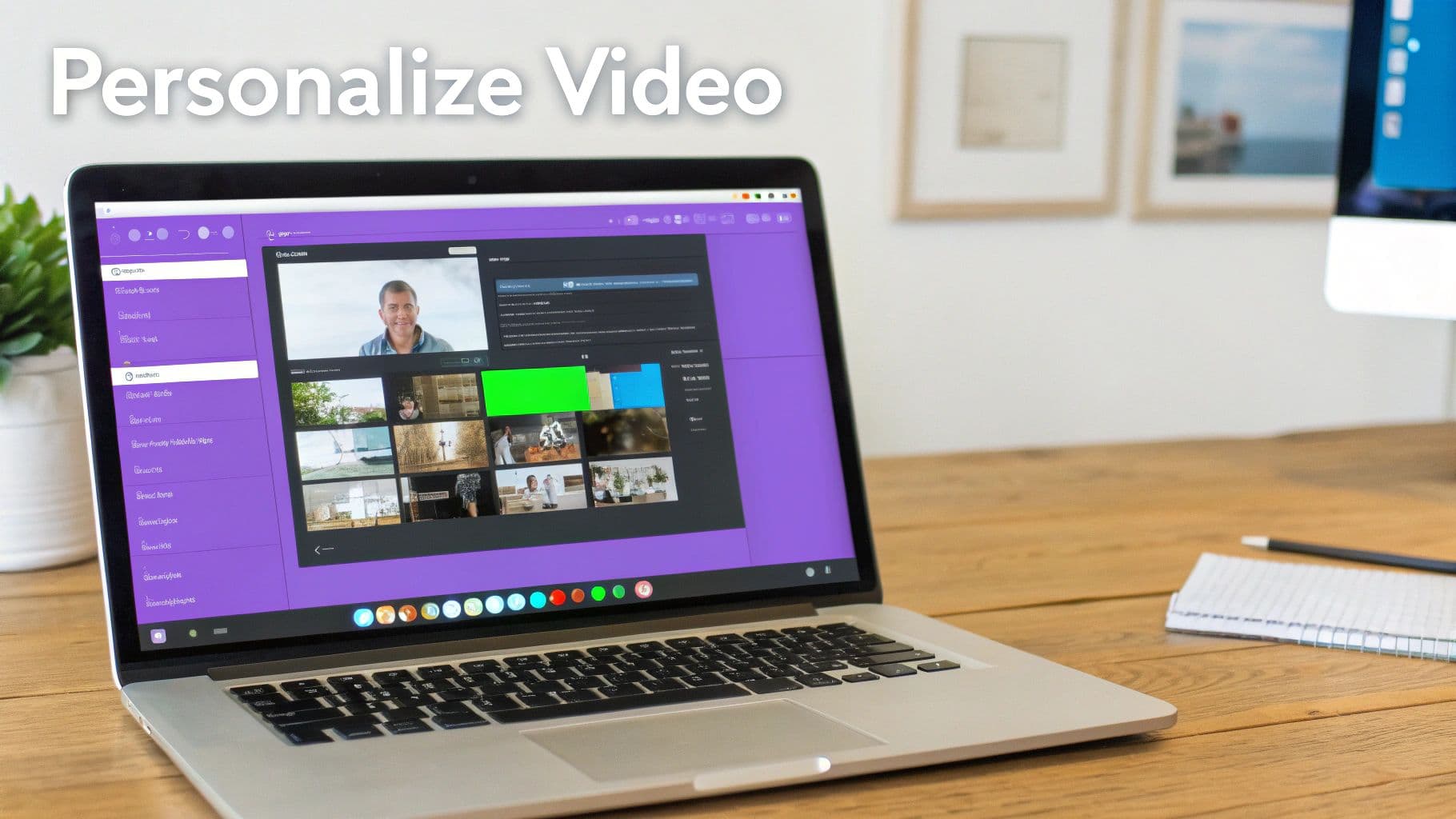
Your first stop should be the timeline editor. The auto-sync is impressively accurate, but it can't always capture the human soul of a song—the unique phrasing, the emotional pauses, or a rapper's rapid-fire delivery.
This is where you take the reins. Simply drag the edge of a lyric block to hold a note a little longer, or nudge an entire line forward a fraction of a second to match a singer who likes to get ahead of the beat. These tiny manual tweaks ensure every word lands with maximum impact.
Crafting the Visual Vibe
With the timing locked in, it's time to play art director. The look and feel are just as crucial as the audio; they set the mood and help guide the singer. Any solid free online karaoke maker will hand you a decent set of tools to start experimenting.
Let's talk text. The font you pick telegraphs the song's entire personality. A bold, chunky sans-serif font screams "rock anthem," while a more elegant script might be perfect for a quiet ballad. Color is your next best friend. High-contrast combos like bright yellow on a dark background are a classic for a reason—they're incredibly easy to read and work great for upbeat tracks. For something more mellow, you might try a soft white text over a muted, calming video loop.
If you're stuck, we have a whole guide dedicated to readability and style when choosing the best font for subtitles.
Choosing the Right Background
Think of the background as your stage. It provides the visual context for the whole performance. Most tools will let you pick from a library of stock videos and images, but the real power comes when you upload your own.
- For an energetic pop song: An abstract motion graphic with pulsing lights or a fast-paced city scene can really amp up the energy.
- For a classic love song: You can't go wrong with a slow-motion sunset video or a beautiful, static image of a peaceful landscape.
- For a party track: Get people in the mood with a fun, looping video of a concert crowd or a dance floor.
The goal is to find a background that complements the music without becoming a distraction. The lyrics always need to be the star of the show.
Many tools offer a mix of free and premium options for visuals. Here’s a quick breakdown of what you can usually expect.
Free vs Paid Customization Features
| Customization Feature | What You Typically Get for Free | What Paid Plans Usually Unlock |
|---|---|---|
| Fonts | A limited selection of 10-15 standard web fonts (e.g., Arial, Lato, Oswald). | Access to a full font library, including premium options and the ability to upload your own custom fonts. |
| Backgrounds | A small library of basic stock videos and images, often watermarked. Ability to upload your own media. | A massive, watermark-free library of high-quality stock footage. Advanced options like video effects or overlays. |
| Colors & Styles | Basic color pickers for text, highlight, and background. Maybe a few preset text styles. | Granular control with custom color palettes, gradients, text shadows, outlines, and branded style templates. |
| Branding | The platform's watermark is usually mandatory on the final video. | The ability to remove the platform's watermark and add your own logo or brand graphics. |
Ultimately, the free plan is fantastic for getting started, but if you're aiming for a specific brand aesthetic or need that extra professional polish, a paid plan can be a worthwhile investment.
A well-designed karaoke video feels intuitive. The combination of font, color, and animation should work together to guide the singer, telling them not just what to sing, but how to sing it—with energy, with emotion, or with attitude.
This final, personal touch is what elevates your project from a simple lyric track to a polished, professional-grade performance. Interestingly, many of these design principles apply to other video projects, too. If you're curious about taking it a step further, you can even learn how to create AI music videos using similar creative workflows.
Exporting and Sharing Your Final Creation
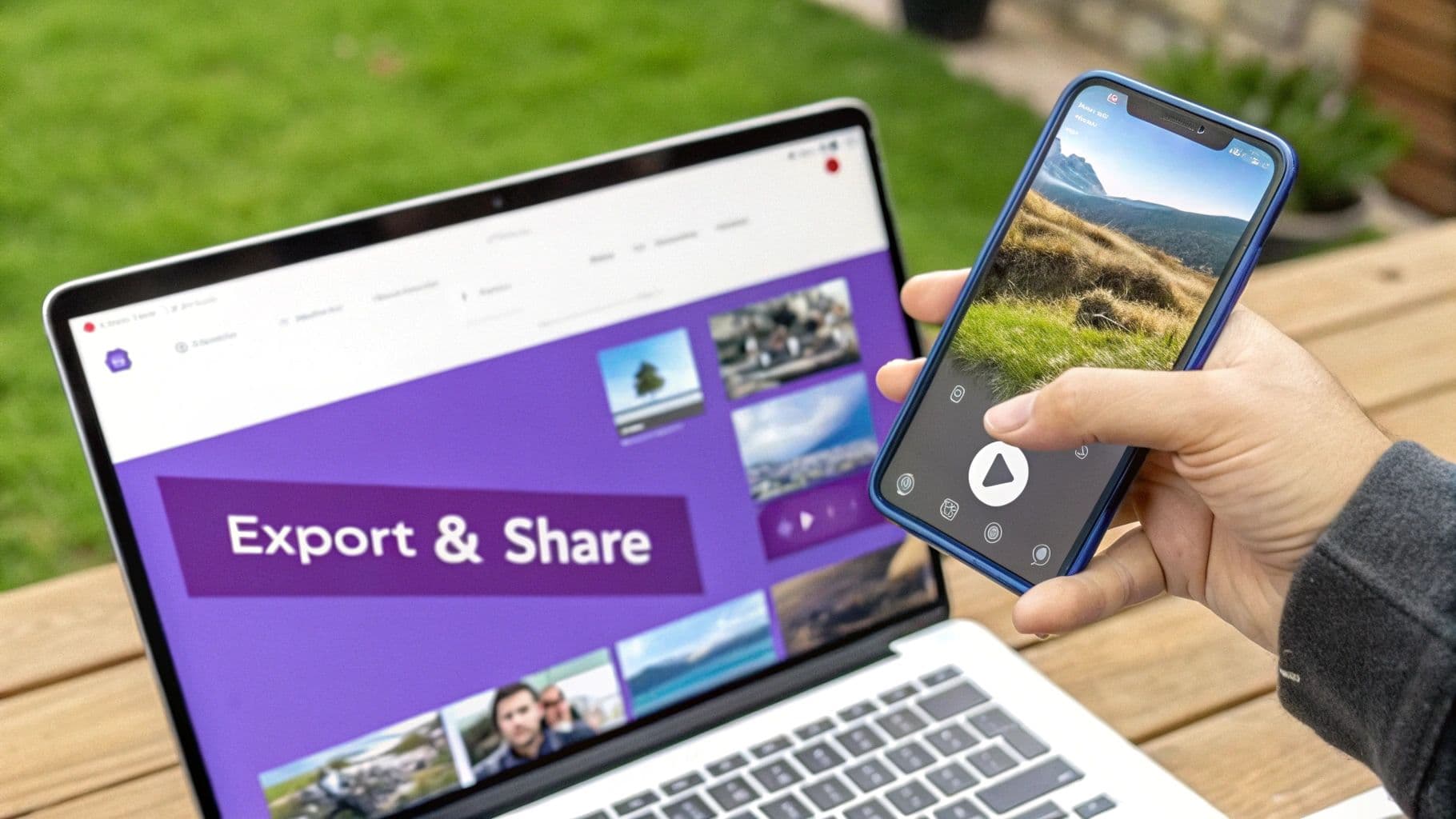
You’ve poured your effort into getting the timing just right and dialing in the visuals. Now for the fun part: getting your masterpiece out of the free online karaoke maker and ready for its debut on YouTube or at your next karaoke night.
The final export screen might look a bit technical, but don't worry, it's pretty straightforward. The main decision you'll make is the resolution.
- 1080p (Full HD): This is what you should aim for. It gives you that crisp, professional look that holds up well on everything from a big-screen TV to a smartphone. If you have the option, always go with 1080p.
- 720p (HD): A solid plan B. It's still high-definition and looks perfectly fine for social media feeds. Many free plans will max out here, and honestly, it's more than good enough for most uses.
As for the file format, you’ll likely see a few choices, but MP4 is the undisputed champion. It’s the universal language of online video, offering a great mix of quality and manageable file size. It's exactly what platforms like YouTube and Instagram expect.
Working Around Free Plan Limitations
Let's talk about the elephant in the room: the watermark. Most free tools will place their logo somewhere on your video. It’s the price of admission, but a big, obvious watermark can sometimes steal the show.
The good news? You don't have to just accept it. With a little creative thinking, you can make it almost disappear.
For instance, if you know the watermark always appears in the bottom-right corner, pick a background video that's dark or has a lot of visual "noise" in that exact spot. The logo will naturally blend into the background, making it way less distracting for your audience. A busy, moving background can be a surprisingly effective camouflage.
I've learned to see watermarks not as a roadblock, but as a creative challenge. If you work with it—designing your background to intentionally draw the eye elsewhere—you can make your video feel much more polished than a typical "free" creation.
The Final Pre-Flight Checklist
Before you upload your video anywhere, do yourself a favor and run through this quick quality control check. It takes two minutes and can save you the headache of finding a glaring error after you've already shared it.
- Give it one last watch. Don't just skip around. Play the entire video from start to finish with the sound on. This is your last chance to catch any weird timing glitches.
- Do a mobile screen test. Open the final MP4 file on your phone. Can you still easily read the lyrics on a smaller screen?
- Listen with headphones. Pop on a pair of headphones and listen closely. You want to make sure no audio artifacts or glitches crept in during the export process.
- Name your file properly. Future you will be grateful. A clear, descriptive name like
SongTitle-Artist-Karaoke.mp4is a lifesaver compared to a genericFinal_Video_01.mp4.
Once you've gone through these steps, your video is officially ready to go live. Great work
Got Questions About Karaoke Makers? We've Got Answers
Jumping into a free online karaoke maker is a blast, but it's normal to hit a few snags or have questions pop up. I've been there. To save you some time, I’ve pulled together the most common questions I see from creators and laid out some straightforward answers.
Is It Legal to Use Any Song I Want for a Karaoke Video?
This is the big one, and the answer is a classic: it depends. The key factor is where your video will end up.
If you're just making a karaoke track to sing with friends at a private party, you're pretty much in the clear. But the second you upload that video to a public platform like YouTube, you step into a legal gray area. Using a copyrighted song without the proper permissions can get your video taken down or even earn your channel a copyright strike. Nobody wants that.
So, how do you stay out of trouble? You've got a few solid options:
- Stick to royalty-free instrumentals. There are tons of sites dedicated to these, specifically for creators.
- Buy a license for the exact track you want to use. This is the most direct route if you have your heart set on a specific popular song.
- Look for music under a Creative Commons license that explicitly allows for reuse and modification.
My best advice? Always, always check the licensing for your audio before you start editing. It’s a simple step that can save you a world of headaches later on.
What's the Catch With a Free Plan?
Look, free plans are genuinely fantastic and give you more than enough firepower for most personal projects. But, of course, there are a few trade-offs, which are usually designed to tempt you into upgrading.
The most common limitation you’ll run into is a watermark—that little logo from the karaoke maker sitting in the corner of your final video. You'll also likely be capped at a lower export resolution, usually 720p instead of the crisp 1080p HD that paid plans offer. Other potential limits could be the number of videos you can export per month, fewer fancy fonts or visual effects, or a restriction on the maximum song length.
Think of a free plan as an extended, fully-functional test drive. You get all the essential tools to make a great video. The paid plans just add that final layer of professional polish, like removing the watermark and bumping up the resolution.
Help! Why Are My Lyrics Out of Sync?
If the automatic sync feels a little off, the problem usually comes down to one of two things: your source files or a tricky song. The very first thing to do is check your inputs. A clean, high-quality audio file and a perfectly formatted lyric file are your best friends here—garbage in, garbage out, as they say.
What if your files are perfect? The song itself might be the culprit. Tracks with lots of ad-libs, overlapping vocals, or really complex rhythms can sometimes trip up the AI. It's not a deal-breaker, though. This is an easy fix.
Just pop open the manual timeline editor. This is where you get to take the wheel. The editor lets you nudge individual words or drag entire lines into perfect alignment with the vocalist. Honestly, it usually only takes a few minor adjustments to correct any timing hiccups and nail that flawless, professional sync.
Ready to stop troubleshooting and start creating? MyKaraoke Video gives you the AI power and manual control you need to build stunning karaoke videos in minutes. Try it for free and see how easy it is at https://www.mykaraoke.video.